Personal data that is transferred from external systems (e.g. SAP) cannot be changed here. They must be edited in the respective source system.
## Tab *Permissions* Here you can grant (*Add Device Group / Add Device*) or revoke (*Remove Group / Remove Device*) permissions for a person. The lists on the tabs *Add Group / Add Device* provide an overview of all permissions linked to the person. The column *Origin* indicates where the permission comes from. For example, it could have been passed on to the person via a person group or transferred from the Janitor system.If the tabs *Delete Device* or *Delete Group* contain a device or device group, access via this device or device group is not possible. This also applies if a permission for the device or device group has been granted on the tab *Add Device* or *Add Device Group*.
A tick after the title of a tab indicates that there is data within the tab.
### *Workflow Permissions*This feature is optional and not available in every installation.
If assigning a device or device group is associated with a workflow, the permission becomes active only after the decision-maker approves the workflow request. If you select a device or device group that has a workflow, a dialog box appears. This prompts you to enter values for the time model and the validity of the permission. You also have the option of leaving a comment for the decision-maker. You can create multiple workflow requests at once. To send them, press *Save*. Workflow requests are indicated by different colors:This feature is optional and not available in every installation. Depending on the version, it may also be available in the main menu.
This tab allows you to print badges with the person’s information. You can define the layouts for printing badges via the menu item *Badge Printing* > *Settings*. ## Tab *Documents* Here you can link documents to the personnel master record. To upload new documents, drag the file(s) into the area provided. Or press *Upload Documents* and select the desired files on your computer. ## Tab *Person Groups* Here you can see to which person groups the selected person is assigned. You can manually add or exclude person groups. Manual adjustments overwrite the automatic assignment based on the person’s criteria. Manual adjustments are marked accordingly: - **Manually assigned:** The person group is highlighted in green and the note *manually assigned* is added. - **Manually excluded:** The group of persons is highlighted in yellow and the note *manually excluded* is added. You can remove manual adjustments at any time using the trash can icon. ## Tab *Qualifications* Qualifications enable you to unlock permissions for the selected person. Use the menu item *Qualifications* to specify which qualifications can be selected here. ## Tab *Identification* Here you can manage the various media that a person can use to identify themselves on a device. To add a new identification medium, press *Add*. - *Identification*: Enter the value for the medium in this column (e.g. “F DD 193E” for a license plate). - *Type:* Select the type of identification in this column (e.g. license plate). - *Valid from* / *Valid to*: Define a validity period for the medium. - *Prohibition*: In this column, you can block individual identification media. - *Reason for ban:* You can enter a comment here as a reason for the ban. - To remove an identification medium, use the trash icon. Press *Save* to save the entries. --- ##### TIPS Press *Copy* at the top to create a copy of the selected person, including their properties and permissions. # Person Groups **You can use the menu item *Person Groups* to group staff according to departments or other criteria.** [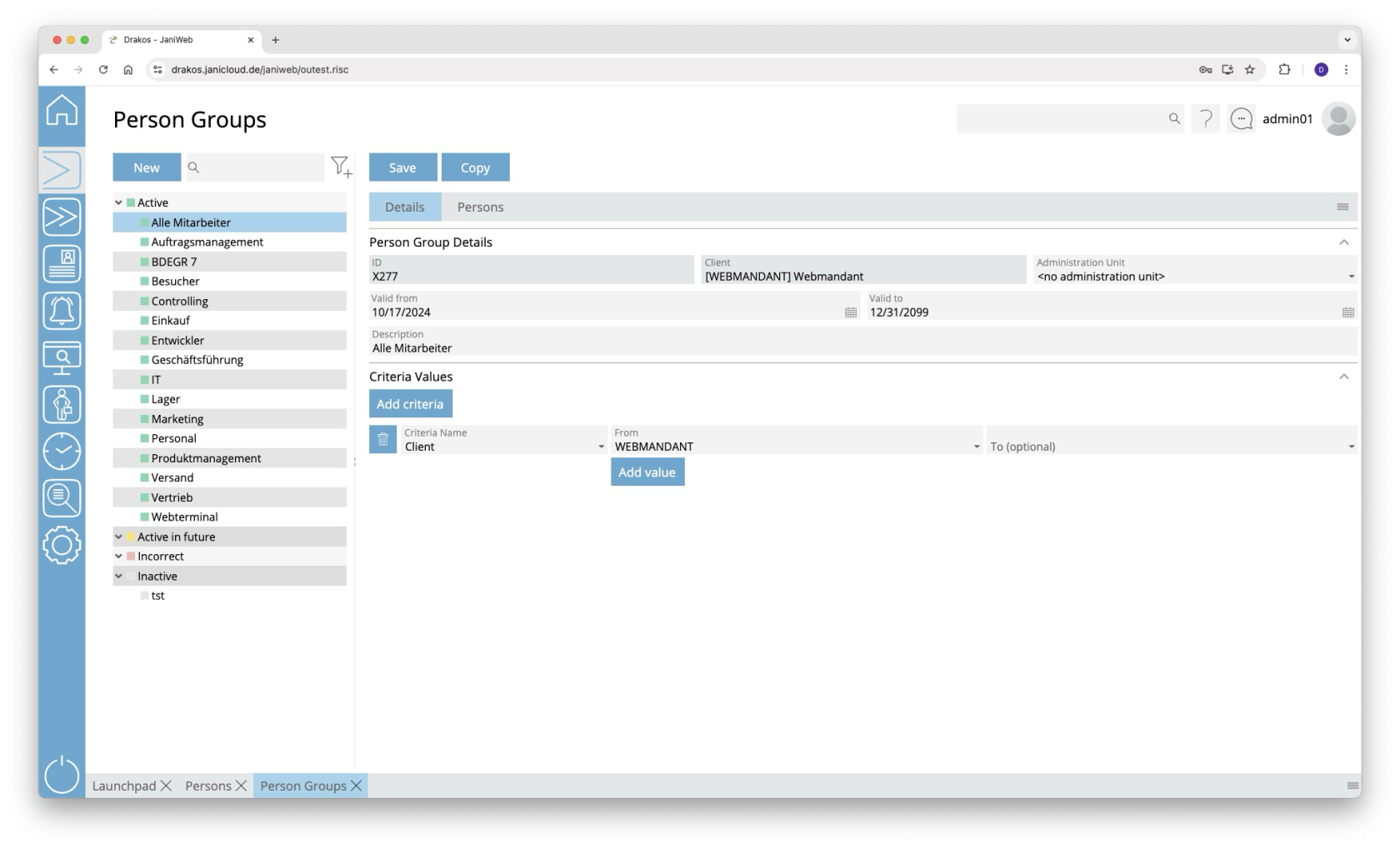](https://manual.drakos.de/uploads/images/gallery/2025-10/xDiimage.png) ## List of person groups The list contains all person groups already created, grouped by their status. Select a person group to view details. The list offers the following options: - **Search:** Enter text or numbers in the search field (magnifying glass icon) at the top to search for groups. The entries take effect immediately: the list only displays hits. The search is not case sensitive. - **Filter:** Press the filter icon. Select the criteria for which you want to display groups. Changes are visible immediately. ## Button *New* Press *New* to create a new person group. Enter a description, a validity period, and a client, and press *Save*. ## Tab *Definition* ### Area *Person Group Details* Define the details of the person group, such as the label and validity period. ### Area *Criteria Values* Specify the criteria according to which the person group is formed. To add a new criterion: 1. Press *Add criteria*. 2. Select the required criterion from the list field. 3. Enter a single value (*From*) or a range of values (*From–To*). 4. To set additional values for the same criterion, press *Add value*. **Logic of criteria and values** - The values within the same criterion are linked logically by OR (one match is sufficient). - Different criteria are linked logically by AND (all criteria must be met). ## Tab *Persons* The list displayed here contains all persons who belong to the selected person group. Persons in this list have either been assigned automatically based on criteria or added manually. - Press *Add* to add a person to the group independently of their criteria. - Use the trash icon to remove a person from the group independently of their criteria. Furthermore, the list offers the following options: - **Select columns to display:** Press the gear icon. Select which columns you want to display and in which order. Arrange the columns using the mouse or the arrow icons. Press *Apply* to adopt the changes. - **Search in columns:** Enter text or numbers in the search field (magnifying glass icon) of a column to search for names, personnel numbers, or other criteria. The entries take effect immediately: the list only displays hits. Tip: Search for substrings. You can find “Spencer-Churchill” with “spe”, “chur” or “hill”. The search is not case sensitive. - **Export the entire list:** Press the download icon. Select the format in which you want to export the list. The export files are downloaded or displayed depending on the browser/operating system settings. For details on the available export formats, see the [General > Export Formats](https://manual.drakos.de/books/janiweb-j92/page/export-formats) chapter of this manual. --- ##### TIPS Press *Copy* at the top to create a copy of the selected persons group, including their properties. # Lock Persons **The menu item *Lock Persons* allows you to block and unblock badges en masse based on certain criteria.** [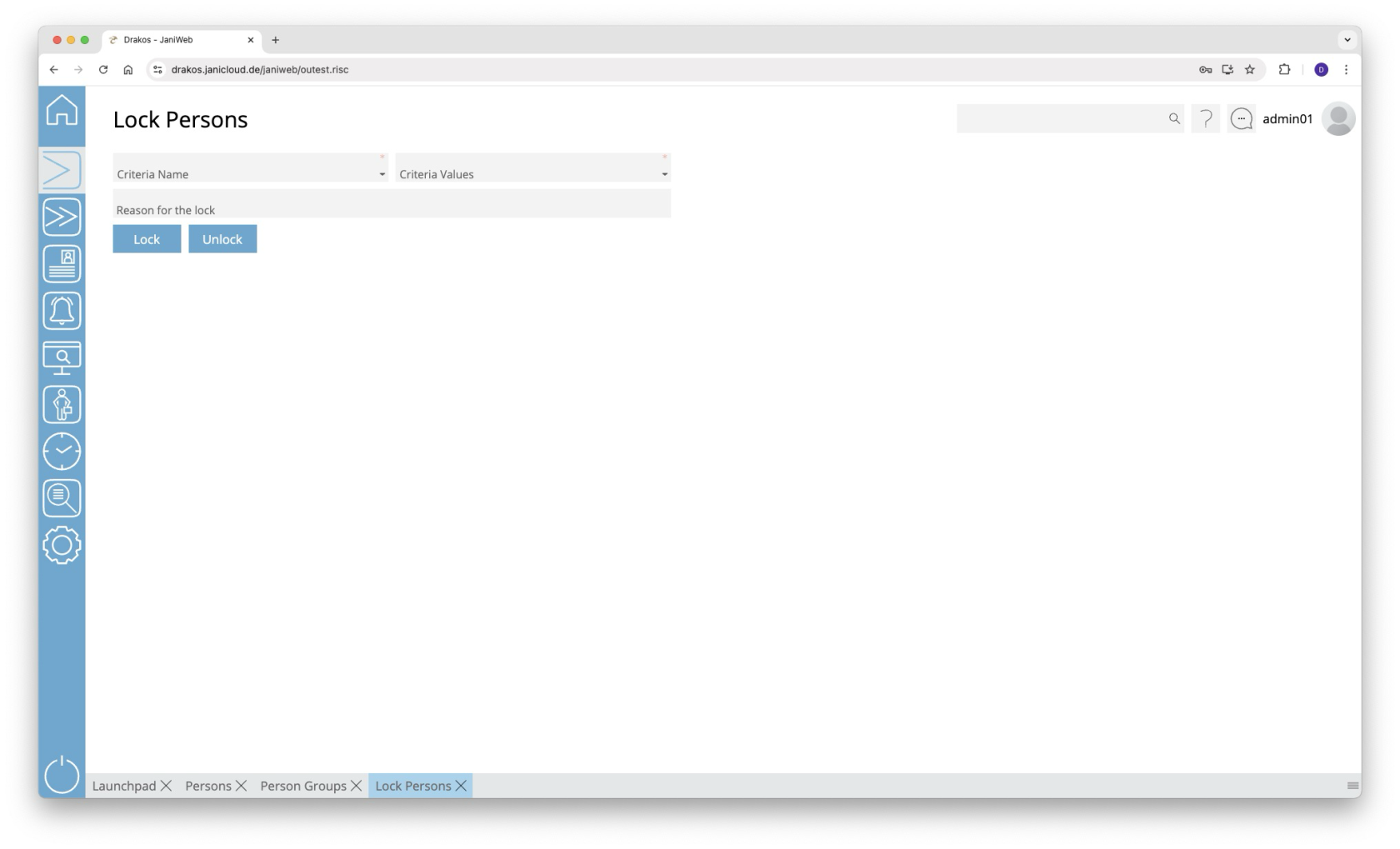](https://manual.drakos.de/uploads/images/gallery/2025-10/wCsimage.png) ## Locking persons 1. Select a criterion from the list field (e.g. badge number or PDC group). 2. Select a value from the *Criteria Values* drop-down list. 3. (Optional) Enter a reason for the ban in the field *Reason for the lock*. 4. Press *Lock* to lock the person(s). ## Unlocking persons Follow steps 1 and 2 above and press *Unlock*. # Block List [](https://manual.drakos.de/uploads/images/gallery/2025-04/DSgbildschirmfoto-2025-04-15-um-14-52-56.jpg) # Permissions **Use the menu item *Permissions* to grant individual persons or entire groups of persons permissions for certain devices or device groups.** [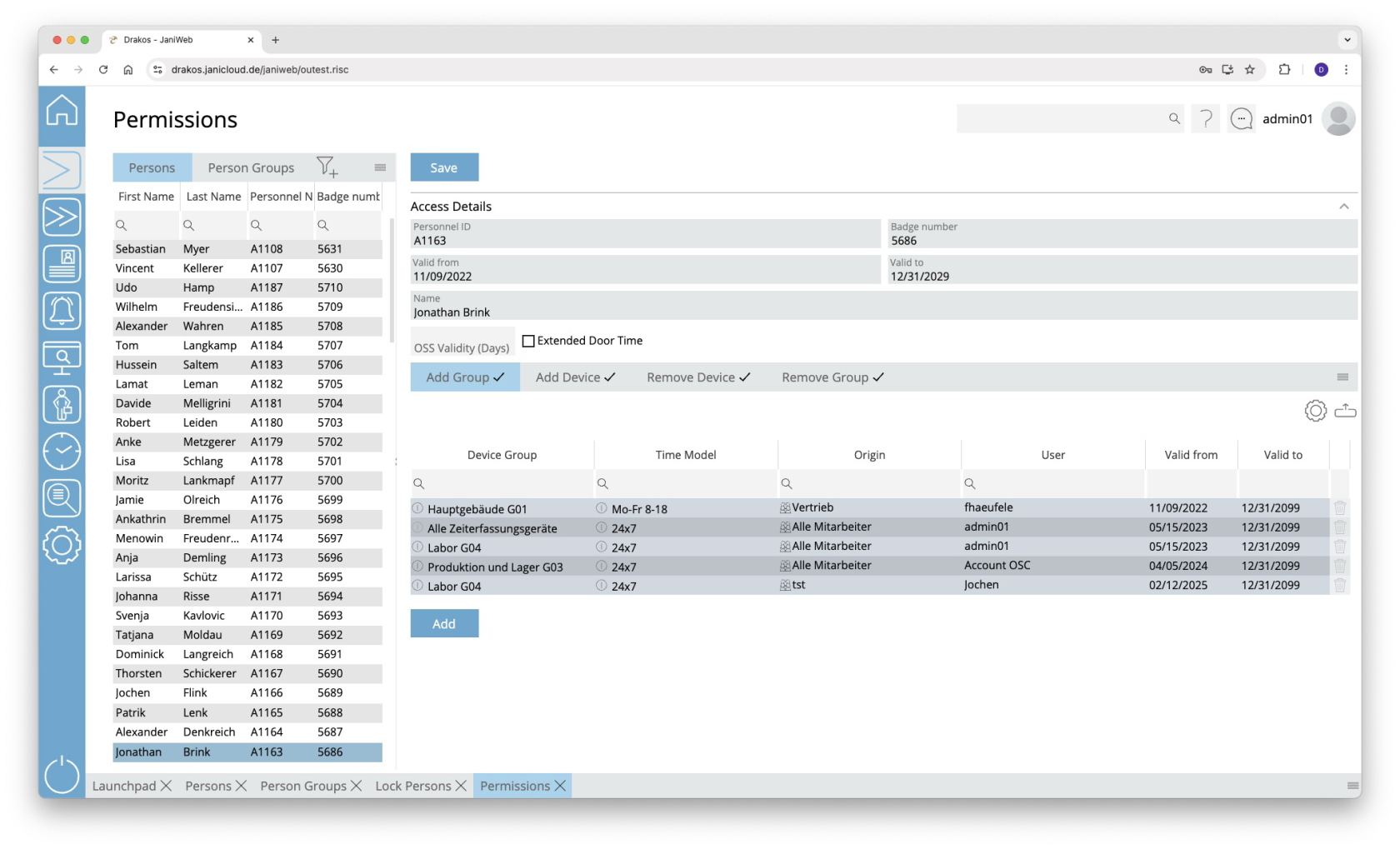](https://manual.drakos.de/uploads/images/gallery/2025-10/M7cimage.png) ## List of persons and groups of persons Select a person or group of persons from the list on the corresponding tab page to display the existing permissions. ## Tabs *Add Group / Add Device* Here you can grant the selected person/group of persons permissions to use certain device groups or devices. To add another device group or device to the list: 1. Press *Add*. 2. Select a *Device Group* or a *Device*. 3. Select the desired *Time Model*. 4. Set a validity period. 5. Press *Save*.A tick after the title of a tab indicates that there is data within the tab.
## Tabs *Remove Device / Remove Group* These lists are used to remove permissions for certain device groups or devices. **Example:** Anna B. belongs to the group of persons called “laboratory technicians”. This group of persons has permission for the device group “laboratory”. However, Anna is not allowed to enter a particular laboratory. Add the access device for this laboratory to the *Remove Device* list. To add further device groups or devices to the list, follow the steps in the previous section. However, a time model cannot be selected here.If the tabs *Remove Device* or *Remove Group* contain a device or device group, access via this device or device group is not possible. This also applies if a permission for the device or device group has been granted on the tabs *Add Device* or *Add Group*.
A tick after the title of a tab indicates that there is data within the tab.
### *Workflow Permissions*This feature is optional and not available in every installation.
If assigning a device or device group is associated with a workflow, the permission becomes active only after the decision-maker approves the workflow request. If you select a device or device group that has a workflow, a dialog box appears. This prompts you to enter values for the time model and the validity of the permission. You also have the option of leaving a comment for the decision-maker. You can create multiple workflow requests at once. To send them, press *Save*. Workflow requests are indicated by different colors:In addition to the tree view, you also have the option of displaying the terminals as a table. This allows you to display additional information, such as the IP address of the devices, in the list.
## Button *New* Press *New* to create a new device. Enter the required information and press *Save*. ## Area *General* - Select whether the device is a *Standalone* device, a *Server* or an *Offline component*. - Specify whether the device is used for *Time recording*, *Access* or plant data collection (*PDC*). ### Button *Clients Definition* - Press this button to assign and configure a sub-reader for an access server. - Make sure to select the correct *Client Position* for sub-readers. ## Area *Status* In the *Connection status* field, you can see the connection status of the device. This can have the following statuses: - connected - the device is connected - disconnected - the connection to the device is disconnected - unknown - the status of the device is unknown The time at which a status was last transmitted is shown in the *Last status* field. The *Device status* field shows the mode the device is in. The following modes are possible: - online - the device expects an online response from the device communication - offline - the device accepts bookings and checks the internal memory to see whether it is an authorised or unauthorised booking - autonomous - the device does not expect a connection to the device communication and saves the bookings in the temporary memory The *Last master record download* field indicates the time at which the device was last supplied with master data. (only available for devices from the manufacturer Dormakaba) The *Master record log* button can be used to check which master data has been sent to the device. (only available for devices from the manufacturer Dormakaba) ## Area *Device* Enter the basic information about the device. - Select a *Manufacturer ID* and a *Client*. - Enter a *Description* and additional information for the device. ## Area *Validity* Define the period during which the device should be active. ## Area *Cardlink* In the *Validation* field, specify the offline site for which the device writes validation records to the ID cards. In the *Update* field, specify the offline site for which the device writes update records to the ID cards. ## Area *Network* Specify the network settings required for the device. ## Area *Options* - *Location:* Enter a location for the device. - *Time zone:* If you are managing devices in different time zones, make sure that the correct time zone is selected. - *Holiday Calendar:* Select the appropriate bank holiday calendar for the device. ## Area *Offline Component Details* Select the *Offline Site* to which the component belongs. (You can create offline sites under *Settings > Tab Offline Components*.) ## Parameters for offline components (manufacturer Dormakaba) [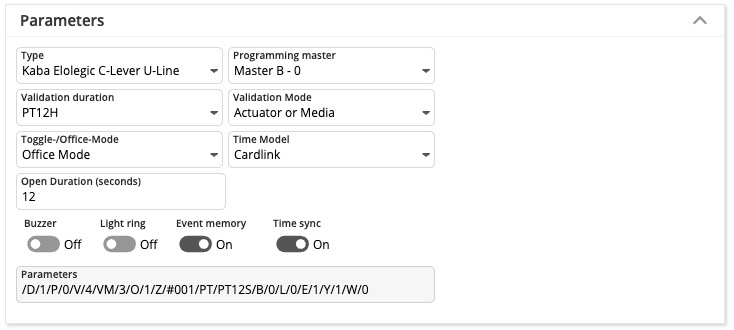](https://manual.drakos.de/uploads/images/gallery/2025-04/3Pyimage.png)**Attention:** After changing the parameters, the offline component must be rewritten with the programmer.
- **Type:** Here you define the type of offline component. - **Programming master:** Use this setting to define the programming master for the offline component. - **Validation duration:** Determines the validation duration. (Validation durations you can define into [Settings](https://manual.drakos.de/books/janiweb-j92/page/settings#bkmrk-cardlink-einstellung-1) menu) - **Days:** P\[number of days\]D (example: P7D for seven days) - **Hours:** PT\[number of hours\]H (example: PT1H for one hour) - **Fixed time:** HH:MM:SS (example: 12:00:00 for daily at 12 o’clock) - **Validation Mode:** Defines the validation mode. - **Toggle-/Office-Mode:** Activates Office Mode/ Day Night Mode. - **Off:** The door can only be opened with an authorized booking. - **Office Mode:** The first authorized booking on the offline component within the selected time model opens the door. A subsequent authorized booking closes the door again. The door remains open until the authorized time has expired and then closes again. - **Day Night Mode:** Automatic unlocking of offline components in a defined time model. - **Time Model:** Defines the time model in which Office Mode/ Day Night Mode applies. - **Open Duration (seconds):** Specify how long the offline component opens the door after a successful booking. - **Buzzer:** Switches the buzzer on or off. - **Light ring:** Switches the light ring on or off. - **Event memory:** Determines whether bookings are saved to the component or not. - **Time sync:** Activates or deactivates the time sync.| **Switch** | **Meaning** | **Values** |
| /B/ | Summer | - 0 - off - 1 - on (default) |
| /L/ | Light ring | - 0 - off - 1 - on (default) |
| /E/ | Save events | - 0 - off - 1 - on (default) |
| /Y/ | Sync time | - 0 - off - 1 - on (default) |
| /M/ | EM\_MSG | |
| /V/ | Period | - 0 - always - 1 - 24 hours - 2 - until 12:00 - 3 - 1 hour - 4 - 12 hours - 5 - 2 days - 6 - 4 days - 7 - 8 days |
| /D/ | Type | 0=198, Kaba Elolegic digital cylinder U-Line 1=199, Kaba Elolegic C-Lever U-Line 2=181, Kaba Elolegic reader U-Line 3=239, Kaba Elolegic C-Lever T-Line 4=30, Kaba Elolegic digital cylinder L-Line 5=218, Kaba Elolegic digital cylinder N-Line 6=238, Kaba Elolegic digital cylinder T-Line 7=201, Kaba Elolegic reader N-Line 8=221, Kaba Elolegic reader T-Line 9=183, Kaba Elolegic locker lock U-Line 10=222, Kaba Elolegic lock T-Line 11=182, Kaba Elolegic lock U-Line 12=31, Kaba Elolegic cylinder compact L-Line 13=210, Kaba Elolegic cylinder compact N-Line 14=230, Kaba Elolegic cylinder compact T-Line 15=190, Kaba Elolegic cylinder compact U-Line 16=214, Kaba Elolegic cylinder Stulp N-Line 17=234, Kaba Elolegic cylinder Stulp T-Line 18=194, Kaba Elolegic cylinder Stulp U-Line 19=181, Kaba IT lock 20=1064, Digital Cylinder Mifare evolo V4 21=1048, C-Lever Mifare evolo V4 22=1816, C-Lever TouchGo Mifare evolo V4 23=1128, C-Lever Mifare compact evolo V4 24=1144, Reader Mifare compact evolo V4 25=1080,Reader Mifare remote evolo V4 26=1320, Digital Cylinder Legic Advant evolo V4 27=1304, C-Lever Legic Advant evolo V4 28=1384, C-Lever compact Legic Advant evolo V4 29=2072, C-Lever TouchGo Legic Advant evolo V4 30=1400, Reader Legic Advant compact evolo V4 31=1336, Reader Legic Advant remote evolo V4 |
| /O/ | Mode | - 0 - off (default) - 1 - Office mode - 2 - Day/Night Mode |
| /Z/ | OMZPS | |
| /W/ | Offline site | - 0 - (default) |
| /P/ | Program master number | - 0 - (default) |
Devices can belong to multiple groups at the same time.
**Attention:** If you change the assignment of an offline component to an offline device group, the affected component must be rewritten with the programmer.
## Button *New* 1. Press *New* to create a new device group. 2. Enter a *Description*, select a *Client* and define a validity period (*Valid from – Valid to*). 3. Select whether it is an *Offline Group* (a group of offline components). As soon as this option is selected, only offline devices appear in the *Available* list. 4. Add devices to the group as described above. --- ##### TIPS Press *Copy* at the top to create a copy of the selected group and use it as a template for a new group. # Control Profiles **Use the menu item *Control Profiles* to link time models to devices to determine when access through the respective door should be possible.** [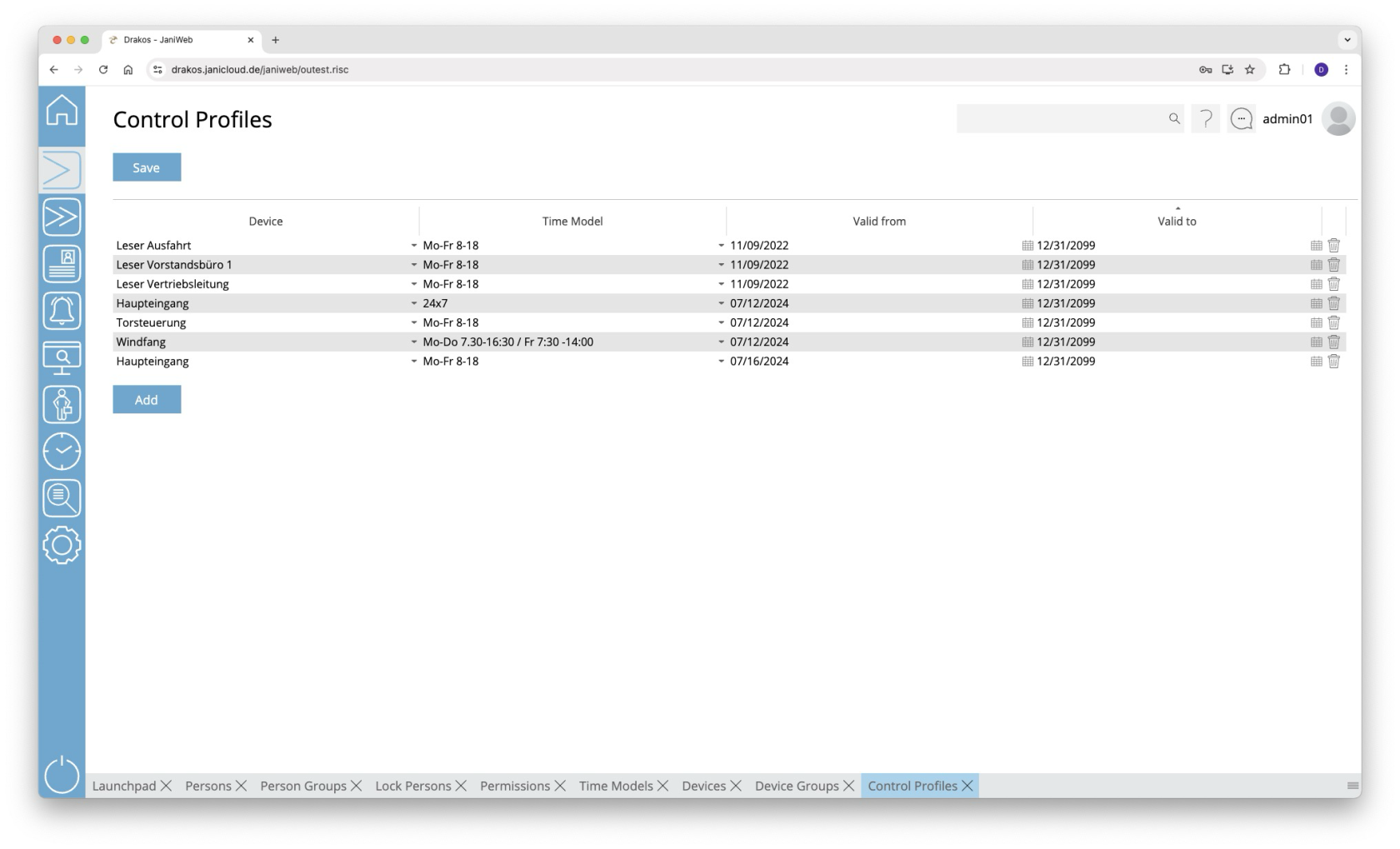](https://manual.drakos.de/uploads/images/gallery/2025-10/f7jimage.png) ## List of control profiles The list contains the control profiles that have already been created. You have the following options here: - **Changing a control profile:** Select a different time profile for the desired device and press *Save*. - **Adding a control profile:** - Press *Add*. An empty entry will appear at the end of the list. - Select a device in the *Device* column - Select the desired time model in the *Time Model* column. - Press *Save*. - **Removing a control profile:** Press the trash icon to remove a profile. A confirmation dialog will appear. When a control profile has been created for a device, the doors associated with it will remain open during the time period specified in the assigned time model.It is possible to create multiple control profiles for a device.
--- ##### TIPS Control profiles can also only be effective for a certain period of time. Use the *Valid from* and *Valid to* columns for this purpose. # Companies **Use the menu item *Companies* to manage companies. Companies created here can be assigned to persons or visitors via the menu items *Persons* or *Visitors*.** [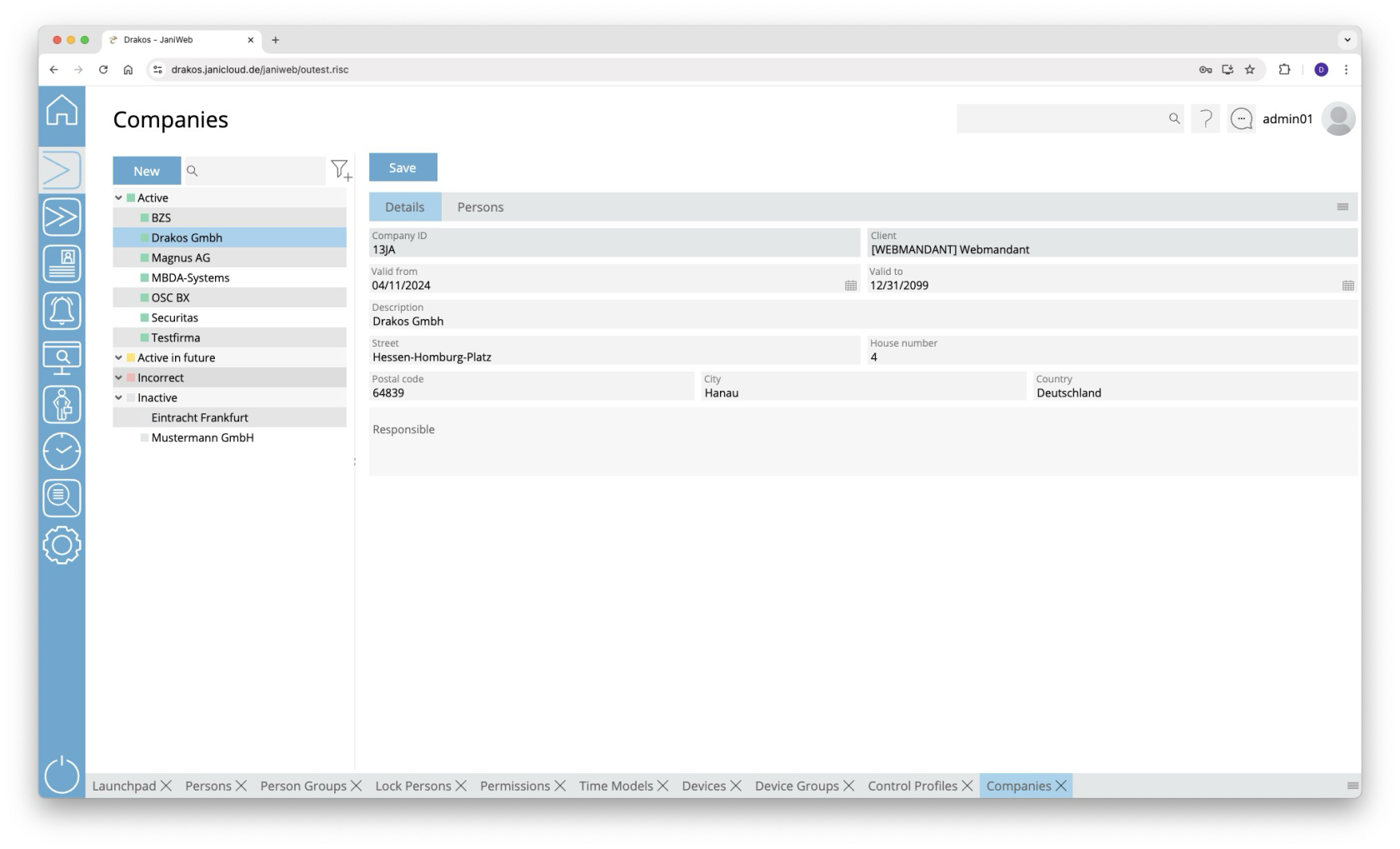](https://manual.drakos.de/uploads/images/gallery/2025-10/llHimage.png) ## List of companies The list contains the companies already created, sorted by their current status (*Active*, *Active in future*, *Incorrect*, *Inactive*). Select a company to view details. The list offers the following options: - **Search:** Enter text or numbers in the search field (magnifying glass icon) at the top to search for companies. The entries take effect immediately: the list only displays hits. The search is not case sensitive. - **Filter:** Press the filter icon. Select the criteria for which you want to display companies. Changes are visible immediately. ## Button *Save* You can change the details of the selected company. Press *Save* to save the changes. ## Button *New* Press *New* to create a new company. Enter the required information for the company on the tab *Details* and press *Save*. ## Tab *Persons* The tab *Persons* provides an overview of which persons are assigned to the respective company. --- ##### TIPS - **Filter:** Use the filter icon to filter by status (active, inactive, etc.). - **Export:** Use the export icon to export the list of assigned persons. # Mass Change **You can edit or delete multiple persons at the same time using the *Mass Change* menu item.** [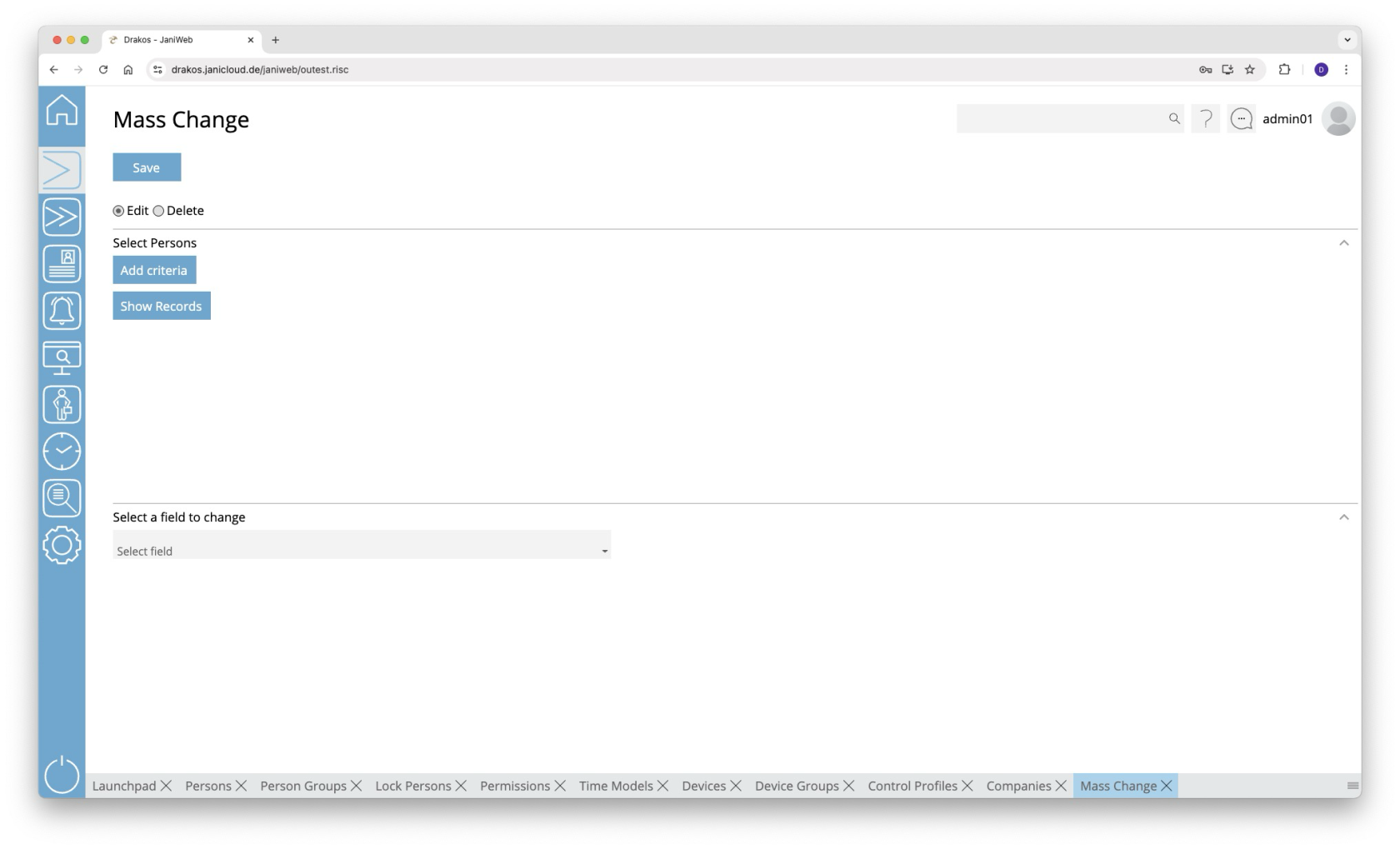](https://manual.drakos.de/uploads/images/gallery/2025-10/PPGimage.png) ## Radio buttons *Change*/*Delete* Select whether you want to use the mass change to *Change* or *Delete*. ## Area *Select Persons* Enter the criteria for selecting the persons to be changed or deleted. 1. Press *Add criteria.* 2. Select the required criterion from the list field. 3. Press *Add value*. 4. In the *From* field, select a single value or use both fields to specify a range. You can also specify multiple values for the same criterion (*Add value*). 5. (Optional) Add another criterion with value(s).Press *Show Records* to display the master records selected for change or deletion.
**Logic of criteria and values** - The values within the same criterion are linked logically by OR (one match is sufficient). - Different criteria are linked logically by AND (all criteria must be met). ## Area *Select a field to change* This area appears if you have selected *Change* at the top. 1. Select the field whose value you want to change. 2. Enter the new value. 3. Press *Save* to execute the mass change. A confirmation dialog appears. ## Area *Delete permissions/master records* This area appears if you have selected *Delete* at the top. 1. Select what you want to delete: - **Access permissions** of the selected persons that have expired by a certain date: Select *Access permissions expired before*. - **Master records** of the selected persons that have expired by a certain date (the master records are completely removed from the system): Select *Master records expired before.* 2. Enter an expiration date. 3. Press *Save* to remove the selected data. ##### # Qualifications **The *Qualifications* menu item allows you to create profiles to which certain permissions are linked. By assigning such a qualification to persons, the persons automatically inherit the permissions of the qualification.** [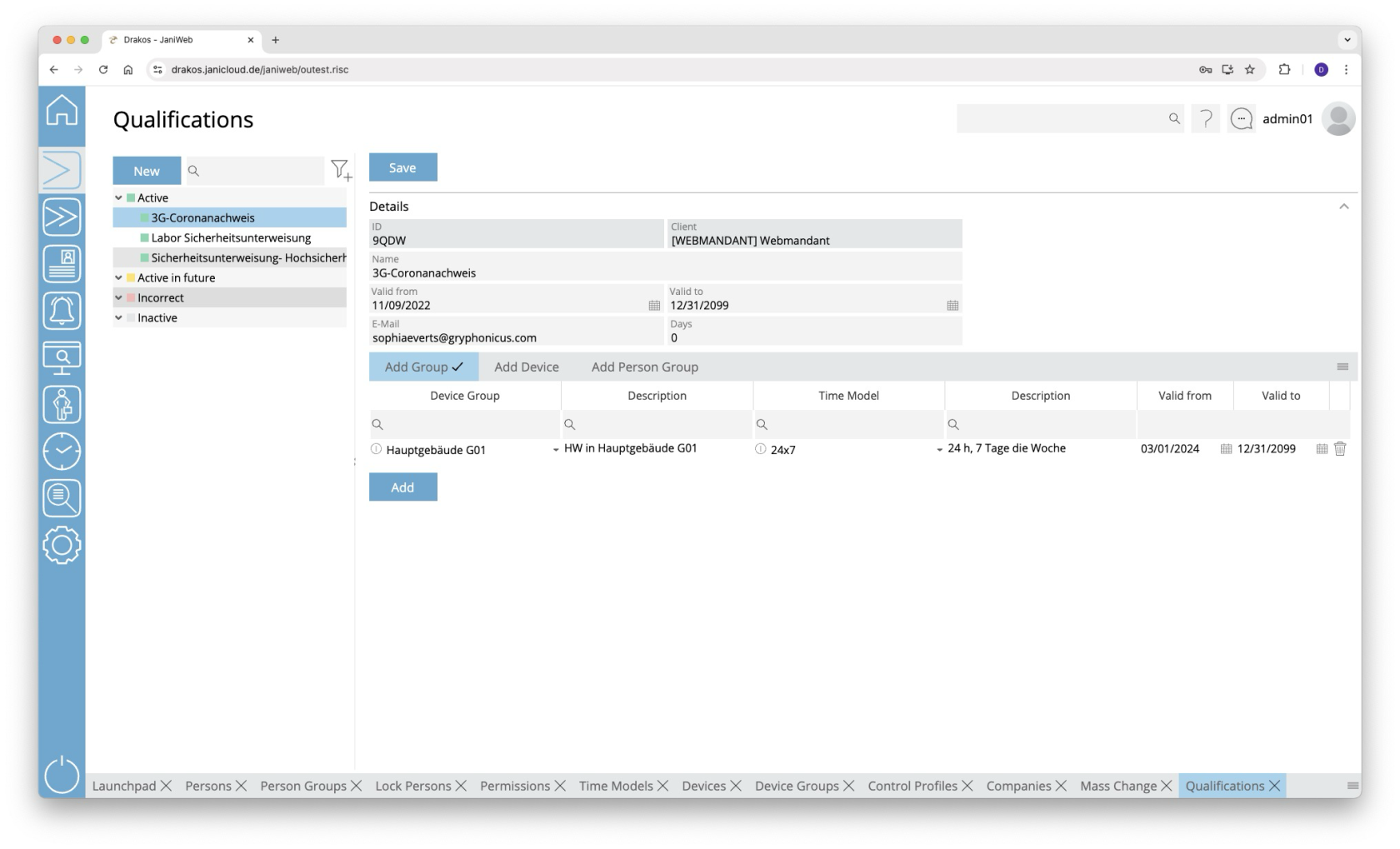](https://manual.drakos.de/uploads/images/gallery/2025-10/3vEimage.png) ## List of qualifications The list contains the qualifications that have already been created. Select an entry to view details. The list offers the following options: - **Search:** Enter text or numbers in the search field (magnifying glass icon) at the top to search for qualifications. The entries take effect immediately: the list only displays hits. The search is not case sensitive. - **Filter:** Press the filter icon. Select the criteria for which you want to display qualifications. Changes are visible immediately. ## Button *New* Press *New* to create a new qualification. Enter a description and additional information, and press *Save*. ## Area *Details* Define the general properties of the qualification here. - *Description:* Enter a descriptive label for the qualification. - *E-Mail:* Enter the E-Mail address to which a notification is to be sent when a qualification is about to expire. - *Days:* Specify how many days before the qualification expires the E-Mail notification is to be sent. Press *Save* to apply your changes. ## Tabs *Add Device Group / Add Device* Here you can link permissions for the use of certain device groups or devices to the selected qualification. To add another device group or device to the list: 1. Press *Add*. 2. Select a *Device Group* or a *Device*. 3. Select the desired *Time Model*. 4. Set a validity period. 5. Press *Save*. To remove a device group or device from the list, press the corresponding trash icon.A tick after the title of a tab indicates that there is data within the tab.
## Add person group tabs Here you have the option of assigning a qualification to all persons in the added person groups at once. - Click on *Add*. - Select a person group. - Specify a validity period. - If the validity is not valid, persons in this group of people are denied access to the devices/device groups assigned to the qualification. - Press *Save*. To remove a person group from the list, press the corresponding trash can icon.A tick after the title of a tab indicates that there is data within the tab.
--- ##### TIPSTo assign a qualification to a person, select the person via the *Persons* menu item. Then select the desired skill on the *Qualifications* tab.
till Version 1.32.X - Permissions for devices / device groups that are assigned to a qualification can only be changed via the qualification. It is then no longer possible to create permissions for these devices or device groups in the usual way.
# Settings **You can use the *Settings* menu option to make various settings (number ranges for replacement badges, fields for persons) for access management.** [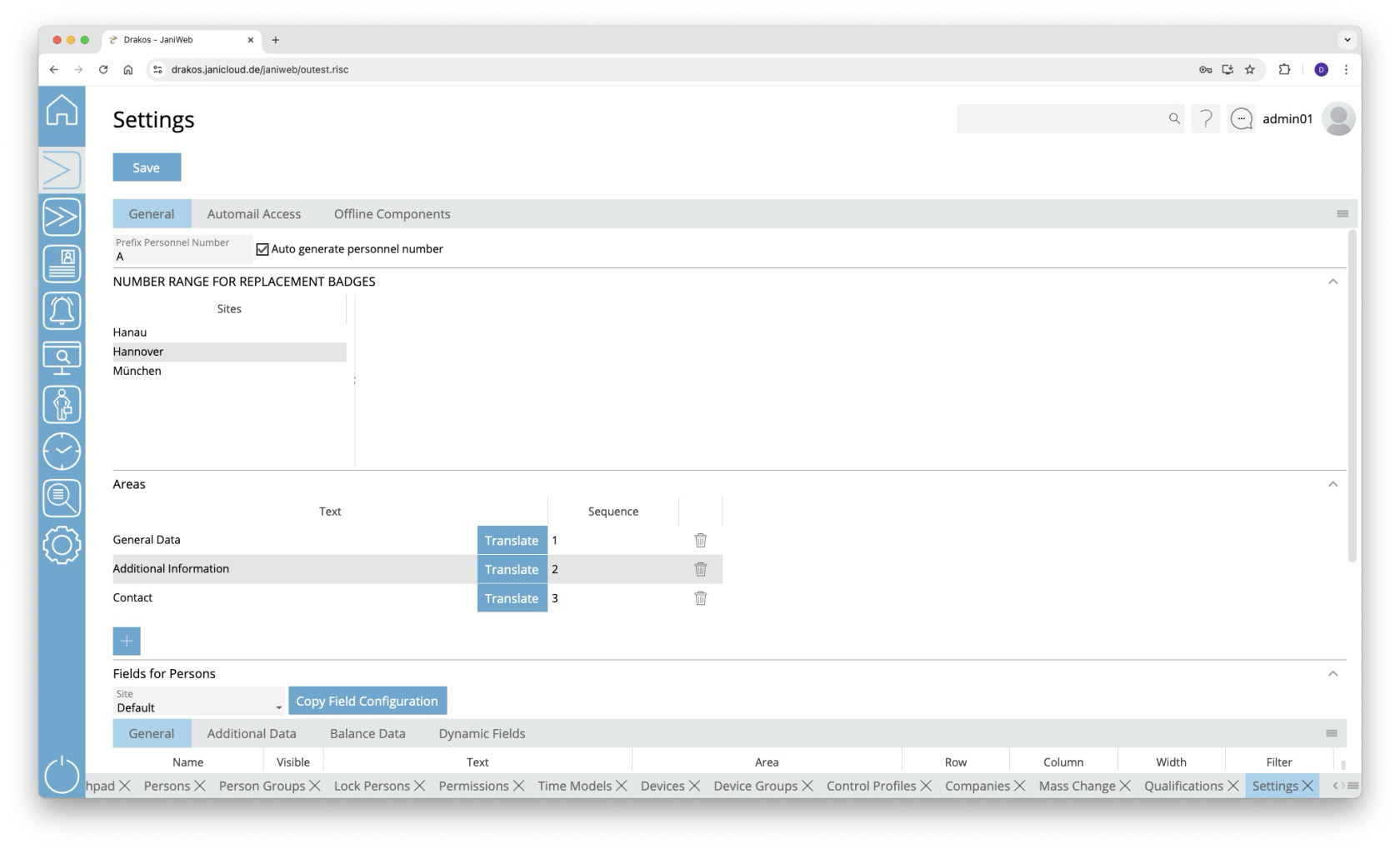](https://manual.drakos.de/uploads/images/gallery/2025-10/faEimage.png) ## Button *Save* Press *Save* to apply your changes. ## Tab *General* Here you determine whether personnel numbers should be created manually or automatically assigned by the system. - *Prefix Personnel Number:* Enter a letter that is added as a prefix to the personnel number for automatically generated personnel master records. - *Auto generate personnel number*: Select this option if you want the system to automatically assign personnel numbers when personnel master records are created. ### Area *Number Range for Replacement Badges* Here you define number ranges for issuing replacement badges. Create a separate definition for each site. You can either specify a range (*From badge number* / *To badge number*) for all replacement badges or create individual numbers under badges. ### Area *Areas* Here you determine which areas appear in the *Persons* menu item. When you select the visible fields for persons (*Fields for Persons*), you determine where the corresponding field is displayed by selecting one of the areas defined here. To create a new area, perform the following steps: 1. Press the plus icon (*Add*) to add a new entry. 2. Press *Translate*. 3. Enter the area description for the respective languages. 4. Press *Save.* Enter a number in the *Order* column to determine the order in which the areas are displayed.When creating a new area, you must first save it before you can assign a field to it.
### Area *Fields for Persons* This is where you manage the fields for the *Persons* menu item. #### List field *Site* You can define the visibility and positioning of the fields separately for each site. Select the site for which the settings in this area should apply. The fields displayed to the user depend on the site assigned to the user. If no site is assigned to a user, the settings for the *Default* site are used. To assign sites to a user, use the [Settings in the main menu, menu item Users.](https://manual.drakos.de/books/janiweb-j92/page/users) #### Tabs *General Data / Additional Data / Balances* Specify which fields are visible (check box in the second column) and where they are positioned (*Row*, *Column*, *Width*). To define the name for a field, press *Translate*. Enter the names for the respective languages and press *Save.* In the *Filter* column, you can determine whether this field should be searchable in the list of persons. #### Tab *Dynamic Fields* Here you can define up to 20 dynamic fields. For each dynamic field, specify whether it should be a list field (drop-down), a date field, a checkbox or a free text field. To define the name for a field, press *Translate*. Enter the names for the respective languages and press *Save.* #### Button *Copy Field Configuration* You can use this button to copy the field configuration from the currently selected site to another site. To do this, click the button and then select the site for which you want to copy the field configuration from the site drop-down menu. Confirm your selection with the *Ok* button. ### Area *Disable Editing XML Fields* Use the *Disabled* option to prevent users from changing field contents when printing badges, for example. When selected, the information from the master record is always used. ### Area *Name Subsystem Grouping* In this area, meaningful names can be assigned to the three-digit identifiers of the Subsystem Groupings. These names help users to assign persons to the correct Subsystem Grouping more easily and quickly. Use the *+* button to add new entries. Enter the three-digit identifier of the BDE group in the *Subsystem Grouping* column and enter the name using the *Translate* button in the *Name* column. Entries can be deleted using the *bin* button. ## Tab *Automail Access* Here you can define combinations of persons/person groups and devices/device groups that you want to be informed about by E-Mail as soon as they are assigned as permission by a user. 1. Press *Add* to create a new entry. 2. Select a person group or person. 3. Select a device group or device. 4. Enter the E-Mail address for the notification. 5. Press *Save*. ## Tab *Offline Devices* This is where you define all settings for offline sites and their components (Cardlink, Pegasys and OSS). ### Tab *Offline Sites* Create the offline sites required for your offline components here. To assign components to sites, use the menu item *Devices*. #### List of offline sites The list contains all the offline sites that have already been created. Select an entry to view details. #### Button *New* Press *New* to create a new offline site. Enter the required information and press *Save* to confirm. You can now assign offline components to the offline site using the menu item *Devices*. #### Button *Delete* Click *Delete* to delete the selected offline site. A confirmation dialog will appear. #### Tab *General Data* Enter the required information for the selected offline site. #### Area *Cardlink*, Area *OSS* Specify the data for the relevant offline type. #### Area *Update Devices* (OSS and Cardlink components only) Add devices that should serve as update devices for the OSS and Cardlink offline site. People can use these devices to load their current permissions for OSS and Cardlink components on their badges. #### Area *Validation Devices* (Cardlink components only) Add devices that should serve as validation devices for the Cardlink offline site. People can use these devices to load their current permissions for Cardlink components on their badges. #### Area *Master Media* (Cardlink components only) Master media are used to configure Cardlink components so that they read badges correctly. #### Button *Download XML Files*The validation duration 0 is set to *forever* and cannot be changed.
Other fields: - *Default validation duration:* Define which validation duration should be used by default. Enter the number of the corresponding period (0–7). - *Validation priority:* Enter the priority of the validation periods here (from highest to lowest priority, separated by commas).