Personal data that is transferred from external systems (e.g. SAP) cannot be changed here. They must be edited in the respective source system.
## Tab *Working Time* - *Leave:* Enter the annual holiday for the person. - *Holiday Calendar:* Select a holiday calendar for the person. This calendar will be considered in the [*Team Calendar*](https://manual.drakos.de/books/janiweb-j92/page/team-calendar) for this person. ## Tab *Team* Select the *Supervisor* for the person. This determines the person to whom workflow requests for bookings and absences are forwarded. The supervisor is authorized to process such requests in the menu item *Workflow*. In addition, supervisors can designate up to three *Substitudes* for themselves. During the substitution period, all workflow requests are also forwarded to the supervisor’s substitude. # Team Calendar **The menu item *Team calendar* provides an overview of absences in your team and the option to edit them.** [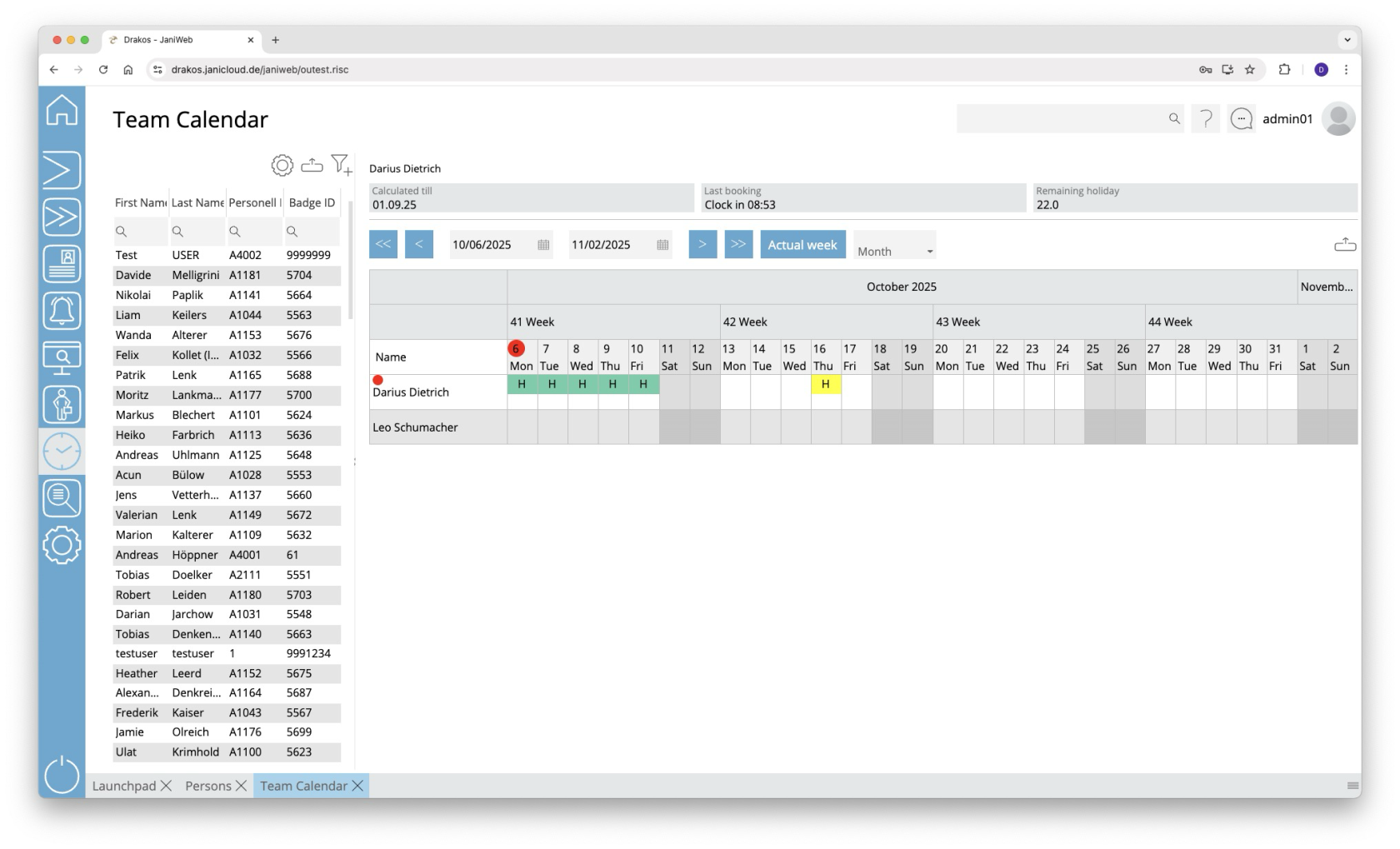](https://manual.drakos.de/uploads/images/gallery/2025-10/a1uimage.png) ## List of persons The list contains the persons that have already been created. Select a person to view details. The list offers the following options: - **Select columns to display:** Press the gear icon. Select which columns you want to display and in which order. Arrange the columns using the mouse or the arrow icons. Press *Apply* to adopt the changes. - **Filter by client and status:** Press the filter icon. Select the clients and the status (*Active*, *Active in future*, *Inactive*) for which persons should be displayed. Changes are visible immediately. - **Search in columns:** Enter text or numbers in the search field (magnifying glass icon) of a column to search for names, personnel numbers, or other criteria. The entries take effect immediately: the list only displays hits. Tip: Search for substrings. You can find “Spencer-Churchill” with “spe”, “chur” or “hill”. The search is not case sensitive. - **Export the entire list:** Press the download icon. Select the format in which you want to export the list. The export files are downloaded or displayed depending on the browser/operating system settings.For details on the available export formats, see the [General > Export Formats](https://manual.drakos.de/books/janiweb-j92/page/export-formats) chapter of this manual.The list of persons is only visible when you log in as an administrator. When you log in as an employee, only your own team calendar is visible.
## Calendar view Use the arrow icons and selection fields to select a period. Within the calendar, you have the following options: ##### Create new absence 1. Right-click in the field of the desired day and select *Create new absence.* 2. Select a type under *Absence*. 3. Enter the desired period using the *From* and *To* fields. 4. Press *Save*. The absence appears in the team calendar together with an abbreviation for the type (e.g. “FLT” for flextime). ##### Remove an absence - Double-click on the absence. The details are displayed. - Press *Delete*. A confirmation dialog appears. Absences are marked by a colored background as follows: - **Green:** absence approved - **Yellow:** approval pending - **Red:** absence rejected - **Blue:** approval to delete pending You can manage requests for absences in the menu item [*Workflow*](https://manual.drakos.de/books/janiweb-j92/page/workflow-TOn). ## Exporting the team calendar You can export the team calendar. To do so, press the *Download icon* above the team calendar and select the desired export format (Excel or PDF). # Web Terminal **The *Web Terminal* allows you to enter time bookings via a browser.** [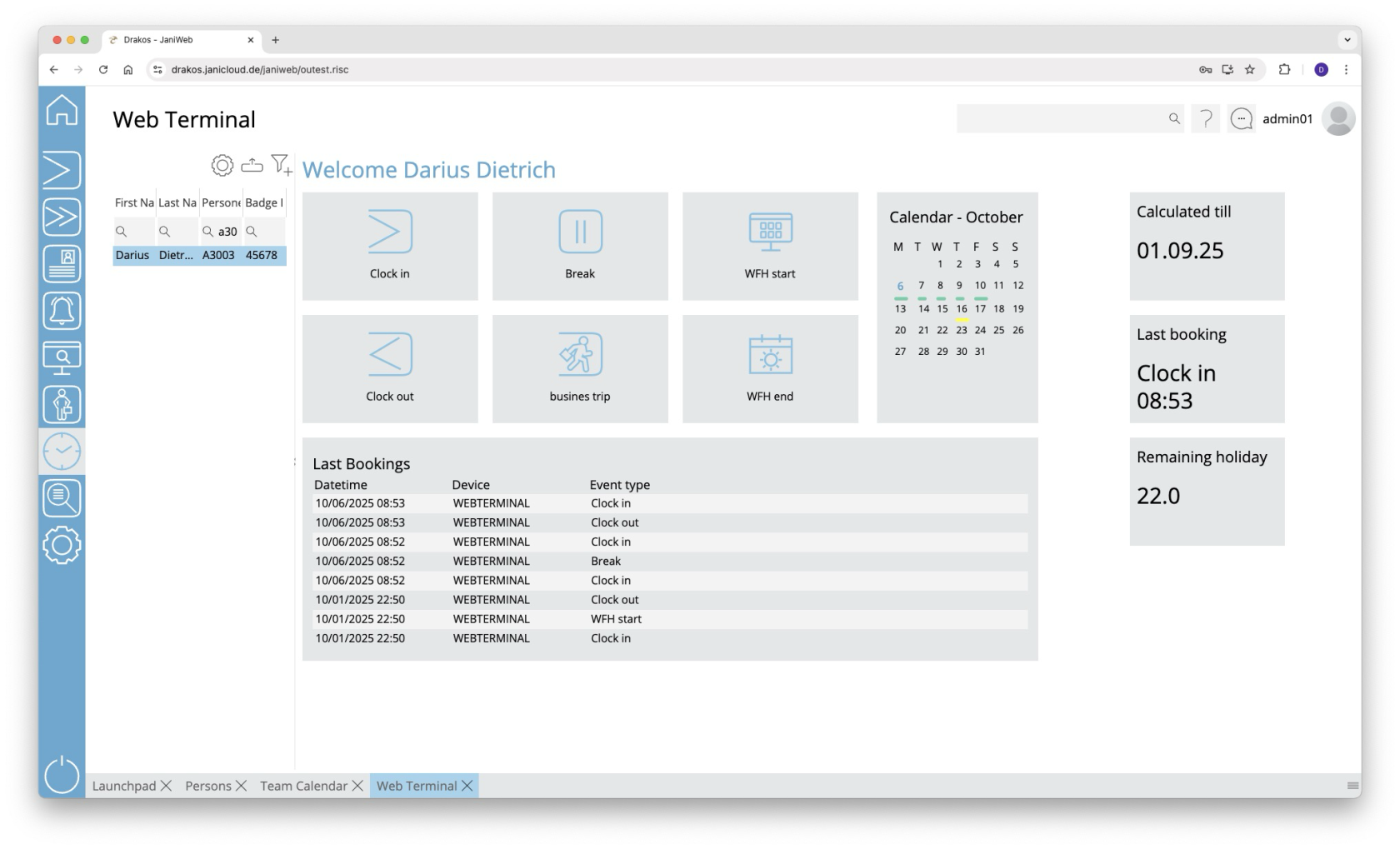](https://manual.drakos.de/uploads/images/gallery/2025-10/L6Gimage.png) ## List of persons Select the person you want to display the web terminal for. The list offers the following options: - **Select columns to display:** Press the gear icon. Select which columns you want to display and in which order. Arrange the columns using the mouse or the arrow icons. Press *Apply* to adopt the changes. - **Filter by client and status:** Press the filter icon. Select the clients and the status (*Active*, *Active in future*, *Inactive*) for which persons should be displayed. Changes are visible immediately. - **Search in columns:** Enter text or numbers in the search field (magnifying glass icon) of a column to search for names, personnel numbers, or other criteria. The entries take effect immediately: the list only displays hits. Tip: Search for substrings. You can find “Spencer-Churchill” with “spe”, “chur” or “hill”. The search is not case sensitive. - **Export the entire list:** Press the download icon. Select the format in which you want to export the list. The export files are downloaded or displayed depending on the browser/operating system settings.For details on the available export formats, see the [General > Export Formats](https://manual.drakos.de/books/janiweb-j92/page/export-formats) chapter of this manual. ### Buttons for bookings Press the corresponding button to create a new booking. A colored message appears in the message area: - **Green:** Booking successful - **Red:** Booking failed Status messages appear in the message area at the bottom of the screen.You can specify which buttons are available here in the menu item Settings, tab *Web Terminal*.
# Workflow **You can use the menu item *Workflow* to view the status of your workflow requests for time tracking and permissions. As a supervisor or a supervisor’s deputy, you can also edit workflow requests directly.** [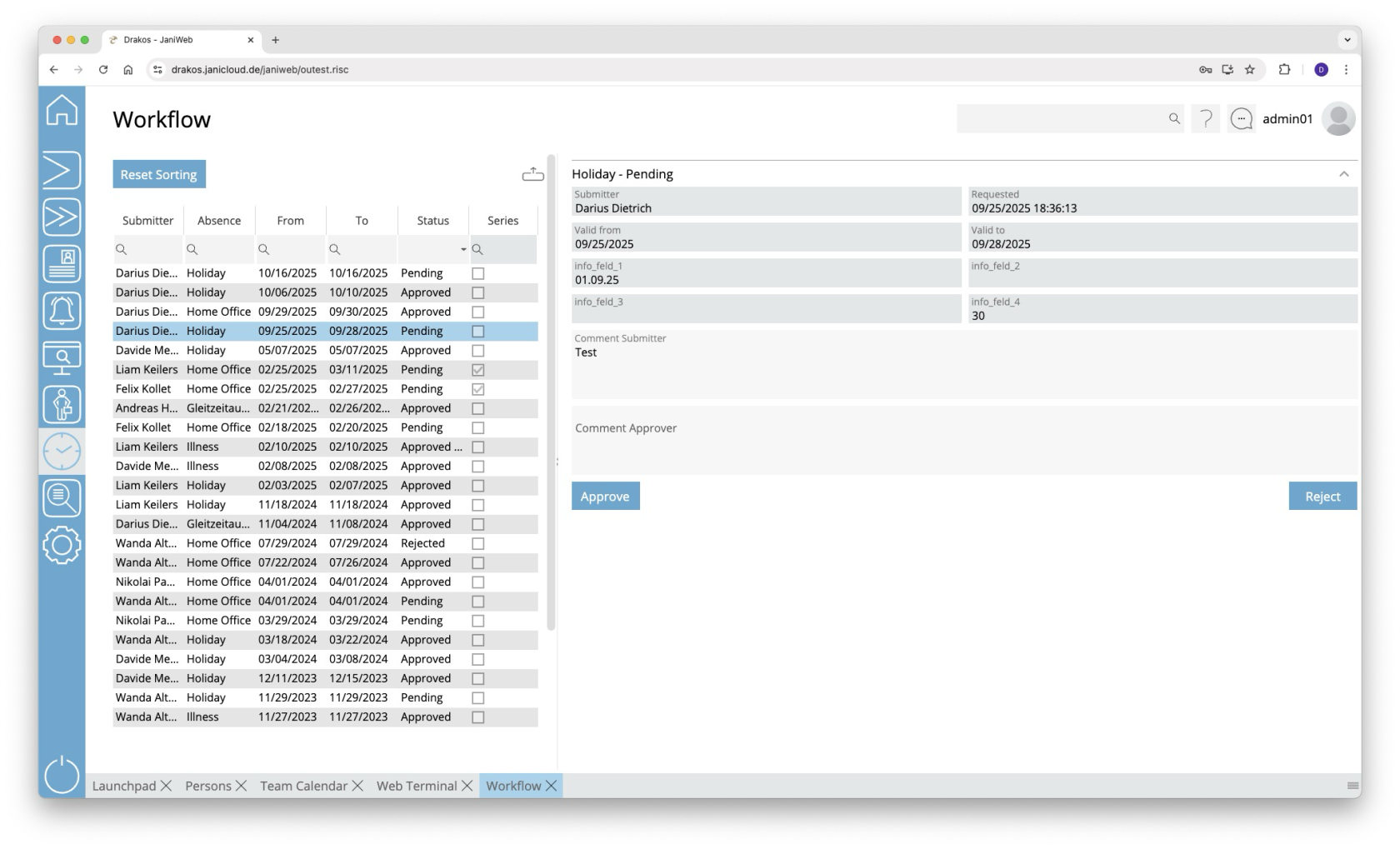](https://manual.drakos.de/uploads/images/gallery/2025-10/JdVimage.png) ## List of workflow requests The list contains your active workflow requests. Select an entry to view details. - In the text field *Comment Approver*, enter a comment that will be displayed to the requester. - Press *Approve* to approve the request. - Press *Decline* to decline the request. The list offers you further options: - **Sorting by column:** Click on a column header to sort the entries in ascending or descending order by this column. - **Search:** Enter text or numbers in the search field (magnifying glass icon) at the top to search for entries. The entries take effect immediately: the list only displays hits. The search is not case sensitive. - **Filter by status:** Open the list field in the *Status* column. Select the criteria for which you want to display entries. A set filter is saved and remains in place even after you log out. Press *Reset Sorting* to reset the filter and sorting. - **Export the entire list:** Press the download icon. Select the format in which you want to export the list. For details on the available export formats, see the [General > Export Formats](https://manual.drakos.de/books/janiweb-j92/page/export-formats) chapter of this manual. # Time Sheet **This menu item allows you to view and print time sheets from third-party systems such as SAP. As a supervisor, you also have access to the time sheets of the employees assigned to you.** [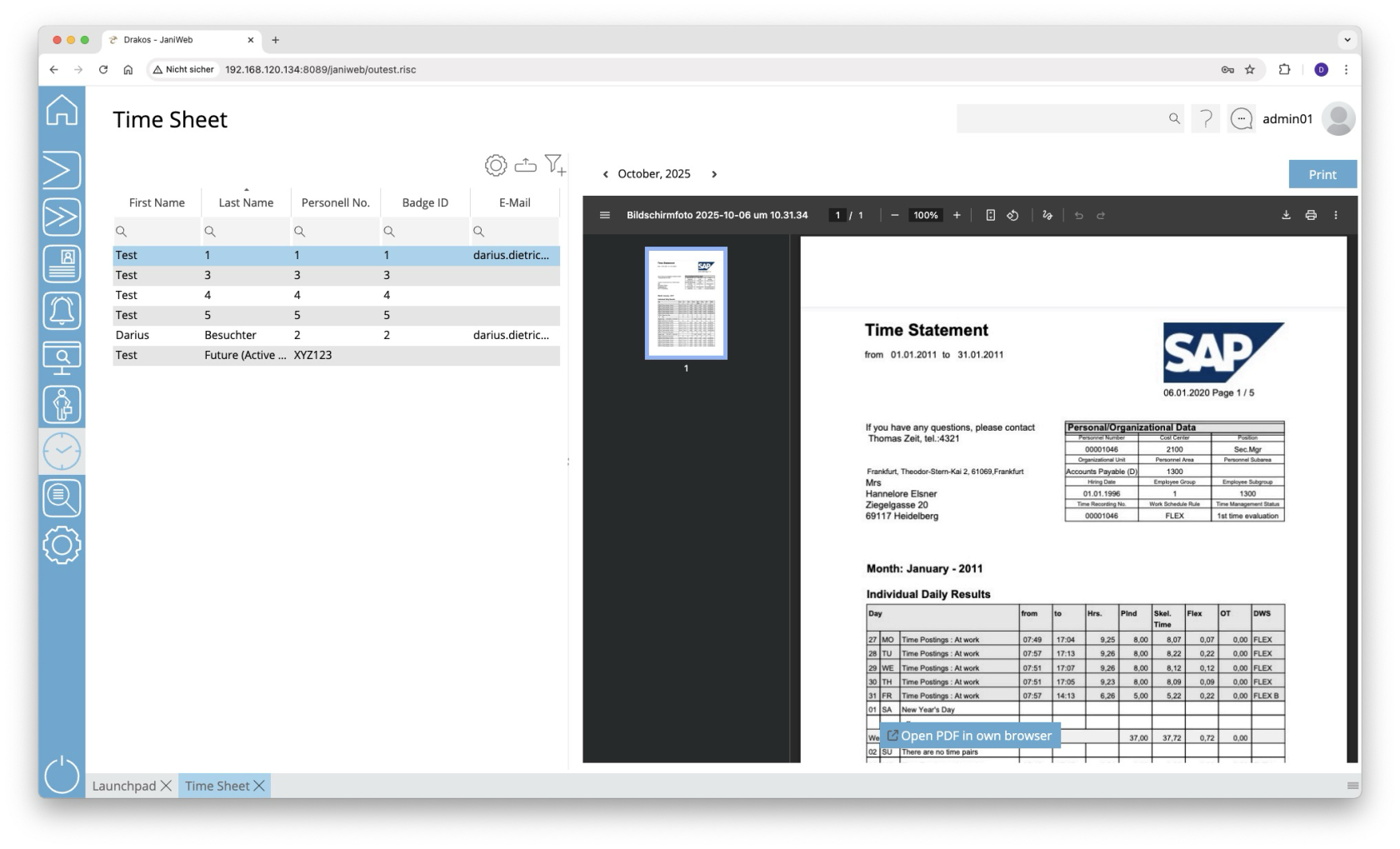](https://manual.drakos.de/uploads/images/gallery/2025-10/wuPimage.png) Select the person for whom a time sheet is available. Click *Print* to print the file.The list of persons is only visible when you log in as an administrator. When you log in as an employee, only your own time sheet is visible.
# Settings **Use the menu item *Settings* to make all the settings relevant for time tracking.** [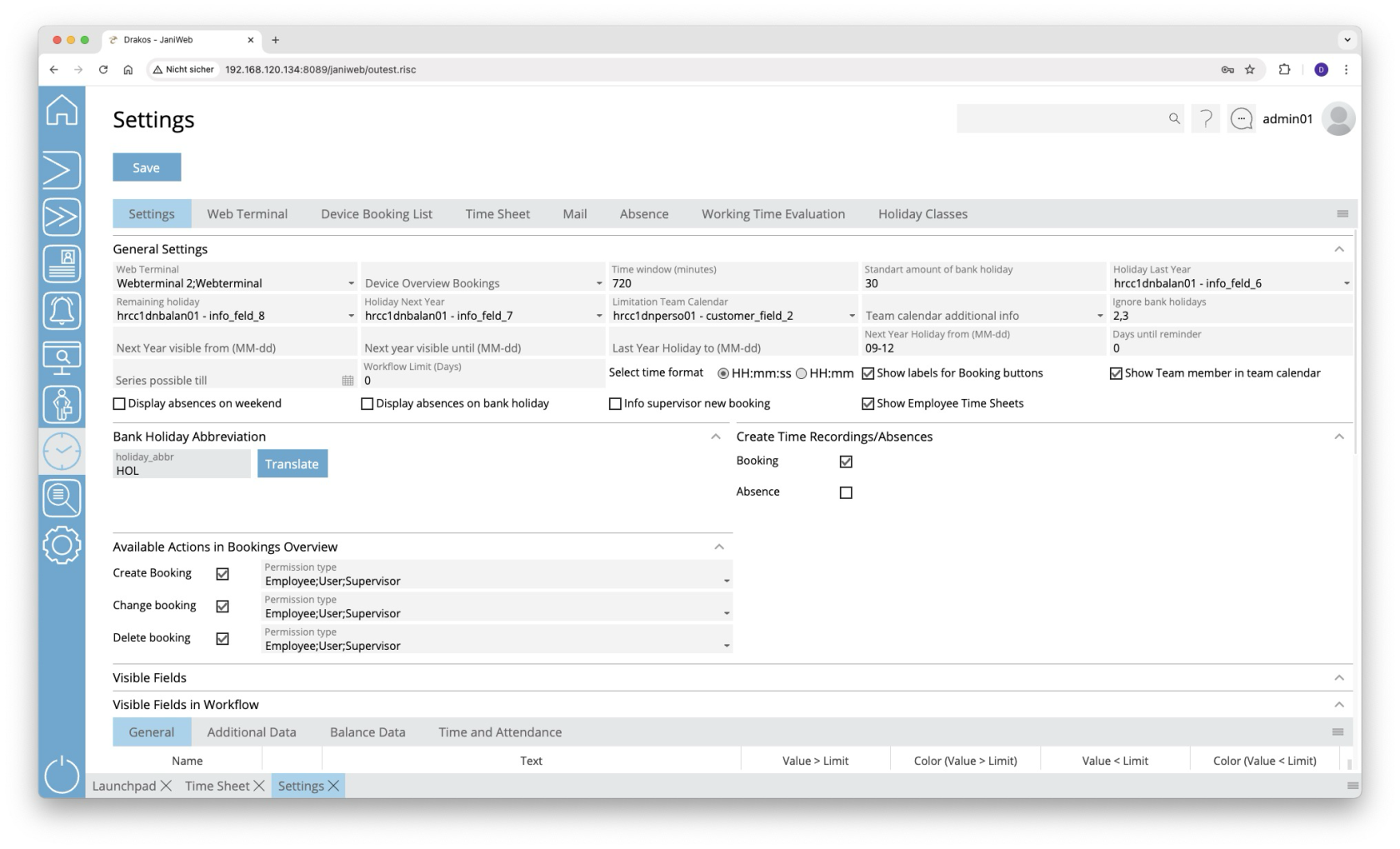](https://manual.drakos.de/uploads/images/gallery/2025-10/SKRimage.png) ## Tab *Settings* ### Area *General Settings* - *Web Terminal:* Select devices that should serve as a web terminal. - *Device Overview Bookings:* Select the device with which bookings are created that users create manually via the menu item *Overview Bookings* (for example, to add a booking). - *Time window (minutes):* Specify the time span within which pairs of clock-in/clock-out bookings are used to calculate working hours. - *Holiday Last Year:* Select the database field that contains the holiday entitlement that was transferred from the previous year to the current year. - *Remaining holiday:* Select the database field that contains the total holiday entitlement. The holiday for the current year is calculated as follows: `Holiday current year = remaining holiday – holiday last year – holiday next year`. - *Holiday Next Year:* Select the database field containing the holiday entitlement for the coming year. - *Ignore bank holidays:* Specify the holiday classes (separated by commas) that should not be displayed in the [*Team Calendar*](https://manual.drakos.de/books/janiweb/page/teamkalender) and should therefore not be used for the holiday calculation. - *Next year visible from (MM-dd):* Specify the day from which the team calendar should be visible for the next year. - *Next year visible until (MM-dd):* Specify the day until the team calendar should be visible for the next year. - *Holiday last year until (MM-dd):* Define the day until employees can take holiday from the previous year. - *Holiday next year from (MM-dd):* Define the day from which employees can plan holiday for the next year. - *Days until reminder:* Enter the number of days after which a reminder E-Mail is automatically sent to the supervisor if they have not responded to an absence request. - *Show Team Member in Team Calendar*: Activate this option if you want team members to be displayed in the *Team Calendar*. - *Information on rejected applicationts by leading system:* If this option is selected, employees and supervisors are informed about requests that have been rejected by the leading system. - *Display absences on weekend*: Activate this option if you want absences to be displayed at the weekend as well and included in the holiday calculation. - *Info supervisor new booking:* Activate this option to inform the manager when an employee makes a late booking via the menu item *Overview Bookings*. - *Show Employee Time Sheets:* Activate this option if you want to allow supervisors to view their employees’ time sheets (including time sheets from SAP). - *Team calendar additional info:* Here you can select a database field that will be displayed in addition to the person’s name in the menu item *Team Calendar*. - *Limitation Team Calendar*: Select a database field here to further limit a team (a team consists of all persons who have the same supervisor). - *Series possible until:* Enter a date here if you want to restrict the period in which employees can create series of absences. - *Select time format:* Here you can specify whether the times are displayed in hours:minutes:seconds or just in hours:minutes in the *Overview Bookings*. - *Show labels for Booking buttons*: Activate this option to display the labels for the booking buttons in the *Web Terminal* menu in addition to the buttons themselves. - *Enable New Absence button:* If this option is selected, a *New Absence* button will be displayed in the *Team Calendar*, which can be used to create absences without having to right-click or press and hold (on touch devices). - *Maximum Age for Booking Modification (Days)*: This setting determines the maximum number of days that entries in the booking overview may be old before they can no longer be edited. Enter a positive integer. The default value is set to 90 days. Entries can be added, amended or deleted within the defined period. ### Area *Abbreviations for Bank Holidays* Specify the abbreviations that are displayed for holidays in the menu item *Team Calendar*. ### Area *Create Time Recordings/Absences* Activate the corresponding option if you want to allow users to perform *Booking Actions* and/or *Absences* via the menu item *Overview Bookings*. ### Area *Available Actions in Overview Bookings* Use this area to define which persons can create, change or delete bookings via the menu item *Overview Bookings*. Persons are distinguished by: - **Employee:** Employee via the employee login. - **User:** Administrator via the admin login. - **Supervisors:** Employee who are a supervisor via the employee login. ### Area *Visible Fields* Specify here which additional information (e.g. balances) should be displayed in the various menu items. The fields *Value > Limit, Color (Value > Limit)* and *Value < Limit, Color (Value < Limit)* allow you to highlight values above or below a limit in color. ## Tab *Web Terminal* Specify the booking buttons for the [*Web Terminal*](https://manual.drakos.de/books/janiweb-j92/page/web-terminal) here. First, select the web terminal for which you want to edit the settings from the Web Terminal drop-down menu. - Button *Add:* Press *Add* to add a booking button. It will appear at the end of the list. - Column *Event type:* Select the type of booking for which the button is to be used. - Column *Icon:* If you want to display an icon other than the default one, press *Upload* and select a graphic file. - Column *Visible:* Select whether the button should be visible. - *Booking Type:* Shows whether the booking marks the person as present or absent (this is particularly important for calculating working hours in the *Overview Bookings* menu item). - *Row*: Here you can specify the row in which the booking button should appear in the web terminal. - *Column*: Here you can specify the column in which the booking button should appear in the web terminal. ### Area *Visible Fields* Specify here which additional information (e.g. balances) should be displayed in the various menu items. The fields *Value > Limit, Color (Value > Limit)* and *Value < Limit, Color (Value < Limit)* allow you to highlight values above or below a limit in color. ## Tab *Device Booking List* Dormakaba devices allow persons to view a list of their most recent bookings using a booking. Specify the appearance of this list here. - *Days past:* Here you can specify the number of days for which bookings should be displayed. - *Timeout:* Specify after how many seconds the list should automatically disappear (privacy protection). - *Dark mode*: Activate this option if you want the booking list to be displayed in a dark mode. ### Area *Visible Columns* Specify which information should be included. Activate the corresponding options. ### Area *Visible Event Types* Specify which bookings should be displayed. Activate the corresponding options. ## Tab *Time Sheet* JaniWeb can display time statements from an SAP system in the menu item *Time Sheet*. On this tab page, you specify whether these time statements should be accessed via the file interface or the SOAP interface. *Enable SOAP:* Activate this option to enable the SOAP interface. The fields *SOAP URL*, *SOAP User* and *SOAP Password* also appear. Enter the required data. *Client, Path*, *File extension:* Specify the information for the file interface. One path can be configured for each client. ## Tab *Mail* Enter an additional text to be included in E-Mails that are sent automatically when creating/approving/rejecting holiday requests. ## Tab *Absence* Use this tab to manage the various types of absences. ### List of absence types The list contains all the absence types that have already been created. Select an entry to view details. ### Button *New* Press *New* to create a new absence type. Enter the *Description*, *Client*, *Validity* and any other required data. To set the label, press *Translate*. Enter the names for the respective languages and press *Save.* - *Days future* / *Days past*: Specify how many days in the future or in the past the absence can be created. - *Absence reason SAP:* Select the relevant absence type from SAP here. This link is important for transferring the absences to SAP. - *Workflow Past* / *Workflow Future:* Select a workflow for the absence type here. You can define workflows under the menu item *Workflow*. - *Abbreviation:* Define an abbreviation that will be displayed in the *Team Calendar* for this absence type. - To define the name for an abbreviation, click *Translate*. Enter the names for the respective languages and press *Save.* - *Contingent:* Choose whether to check a contingent when an absence is created. - *No check:* The created absence is not checked. - *Holiday:* The created absence is checked against the holiday contingent. - *Other:* Choose this option in order to select a database field in the *Contingent* field, against which the absence is checked when it is created. Enter the *Unit* (days, hours or minutes) for the value of the database field. You can also set a *Limit* that is checked when the absence is created. This prevents the absence from being created if the value of the contingent is above or below the set limit. - *Comment mandatory:* Users must enter a comment when creating an absence. - *Upload Documents:* Users are allowed to upload documents when creating an absence. - *Supervisor must approve:* Activates the workflow for approval by the supervisor. - *Notify supervisor:* When an absence is created, the supervisor is automatically notified. - *Supervisor approves delete:* Activates the workflow for approval by the supervisor when deleting an absence. - *Notify supervisor on delete:* When deleting an absence, the superior is automatically notified. - *With time:* Users can specify a time in addition to the date when creating an absence. - *Show in team calendar:* The absence appears in the team calendar. - *Allow series:* Users may create an absence as a recurring series. - *Not selectable:* Absences cannot be selected in the team calendar. - *Supervisor can create/delete:* The supervisor can create absences for their employees. - *Employee can create/delete:* Employees can create absences themselves. - *Incognito:* The abbreviation of the absence type is not visible to team members. - *Automatic Approval*: If this setting is enabled, you can specify in the *Days* field how many days without a response from the responsible person will result in the absence being automatically approved. - *Flexitime:* Once this setting is configured for an absence, only persons with a specific value in the '*zterf*' (database table: hrcc1dnperso01\_data\_relation) field can create this absence from the team calendar. ## Tab *Working Time Report* Here you define which booking types are used for calculating the working hours in the [Overview Bookings](https://manual.drakos.de/books/janiweb-j92/page/overview-bookings) (top list). You can also create working time rules for the automatic deduction of break times (bottom list). ##### List of booking types - Button *Add:* Press *Add* to add a booking type. The entry appears at the end of the list. - Column *Event type:* Select the booking type to be included in the report. - Column *Device:* Select the devices for which bookings are to be reported. - Column *Icon:* If you want to display a different icon than the default icon in the report, press *Upload* and select a graphic file. - *Booking Type:* Shows whether the booking is considered as *Present* or *Absent* (this is particularly important for calculating working hours). ##### List of working time rules - Button *Add:* Press *Add* to add a new working time rule. It will appear at the end of the list. - Column *Description:* Enter a meaningful name. - Column *Working time limit (minutes):* Enter the time in minutes from which the break time is automatically deducted if there are no break bookings of sufficient duration (i.e. the person has not had a long enough break). - Column *Automatic deduction (minutes):* Enter the break time in minutes that is automatically deducted. ## Tab *Holiday Classes* Here you specify the time valuation for various holiday classes to ensure that holiday is calculated correctly. - For full-day holidays, enter the number 1 in the *Value* field. - For holidays that are considered half days (such as Christmas and New Year’s Eve in Germany, for example), enter 0.5. # Employees Overview **In the *Employees Overview* menu, you can view the balances for employees for whom you are the supervisor.**This menu item is only available if you have logged in as an employee. This menu item is not available if you are logged in as an admin.
[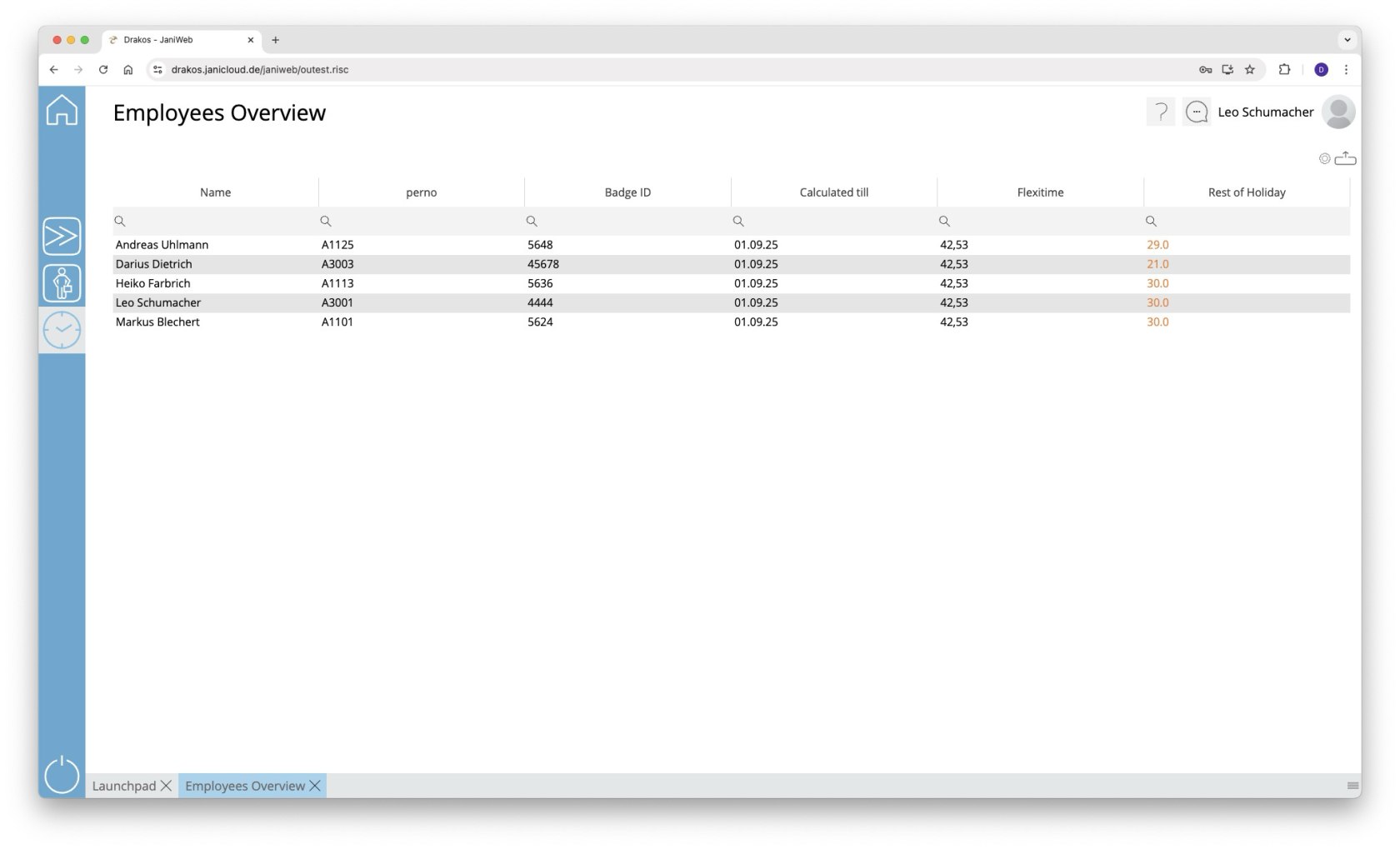](https://manual.drakos.de/uploads/images/gallery/2025-10/P1Ximage.png)