# Visitor Management

# Companies

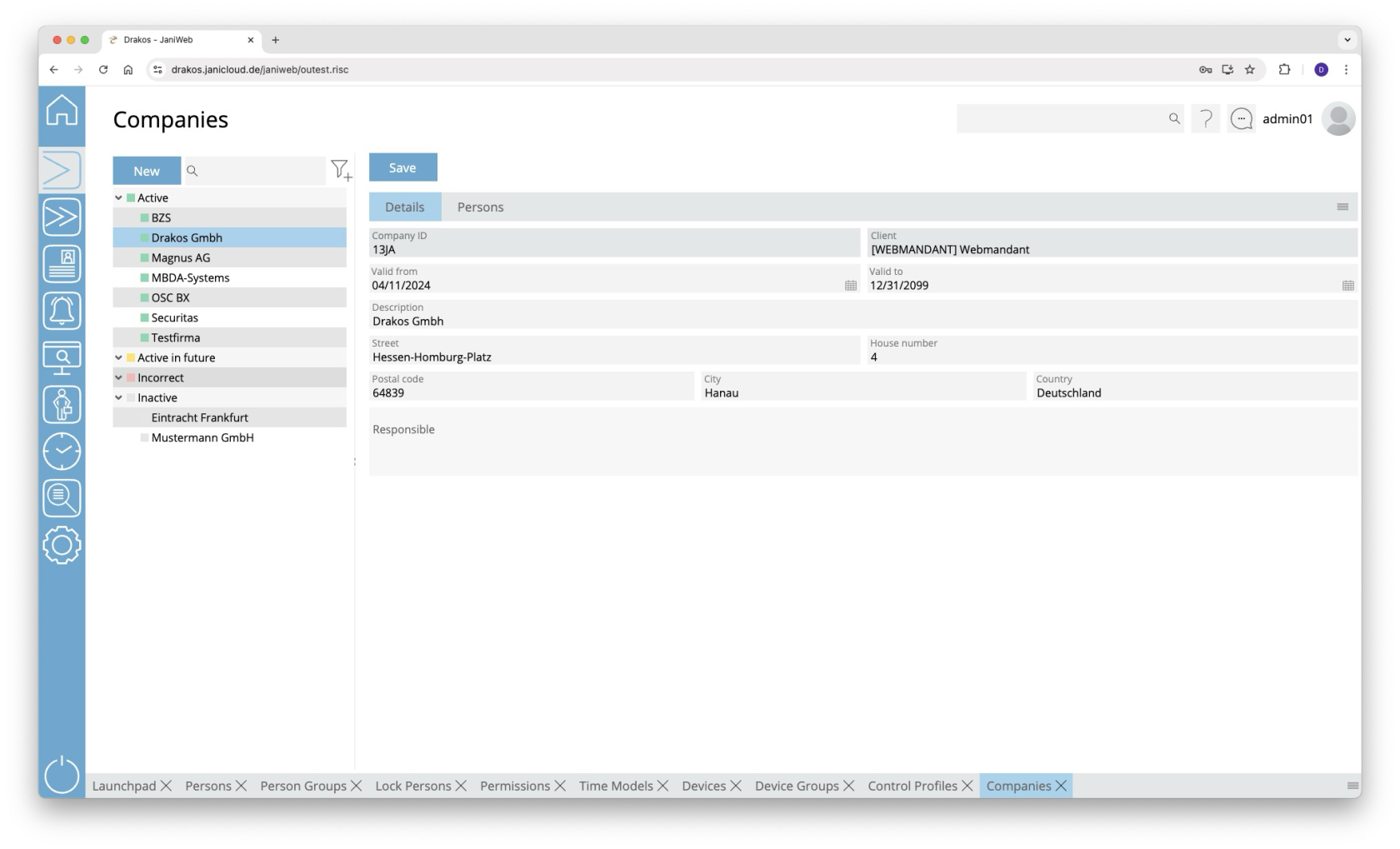
**Use the menu item *Companies* to manage companies. Companies created here can be assigned to persons or visitors via the menu items *Persons* or *Visitors*.**

[![image.png](https://manual.drakos.de/uploads/images/gallery/2025-10/scaled-1680-/LbFimage.png)](https://manual.drakos.de/uploads/images/gallery/2025-10/LbFimage.png)
## List of companies

The list contains the companies already created, sorted by their current status (*Active*, *Active in future*, *Incorrect*, *Inactive*). Select a company to view details.

The list offers the following options:

- **Search:** Enter text or numbers in the search field (magnifying glass icon) at the top to search for companies. The entries take effect immediately: the list only displays hits. The search is not case sensitive.
- **Filter:** Press the filter icon. Select the criteria for which you want to display companies. Changes are visible immediately.
- **Export the entire list:** Press the download icon. Select the format in which you want to export the list. For details on the available export formats, see the [General &gt; Export Formats](https://manual.drakos.de/books/janiweb-j92/page/export-formats) chapter of this manual.

## Button *Save*

You can change the details of the selected company. Press *Save* to save the changes.

## Button *New*

Press *New* to create a new company. Enter the required information for the company on the tab *Details* and press *Save*.

## Tab *Persons*

The tab *Persons* provides an overview of which persons are assigned to the respective company.

---

##### TIPS

- **Filter:** Use the filter icon to filter by status (active, inactive, etc.).
- **Export:** Use the export icon to export the list of assigned persons.

# Visitors

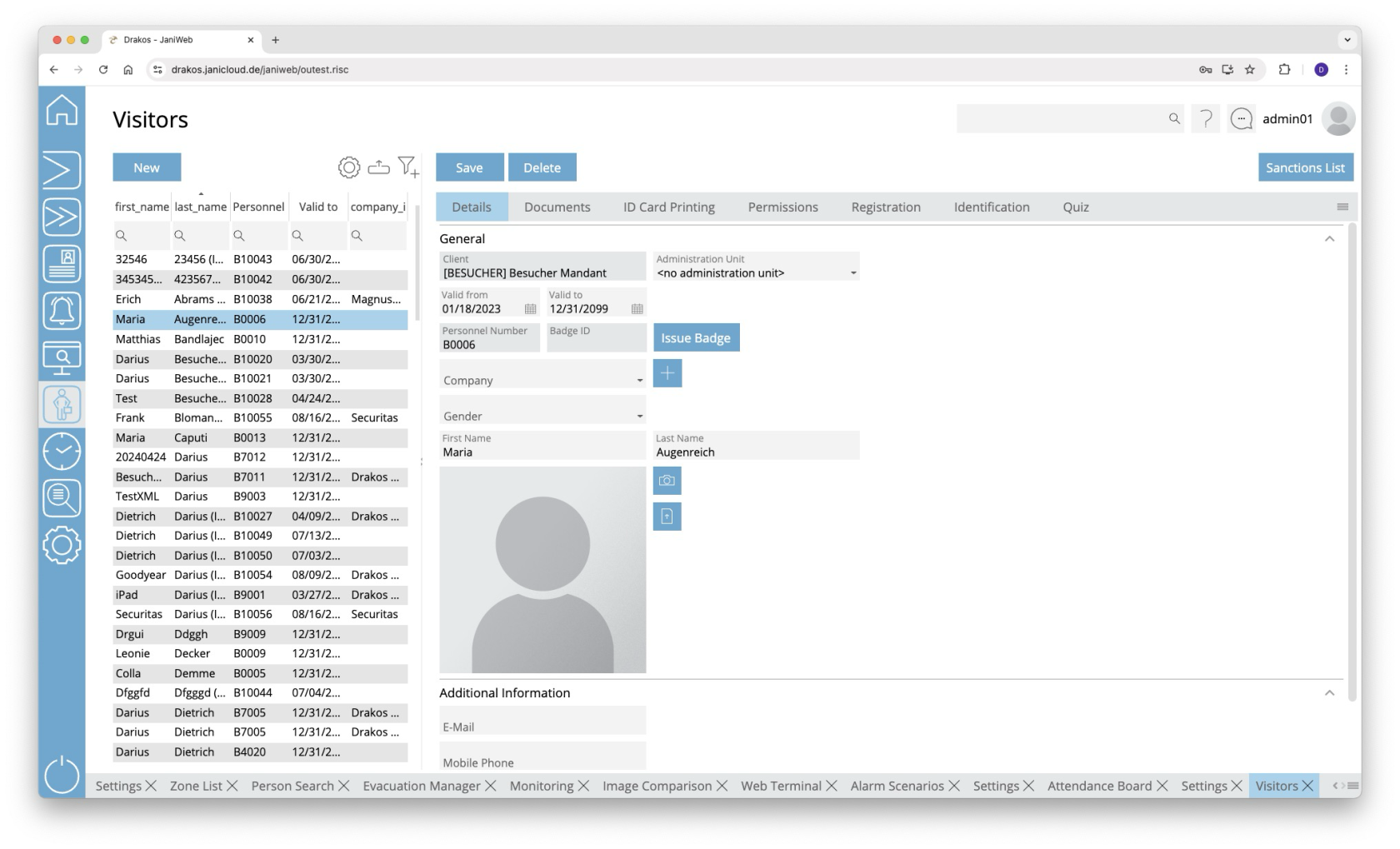
**You can manage visitors in the system via the menu item *Visitors*. Here you can create new visitors and assign them to a company that has been created under the menu item *Companies*.**

[![image.png](https://manual.drakos.de/uploads/images/gallery/2025-10/scaled-1680-/uGEimage.png)](https://manual.drakos.de/uploads/images/gallery/2025-10/uGEimage.png)
## List of visitors

The list contains the visitors already created. Select a visitor to display details. The list offers the following options:

- **Select columns to display:** Press the gear icon. Select which columns you want to display and in which order. Arrange the columns using the mouse or the arrow icons. Press *Apply* to adopt the changes.
- **Filter by client and status:** Press the filter icon. Select the clients and the status (*Active*, *Active in future*, *Inactive*) for which visitors should be displayed. Changes are visible immediately.
- **Search in columns:** Enter text or numbers in the search field (magnifying glass icon) of a column to search for names, personnel numbers, or other criteria. The entries take effect immediately: the list only displays hits.   
    Tip: Search for substrings. You can find “Spencer-Churchill” with “spe”, “chur” or “hill”. The search is not case sensitive.
- **Export the entire list:** Press the download icon. Select the format in which you want to export the list. The export files are downloaded or displayed depending on the browser/operating system settings.For details on the available export formats, see the [General &gt; Export Formats](https://manual.drakos.de/books/janiweb-j92/page/export-formats) chapter of this manual.

## Button *New*

Press *New* to create a new visitor. Enter the required information for the visitor on the tab *Data* and press *Save*.

## Button *Save*

You can change the details of the selected visitor. Press *Save* to save the changes.

## Button *Delete*

Press *Delete* to delete the selected visitor. A confirmation dialog will appear.

## Tab *Details*

This is where you store and edit visitor-related data. You can individually define which fields and areas are available here via *Settings* &gt; tab *General*.

## Tab *Documents*

Here you can link documents to the personnel master record. This tab also contains the documents that the visitor is required to view and sign when self-registering.

## Tab *Badge Printing*

<p class="callout info align-left">This feature is optional and not available in every installation. Depending on the version, it may also be available in the main menu.</p>

This tab allows you to print badges with the visitor’s information. You can define the layouts for printing badges via the menu item *Badge Printing* &gt; *Settings*.

## Tab *Permission*

Here you can grant (*Add Group / Add Device*) or revoke (*Remove Device Group / Remove Device*) permissions for the visitor. This tab also provides an overview of the access events linked to the visitor.

<p class="callout warning align-left">If the tabs *Delete Device* or *Delete Group* contain a device or device group, access via this device or device group is not possible. This also applies if a permission for the device or device group has been granted on the tabs *Add Device* or *Add Group*.</p>

<p class="callout info">A tick after the title of a tab indicates that there is data within the tab.</p>

### *Workflow Permissions*

<p class="callout info align-left">This feature is optional and not available in every installation.</p>

If assigning a device or device group is associated with a workflow, the permission becomes active only after the decision-maker approves the workflow request.

If you select a device or device group that has a workflow, a dialog box appears. This prompts you to enter values for the time model and the validity of the permission. You also have the option of leaving a comment for the decision-maker.

You can create multiple workflow requests at once. To send them, press *Save*.

Workflow requests are indicated by different colors:

<div class="flex max-w-full flex-col flex-grow align-left" id="bkmrk-gelbe-markierung%3A-so"><div class="min-h-8 text-message flex w-full flex-col items-end gap-2 whitespace-normal break-words text-start [.text-message+&]:mt-5" data-message-author-role="assistant" data-message-id="e392af51-5c70-41c8-93a4-a1823d123539" data-message-model-slug="gpt-4o" dir="auto"><div class="flex w-full flex-col gap-1 empty:hidden first:pt-[3px]"><div class="markdown prose w-full break-words dark:prose-invert dark">- **Yellow:** The request has not yet been approved.
- **Green:** The request has been approved.
- **Red:** The request has been rejected.

</div></div></div></div>You can extend the validity of approved permissions. To do this, press *Extend*. Then select a new validity period and create another workflow request.

## Tab *Registration*

Here you can directly register the selected visitor for a visit. To do this, enter all the required information and press *Save*. The visitor now appears in the *Visits* menu item under *Upcoming*.

## Tab *Identification*

Here you can manage the various media that a person can use to identify themselves on a device. To add a new identification medium, press *Add*.

- *Identification*: Enter a value for the medium in this column (e.g. “F DD 193E” for a license plate).
- *Type:* Select the type of identification in this column (e.g. license plate).
- *Valid from* / *Valid to*: Define a validity period for the medium.
- *Prohibition*: In this column, you can block individual identification media.
- To remove an identification medium, use the trash icon.

Press *Save* to save the entries.

## Tab *Quiz*

Here you can see which quizzes the selected visitor has passed or failed and how long the quiz remains valid if passed. If the visitor has failed the quiz and used up the maximum number of attempts, the *Reset Attempts* button allows you to reset the number in order to give the visitor another chance to take the quiz.

You can manually add a quiz using the *Add* button. This is indicated in the *Passed/Not passed* column by the addition of *Manually added*.

---

##### TIPS

You can specify which fields are displayed on the tab *Registration* via the menu item *Settings* for visitor management.

# Registration

**Use the menu item *Registration* to register the selected visitor directly for a visit.**

[![image.png](https://manual.drakos.de/uploads/images/gallery/2025-10/scaled-1680-/HzBimage.png)](https://manual.drakos.de/uploads/images/gallery/2025-10/HzBimage.png)

Enter all the required information and press *Save*. The registered visitor then appears in the *Visits* menu item under *Upcoming*.

If the visitor does not exist in the system, you can create them here. To do this, press *New Visitor*. Enter the required details and then press *Save*.

### Register Visitor Groups

The *Add Visitor Group* button allows you to register a visitor group for a visit. After clicking the button, a window opens for creating the visitor group.

[![image.png](https://manual.drakos.de/uploads/images/gallery/2025-12/scaled-1680-/w8Iimage.png)](https://manual.drakos.de/uploads/images/gallery/2025-12/w8Iimage.png)
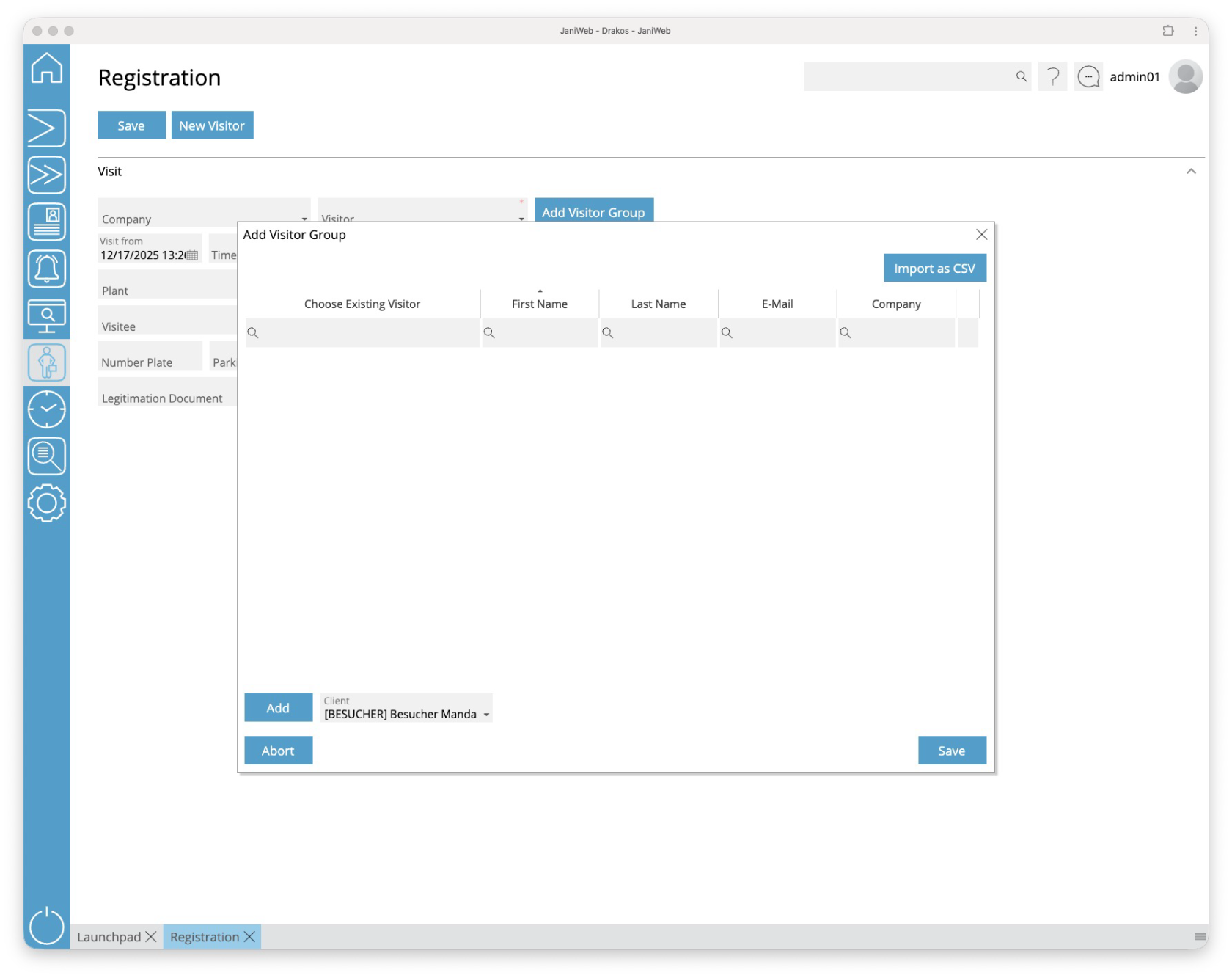
Use the *Add* button to add new entries to the visitor group.

You can add existing visitors to the visitor group using the drop-down menu in the *Choose Existing Visitor* column. Alternatively, you can enter information for a new visitor in the *First Name, Last Name, E-Mail* and *Company* columns.

Use the *Import as CSV* button to import a visitor group from a CSV file. The structure of this CSV file can be found here.

[visitor\_group.csv](https://manual.drakos.de/attachments/28)

Using the *Download Example CSV* button, you can download a sample CSV file. You can use it to understand the required structure of the CSV file.

You can remove existing entries from the visitor group using the *Bin-Button*.

Finish editing the visitor group by clicking the *Save* button.

---

##### TIPS

You can specify which fields are displayed on the tab *Registration* via the menu item *Settings* for visitor management.

# Visits

**The menu item *Visits* provides you with a list of all registered visits, sorted by *Upcoming*, *Ongoing*, *Active* and *Inactive*. Here you can create, edit, start or end visits.**

[![image.png](https://manual.drakos.de/uploads/images/gallery/2025-10/scaled-1680-/TXUimage.png)](https://manual.drakos.de/uploads/images/gallery/2025-10/TXUimage.png)

## List of visits

Select a visit to display details. The list of visits can be filtered by the status and site of the visit. To do this, use the *filter icon* above the list.

## Button *New Visit*

Press *New Visit* to create a new visit. Enter all the required information and press *Save*. The visit then appears under *Upcoming*.

**Create visitor:** If the person expected for the visit does not yet exist in the system, you can create them as a visitor here. To do this, press *New Visitor*.

## Button *Save*

You can change the details of the selected visit. Press *Save* to save the changes.

## Button *Delete*

You can delete visits listed under *Upcoming* at any time. To do this, press *Delete*. A confirmation dialog will appear.

## Buttons *Issue Badge* and *Person arrived* 

When the expected visit arrives, select it under *Upcoming*. Then carry out one of the following steps:

- Press *Issue Badge* to assign the visitor an *Badge* from a list. Badges highlighted in red are still in use, badges highlighted in green are ready to be issued.
- Press *Person arrived* to mark the visit as active without issuing an badge.

The visitor is now marked as *Present*.

## Buttons *Return Badge* and *Person left*  


To mark a visit as finished or absent, select it under *Present*. Then carry out one of the following steps:

- If an badge has been issued, press *Return Badge*.
- If no badge has been issued, press *Person left*.

The visit is now marked as *Active*. If necessary, you can mark active visits as *Present* again by pressing *Person arrived/Issue Badge* again. Visits remain *Active* until the day entered as the end of the visit has passed.

#### Inactive visits

Visits whose end date has already passed, but for which a badge has not yet been returned, appear as *Inactive*. Inactive visits can either be terminated or reactivated.

You can print a badge or visitor’s pass with the stored information at any time using the tabs *Badge Printing* or *Visitor Pass*.

## Button *Edit Visitor*

Press *Edit Visitor* to add missing information or adjust existing information.

---

##### TIPS

You can specify which fields are displayed for a visit via the menu item *Settings* for visitor management.

# QR-Code

**The menu item *QR-Code* allows you to create QR-Codes for use with FAAC barrier systems.**

[![image.png](https://manual.drakos.de/uploads/images/gallery/2025-10/scaled-1680-/X9timage.png)](https://manual.drakos.de/uploads/images/gallery/2025-10/X9timage.png)

To create a QR-Code, follow these steps:

1. Enter a period in the fields *Valid from* and *Valid to* during which the QR-Code should be valid.
2. In the field *Number of uses*, enter the number of times the QR-Code can be used within the validity period.
3. The field *Initial String* indicates for which barrier system the QR-Code is created. If there are several barrier systems, select the desired system.
4. (Optional) In the area *Additional Data for Printout*, enter a comment to appear on the printout. Select *Print validity information* if you want the number of uses and the validity period to appear on the printout as well.
5. Press *Generate QR-Code* to generate the document.
6. Press *Print* to print the document.

---

##### TIPS

You can create additional barrier systems via the menu item *Settings* in the visitor management.

# Settings

**Use the menu item *Settings* to define the basic settings for visitor management. These include number ranges, visitor ID layouts and the fields to be displayed.**

[![image.png](https://manual.drakos.de/uploads/images/gallery/2025-10/scaled-1680-/eNQimage.png)](https://manual.drakos.de/uploads/images/gallery/2025-10/eNQimage.png)

## Button *Save*

Press *Save* to apply your changes.

## Tab *General &gt; Settings* 

In the field *Visitor ID Prefix*, define the prefix for visitor personnel numbers.

### Area *Ranges for Visitor Badges*

Define the number ranges for visitor badges. Create a separate definition for each site. You can either specify a range (*From badge number* / *To badges number*) for all visitor badges or create individual numbers under *Badges*.

### Area *Legitimisation Documents*

Define the documents that should be available for selection in the field *Legitimisation Document* for *Visits*.

### Area *Areas*

Here you determine which areas appear in the menu item *Visitors*. When you select the visible fields for visitors (*Fields Visitor*), specify where the corresponding field is displayed by selecting one of the areas defined here.

To create a new area, perform the following steps:

1. Press the plus icon (*Add*) to add a new entry.
2. Press *Translate*.
3. Enter the area description for the respective languages.
4. Press *Save.*

Enter a number in the *Order* column to determine the order in which the areas are displayed.

<p class="callout info">When creating a new area, you must first save it before you can assign a field to it.</p>

### Area *Fields Visitor*

This is where you manage the fields for the menu item *Visitors*.

#### List field *Site*

You can define the visibility and positioning of the fields separately for each site. Select the site for which the settings in this area should apply.

The fields displayed to the user depend on the site assigned to the user. If no site is assigned to a user, the settings for the *Default* site are used. To assign sites to a user, use the [Settings in the main menu, menu item Users.](https://manual.drakos.de/books/janiweb-j92/page/users)


#### Tab *Static Fields*

Specify which fields are visible (check box in the second column) and where they are positioned (*Row*, *Column*, *Width*).

To define the name for a field, press *Translate*. Enter the names for the respective languages and press *Save.*

In the column *Registration*, you can define whether the respective field also appears in the visitor *Registration*.

#### Tab *Dynamic Fields*

Here you can define up to 20 dynamic fields. For each dynamic field, specify whether it should be a list field (drop-down), a date field, a checkbox or a free text field.

To define the name for a field, press *Translate*. Enter the names for the respective languages and press *Save.*

### Area *Fields Visits/Registration*

Here you manage the fields for the menu items *Registration* and *Visits*.

#### List field *Site*

You can define the visibility and positioning of the fields separately for each site. Select the site for which the settings in this area should apply.

The fields displayed to the user depend on the site assigned to the user. If no site is assigned to a user, the settings for the *Default* site are used. To assign sites to a user, use the *Settings* in the main menu, menu item *Users*.


#### Tab *Static Fields*

Specify which fields are visible (check box in the second column) and where they are positioned (*Row*, *Column*, *Width*).

To define the name for a field, press *Translate*. Enter the names for the respective languages and press *Save.*

In the column *Mandatory*, you can specify whether the entry in the respective field is mandatory.

#### Tab *Dynamic Fields*

Here you can define up to 20 dynamic fields. For each dynamic field, specify whether it should be a list field (drop-down), a date field, a checkbox or a free text field.

To define the name for a field, press *Translate*. Enter the names for the respective languages and press *Save.*

In the column *Mandatory*, you can specify whether the entry in the respective field is mandatory.

#### Button *Copy Field Configuration*

You can use this button to copy the field configuration from the currently selected site to another site. To do this, click the button and then select the site for which you want to copy the field configuration from the site drop-down menu. Confirm your selection with the *Ok* button.

### Area *Visible Buttons Visits*

Use these options to specify which buttons should be visible in the *Visits* menu item.

- *Signature*: Activates/deactivates the button that starts the process of capturing a visitor’s signature on the signature pad.
- *Issue Badge / Return Badge*: Activates/deactivates the buttons for issuing and returning a badge. The issuing/returning of an badge also marks the visit as active/completed.
- *Person arrived/Person left:* Activates/deactivates the buttons for manually activating/ending a visit.

### Area *Fields Invite Visitors*

This is where you manage the fields for the menu item *Invite Visitors* (only visible to users with employee login).

#### Tab *Visitor*

##### Tab *Static Fields*

Specify which fields are visible in the area *Visitor* (checkbox in the second column) and where they are positioned (*Row*, *Column*, *Width*).

##### Tab *Dynamic Fields*

Here you can define up to 20 dynamic fields. For each dynamic field, specify whether it should be a list field (drop-down), a date field, a checkbox or a free text field.

<span style="font-size: 10.0pt; line-height: 115%;">To define the name for a field, press *Translate*. Enter the names for the respective languages and press *Save*.</span>


#### Tab *Visit*

##### Tab *Static Fields*

Specify which fields are visible in the area *Visit* (checkbox in the second column) and where they are positioned (*Row*, *Column*, *Width*).

##### Tab *Dynamic Fields*

Here you can define up to 20 dynamic fields. For each dynamic field, specify whether it should be a list field (drop-down), a date field, a checkbox or a free text field.

<span style="font-size: 10.0pt; line-height: 115%;">To define the name for a field, press *Translate*. Enter the names for the respective languages and press *Save*.</span>

#### Button *Copy Field Configuration*

You can use this button to copy the field configuration from the currently selected site to another site. To do this, click the button and then select the site for which you want to copy the field configuration from the site drop-down menu. Confirm your selection with the *Ok* button.

### Area *QR-Code*

This is where you manage the FAAC barrier systems that should be available for selection in the menu item *QR-Code*. To create a new barrier system, upload the corresponding init string into the system using the button *Upload the initial string*.

### Area *Additional Settings*

This is where you define further settings for visitors.

- *Enable sanctions list:* Enables the sanctions list check.
- *Enable badge number in Visits screen:* Enables the badge number in the list of visits in the menu item *Visits*.
- *Enable Visits by the hour:* Enables to create visits by the hour.
- *Sort option for visits:* Choose whether to sort visits by first name or surname.
- *Visitee additional Information: Select the additional information that should be available for the visitee.*
- *Validity Visitors (Days):* Enter the standard validity in days for visitors that were created via registration or the menu item *Invite Visitors.*
- *Validity Invitation Link (Days):* Defines how long an invitation link is valid in days.
- *Invitation Link:* If the server running JaniWeb for external users is different from the one sending the invitations, the URL of the external server must be specified here.
- *Enable Invitation:* This setting activates the function that allows employees to send invitation links to visitors.
- *Enable Visitor Groups:* If this option is selected, it is possible to create visits for visitor groups.
- *Search delay Visits (in milliseconds):* Configures the delay with which the application will start the search after the last input into search field of Visits menu.
- <div class="riscrow" data-riscreference="SWPC14985-S1-g_1RI0-g_9RI1-g_40-T1772197080962_18297703_14998RWPCN0-g_282-g_21RI0-g_202" id="bkmrk-visitor-self-registr"><div class="riscfoldablepane" data-riscreference="SWPC14985-S1-g_1RI0-g_9RI1-g_40-T1772197080962_18297703_14998RWPCN0-g_282-g_21RI0-g_203" id="bkmrk-visitor-self-registr-1"><div class="riscrow" id="bkmrk-visitor-self-registr-2"><div class="riscfoldablepane_contentpane" id="bkmrk-visitor-self-registr-3"><div class="riscrow" data-riscreference="SWPC14985-S1-g_1RI0-g_9RI1-g_40-T1772197080962_18297703_14998RWPCN0-g_282-g_21RI0-g_783" id="bkmrk-visitor-self-registr-4"><div class="riscfieldcontainer focused" data-riscclientname="self_reg_inactivity" data-riscreference="SWPC14985-S1-g_1RI0-g_9RI1-g_40-T1772197080962_18297703_14998RWPCN0-g_282-g_21RI0-g_784" data-test="self_reg_inactivity" id="bkmrk-visitor-self-registr-5"><div class="riscfieldcontainer_label" data-riscclientname="self_reg_inactivity_textlabel" data-test="self_reg_inactivity_textlabel" id="bkmrk-visitor-self-registr-6"><div class="riscelement" data-riscclientname="self_reg_inactivity_textlabel_text" data-test="self_reg_inactivity_textlabel_text" id="bkmrk-visitor-self-registr-7">*Visitor self-registration inactivity timeout (in seconds):* Configures the timeout in seconds after which if the user does not interact with the visitor self-registration the application will lead to the language selection screen.</div></div></div></div></div></div></div></div><div class="riscrow" data-riscreference="SWPC14985-S1-g_1RI0-g_9RI1-g_40-T1772197080962_18297703_14998RWPCN0-g_282-g_21RI0-g_778RI0-g_2" id="bkmrk--2"><div class="riscfoldablepane" data-riscreference="SWPC14985-S1-g_1RI0-g_9RI1-g_40-T1772197080962_18297703_14998RWPCN0-g_282-g_21RI0-g_778RI0-g_203" id="bkmrk--3"><div class="riscrow" id="bkmrk--4"><div class="riscfoldablepane_toppane" id="bkmrk--5"><div class="riscrow" id="bkmrk--6"><div class="riscfoldablepane_titlebutton" id="bkmrk--7" tabindex="1"></div><div class="riscicon" id="bkmrk--8" tabindex="1"></div></div></div></div><div class="riscrow" id="bkmrk--9"><div class="riscfoldablepane_contentpane" id="bkmrk--10"><div class="riscrow" data-riscreference="SWPC14985-S1-g_1RI0-g_9RI1-g_40-T1772197080962_18297703_14998RWPCN0-g_282-g_21RI0-g_778RI0-g_568" id="bkmrk--11"><div class="riscflextable" data-riscreference="SWPC14985-S1-g_1RI0-g_9RI1-g_40-T1772197080962_18297703_14998RWPCN0-g_282-g_21RI0-g_778RI0-g_569" id="bkmrk--12"><div class="riscrow" data-riscreference="SWPC14985-S1-g_1RI0-g_9RI1-g_40-T1772197080962_18297703_14998RWPCN0-g_282-g_21RI0-g_778RI0-g_570" id="bkmrk--13"><div class="risccombobox" data-riscclientname="selectedPlantValue" data-riscreference="SWPC14985-S1-g_1RI0-g_9RI1-g_40-T1772197080962_18297703_14998RWPCN0-g_282-g_21RI0-g_778RI0-g_571" data-test="selectedPlantValue" id="bkmrk--14" tabindex="1"><div class="risccombobox_field disabled" data-riscclientname="selectedPlantValue_field" data-test="selectedPlantValue_field" id="bkmrk--15"><div class="risccombobox_field_label" data-riscclientname="selectedPlantValue_field_textlabel" data-test="selectedPlantValue_field_textlabel" id="bkmrk--16"></div></div></div></div></div></div></div></div></div></div>
- *Allow parallel visits:* Allows the creation of a parallel visit for the same visitor.

### Area *Automatic Visit Status*

Here, devices can be assigned to a specific event type. If a visitor makes a booking on such a device, the status of the associated visit is automatically set to *Ongoing* or *Active*.

The configuration can be made on a site-specific basis.

## Tab *General &gt; E-Mail*

This is where you manage the settings for sending E-Mails in visitor management.

### List field *Site*

You can define the E-Mail settings separately for each site. Select the site for which the settings in this area should apply.

### List of documents

The documents stored in this list are attached to the confirmation E-Mail when visitors register.

- Download icon: Downloads the corresponding document to your computer.
- Trash icon: Deletes the corresponding document from the system. A confirmation dialog will appear.

#### Button *Upload Documents*

Select one or more PDF or image files on your computer to add them to the list.

#### Button *Remove All*

Deletes all documents. A confirmation dialog will appear.

### Checkbox *Dynamic sender E-Mail*

If this setting is activated, the visitor's e-mail address is used as the sender in the visitor management. Conversely, the visitor also receives the visitee's matching sender address.

### Area E-Mail*: Visitor Registration*

- *Inform visitor about registration:* The visitor will receive a notification as soon as they have been registered for a visit.
- *Inform visitee about registration:* The person being visited will receive a notification as soon as a visit has been registered for them.
- *Send ICS to Visitor*. The visitor also receives the appointment as an E-Mail attachment in ICS format.
- *Send ICS to Visitee*. The visitee also receives the appointment as an E-Mail attachment in ICS format*.*
- *E-Mail Layout Visitor* / E-Mail *Layout Visitee:* This is where you define the content of the E-Mails to visitors and visitors using XML layouts. Select a language and use the buttons *Upload new layout* to upload a layout.

#### Examples of E-Mail layouts

Sample layouts for E-Mails in XML format:

- Visitor information: [email\_visitor\_registration\_visitor.xml](https://manual.drakos.de/attachments/21)
- Visitee information: [email\_visitor\_registration\_visitee.xml](https://manual.drakos.de/attachments/19)

### Area E-Mail*: Delete Visit*

- *Inform Visitor about Delete:* The visitor receives a notification when the visit has been deleted.
- *Inform Visitee about Delete:* The person being visited receives a notification when the visit has been deleted.
- *Visitor E-Mail Layout* / *Visitee E-Mail Layout:* This is where you define the content of the E-Mails to visitors and visitors using XML layouts. Select a language and use the buttons *Upload new layout* to upload a layout.

#### Examples of E-Mail layouts

Sample layouts for E-Mails in XML format:

- E-mail about the deletion of the visit to the visitor: [email\_visitor\_registration\_visitor\_delete.xml](https://manual.drakos.de/attachments/20)
- E-mail about the deletion of the visit to the visited: [email\_visitor\_registration\_visitee\_delete.xml](https://manual.drakos.de/attachments/18)

### Area E-Mail*: Arrival Visitor*

- *Inform Visitor about arrival:* The visitor will receive a notification as soon as they have been arrived.
- *Inform Visitee about arrival:* The person being visited will receive a notification as soon as a visit has been arrived.
- *E-Mail Layout Visitor* / E-Mail *Layout Visitee:* This is where you define the content of the E-Mails to visitors and visitors using XML layouts. Select a language and use the buttons *Upload new layout* to upload a layout.

#### Examples of E-Mail layouts

Sample layouts for E-Mails in XML format:

- Visitor information: [email\_visitor\_registration\_visitor.xml](https://manual.drakos.de/attachments/21)
- Visitee information: [email\_visitor\_registration\_visitee.xml](https://manual.drakos.de/attachments/19)

### Area E-Mail*: Invitation Visitor*

- *E-Mail Layout Visitor:* Here you can define the content of the E-Mails sent to visitors using XML layouts when they are invited via the [*Invite Visitors*](https://manual.drakos.de/books/janiweb-j92/page/invite-visitors) menu. Select a language and use the buttons *Upload new layout* to upload a layout.

#### Examples of E-Mail layouts

Sample layouts for E-Mails in XML format:

- Visitor information: [email\_visitor\_invitation.xml](https://manual.drakos.de/attachments/25)

## Tab *General &gt; Sanctions List*

You can activate the sanctions list check within visitor registration here. This checks whether the visitor created is on a sanctions list. Different information about the visitor can be checked for an entry on a sanctions list.

1. Select the database table and the field containing the sanctions list.
2. Select the visitor information to be checked against the sanctions list.
3. To check for validity, activate the option *Validity* and select the table column for the validity check in the next field.
4. Use the option *Include List* to select whether the check should fail if 
    - the information is on the sanctions list (check mark),
    - the information is not on the sanctions list (no check mark).

The sanctions list check is displayed in visitor registration if it is activated in the *Additional Settings*.

Use the *Enable sanctions list via API* setting to activate sanctions list checking via the dbh interface. Then configure the following values in the API area:

- *URL*: Endpoint to be called for sanctions list checking.
- *Request name*: Name of the request.
- *Client*: Client via which the request is made.
- *Username*: User name used for authentication at the endpoint.
- *Password*: Password used for authentication at the endpoint.
- *Visitor field*: Field of the created visitor master records that is compared with a field in the sanctions lists.
- *API field*: Field in the sanctions list against which the visitor information is compared.

## Tab *Visitor Pass*

Here you can manage different layouts for printing visitor passes. Select an entry in the list to display or change details.

To upload a new layout:

1. Press *New*.
2. Enter a description and select the site for which the layout should be used.  
    (Only layouts for the visit location are displayed in the menu item *Visits*.)
3. Press *Upload new layout* to upload an XML layout.
4. Press *Upload new logo* to upload an image file with a logo.
5. Press *Save* to apply the settings.

- *Set Signature Pad Text*: If a signature is required for visitor registration, press this button to set the text that appears on the signature pad in the respective language.
- *Send PDF to visitee* and *Send PDF to visitor*: Use this to specify whether the issued visitor pass, including signature, is to be sent to the visitor or to the attended in PDF format by E-Mail.
- *Save PDF in database*: Use this to specify whether issued visitor passes are to be saved in PDF format in the database.

You can find a sample layout for a visitor pass here: [SampleVisitorPassLayout.xml](https://manual.drakos.de/attachments/16)

---

##### TIPS

To create the layout, get in touch with your contact person.

## Tab *Visitor Registration Process*

Use modules in this area to define the processes for visitor registration and for visitor check-in and check-out, independently for each site.

### Tab *Registration*

Registration allows your visitors to register independently at the reception. A visitor master record and a visit are created. On this tab, modules are used to define the registration process. Different processes can be specified for visitors and external companies.

- **Inserting modules:** Drag the required modules in the desired order to the area of the relevant location or press the button with the + to select the corresponding module in the following dialog.
- **Reordering modules:** Drag the modules to the desired position.
- **Editing modules:** Use the edit icon to specify details such as the fields to be displayed for the respective module.
- **Removing modules:** Use the trash icon to remove a module from the process.

Once you have configured a process, you can jump directly to the process via the *Open process* link. This will then open in a new tab.

#### Overview of the modules

##### *Language selection*

This module displays a dialog for the visitor at the start of the registration process, where they can select the language of the user interface. To activate other languages in addition to German and English:

1. Press *Upload* in the *Flag* column and upload a suitable image.
2. Activate the language in the column *Active*.
3. The *Welcome text* column allows you to display a text to visitors when welcoming them to the self-service.
4. Press *Save.*

##### *Visitor data*

This module displays the input fields for visitor information. Select which fields are displayed and where they are positioned (*Row*, *Column*, *Width*). You must also specify the client with which the visitor master records are to be created. Use the *Mandatory* column to define whether the field must be filled in.

- Tab *Dynamic Fields*: Here you can define up to 20 dynamic fields. For each dynamic field, specify whether it should be a list field (drop-down), a date field, a checkbox or a free text field.
- Tab *Dynamic Fields - Visits*: Specify here which fields should be displayed that are directly linked to the visit. <span style="font-size: 10.0pt; line-height: 115%;">To define the name for a field, press *Translate*. Enter the names for the respective languages and press *Save*.</span>

##### *PDF View*

This module displays a PDF to the visitor. Select a language and press *Upload new PDF* to upload a PDF for that language.

- *Send PDF to visitee* / *Send PDF to visitor*: Use this option to specify whether the PDF should be sent by E-Mail to the visitor and/or to the person visited at the end of the process.
- *Save PDF in database*: Use this option to specify whether the PDF should be linked directly to the visitor master record.

##### *Signature*

This module prompts the visitor to sign. Press *Set Signature Pad Text* to define the text to be displayed in addition to the signature field for the respective language. Activate the option *Use external signature pad* if an external signature pad is connected. Leave the option disabled if the visitor is to use the mouse or the touchpad or touchscreen for the signature.

##### *Print visitor pass*  


This module prints a visitor pass. To upload a PDF layout for the respective language, select the language and press *Upload new layout*.

- *Send PDF to visitee* and *Send PDF to visitor*: Specify whether the issued visitor pass is sent by E-Mail to the visitor or to the person visited in PDF format.
- *Save PDF in database*: Specify whether the visitor pass is linked to the visitor master record.

You can find a sample layout for a visitor pass here: [SampleVisitorPassLayout.xml](https://manual.drakos.de/attachments/16)

##### *XML View*

This module displays a PDF with the information that the visitor has entered (e.g. name, E-Mail address). To upload a PDF layout for the respective language, select the language and press *Upload new layout*.

- *Send PDF to visitee* and *Send PDF to visitor*: Use this option to specify whether the PDF should be sent by email to the visitor and/or to the person visited.
- *Save PDF in database*: Use this option to specify whether the PDF should be linked to the visitor master record.
- *Not visible*: Specify whether the created PDF is displayed in the registration process.
- *Accept*: Specify whether the visitor must confirm the information in the displayed PDF.

You can find a sample layout in XML format here: [SampleVisitorPassLayout.xml](https://manual.drakos.de/attachments/16)

##### *End*

This module displays a final text and sets the visit to either “Upcoming” or “Present”.

- *Generate QR-Code*: Use this option to specify whether a QR-Code should be generated for the visit.
- *Upcoming/ Present*: Select the status for the visit.
- *Message display duration (seconds)*: Use this option to specify how long the text should be displayed. Enter a whole number.
- *Translate*: Press this button to set the text that will be displayed in the respective language at the end of the registration process.

##### E-Mail

Use this module to specify the subject line and layout for the E-Mails that are to be sent to the attended and visiting party at the end of the registration process.

- Press E-Mail *Subject Visitor / E-Mail Subject Visitee*, and enter the text that should be used as the subject for the E-Mail in the respective language.
- Press E-Mail *Layout Visitor / E-Mail Layout Visitee*, select a language and press *Upload new layout* to upload an E-Mail layout for this language.

Sample layouts for E-Mails in XML format:

- Visitor information: [email\_visitor\_registration\_visitor.xml](https://manual.drakos.de/attachments/21)
- Visitee information: [email\_visitor\_registration\_visitee.xml](https://manual.drakos.de/attachments/19)

##### CI

This module allows you to customise the appearance of the visitor self-registration to match your company's CI.

You can use the *Upload Logo* button to display your own logo within the visitor self-registration. This appears in the process in the top right-hand corner.

The *Upload Background Image* button allows you to upload a background image, which is displayed in the language selection, registration selection, check-in or check-out steps and at the end of the process.

Use the *Background Color* field to determine the background color of the pages displayed in the process.

Use the *Top Bar Color* field to determine the color of the top bar.

Use the *Set Title* button to define the title that is displayed in the process within the top bar.

##### *Visitor Type*

The registration process can be defined separately for visitors or external companies. This module loads the process for a visitor or an external company.

##### *Restriction Visitees*

This module restricts the selectable visitees displayed in the module *Visitor Data* . The restriction is based on person groups.

To create a new person group:

1. Press *Add*.
2. Enter a name and a validity period for the person group.
3. Press *Add criteria*.
4. Select the required criterion from the list field.
5. In the field *From*, select a single value or use both fields to specify a range. You can also specify multiple values for the same criterion (*Add value*).
6. (Optional) Add another criterion with value(s).

**Logic of criteria and values**

- The values of a criterion are linked logically by OR (one match is sufficient).
- Criteria are linked logically by AND (all criteria must be met).

##### *Site*

This module allows selection of the location for which the visitor registers. Define which sites should be available for selection during registration.

<p class="callout info">Access visitor registration using the following URL: https://{server}/janiweb/visit</p>

##### *Quiz*

This module allows you to integrate a quiz into the process.

### Tab *Check-in*

The check-in is used by visitors who are already registered in the system and for whom a planned visit exists. Upon arrival, the visitor activates their visit by scanning a QR-Code.

Use modules on this tab to define the check-in process. Different processes can be specified for visitors and external companies.

- **Inserting modules:** Drag the required modules in the desired order to the area of the relevant location or press the button with the + to select the corresponding module in the following dialog.
- **Reordering modules:** Drag the modules to the desired position.
- **Editing modules:** Use the edit icon to specify details such as the fields to be displayed for the respective module.
- **Removing modules:** Use the trash icon to remove a module from the process.

Once you have configured a process, you can jump directly to the process via the *Open process* link. This will then open in a new tab.

#### Overview of the modules

##### *Visitor data*

This module displays the input fields for visitor information. Select which fields are displayed and where they are positioned (*Row*, *Column*, *Width*). You must also specify the client with which the visitor master records are to be created. Use the *Mandatory* column to define whether the field must be filled in.

- Tab *Dynamic Fields*: Here you can define up to 20 dynamic fields. For each dynamic field, specify whether it should be a list field (drop-down), a date field, a checkbox or a free text field.
- Tab *Dynamic Fields - Visits*: Specify here which fields should be displayed that are directly linked to the visit. <span style="font-size: 10.0pt; line-height: 115%;">To define the name for a field, press *Translate*. Enter the names for the respective languages and press *Save*.</span>

##### *Signature*

This module prompts the visitor to sign. Press *Set Signature Pad Text* to define the text to be displayed in addition to the signature field for the respective language.Activate the option *Use external signature pad* if an external signature pad is connected. Leave the option disabled if the visitor is to use the mouse or the touchpad or touchscreen for the signature.

##### *XML View*

This module displays a PDF with the information that the visitor has entered (e.g. name, E-Mail address). To upload a PDF layout for the respective language, select the language and press *Upload new layout*.

- *Send PDF to visitee* and *Send PDF to visitor*: Use this option to specify whether the PDF should be sent by E-Mail to the visitor and/or to the person visited.
- *Save PDF in database*: Use this option to specify whether the PDF should be linked to the visitor master record.
- *Not visible*: Specify whether the created PDF is displayed in the registration process.
- *Accept*: Specify whether the visitor must confirm the information in the displayed PDF.

You can find a sample layout in XML format here: [SampleVisitorPassLayout.xml](https://manual.drakos.de/attachments/16)

##### E-Mail

Use this module to specify the subject line and layout for the E-Mails that are to be sent to the attended and visiting party at the end of the process.

- Press E-Mail *Subject Visitor / E-Mail Subject Visitee*, and enter the text that should be used as the subject for the E-Mail in the respective language.
- Press E-Mail *Layout Visitor / E-Mail Layout Visitee*, select a language and press *Upload new layout* to upload an E-Mail layout for this language.

Sample layouts for E-Mails in XML format:

- Visitor information: [email\_visitor\_registration\_visitor.xml](https://manual.drakos.de/attachments/21)
- Visitee information: [email\_visitor\_registration\_visitee.xml](https://manual.drakos.de/attachments/19)

##### *PDF View*

This module displays a PDF to the visitor. Select a language and press *Upload new PDF* to upload a PDF for that language.

- *Send PDF to visitee* and *Send PDF to visitor*: Use this option to specify whether the PDF should be sent by E-Mail to the visitor and/or to the person visited at the end of the process.
- *Save PDF in database*: Use this option to specify whether the PDF should be linked directly to the visitor master record.

##### *Visitor Type*

The registration process can be defined separately for visitors or external companies. This module loads the process for a visitor or an external company.

##### *Quiz*

This module allows you to integrate a quiz into the process.

##### *End*

This module displays a final text and sets the visit to either “Upcoming” or “Present”.

- *Generate QR-Code*: Use this option to specify whether a QR-Code should be generated for the visit.
- *Upcoming/ Present*: Select the status for the visit.
- *Message display duration (seconds)*: Use this option to specify how long the text should be displayed. Enter a whole number.
- *Translate*: Press this button to set the text that will be displayed in the respective language at the end of the registration process.

<p class="callout info">Access visitor registration using the following URL: https://{server}/janiweb/visit  
</p>

### Tab *Check-out*

Check-out is used by visitors who are already registered in the system and who have an active visit. Upon departure, the visitor checks out by scanning their QR-Code.

Drag the module *Self-Checkout* to the area of the respective site. Use the edit icon to set a farewell text and the display duration in seconds.

<p class="callout info">Access visitor registration using the following URL: https://{server}/janiweb/visit</p>

Once you have configured a process, you can jump directly to the process via the *Open process* link. This will then open in a new tab.

### Tab *Visitor Types*

You have the option of creating different visitor types, which you can use to configure different processes for egistration, check-in and check-out for each visitor type. By default, there are the visitor types *Visitor* and *Contractor*.

To add a new visitor type, use the *Add* button. Then set the name for the visitor type using the *Translate* button. Use the option in the *Default* column to define the visitor type as which new visitors are created in the standard system. You can delete a visitor type again using the *bin icon*.

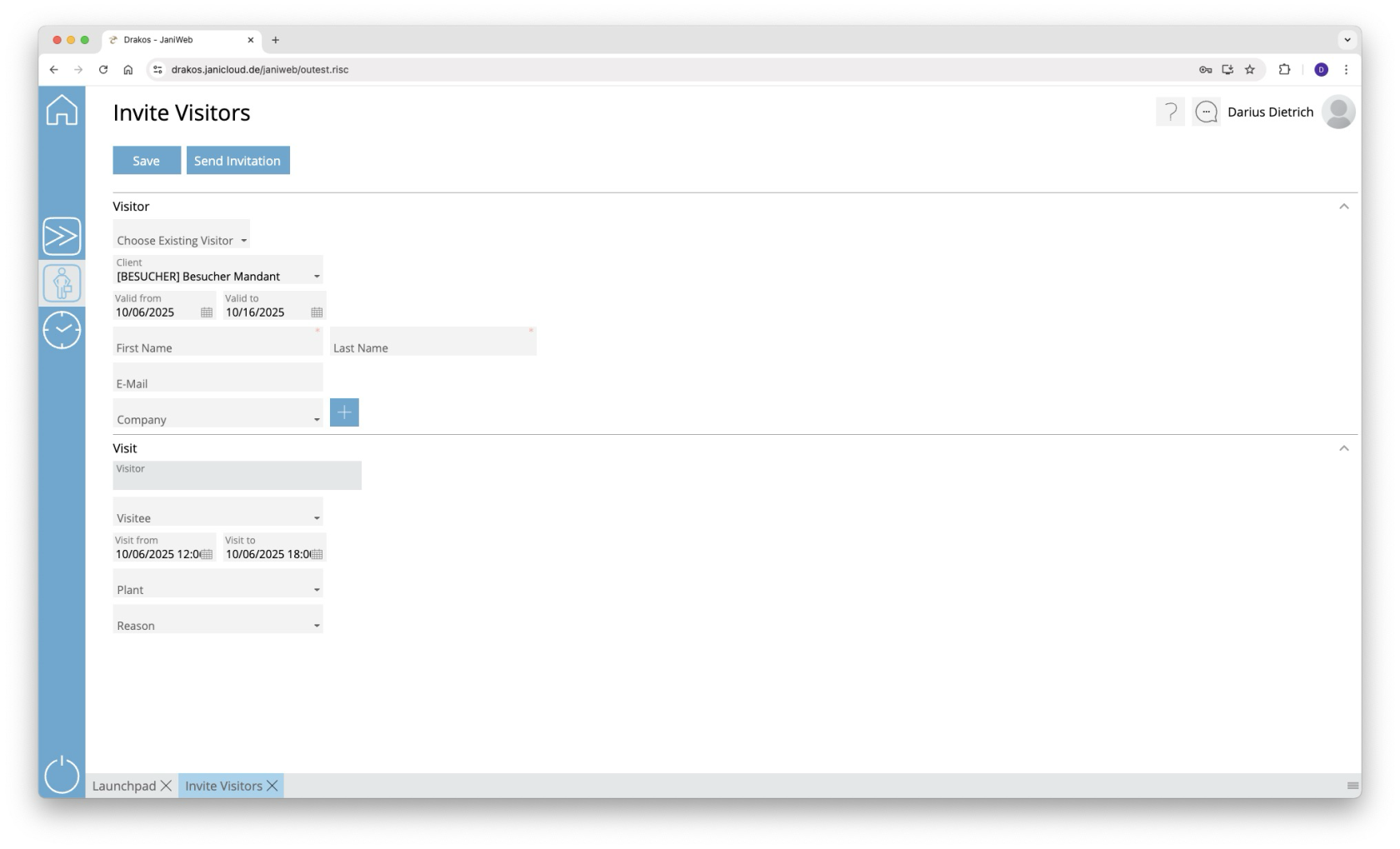
# Invite Visitors

**You can create a new visitor via the menu item Invite visitor and register directly for a visit.**

<p class="callout info align-left">This menu item is only available if you have logged in as an employee. This menu item is not available if you are logged in as an admin.</p>

[![image.png](https://manual.drakos.de/uploads/images/gallery/2025-10/scaled-1680-/lqHimage.png)](https://manual.drakos.de/uploads/images/gallery/2025-10/lqHimage.png)

## Area *Visitor*

Here you can create visitors or change information for an existing visitor.

### New Visitor

If you would like to create a new visitor, enter the required information for the visitor in the *Visitor* area and click on *Save*.

### Existing Visitor

If you would like to use an existing visitor, select it in the *Choose existing Visitor* dropdown. You now have the option to edit the information for the visitor.

### Register Visitor Groups

The *Add Visitor Group* button allows you to register a visitor group for a visit. After clicking the button, a window opens for creating the visitor group.

[![image.png](https://manual.drakos.de/uploads/images/gallery/2025-12/scaled-1680-/w8Iimage.png)](https://manual.drakos.de/uploads/images/gallery/2025-12/w8Iimage.png)

Use the *Add* button to add new entries to the visitor group.

You can add existing visitors to the visitor group using the drop-down menu in the *Choose Existing Visitor* column. Alternatively, you can enter information for a new visitor in the *First Name, Last Name, E-Mail* and *Company* columns.

Use the *Import as CSV* button to import a visitor group from a CSV file. The structure of this CSV file can be found here.

[visitor\_group.csv](https://manual.drakos.de/attachments/28)

You can remove existing entries from the visitor group using the *Bin-Button*.

Finish editing the visitor group by clicking the *Save* button.

## Area *Visit*

Enter the information for the visit here. Confirm your entries with *Save*.

## Button *Save*

You can change the details of the selected visitor and create the information for the visit. Press *Save* to save the changes.

## Button *Send Invitation*

You have the option of sending the visitor an invitation by E-Mail. This invitation gives the visitor the opportunity to register themselves. The process for visitor self-registration of the respective site is used for this.