This option is only available if you have logged in as an employee and are a supervisor.
#### Disable team calendar limitation The team display can be limited by further criteria in the settings. Enable this option to remove such restrictions.This option is only available if you have logged in as an employee.
#### Show only direct employees If this option is activated, you as a supervisor will only see the persons from the team for which you are the supervisor. Furthermore, you cannot see members of the team you are a member of yourself.This option is only available if you have logged in as an employee and are a supervisor.
#### Incognito mode If this option is activated, you will not be visible to other members of your team in the team calendar, and you will not see members of your team in the team calendar.This option is only available if you have logged in as an employee.
# Export Formats ## Export lists Lists in JaniWeb for which a download icon is displayed can be exported in various formats. The export files are downloaded or displayed depending on the settings of the browser / operating system. The following formats are available: ##### *PDF* Creates a document in PDF format. Tip: To print the pages, select the options “Automatically rotate pages” and “Fit into print area” in your PDF viewer. ##### *CSV* Creates a file in CSV format (comma-separated values). The individual columns are enclosed in inverted commas and separated by semicolons. ##### *XML* Creates a file in XML format. Rows are enclosed in `Personal data that is transferred from external systems (e.g. SAP) cannot be changed here. They must be edited in the respective source system.
## Tab *Permissions* Here you can grant (*Add Device Group / Add Device*) or revoke (*Remove Group / Remove Device*) permissions for a person. The lists on the tabs *Add Group / Add Device* provide an overview of all permissions linked to the person. The column *Origin* indicates where the permission comes from. For example, it could have been passed on to the person via a person group or transferred from the Janitor system.If the tabs *Delete Device* or *Delete Group* contain a device or device group, access via this device or device group is not possible. This also applies if a permission for the device or device group has been granted on the tab *Add Device* or *Add Device Group*.
A tick after the title of a tab indicates that there is data within the tab.
### *Workflow Permissions*This feature is optional and not available in every installation.
If assigning a device or device group is associated with a workflow, the permission becomes active only after the decision-maker approves the workflow request. If you select a device or device group that has a workflow, a dialog box appears. This prompts you to enter values for the time model and the validity of the permission. You also have the option of leaving a comment for the decision-maker. You can create multiple workflow requests at once. To send them, press *Save*. Workflow requests are indicated by different colors:This feature is optional and not available in every installation. Depending on the version, it may also be available in the main menu.
This tab allows you to print badges with the person’s information. You can define the layouts for printing badges via the menu item *Badge Printing* > *Settings*. ## Tab *Documents* Here you can link documents to the personnel master record. To upload new documents, drag the file(s) into the area provided. Or press *Upload Documents* and select the desired files on your computer. ## Tab *Person Groups* Here you can see to which person groups the selected person is assigned. You can manually add or exclude person groups. Manual adjustments overwrite the automatic assignment based on the person’s criteria. Manual adjustments are marked accordingly: - **Manually assigned:** The person group is highlighted in green and the note *manually assigned* is added. - **Manually excluded:** The group of persons is highlighted in yellow and the note *manually excluded* is added. You can remove manual adjustments at any time using the trash can icon. ## Tab *Qualifications* Qualifications enable you to unlock permissions for the selected person. Use the menu item *Qualifications* to specify which qualifications can be selected here. ## Tab *Identification* Here you can manage the various media that a person can use to identify themselves on a device. To add a new identification medium, press *Add*. - *Identification*: Enter the value for the medium in this column (e.g. “F DD 193E” for a license plate). - *Type:* Select the type of identification in this column (e.g. license plate). - *Valid from* / *Valid to*: Define a validity period for the medium. - *Prohibition*: In this column, you can block individual identification media. - *Reason for ban:* You can enter a comment here as a reason for the ban. - To remove an identification medium, use the trash icon. Press *Save* to save the entries. --- ##### TIPS Press *Copy* at the top to create a copy of the selected person, including their properties and permissions. # Person Groups **You can use the menu item *Person Groups* to group staff according to departments or other criteria.** [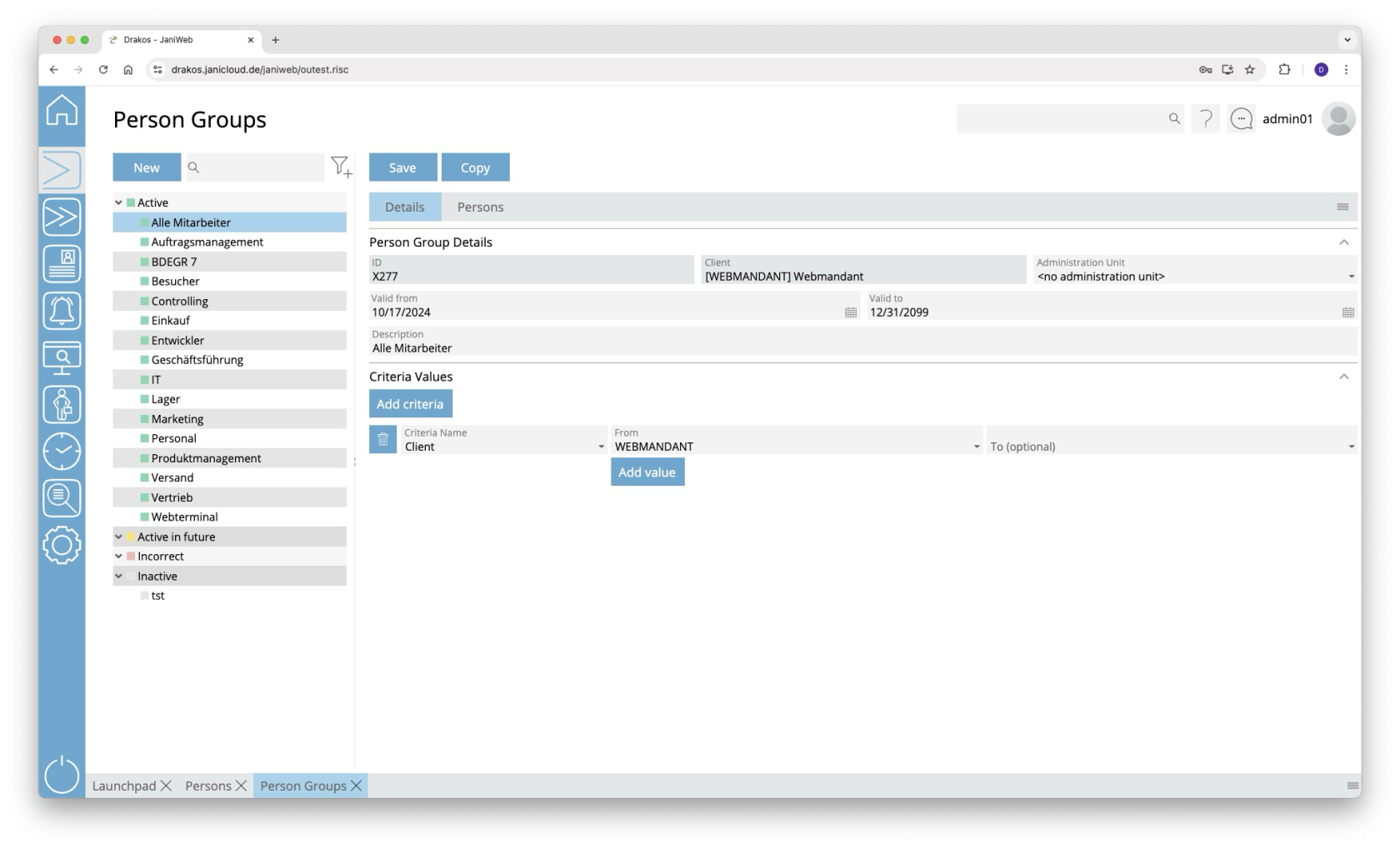](https://manual.drakos.de/uploads/images/gallery/2025-10/xDiimage.png) ## List of person groups The list contains all person groups already created, grouped by their status. Select a person group to view details. The list offers the following options: - **Search:** Enter text or numbers in the search field (magnifying glass icon) at the top to search for groups. The entries take effect immediately: the list only displays hits. The search is not case sensitive. - **Filter:** Press the filter icon. Select the criteria for which you want to display groups. Changes are visible immediately. ## Button *New* Press *New* to create a new person group. Enter a description, a validity period, and a client, and press *Save*. ## Tab *Definition* ### Area *Person Group Details* Define the details of the person group, such as the label and validity period. ### Area *Criteria Values* Specify the criteria according to which the person group is formed. To add a new criterion: 1. Press *Add criteria*. 2. Select the required criterion from the list field. 3. Enter a single value (*From*) or a range of values (*From–To*). 4. To set additional values for the same criterion, press *Add value*. **Logic of criteria and values** - The values within the same criterion are linked logically by OR (one match is sufficient). - Different criteria are linked logically by AND (all criteria must be met). ## Tab *Persons* The list displayed here contains all persons who belong to the selected person group. Persons in this list have either been assigned automatically based on criteria or added manually. - Press *Add* to add a person to the group independently of their criteria. - Use the trash icon to remove a person from the group independently of their criteria. Furthermore, the list offers the following options: - **Select columns to display:** Press the gear icon. Select which columns you want to display and in which order. Arrange the columns using the mouse or the arrow icons. Press *Apply* to adopt the changes. - **Search in columns:** Enter text or numbers in the search field (magnifying glass icon) of a column to search for names, personnel numbers, or other criteria. The entries take effect immediately: the list only displays hits. Tip: Search for substrings. You can find “Spencer-Churchill” with “spe”, “chur” or “hill”. The search is not case sensitive. - **Export the entire list:** Press the download icon. Select the format in which you want to export the list. The export files are downloaded or displayed depending on the browser/operating system settings. For details on the available export formats, see the [General > Export Formats](https://manual.drakos.de/books/janiweb-j92/page/export-formats) chapter of this manual. --- ##### TIPS Press *Copy* at the top to create a copy of the selected persons group, including their properties. # Lock Persons **The menu item *Lock Persons* allows you to block and unblock badges en masse based on certain criteria.** [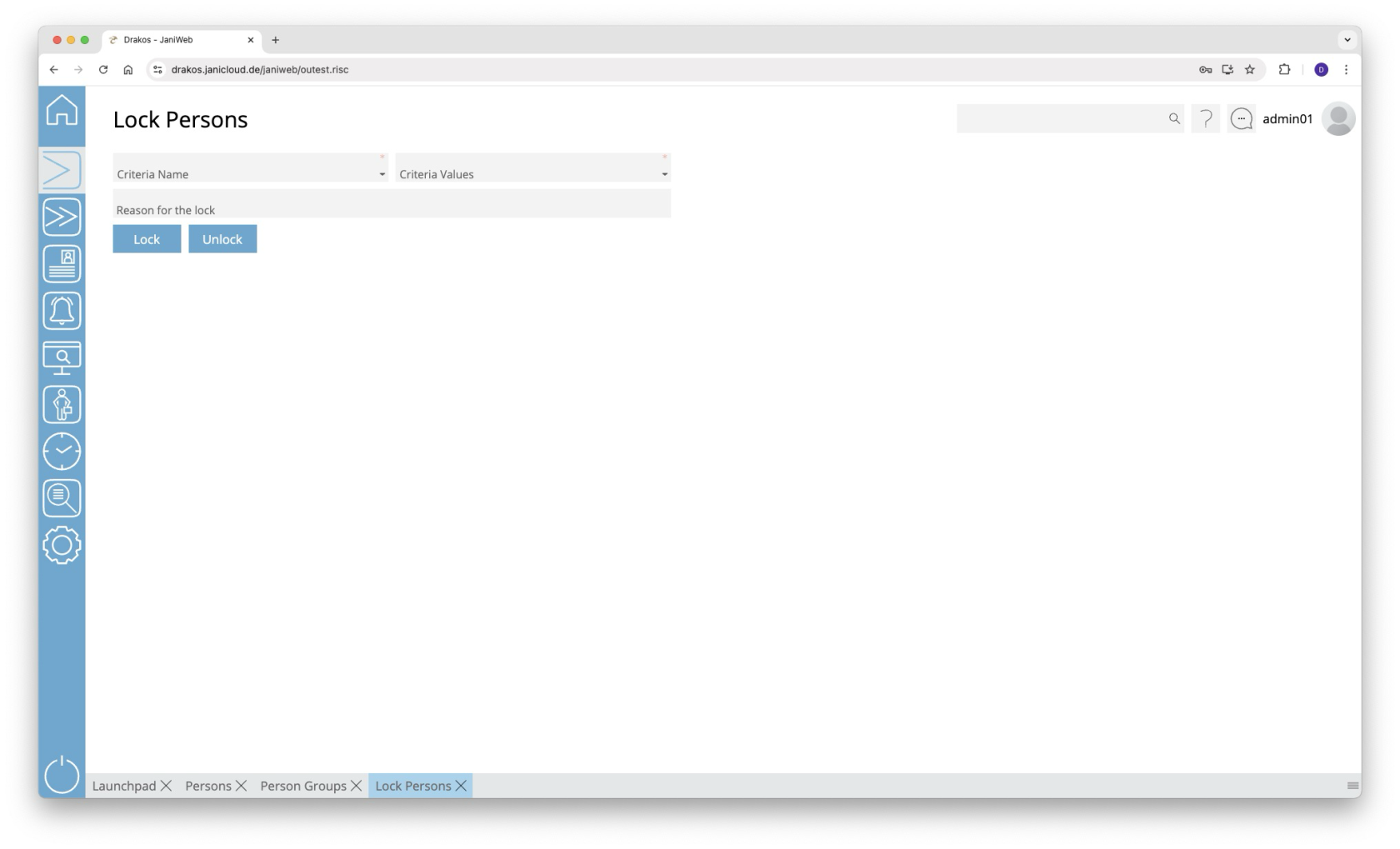](https://manual.drakos.de/uploads/images/gallery/2025-10/wCsimage.png) ## Locking persons 1. Select a criterion from the list field (e.g. badge number or PDC group). 2. Select a value from the *Criteria Values* drop-down list. 3. (Optional) Enter a reason for the ban in the field *Reason for the lock*. 4. Press *Lock* to lock the person(s). ## Unlocking persons Follow steps 1 and 2 above and press *Unlock*. # Block List [](https://manual.drakos.de/uploads/images/gallery/2025-04/DSgbildschirmfoto-2025-04-15-um-14-52-56.jpg) # Permissions **Use the menu item *Permissions* to grant individual persons or entire groups of persons permissions for certain devices or device groups.** [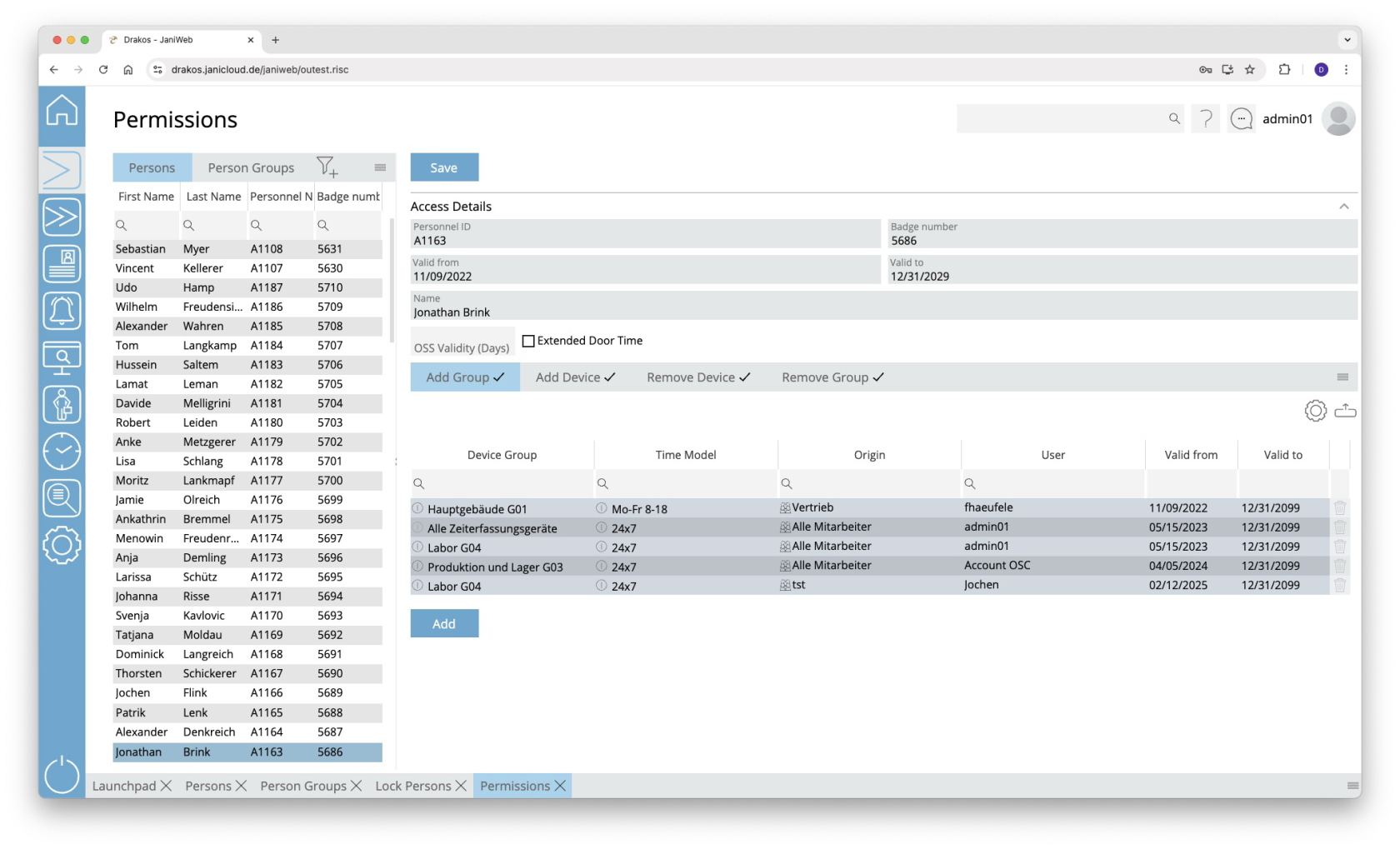](https://manual.drakos.de/uploads/images/gallery/2025-10/M7cimage.png) ## List of persons and groups of persons Select a person or group of persons from the list on the corresponding tab page to display the existing permissions. ## Tabs *Add Group / Add Device* Here you can grant the selected person/group of persons permissions to use certain device groups or devices. To add another device group or device to the list: 1. Press *Add*. 2. Select a *Device Group* or a *Device*. 3. Select the desired *Time Model*. 4. Set a validity period. 5. Press *Save*.A tick after the title of a tab indicates that there is data within the tab.
## Tabs *Remove Device / Remove Group* These lists are used to remove permissions for certain device groups or devices. **Example:** Anna B. belongs to the group of persons called “laboratory technicians”. This group of persons has permission for the device group “laboratory”. However, Anna is not allowed to enter a particular laboratory. Add the access device for this laboratory to the *Remove Device* list. To add further device groups or devices to the list, follow the steps in the previous section. However, a time model cannot be selected here.If the tabs *Remove Device* or *Remove Group* contain a device or device group, access via this device or device group is not possible. This also applies if a permission for the device or device group has been granted on the tabs *Add Device* or *Add Group*.
A tick after the title of a tab indicates that there is data within the tab.
### *Workflow Permissions*This feature is optional and not available in every installation.
If assigning a device or device group is associated with a workflow, the permission becomes active only after the decision-maker approves the workflow request. If you select a device or device group that has a workflow, a dialog box appears. This prompts you to enter values for the time model and the validity of the permission. You also have the option of leaving a comment for the decision-maker. You can create multiple workflow requests at once. To send them, press *Save*. Workflow requests are indicated by different colors:In addition to the tree view, you also have the option of displaying the terminals as a table. This allows you to display additional information, such as the IP address of the devices, in the list.
## Button *New* Press *New* to create a new device. Enter the required information and press *Save*. ## Area *General* - Select whether the device is a *Standalone* device, a *Server* or an *Offline component*. - Specify whether the device is used for *Time recording*, *Access* or plant data collection (*PDC*). ### Button *Clients Definition* - Press this button to assign and configure a sub-reader for an access server. - Make sure to select the correct *Client Position* for sub-readers. ## Area *Status* In the *Connection status* field, you can see the connection status of the device. This can have the following statuses: - connected - the device is connected - disconnected - the connection to the device is disconnected - unknown - the status of the device is unknown The time at which a status was last transmitted is shown in the *Last status* field. The *Device status* field shows the mode the device is in. The following modes are possible: - online - the device expects an online response from the device communication - offline - the device accepts bookings and checks the internal memory to see whether it is an authorised or unauthorised booking - autonomous - the device does not expect a connection to the device communication and saves the bookings in the temporary memory The *Last master record download* field indicates the time at which the device was last supplied with master data. (only available for devices from the manufacturer Dormakaba) The *Master record log* button can be used to check which master data has been sent to the device. (only available for devices from the manufacturer Dormakaba) ## Area *Device* Enter the basic information about the device. - Select a *Manufacturer ID* and a *Client*. - Enter a *Description* and additional information for the device. ## Area *Validity* Define the period during which the device should be active. ## Area *Cardlink* In the *Validation* field, specify the offline site for which the device writes validation records to the ID cards. In the *Update* field, specify the offline site for which the device writes update records to the ID cards. ## Area *Network* Specify the network settings required for the device. ## Area *Options* - *Location:* Enter a location for the device. - *Time zone:* If you are managing devices in different time zones, make sure that the correct time zone is selected. - *Holiday Calendar:* Select the appropriate bank holiday calendar for the device. ## Area *Offline Component Details* Select the *Offline Site* to which the component belongs. (You can create offline sites under *Settings > Tab Offline Components*.) ## Parameters for offline components (manufacturer Dormakaba) [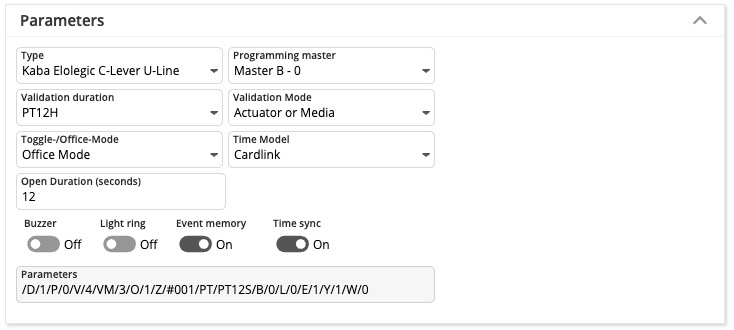](https://manual.drakos.de/uploads/images/gallery/2025-04/3Pyimage.png)**Attention:** After changing the parameters, the offline component must be rewritten with the programmer.
- **Type:** Here you define the type of offline component. - **Programming master:** Use this setting to define the programming master for the offline component. - **Validation duration:** Determines the validation duration. (Validation durations you can define into [Settings](https://manual.drakos.de/books/janiweb-j92/page/settings#bkmrk-cardlink-einstellung-1) menu) - **Days:** P\[number of days\]D (example: P7D for seven days) - **Hours:** PT\[number of hours\]H (example: PT1H for one hour) - **Fixed time:** HH:MM:SS (example: 12:00:00 for daily at 12 o’clock) - **Validation Mode:** Defines the validation mode. - **Toggle-/Office-Mode:** Activates Office Mode/ Day Night Mode. - **Off:** The door can only be opened with an authorized booking. - **Office Mode:** The first authorized booking on the offline component within the selected time model opens the door. A subsequent authorized booking closes the door again. The door remains open until the authorized time has expired and then closes again. - **Day Night Mode:** Automatic unlocking of offline components in a defined time model. - **Time Model:** Defines the time model in which Office Mode/ Day Night Mode applies. - **Open Duration (seconds):** Specify how long the offline component opens the door after a successful booking. - **Buzzer:** Switches the buzzer on or off. - **Light ring:** Switches the light ring on or off. - **Event memory:** Determines whether bookings are saved to the component or not. - **Time sync:** Activates or deactivates the time sync.| **Switch** | **Meaning** | **Values** |
| /B/ | Summer | - 0 - off - 1 - on (default) |
| /L/ | Light ring | - 0 - off - 1 - on (default) |
| /E/ | Save events | - 0 - off - 1 - on (default) |
| /Y/ | Sync time | - 0 - off - 1 - on (default) |
| /M/ | EM\_MSG | |
| /V/ | Period | - 0 - always - 1 - 24 hours - 2 - until 12:00 - 3 - 1 hour - 4 - 12 hours - 5 - 2 days - 6 - 4 days - 7 - 8 days |
| /D/ | Type | 0=198, Kaba Elolegic digital cylinder U-Line 1=199, Kaba Elolegic C-Lever U-Line 2=181, Kaba Elolegic reader U-Line 3=239, Kaba Elolegic C-Lever T-Line 4=30, Kaba Elolegic digital cylinder L-Line 5=218, Kaba Elolegic digital cylinder N-Line 6=238, Kaba Elolegic digital cylinder T-Line 7=201, Kaba Elolegic reader N-Line 8=221, Kaba Elolegic reader T-Line 9=183, Kaba Elolegic locker lock U-Line 10=222, Kaba Elolegic lock T-Line 11=182, Kaba Elolegic lock U-Line 12=31, Kaba Elolegic cylinder compact L-Line 13=210, Kaba Elolegic cylinder compact N-Line 14=230, Kaba Elolegic cylinder compact T-Line 15=190, Kaba Elolegic cylinder compact U-Line 16=214, Kaba Elolegic cylinder Stulp N-Line 17=234, Kaba Elolegic cylinder Stulp T-Line 18=194, Kaba Elolegic cylinder Stulp U-Line 19=181, Kaba IT lock 20=1064, Digital Cylinder Mifare evolo V4 21=1048, C-Lever Mifare evolo V4 22=1816, C-Lever TouchGo Mifare evolo V4 23=1128, C-Lever Mifare compact evolo V4 24=1144, Reader Mifare compact evolo V4 25=1080,Reader Mifare remote evolo V4 26=1320, Digital Cylinder Legic Advant evolo V4 27=1304, C-Lever Legic Advant evolo V4 28=1384, C-Lever compact Legic Advant evolo V4 29=2072, C-Lever TouchGo Legic Advant evolo V4 30=1400, Reader Legic Advant compact evolo V4 31=1336, Reader Legic Advant remote evolo V4 |
| /O/ | Mode | - 0 - off (default) - 1 - Office mode - 2 - Day/Night Mode |
| /Z/ | OMZPS | |
| /W/ | Offline site | - 0 - (default) |
| /P/ | Program master number | - 0 - (default) |
Devices can belong to multiple groups at the same time.
**Attention:** If you change the assignment of an offline component to an offline device group, the affected component must be rewritten with the programmer.
## Button *New* 1. Press *New* to create a new device group. 2. Enter a *Description*, select a *Client* and define a validity period (*Valid from – Valid to*). 3. Select whether it is an *Offline Group* (a group of offline components). As soon as this option is selected, only offline devices appear in the *Available* list. 4. Add devices to the group as described above. --- ##### TIPS Press *Copy* at the top to create a copy of the selected group and use it as a template for a new group. # Control Profiles **Use the menu item *Control Profiles* to link time models to devices to determine when access through the respective door should be possible.** [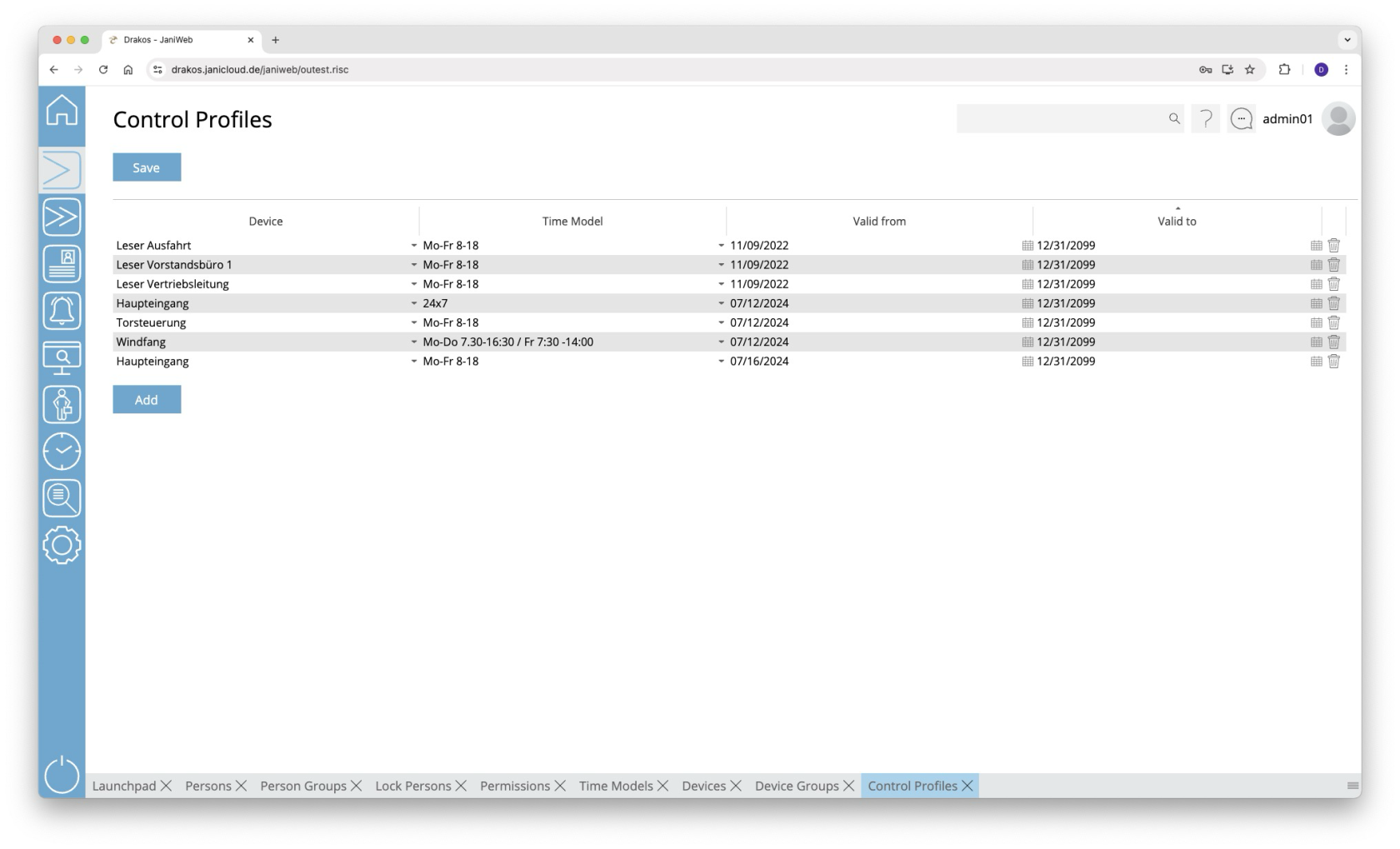](https://manual.drakos.de/uploads/images/gallery/2025-10/f7jimage.png) ## List of control profiles The list contains the control profiles that have already been created. You have the following options here: - **Changing a control profile:** Select a different time profile for the desired device and press *Save*. - **Adding a control profile:** - Press *Add*. An empty entry will appear at the end of the list. - Select a device in the *Device* column - Select the desired time model in the *Time Model* column. - Press *Save*. - **Removing a control profile:** Press the trash icon to remove a profile. A confirmation dialog will appear. When a control profile has been created for a device, the doors associated with it will remain open during the time period specified in the assigned time model.It is possible to create multiple control profiles for a device.
--- ##### TIPS Control profiles can also only be effective for a certain period of time. Use the *Valid from* and *Valid to* columns for this purpose. # Companies **Use the menu item *Companies* to manage companies. Companies created here can be assigned to persons or visitors via the menu items *Persons* or *Visitors*.** [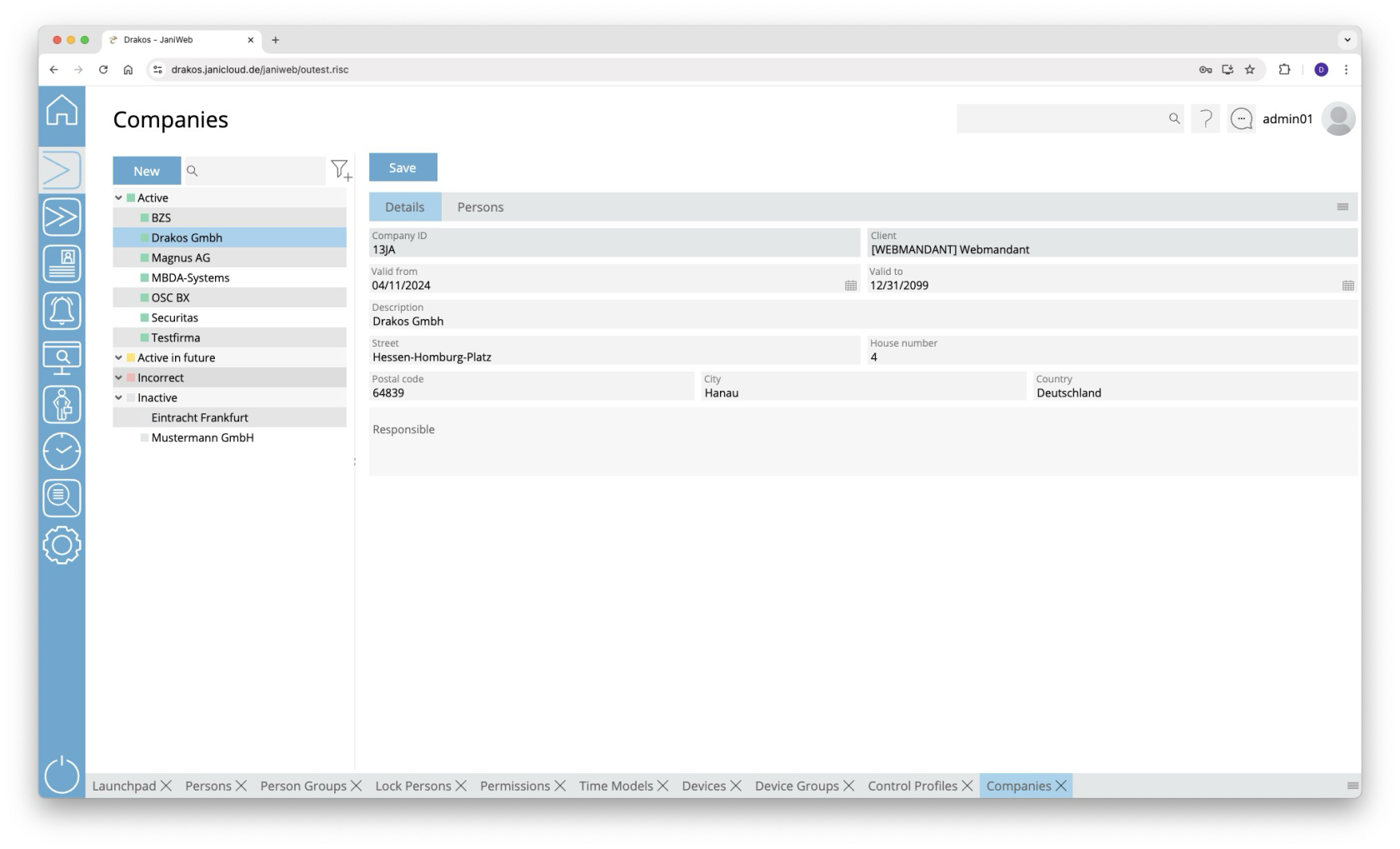](https://manual.drakos.de/uploads/images/gallery/2025-10/llHimage.png) ## List of companies The list contains the companies already created, sorted by their current status (*Active*, *Active in future*, *Incorrect*, *Inactive*). Select a company to view details. The list offers the following options: - **Search:** Enter text or numbers in the search field (magnifying glass icon) at the top to search for companies. The entries take effect immediately: the list only displays hits. The search is not case sensitive. - **Filter:** Press the filter icon. Select the criteria for which you want to display companies. Changes are visible immediately. ## Button *Save* You can change the details of the selected company. Press *Save* to save the changes. ## Button *New* Press *New* to create a new company. Enter the required information for the company on the tab *Details* and press *Save*. ## Tab *Persons* The tab *Persons* provides an overview of which persons are assigned to the respective company. --- ##### TIPS - **Filter:** Use the filter icon to filter by status (active, inactive, etc.). - **Export:** Use the export icon to export the list of assigned persons. # Mass Change **You can edit or delete multiple persons at the same time using the *Mass Change* menu item.** [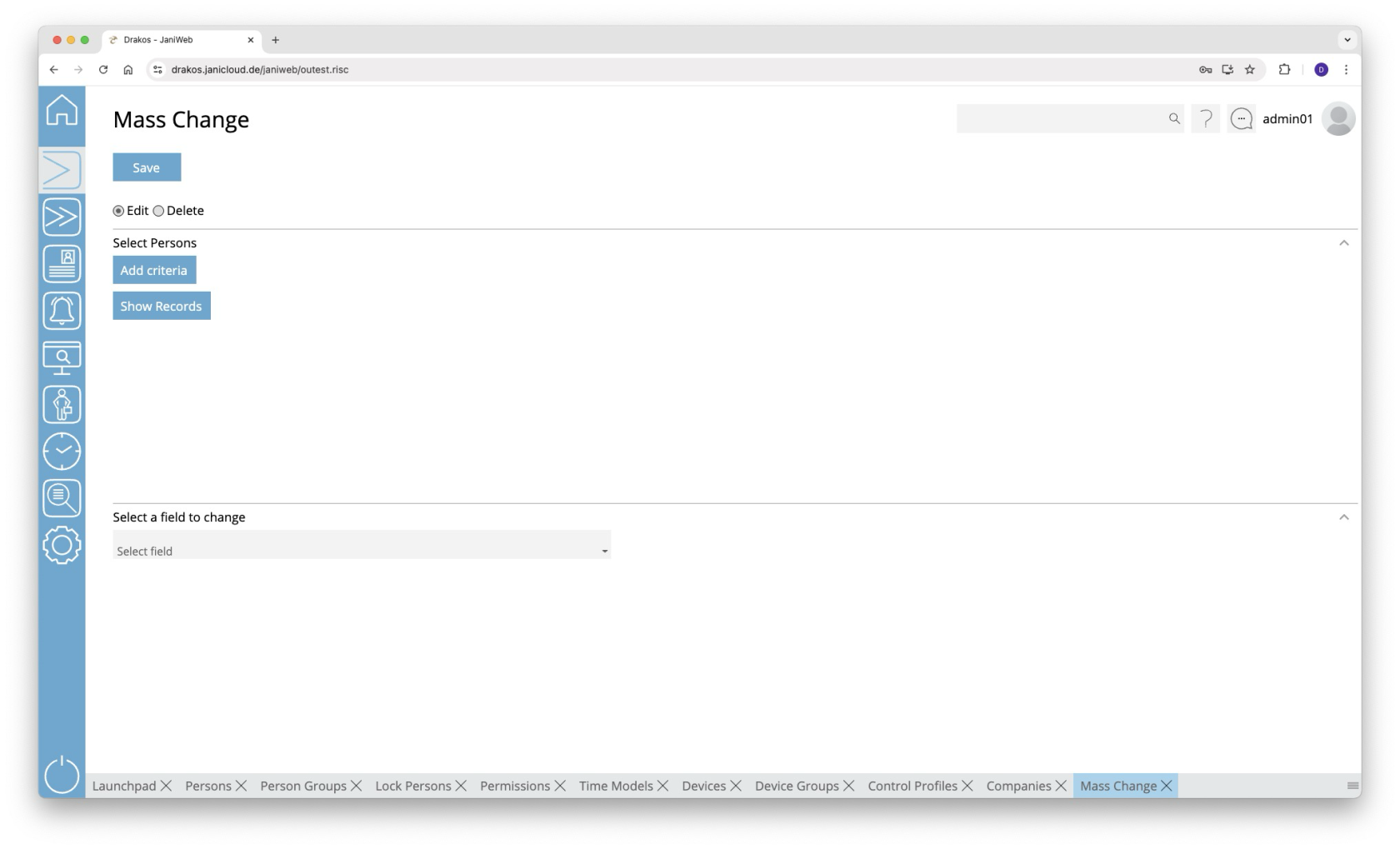](https://manual.drakos.de/uploads/images/gallery/2025-10/PPGimage.png) ## Radio buttons *Change*/*Delete* Select whether you want to use the mass change to *Change* or *Delete*. ## Area *Select Persons* Enter the criteria for selecting the persons to be changed or deleted. 1. Press *Add criteria.* 2. Select the required criterion from the list field. 3. Press *Add value*. 4. In the *From* field, select a single value or use both fields to specify a range. You can also specify multiple values for the same criterion (*Add value*). 5. (Optional) Add another criterion with value(s).Press *Show Records* to display the master records selected for change or deletion.
**Logic of criteria and values** - The values within the same criterion are linked logically by OR (one match is sufficient). - Different criteria are linked logically by AND (all criteria must be met). ## Area *Select a field to change* This area appears if you have selected *Change* at the top. 1. Select the field whose value you want to change. 2. Enter the new value. 3. Press *Save* to execute the mass change. A confirmation dialog appears. ## Area *Delete permissions/master records* This area appears if you have selected *Delete* at the top. 1. Select what you want to delete: - **Access permissions** of the selected persons that have expired by a certain date: Select *Access permissions expired before*. - **Master records** of the selected persons that have expired by a certain date (the master records are completely removed from the system): Select *Master records expired before.* 2. Enter an expiration date. 3. Press *Save* to remove the selected data. ##### # Qualifications **The *Qualifications* menu item allows you to create profiles to which certain permissions are linked. By assigning such a qualification to persons, the persons automatically inherit the permissions of the qualification.** [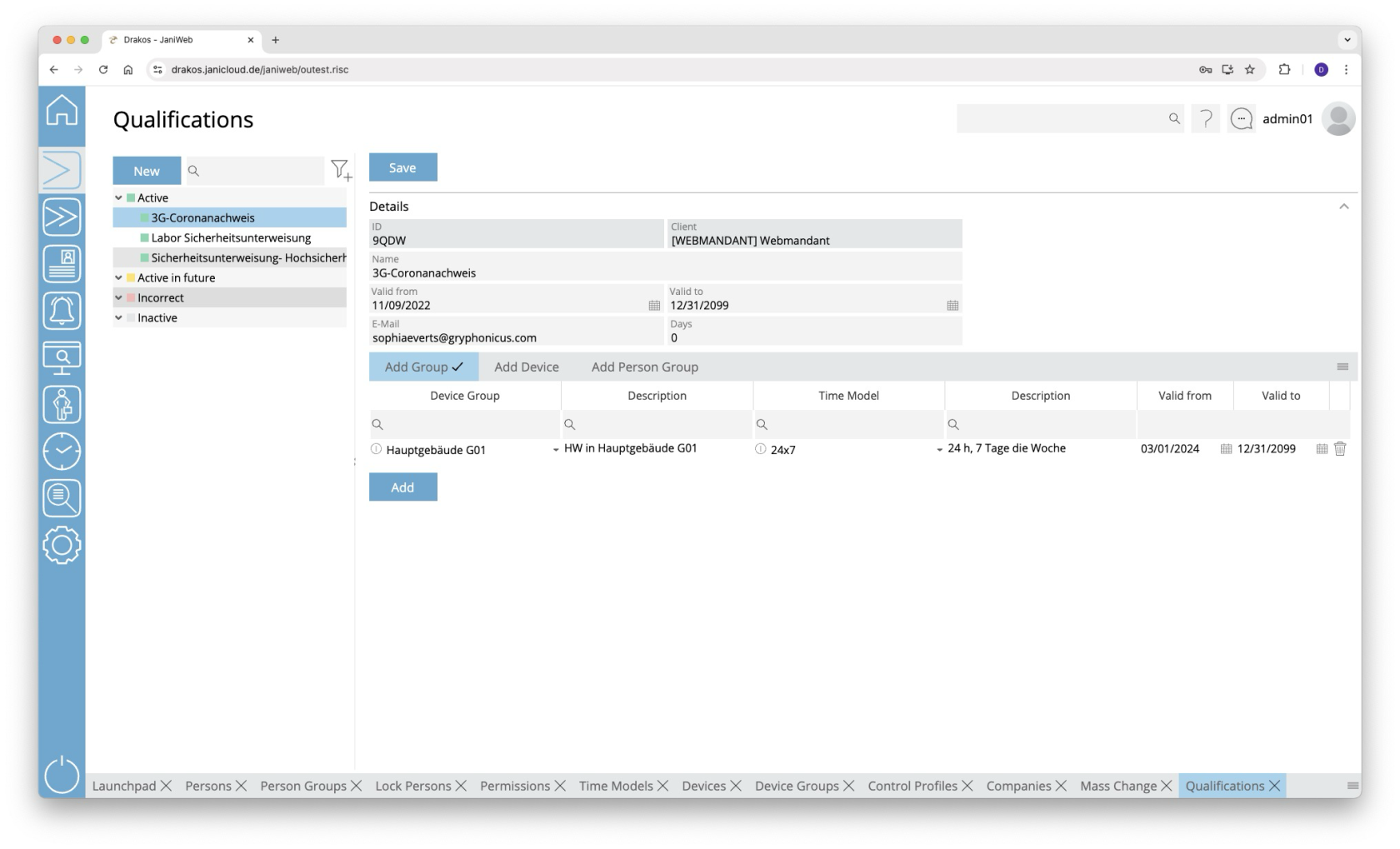](https://manual.drakos.de/uploads/images/gallery/2025-10/3vEimage.png) ## List of qualifications The list contains the qualifications that have already been created. Select an entry to view details. The list offers the following options: - **Search:** Enter text or numbers in the search field (magnifying glass icon) at the top to search for qualifications. The entries take effect immediately: the list only displays hits. The search is not case sensitive. - **Filter:** Press the filter icon. Select the criteria for which you want to display qualifications. Changes are visible immediately. ## Button *New* Press *New* to create a new qualification. Enter a description and additional information, and press *Save*. ## Area *Details* Define the general properties of the qualification here. - *Description:* Enter a descriptive label for the qualification. - *E-Mail:* Enter the E-Mail address to which a notification is to be sent when a qualification is about to expire. - *Days:* Specify how many days before the qualification expires the E-Mail notification is to be sent. Press *Save* to apply your changes. ## Tabs *Add Device Group / Add Device* Here you can link permissions for the use of certain device groups or devices to the selected qualification. To add another device group or device to the list: 1. Press *Add*. 2. Select a *Device Group* or a *Device*. 3. Select the desired *Time Model*. 4. Set a validity period. 5. Press *Save*. To remove a device group or device from the list, press the corresponding trash icon.A tick after the title of a tab indicates that there is data within the tab.
## Add person group tabs Here you have the option of assigning a qualification to all persons in the added person groups at once. - Click on *Add*. - Select a person group. - Specify a validity period. - If the validity is not valid, persons in this group of people are denied access to the devices/device groups assigned to the qualification. - Press *Save*. To remove a person group from the list, press the corresponding trash can icon.A tick after the title of a tab indicates that there is data within the tab.
--- ##### TIPSTo assign a qualification to a person, select the person via the *Persons* menu item. Then select the desired skill on the *Qualifications* tab.
till Version 1.32.X - Permissions for devices / device groups that are assigned to a qualification can only be changed via the qualification. It is then no longer possible to create permissions for these devices or device groups in the usual way.
# Settings **You can use the *Settings* menu option to make various settings (number ranges for replacement badges, fields for persons) for access management.** [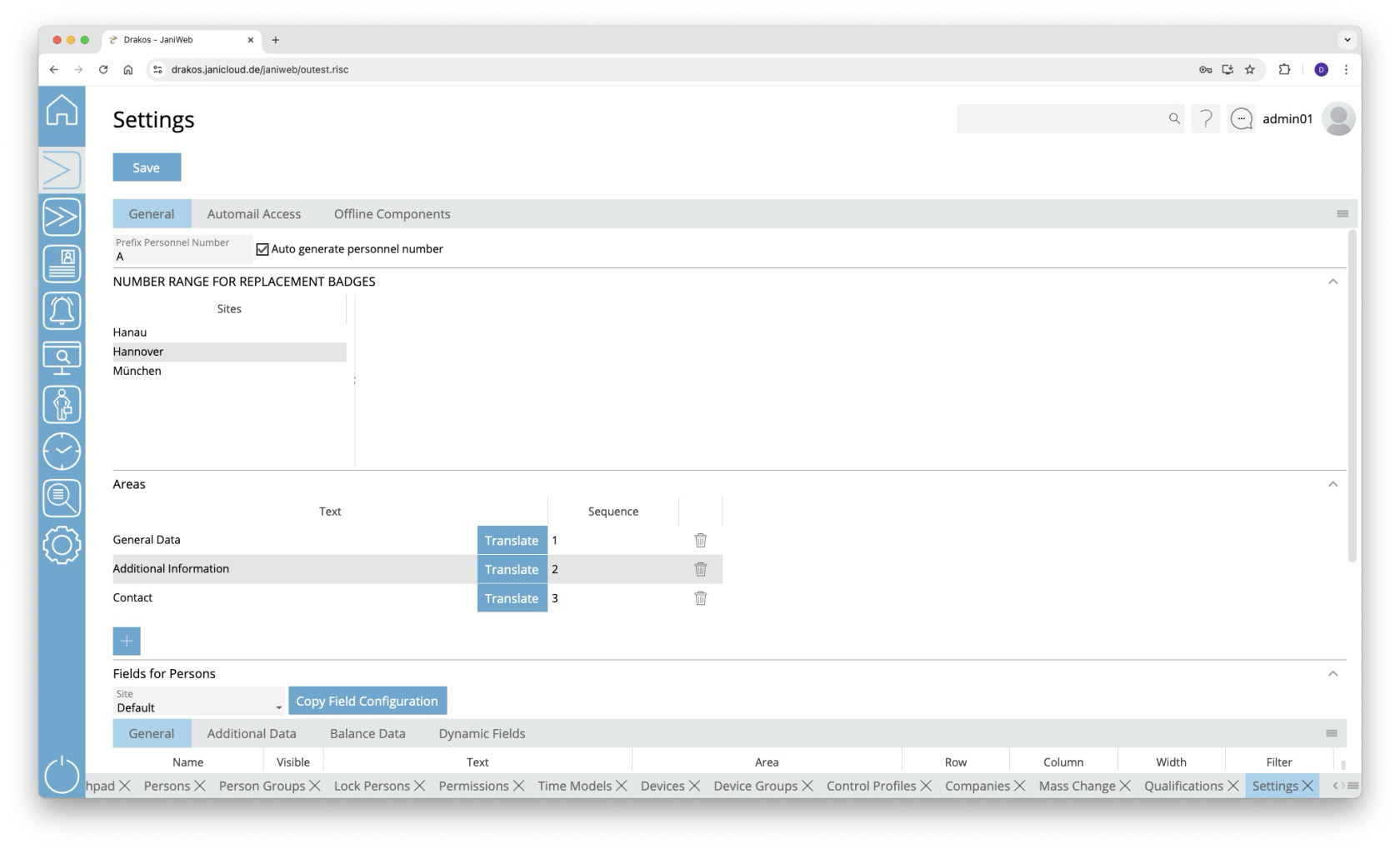](https://manual.drakos.de/uploads/images/gallery/2025-10/faEimage.png) ## Button *Save* Press *Save* to apply your changes. ## Tab *General* Here you determine whether personnel numbers should be created manually or automatically assigned by the system. - *Prefix Personnel Number:* Enter a letter that is added as a prefix to the personnel number for automatically generated personnel master records. - *Auto generate personnel number*: Select this option if you want the system to automatically assign personnel numbers when personnel master records are created. ### Area *Number Range for Replacement Badges* Here you define number ranges for issuing replacement badges. Create a separate definition for each site. You can either specify a range (*From badge number* / *To badge number*) for all replacement badges or create individual numbers under badges. ### Area *Areas* Here you determine which areas appear in the *Persons* menu item. When you select the visible fields for persons (*Fields for Persons*), you determine where the corresponding field is displayed by selecting one of the areas defined here. To create a new area, perform the following steps: 1. Press the plus icon (*Add*) to add a new entry. 2. Press *Translate*. 3. Enter the area description for the respective languages. 4. Press *Save.* Enter a number in the *Order* column to determine the order in which the areas are displayed.When creating a new area, you must first save it before you can assign a field to it.
### Area *Fields for Persons* This is where you manage the fields for the *Persons* menu item. #### List field *Site* You can define the visibility and positioning of the fields separately for each site. Select the site for which the settings in this area should apply. The fields displayed to the user depend on the site assigned to the user. If no site is assigned to a user, the settings for the *Default* site are used. To assign sites to a user, use the [Settings in the main menu, menu item Users.](https://manual.drakos.de/books/janiweb-j92/page/users) #### Tabs *General Data / Additional Data / Balances* Specify which fields are visible (check box in the second column) and where they are positioned (*Row*, *Column*, *Width*). To define the name for a field, press *Translate*. Enter the names for the respective languages and press *Save.* In the *Filter* column, you can determine whether this field should be searchable in the list of persons. #### Tab *Dynamic Fields* Here you can define up to 20 dynamic fields. For each dynamic field, specify whether it should be a list field (drop-down), a date field, a checkbox or a free text field. To define the name for a field, press *Translate*. Enter the names for the respective languages and press *Save.* #### Button *Copy Field Configuration* You can use this button to copy the field configuration from the currently selected site to another site. To do this, click the button and then select the site for which you want to copy the field configuration from the site drop-down menu. Confirm your selection with the *Ok* button. ### Area *Disable Editing XML Fields* Use the *Disabled* option to prevent users from changing field contents when printing badges, for example. When selected, the information from the master record is always used. ### Area *Name Subsystem Grouping* In this area, meaningful names can be assigned to the three-digit identifiers of the Subsystem Groupings. These names help users to assign persons to the correct Subsystem Grouping more easily and quickly. Use the *+* button to add new entries. Enter the three-digit identifier of the BDE group in the *Subsystem Grouping* column and enter the name using the *Translate* button in the *Name* column. Entries can be deleted using the *bin* button. ## Tab *Automail Access* Here you can define combinations of persons/person groups and devices/device groups that you want to be informed about by E-Mail as soon as they are assigned as permission by a user. 1. Press *Add* to create a new entry. 2. Select a person group or person. 3. Select a device group or device. 4. Enter the E-Mail address for the notification. 5. Press *Save*. ## Tab *Offline Devices* This is where you define all settings for offline sites and their components (Cardlink, Pegasys and OSS). ### Tab *Offline Sites* Create the offline sites required for your offline components here. To assign components to sites, use the menu item *Devices*. #### List of offline sites The list contains all the offline sites that have already been created. Select an entry to view details. #### Button *New* Press *New* to create a new offline site. Enter the required information and press *Save* to confirm. You can now assign offline components to the offline site using the menu item *Devices*. #### Button *Delete* Click *Delete* to delete the selected offline site. A confirmation dialog will appear. #### Tab *General Data* Enter the required information for the selected offline site. #### Area *Cardlink*, Area *OSS* Specify the data for the relevant offline type. #### Area *Update Devices* (OSS and Cardlink components only) Add devices that should serve as update devices for the OSS and Cardlink offline site. People can use these devices to load their current permissions for OSS and Cardlink components on their badges. #### Area *Validation Devices* (Cardlink components only) Add devices that should serve as validation devices for the Cardlink offline site. People can use these devices to load their current permissions for Cardlink components on their badges. #### Area *Master Media* (Cardlink components only) Master media are used to configure Cardlink components so that they read badges correctly. #### Button *Download XML Files*The validation duration 0 is set to *forever* and cannot be changed.
Other fields: - *Default validation duration:* Define which validation duration should be used by default. Enter the number of the corresponding period (0–7). - *Validation priority:* Enter the priority of the validation periods here (from highest to lowest priority, separated by commas). # Workflow # Workflow **The *Workflow* menu option lets you view the status of your workflow requests for time recording and permissions. As a supervisor or a supervisor’s deputy, you can also edit workflow requests directly.** [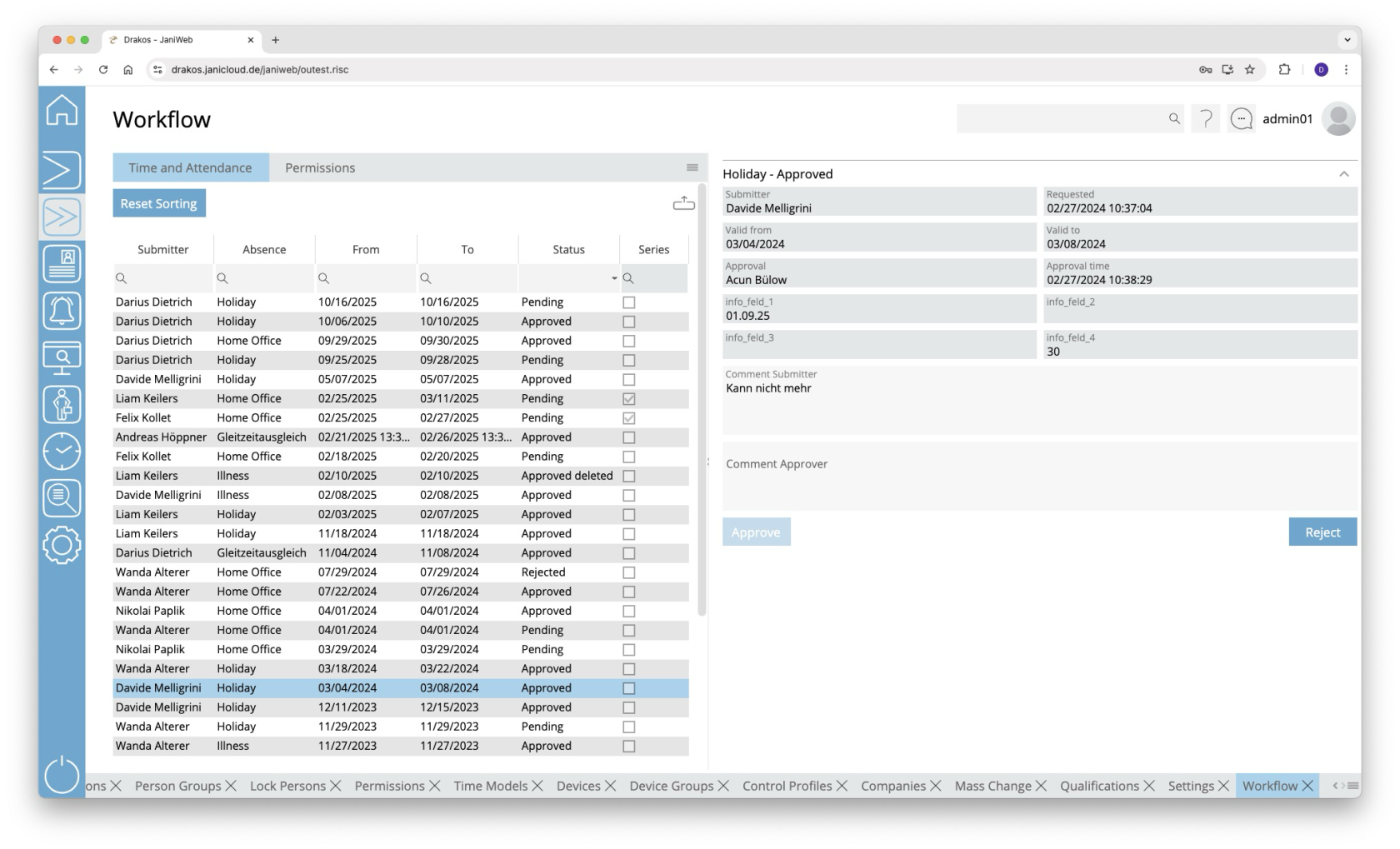](https://manual.drakos.de/uploads/images/gallery/2025-10/namimage.png) ## Lists of workflow requests The lists on the tabs *Time and Attendance* (for time bookings and absences) and *Permissions* contain your active workflow requests. Select an entry to view details. - In the text field *Comment Approver*, enter a comment that will be displayed to the requester. - Press *Approve* to approve the request. - Press *Decline* to decline the request. For workflow requests regarding *Permissions*, as the supervisor or decision-maker you also have the option of adjusting the requested *Time Model* and/or the *Validity* period of the permission. The lists offer you further options: - **Sorting by column:** Click on a column header to sort the entries in ascending or descending order by this column. - **Search:** Enter text or numbers in the search field (magnifying glass icon) at the top to search for entries. The entries take effect immediately: the list only displays hits. The search is not case sensitive. - **Filter by status:** Open the list field in the *Status* column. Select the criteria for which you want to display entries. A set filter is saved and remains in place even after you log out. Press *Reset Sorting* to reset the filter and sorting. - **Export the entire list:** Press the download icon. Select the format in which you want to export the list. For details on the available export formats, see the [General > Export Formats](https://manual.drakos.de/books/janiweb-j92/page/export-formats) chapter of this manual. # Badge Printing # Print **The menu item *Print* allows you to print an badge for each person for whom you have permission.** [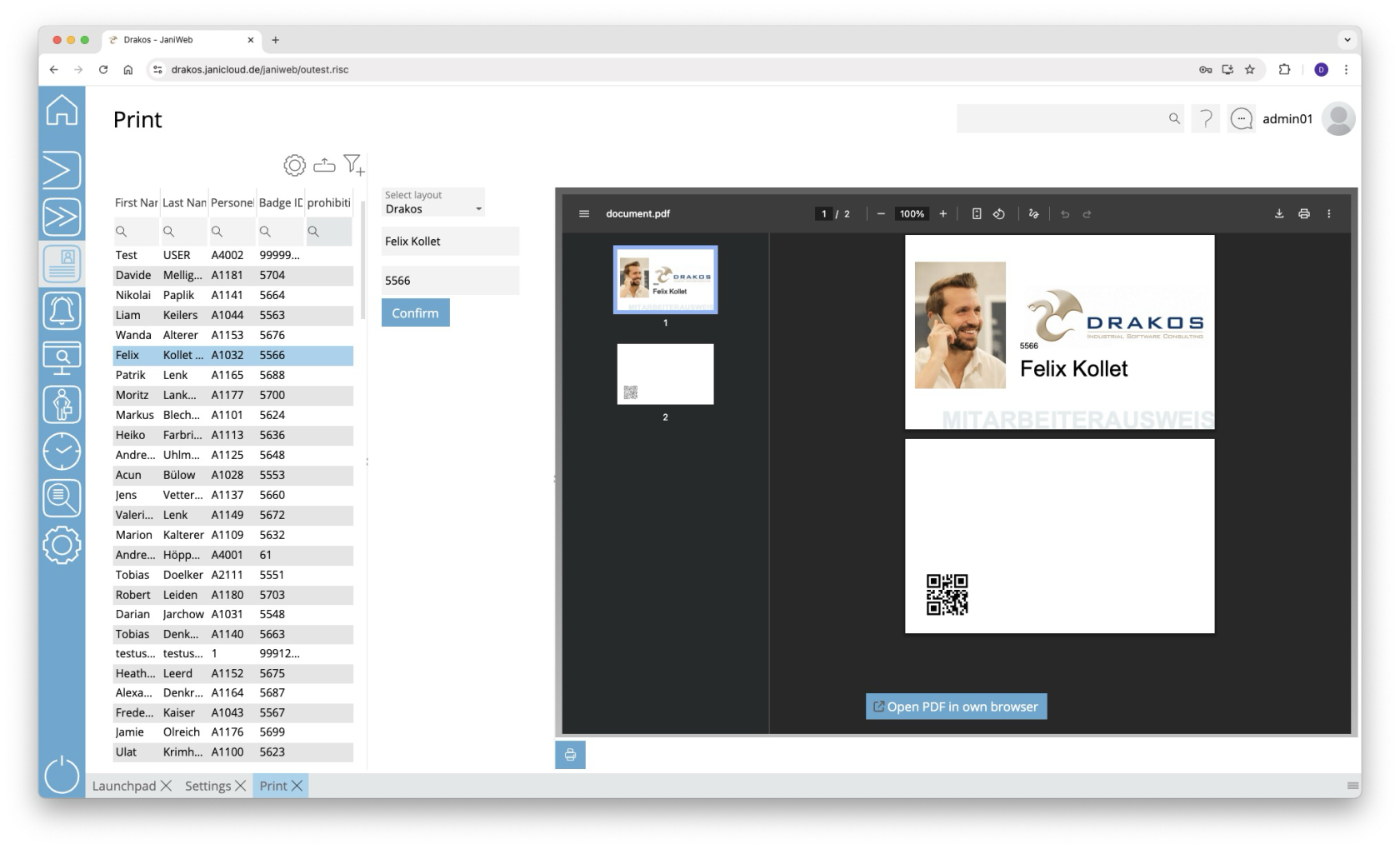](https://manual.drakos.de/uploads/images/gallery/2025-10/DKyimage.png) ## List of persons The list contains all persons for whom you have authorization. It offers the following options: - **Select columns to display:** Press the gear icon. Select which columns you want to display and in which order. Arrange the columns using the mouse or the arrow icons. Press *Apply* to adopt the changes. - **Filter by client and status:** Press the filter icon. Select the clients and the status (*Active*, *Active in future*, *Inactive*) for which persons should be displayed. Changes are visible immediately. - **Search in columns:** Enter text or numbers in the search field (magnifying glass icon) of a column to search for names, personnel numbers, or other criteria. The entries take effect immediately: the list only displays hits. Tip: Search for substrings. You can find “Spencer-Churchill” with “spe”, “chur” or “hill”. The search is not case sensitive. - **Export the entire list:** Press the download icon. Select the format in which you want to export the list. The export files are downloaded or displayed depending on the browser/operating system settings.For details on the available export formats, see the [General > Export Formats](https://manual.drakos.de/books/janiweb-j92/page/export-formats) chapter of this manual. Select a person to preview the badge to be printed. ### Detail area You have the following options here: - **Select layout:** Select a layout using the *Select layout* drop-down menu. The preview updates automatically. - **Customize information:** Depending on the layout, various information can be customized before printing. Enter the desired text and press *Apply*. - **Print:** Press *Print* to print the badge. # Settings **Use the menu item *Settings* to manage different layouts for badges.** [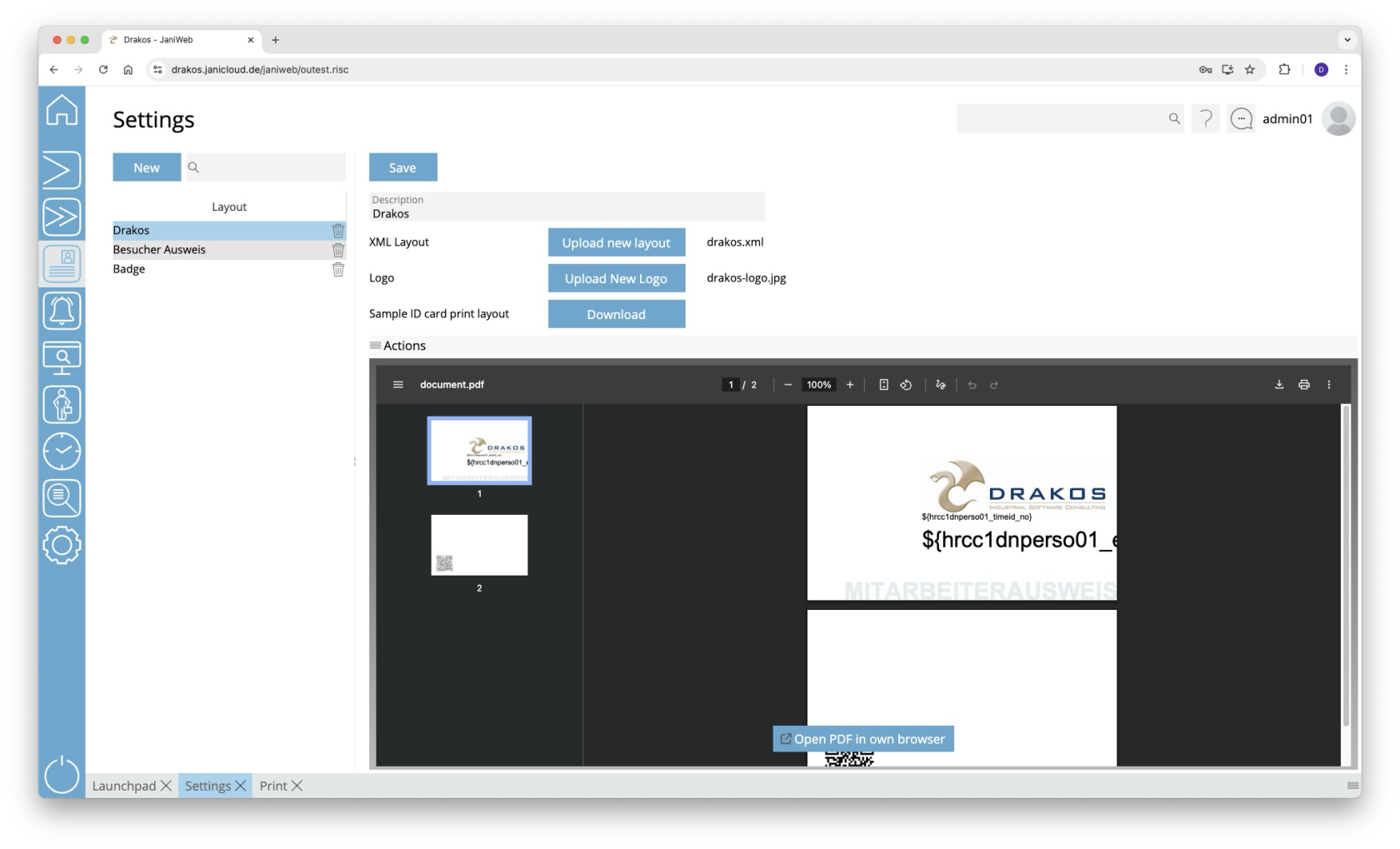](https://manual.drakos.de/uploads/images/gallery/2025-10/aMCimage.png) ## List of layouts The list contains the layouts that have already been created. Select an entry to view details and a preview. ## Button *New* Press *New* to create a new layout. ## Detail area Specify the details for the selected layout. - *Description:* Enter a descriptive label for the layout. - *Upload new layout*: Press this button and select a suitable layout file on your computer. - *Upload new Logo:* Press this button and select a suitable logo file on your computer. - *Site*: Select the site for which the layout is relevant. - *Save:* Press this button to save changes. You can find an example badge layout here: [SampleBadgePrintLayout.xml](https://manual.drakos.de/attachments/13) --- ##### TIPS To create the layout, get in touch with your contact person at Drakos. # Alarm Management # Zone List **In the *Zone List* you can see which persons are in the respective zone.** [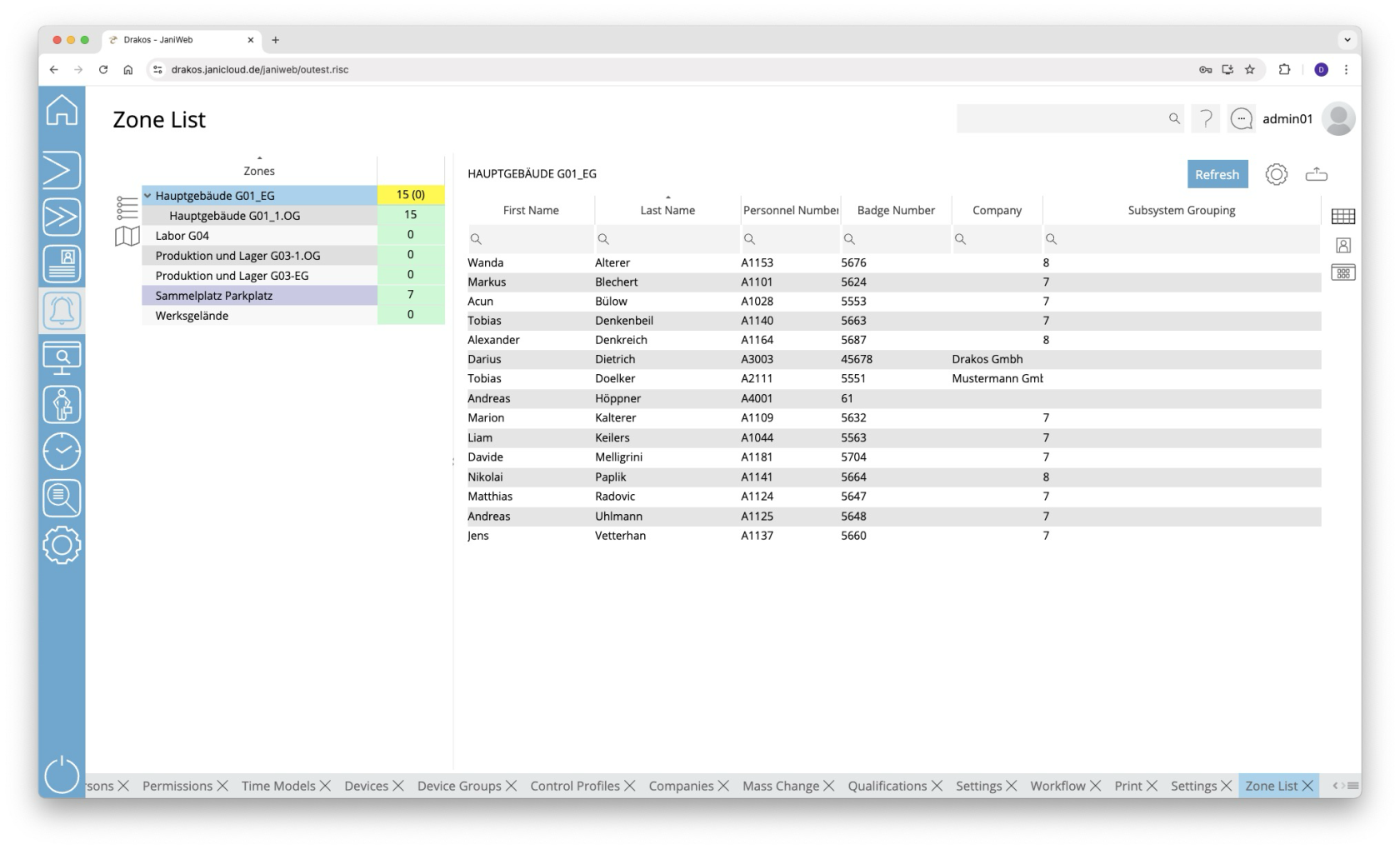](https://manual.drakos.de/uploads/images/gallery/2025-10/fLhimage.png) ## List of zones The list contains all existing zones. *Safe Zones* are highlighted in blue. The right-hand column shows the *Alarm Status* of the zone and the number of persons in the zone. If a zone has sub-zones, the number in brackets indicates how many persons are in the main zone only. ### Buttons for display format Use the icons to the left of the zone list to choose between a tree structure and the site plan display. #### Tree structure - Select a zone to display a list of the persons in this zone. - Right-click on a zone to change its *Alarm Status* manually. Site plan #### Site plan The site plan shows the devices contained in the zone with their spatial position. The name of the zone is also displayed together with its *Alarm Status*. - Right-click on the name of the zone to change its *Alarm Status* manually. - Right-click on a device to display or change its settings. ### Button *Add Person* You can use the *Add Person* button to add persons who are not currently in the zone to the zone. To do this, click the button and then select the desired person(s) (multiple selection is possible). Confirm your selection with the Save button. ## List of persons Use the icons to the right of the list of persons to choose between a list view, a view with pictures of the persons and a tile view. You also have the following options: - **Select columns to display:** Press the gear icon. Select which columns you want to display and in which order. Arrange the columns using the mouse or the arrow icons. Press *Apply* to adopt the changes. - **Search in columns:** Enter text or numbers in the search field (magnifying glass icon) of a column to search for names, personnel numbers, or other criteria. - **Export the entire list:** Press the download icon. Select the format in which you want to export the list. The export files are downloaded or displayed depending on the browser/operating system settings.For details on the available export formats, see the [General > Export Formats](https://manual.drakos.de/books/janiweb-j92/page/export-formats) chapter of this manual. - **Update list:** Use the *Refresh* button to update the zone list. This also happens automatically every 15 seconds. # Person Search **The menu item *Person Search* gives you an overview of which persons are in which zone.** [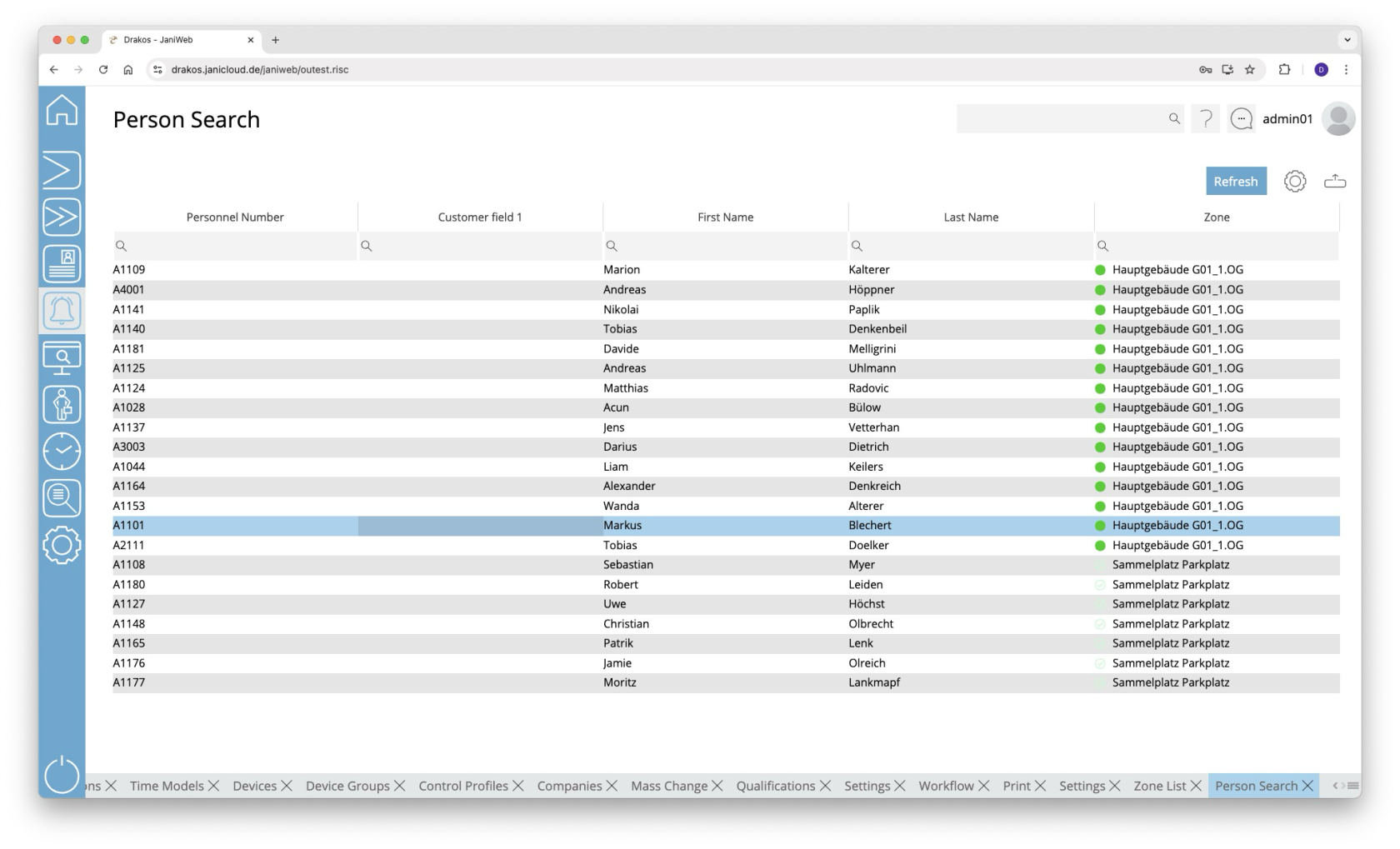](https://manual.drakos.de/uploads/images/gallery/2025-10/YpDimage.png) ## List of persons The list contains all persons present together with the zone in which they are located. The *Zone* column shows the name of the zone as well as its alarm status. You have the following options: - **Show details:** Double-click in any column of the person. A pop-up window appears. - **Select columns to display:** Press the gear icon. Select which columns you want to display and in which order. Arrange the columns using the mouse or the arrow icons. Press *Apply* to adopt the changes. - **Search in columns:** Enter text or numbers in the search field (magnifying glass icon) of a column to search for names, personnel numbers, or other criteria. The entries take effect immediately: the list only displays hits. Tip: Search for substrings. You can find “Spencer-Churchill” with “spe”, “chur” or “hill”. The search is not case sensitive. - **Export the entire list:** Press the download icon. Select the format in which you want to export the list. The export files are downloaded or displayed depending on the browser/operating system settings.For details on the available export formats, see the [General > Export Formats](https://manual.drakos.de/books/janiweb-j92/page/export-formats) chapter of this manual. - **Update list:** Use the *Refresh* button to update the zone list. This also happens automatically every 15 seconds. # Evacuation Manager **The *Evacuation Manager* gives you an overview of persons who are currently logged into an unsafe zone. In the event of an alarm, employees may no longer be able to log out of their zone properly (no time, devices no longer working). You can use the evacuation manager to manually transfer persons from unsafe zones to a safe zone after you have checked their presence.** [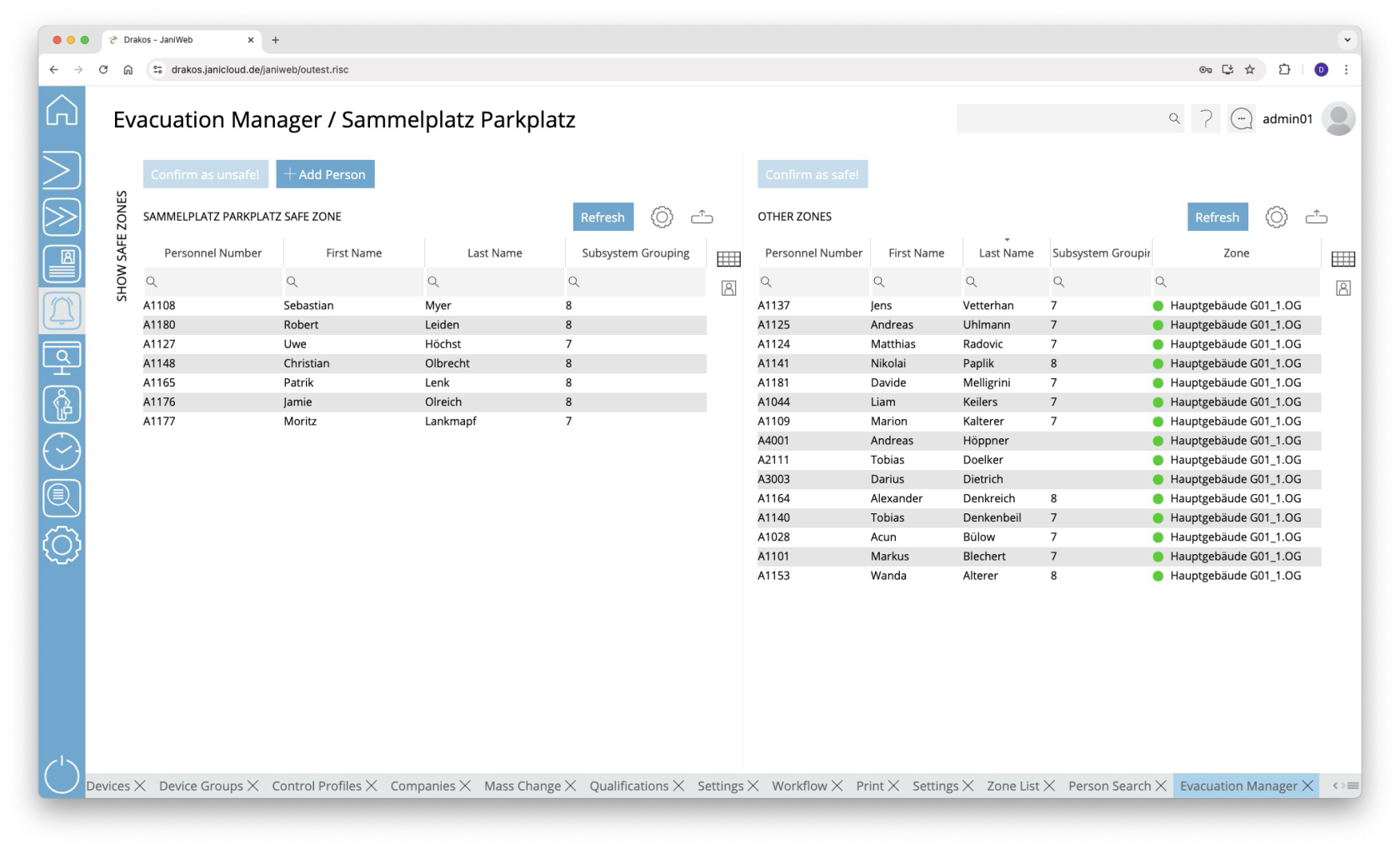](https://manual.drakos.de/uploads/images/gallery/2025-10/7Svimage.png) ## Lists *Safe Zone / Other Zones* The list on the right contains all persons in unsafe zones. To book a person into a safe zone: - Select the person(s) in the list of unsafe zones (multiple selection with CTRL or SHIFT). - Press *Confirm as safe!*. The persons now appear in the list on the left-hand side and are booked into the safe zone. In the opposite case (e.g. due to an incorrect rebooking), proceed in the same way: Book people from the safe zone into the unsafe zone by selecting them in the left-hand list and then pressing the button *Confirm as unsafe!*. The persons will then reappear in the list of unsafe zones. ### Buttons for display format Use the icons to the right of the lists to select whether the persons are displayed in text form or with their photo. ### Button *Add Person* You can use the *Add Person* button to add persons who are not currently in a zone to the safe zone. To do this, click the button and then select the desired person(s) (multiple selection is possible). Confirm your selection with the Save button. ### Further options with the lists - **Show details:** Double-click in any column of the person. A pop-up window appears. - **Select columns to display:** Press the gear icon. Select which columns you want to display and in which order. Arrange the columns using the mouse or the arrow icons. Press *Apply* to adopt the changes. - **Search in columns:** Enter text or numbers in the search field (magnifying glass icon) of a column to search for names, personnel numbers, or other criteria. The entries take effect immediately: the list only displays hits. - **Export the entire list:** Press the download icon. Select the format in which you want to export the list. The export files are downloaded or displayed depending on the browser/operating system settings.For details on the available export formats, see the [General > Export Formats](https://manual.drakos.de/books/janiweb-j92/page/export-formats) chapter of this manual. - **Update list:** Use the *Refresh* button to update the zone list. This also happens automatically every 15 seconds. # Monitoring **You can use the menu item *Monitoring* to create modules that contain different types of switches. Switches can display the status of a device or control it at the touch of a screen button.** [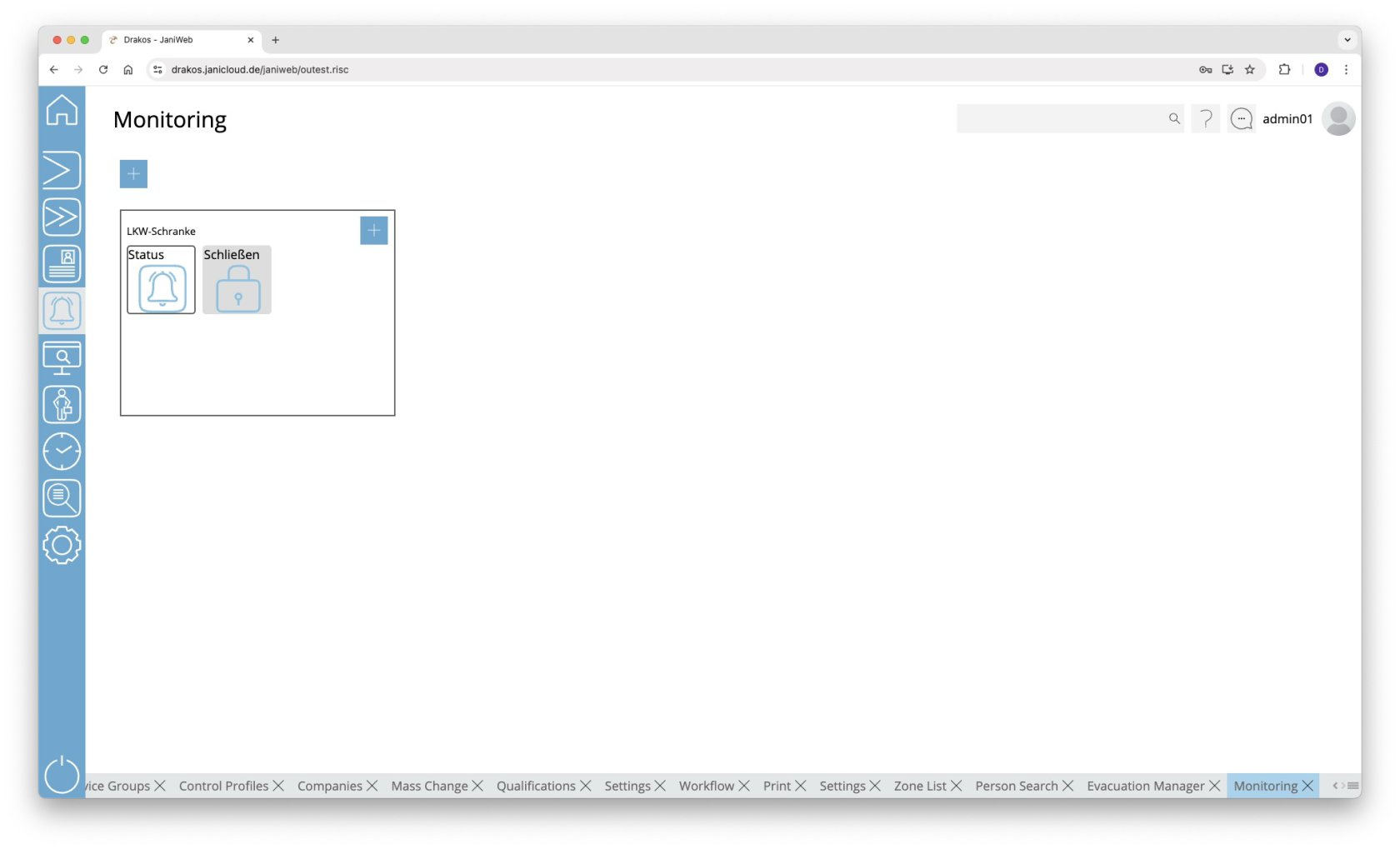](https://manual.drakos.de/uploads/images/gallery/2025-10/xkSimage.png) ## Plus icon for modules To create a new module: 1. Press the plus icon. 2. Then select a *Site* for the module. Modules are only visible for the current site. 3. Enter a meaningful *Name*. 4. Press *Save*. ## Plus icon for switches To create a new switch for a module: 1. Press the plus icon within the module. 2. Select the type of switch you want to create (*Status*, *Control*, *Hybrid*). 3. Enter a meaningful name. 4. Select the device that is to be mapped by the switch and define the required settings. ### Switch types #### Status A switch of the type *Status* can represent up to four different states of the device in question. - *Offset*: Select the position in the booking record that is to be checked for the status. - *Event Type:* Select the booking type that is to define the status. - *StatusA to StatusD:* Enter the required value for each status. You can use the *Upload* buttons to store a separate image for each status. Press *Save* to apply the changes. #### Control A *Control* switch allows you to control a device. - *BPA9:* Enter the data that should be sent to the device when the switch is pressed. - Buttons *Upload*: Upload a suitable image for the switch. Press *Save* to apply the changes. #### Hybrid A *Hybrid* switch can both control and display up to four statuses. - *BPA9:* Enter the data that should be sent to the device when the switch is pressed. - *Offset*: Select the position in the booking record that is to be checked for the status. - *Event Type:* Select the booking type that is to define the status. - *StatusA to StatusD:* Enter the required value for each status. You can use the *Upload* buttons to store a separate image for each status. Press *Save* to apply the changes. #### Booking A *Booking* type switch can create bookings for people. - *Event Type:* Select the booking type that should be created. Press *Save* to apply the changes. ## Delete or change a module/switch Right-click on a switch or in a module and select *Remove* or *Edit*. # Image Comparison **The menu item *Image Comparison* shows the images of the persons who last made a booking at a specific terminal. In this way, you can ensure that the person making the booking matches the stored image.** [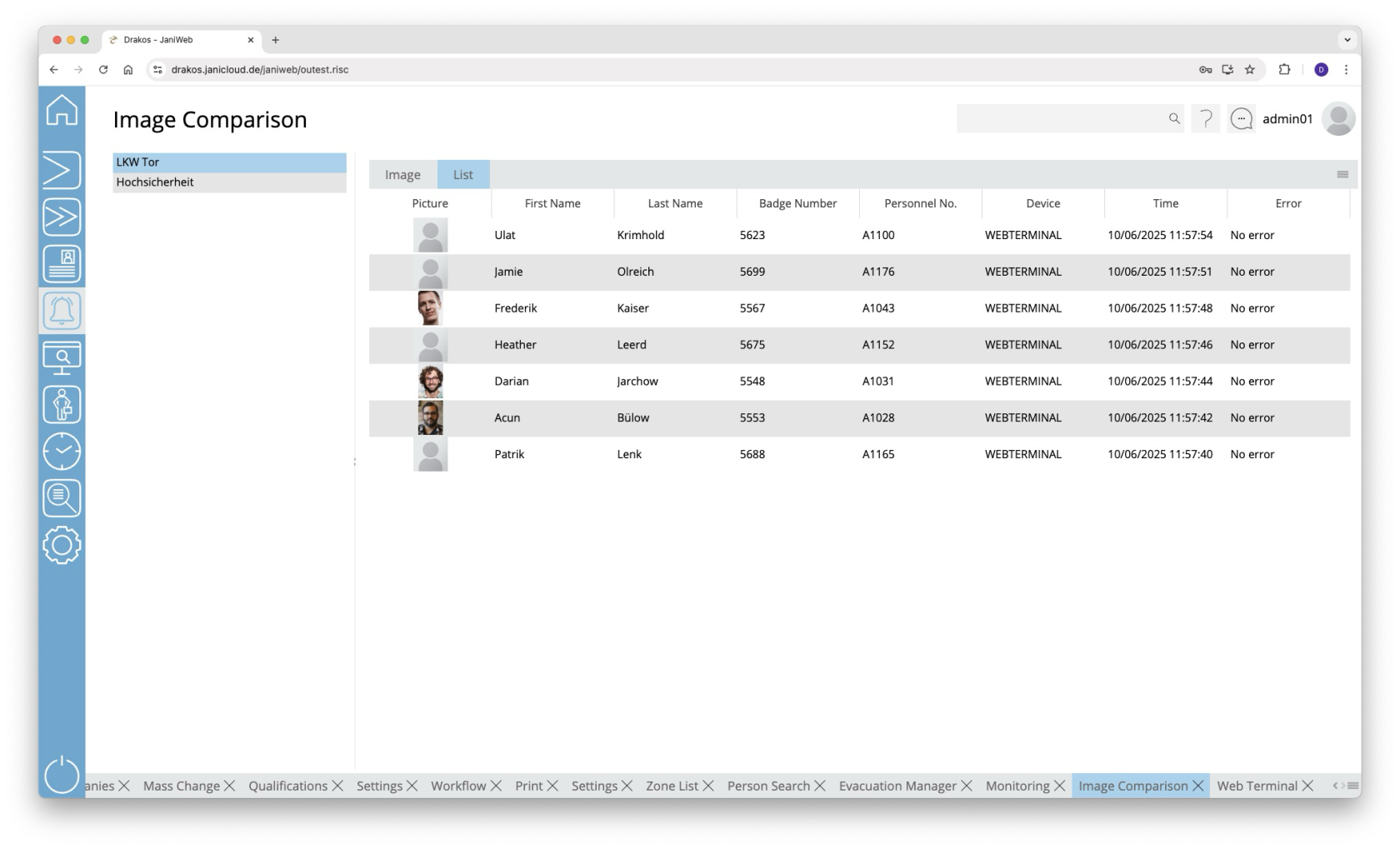](https://manual.drakos.de/uploads/images/gallery/2025-10/6Jnimage.png) ## List of configurations The list on the left-hand side contains the configurations created for image comparison. Select the entry for which you want to display images. Which configurations appear here is determined in the [settings for alarm management](https://manual.drakos.de/books/janiweb-j92/page/settings-POH). ## Tab *Image* Select this tab to display only the image for the last booking. ## Tab *List* Select this tab to display a continuous list of images for the bookings of the last hour. # Alarm Scenarios **Use the menu item *Alarm Scenarios* to define various events and the subsequent actions.** [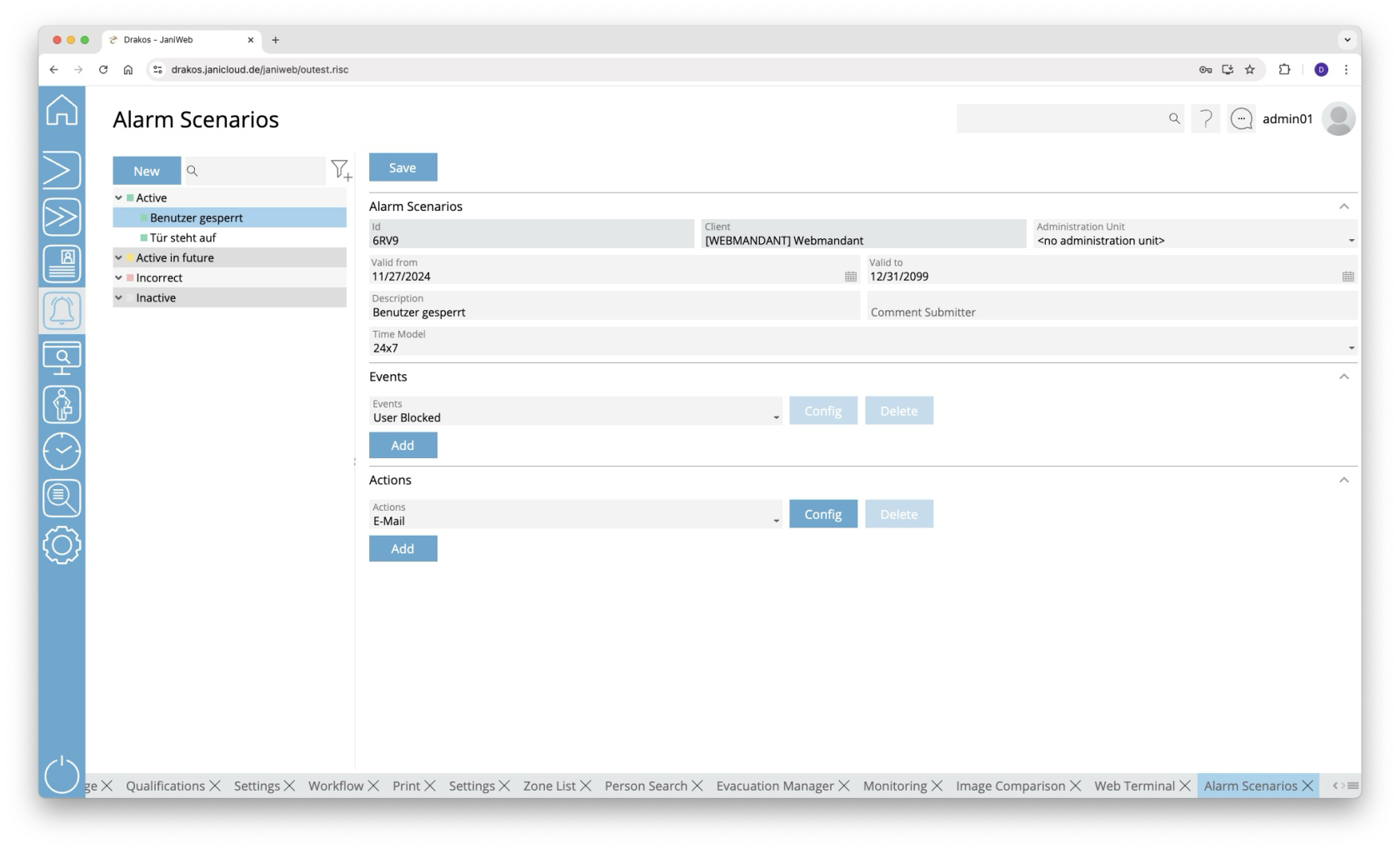](https://manual.drakos.de/uploads/images/gallery/2025-10/vgnimage.png) ## List of scenarios The list contains all the alarm scenarios that have already been created. Select a scenario to view details. The list offers the following options: - **Search:** Enter text or numbers in the search field (magnifying glass icon) at the top to search for groups. The entries take effect immediately: the list only displays hits. The search is not case sensitive. - **Filter:** Press the filter icon. Select the criteria for which you want to display groups. Changes are visible immediately. ## Button *New* 1. Press *New* to create a new alarm scenario. 2. Enter a meaningful *Description*, select a *Client* and define a validity period (*Valid from – Valid to*). 3. Select a *Time Model* during which the scenario should be active. 4. Select the *Events* that should trigger actions. A scenario can include several events and actions. 5. Select the *Actions* to be triggered when the events occur. ## Button *Save* Press *Save* to apply your changes. ## Area *Events* Define one or several events that trigger an action. Multiple events are linked logically by OR (one match is sufficient). ### Button *Add* Press *Add* to add another event. ### Button *Config* Press *Config* to set the details for the event. The following events are available: - *User Blocked:* A user is blocked. - *Block due to inactivity:* A person is blocked because they have not been active for a longer period of time (e.g. no booking for a certain number of days). - *Block due to duplicate badge number:* A duplicate badge number exists in the system (e.g. due to duplicate allocation via the web application and an ERP system). - *Failed login:* A certain number of failed login attempts for the same user have been detected (unknown users can be excluded). - *Offline Component Battery Status:* The battery level of an offline component is too low. - *OSS Configuration Error:* OSS has not been configured correctly. - *OSS Event:* An OSS event has occurred. - *OSS Block List Error:* An error has occurred in the configuration of the OSS blocklist. - *Server Log:* A specific system message has occurred. ## Area *Actions* Define one or more *Actions* here that are to be triggered when the defined events occur. ### Button *Add* Press *Add* to add another action. ### Button *Config* Press *Config* to specify details for the action. You can configure automatically sent E-Mails (*Mail* action) as follows: - *Recipient:* Enter the recipient’s E-Mail address. Press the plus icon to add further recipients. - *Subject*, *Body*: Enter the desired text. Use the predefined variables by dragging them to the desired position in the body text or subject. Press *Save* to save the E-Mail configuration. # Site Map [](https://manual.drakos.de/uploads/images/gallery/2025-04/A7Fbildschirmfoto-2025-04-15-um-14-52-56.jpg) # Settings **Use the menu item *Settings* to make various settings (zones, site plans, image comparison) for alarm management.** [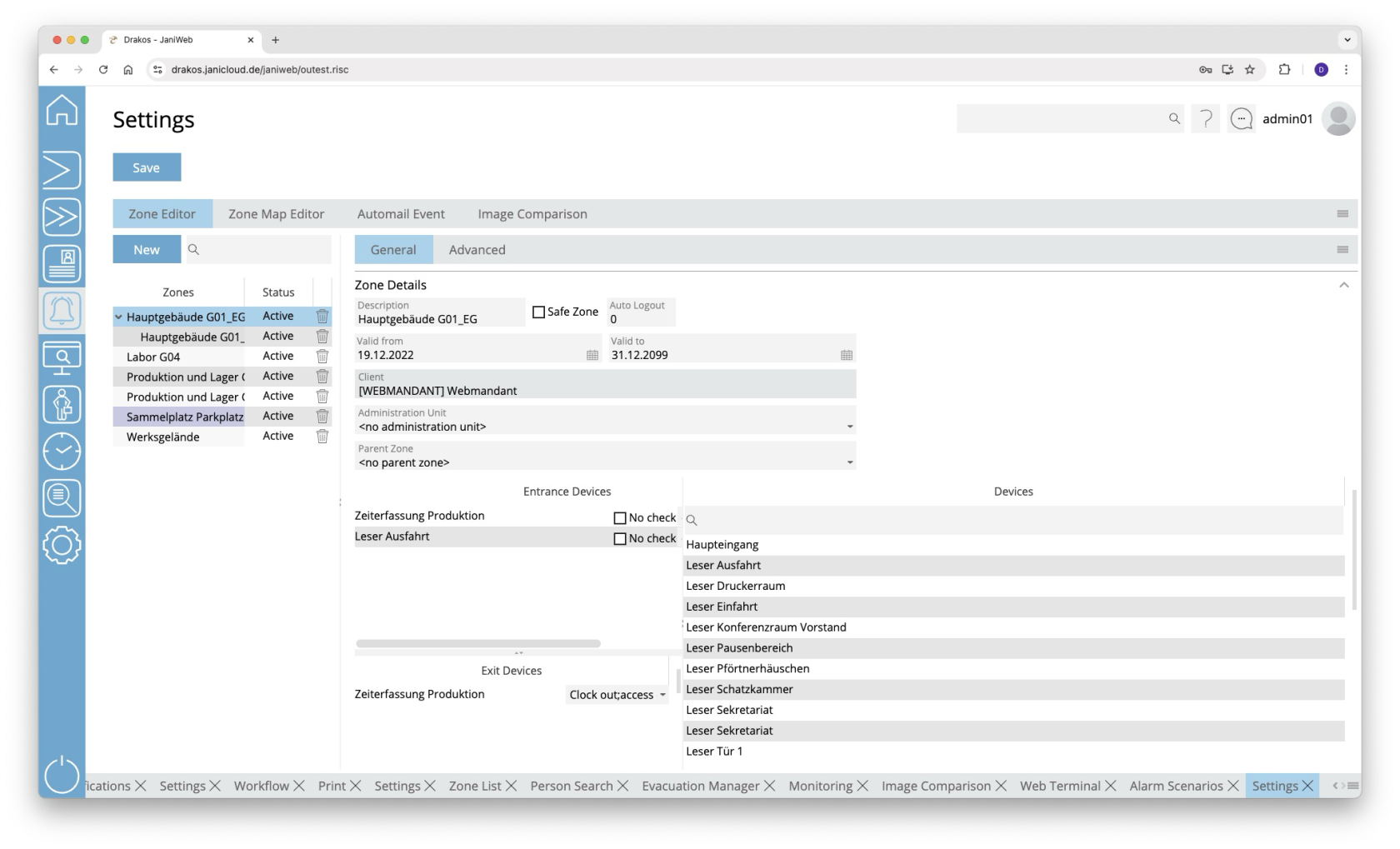](https://manual.drakos.de/uploads/images/gallery/2025-10/ArVimage.png) ## Button *Save* Press *Save* to apply your changes. ## Tab *Zone Editor* This is where you manage the zones for alarm management. ### List of zones The list contains all zones that have already been created. Select an entry to view details. ### Button *New* Press *New* to create a new zone. Enter the required information. ### Tab *General* Define the general settings for the zone here. - *Description:* Enter a meaningful name. - *Safe Zone:* Select this option if it is a safe zone. Safe zones are highlighted in blue in the zone list and are relevant for evacuation (e.g. an outdoor assembly point). - *Auto Logout:* Enter the number of minutes after which people should be automatically logged out of the zone. Leave the field empty if you do not want to use the auto-logout. - *Parent Zone:* If it is a sub-zone, select the parent zone here. - *Show Link*: Click this button to view the URL that allows you to access the zone list without logging in first. To do this, the client must be added to the whitelist in the [Basic Settings](https://manual.drakos.de/books/janiweb-j92/page/basic-settings#bkmrk-bereich-anmeldebesch) menu. - https://{janiweb-server}/janiweb/publiczone.risc?zoneId=1&**view=list** - displays the zone list as a list (default) - https://{janiweb-server}/janiweb/publiczone.risc?zoneId=1&**view=images** - displays the list of zones with the photos of the persons - https://{janiweb-server}/janiweb/publiczone.risc?zoneId=1&**view=tiles** - displays the zone list in tile view #### Spatial definition of the zone Select input and output devices to define a zone. 1. Drag the desired devices from the list of all devices to the *Entrance Devices* or *Exit Devices* list. 2. For each device, specify which booking types trigger the entry and exit of the zone. 3. (Optional) Select *No check* if the device is to be excluded from the zone change control. 4. Press *Save* to apply the changes. ### Tab *Advanced* Here you can define advanced settings for the zone. #### Area *Min/Max Number Persons* Here you can specify whether the zone should be designed for a certain number of persons. Specify one or more time models and enter the desired number of persons for *Max* and/or *Min*. #### Area *Anti-Passback* Select here how repeated access to the zone is to be managed. #### Area *Zone Change Control* Select here whether the change from one zone to another should be monitored. Drag the desired zone(s) from the *Available* list to the *Selected* list. ## Tab *Zone Map Editor* This is where you define the graphical representation of the zones. You can upload floor plans (or site plans) and place devices and zones on them. #### Button *Upload* Press *Upload* to upload a new floor plan. Select the desired file on your computer. #### Button *Delete* Press *Delete* to remove the selected floor plan. #### List field *Select plan* If you have uploaded several files (e.g. for different buildings or floors), select the floor plan you want to edit here. #### List field *Location* Link a floor plan to a location. Only user authorised for that location can view the floor plan. #### Available zones / Devices Select an available zone or an available device and drag the element to the desired position on the floor plan. Right-click the element for a device and select the corresponding device. #### Zoom slider Use this to select the zoom factor (*20* to *140* percent) to reduce or enlarge the display. ## Tab *Automail Event* Here you can define booking events about which you are automatically informed by E-Mail. Create one or more combinations of *Event type*, *Error*, *Device / Device Group* and Mail address, which will send a message to the specified E-Mail address when they occur. Press *Add* to create further events. ## Tab *Image Comparison* Here you can define settings for [*Image Comparison*](https://manual.drakos.de/books/janiweb-j92/page/image-comparison). ### List of configurations The list on the left-hand side contains the configurations created for image comparison. Select a configuration to show details. #### Button *New* Press *New* to create a new configuration for the image comparison. Enter the required information. #### Detail area - *Description:* Enter a descriptive label for the layout. - *Site:* Select the site. The visibility of the configuration is determined by the site. - *Device:* Select one or more devices for which the image comparison is to be enabled. - *Event type:* Select the booking type(s) to be monitored. - *Display Duration:* Enter how long images should be displayed (seconds). - Additional Fields: Select here which database fields should appear in addition to the image. - To define the name for a field, press *Translate*. Enter the names for the respective languages and press *Save.* # Attendance Board # Attendance Board **The menu item *Attendance Board* provides you with an overview of the attendance status of all or selected employees.** [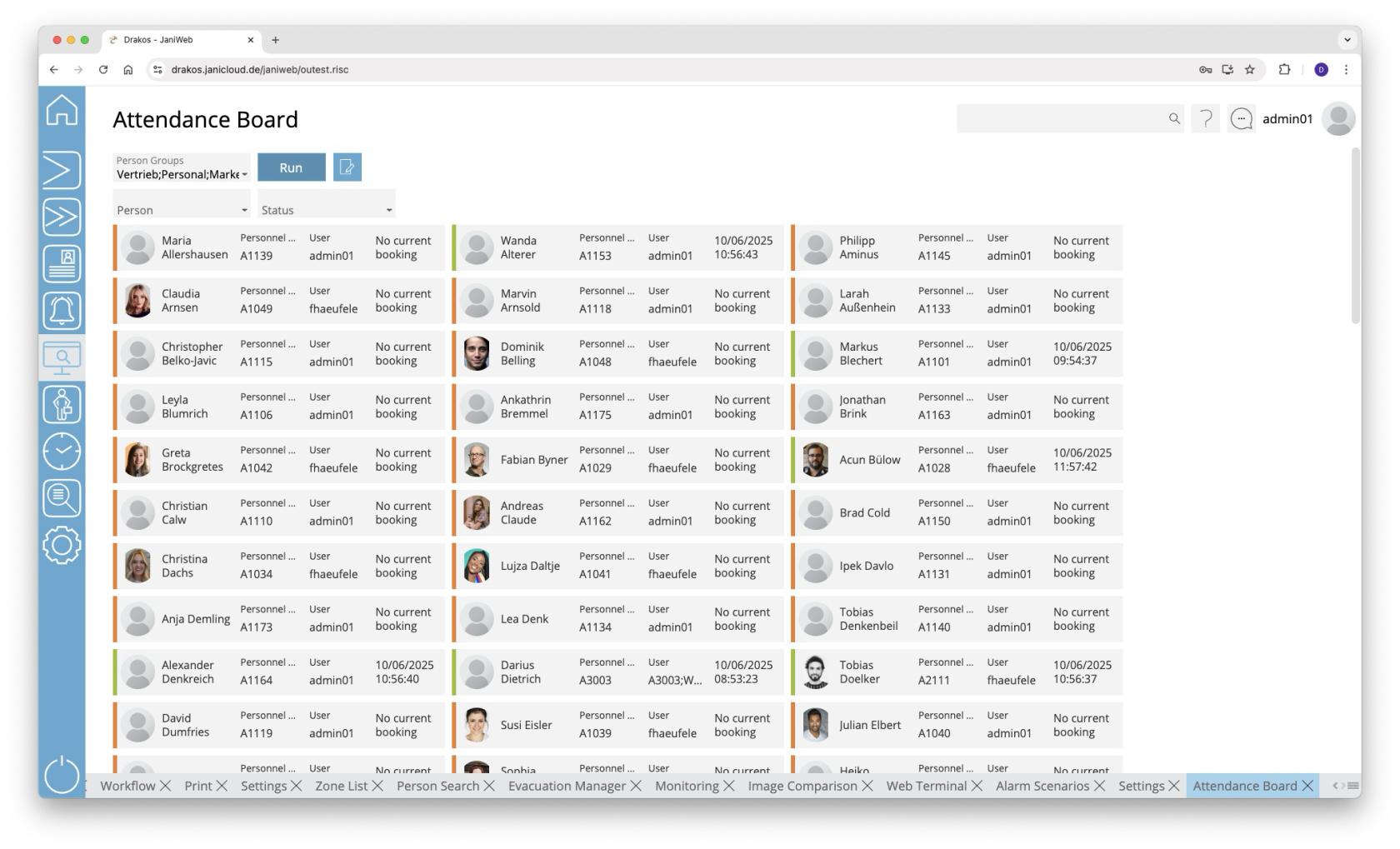](https://manual.drakos.de/uploads/images/gallery/2025-10/9pGimage.png) ## List field *Person Groups* Select the person group(s) for which the attendance status should appear and press *Run*. ## Button *Run* Press *Run* to update the view according to the selected criteria. ## Button *Edit person group* Press this button to view the definitions of the person groups or to add a new person group. For more information on creating person groups, see the section [Person Groups](https://manual.drakos.de/books/janiweb-j92/page/person-groups). ## Filter displayed persons Use the following fields to filter the persons displayed. - *Person:* Select the person(s) you want to display. - *Status:* Select which presence status you want to display. You can specify which options are available here in the [Settings](https://manual.drakos.de/books/janiweb-j92/page/settings-VAO). - *Zone:* Select the zone(s) for which you want the presence status to be displayed. - *Sort by:* If a field is selected here, the people displayed will be grouped according to the value of the selected field. Press *Run* to refresh the view. ## Option *Group by Person Groups* If this option is selected, people are displayed grouped into sections according to their person groups. # Settings **Use this menu item to specify *Settings* for the *Attendance Board*. You can also define various attendance statuses here, which are available as filters.** [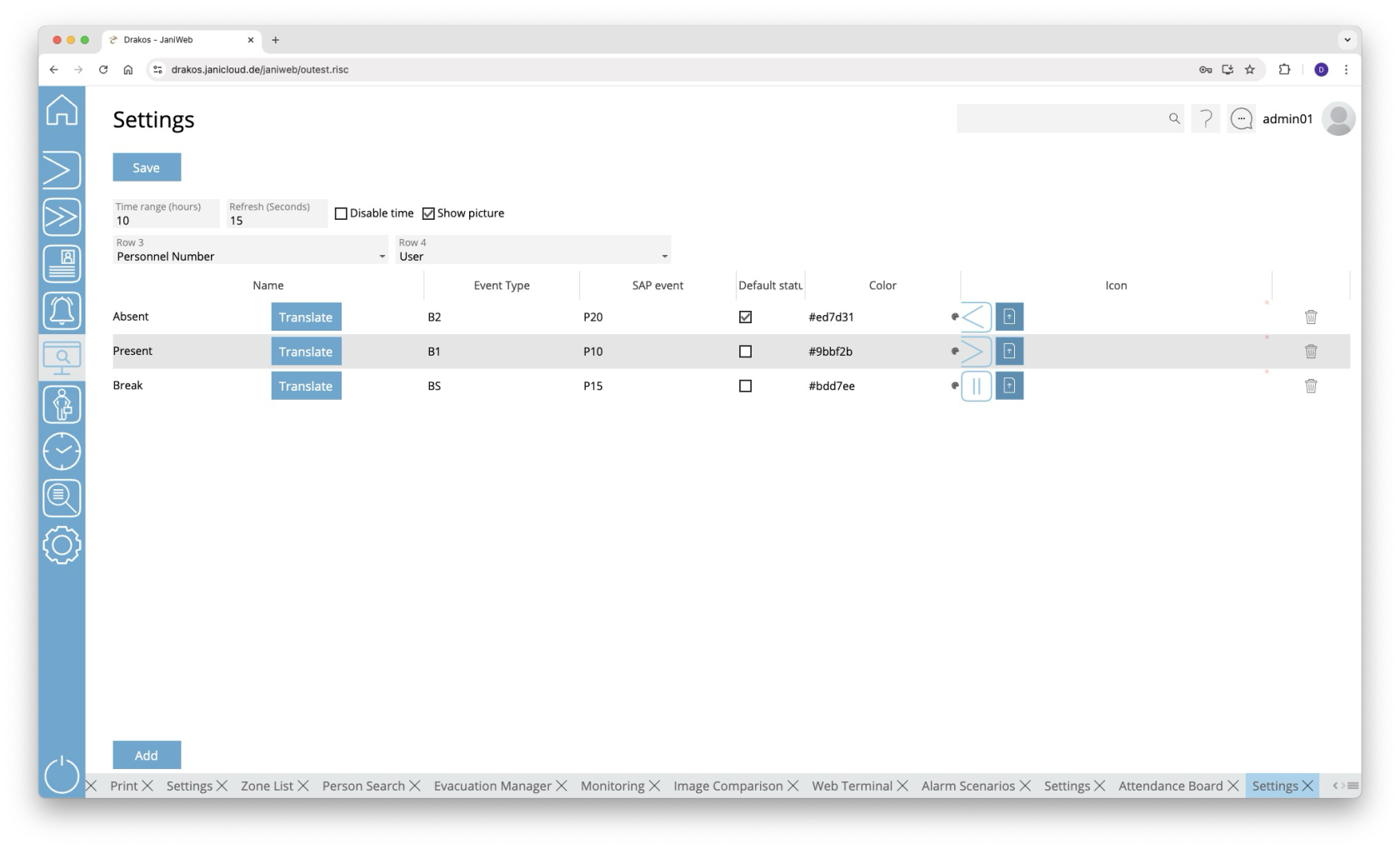](https://manual.drakos.de/uploads/images/gallery/2025-10/prjimage.png) ## Button *Save* Press *Save* to apply your changes. ## General Settings - *Time range (hours):* Specify here after how many hours the system should search for new booking events. - *Refresh (seconds):* Specify here the time after which the display should refresh automatically. - *Row 3* / *Row 4:* Select additional information here that should appear on the tiles of the attendance board.You can display the zone in which the person is currently located. To do this, select the *Zone* option in the *Row 3* or *Row 4* field.
## List of presence statuses The list contains the presence statuses that have already been created. To remove a status, press the trash icon. A confirmation dialog will appear. ## Button *Add* Press *Add* to create a new presence status. Enter the required data and press *Save*. - Column *Name:* To specify a name, press *Translate*. Enter the names for the respective languages and press *Save.* - Column *Event type:* Enter the abbreviation for the event (booking) type that leads to the status being displayed. - Column *SAP event*: Enter the SAP event that causes the status to be displayed. - Column *Default status*: Specify here whether this status should always be displayed if there is currently no booking for the person. - Column *Color:* Specify the color in which the status appears in the attendance board. Press the color palette icon to open a color picker. Or enter the color directly as a [hexadecimal color code](https://de.wikipedia.org/wiki/Hexadezimale_Farbdefinition). - Column *Icon:* Press Upload to upload an icon for the presence status. # Visitor Management # Companies **Use the menu item *Companies* to manage companies. Companies created here can be assigned to persons or visitors via the menu items *Persons* or *Visitors*.** [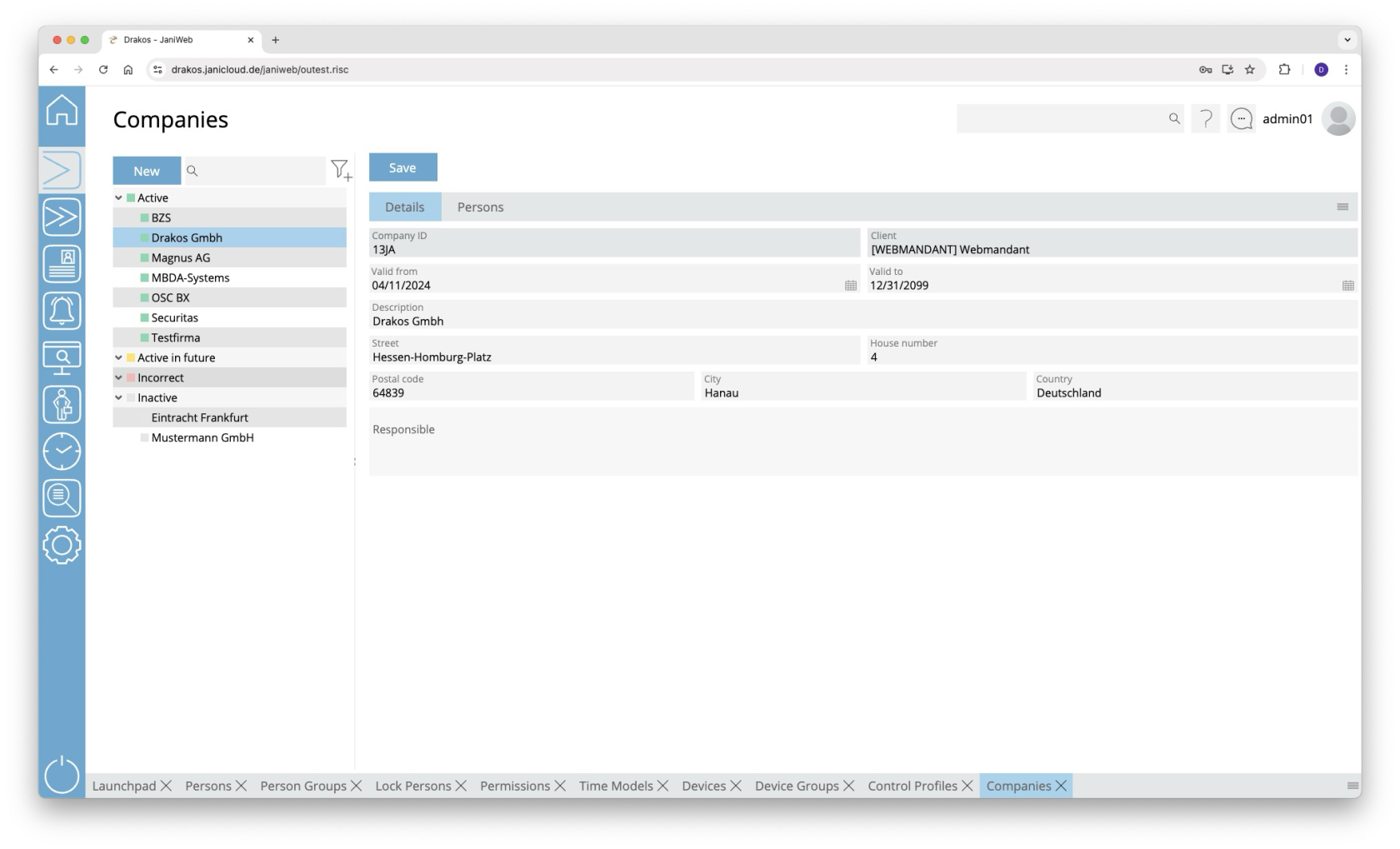](https://manual.drakos.de/uploads/images/gallery/2025-10/LbFimage.png) ## List of companies The list contains the companies already created, sorted by their current status (*Active*, *Active in future*, *Incorrect*, *Inactive*). Select a company to view details. The list offers the following options: - **Search:** Enter text or numbers in the search field (magnifying glass icon) at the top to search for companies. The entries take effect immediately: the list only displays hits. The search is not case sensitive. - **Filter:** Press the filter icon. Select the criteria for which you want to display companies. Changes are visible immediately. - **Export the entire list:** Press the download icon. Select the format in which you want to export the list. For details on the available export formats, see the [General > Export Formats](https://manual.drakos.de/books/janiweb-j92/page/export-formats) chapter of this manual. ## Button *Save* You can change the details of the selected company. Press *Save* to save the changes. ## Button *New* Press *New* to create a new company. Enter the required information for the company on the tab *Details* and press *Save*. ## Tab *Persons* The tab *Persons* provides an overview of which persons are assigned to the respective company. --- ##### TIPS - **Filter:** Use the filter icon to filter by status (active, inactive, etc.). - **Export:** Use the export icon to export the list of assigned persons. # Visitors **You can manage visitors in the system via the menu item *Visitors*. Here you can create new visitors and assign them to a company that has been created under the menu item *Companies*.** [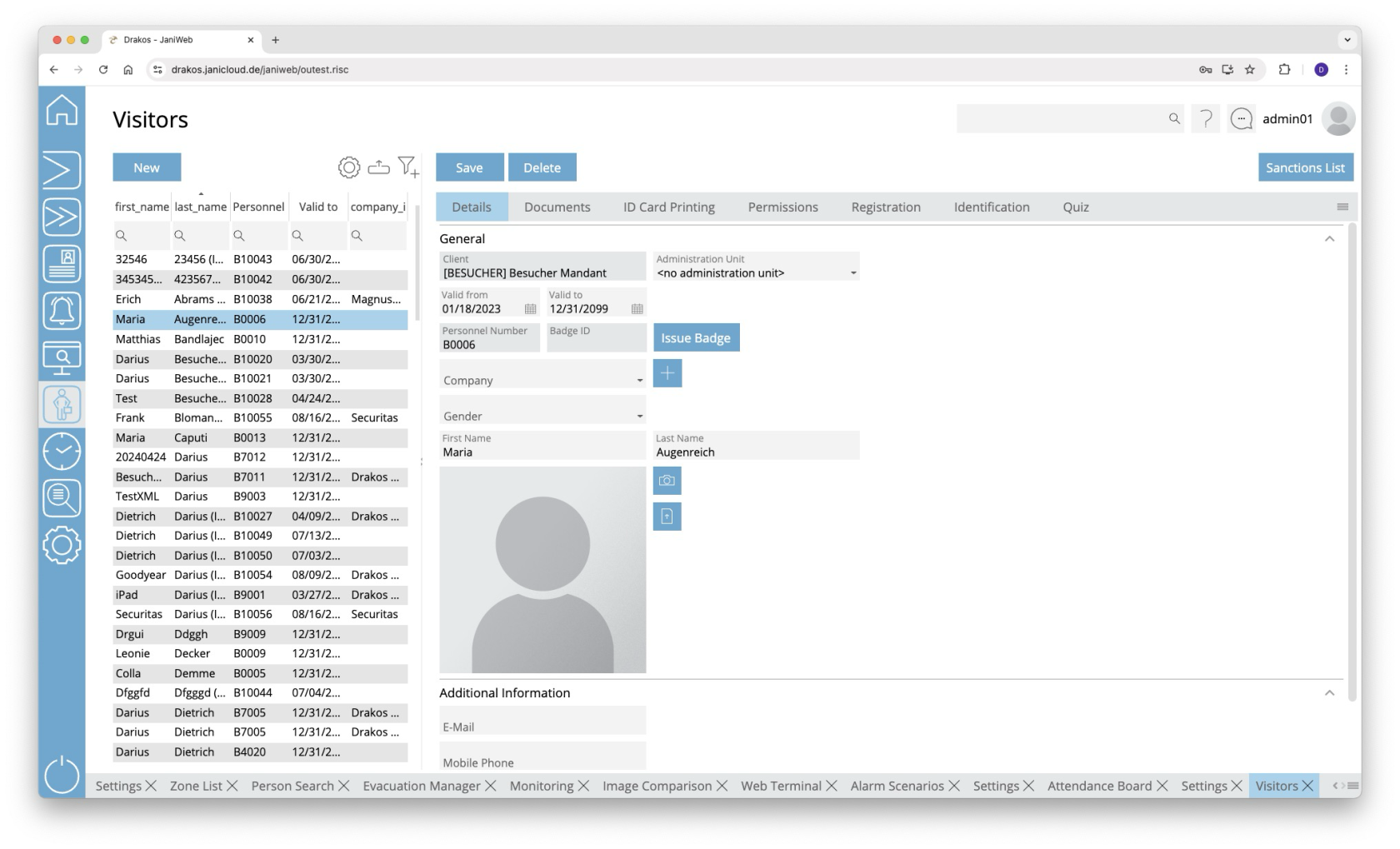](https://manual.drakos.de/uploads/images/gallery/2025-10/uGEimage.png) ## List of visitors The list contains the visitors already created. Select a visitor to display details. The list offers the following options: - **Select columns to display:** Press the gear icon. Select which columns you want to display and in which order. Arrange the columns using the mouse or the arrow icons. Press *Apply* to adopt the changes. - **Filter by client and status:** Press the filter icon. Select the clients and the status (*Active*, *Active in future*, *Inactive*) for which visitors should be displayed. Changes are visible immediately. - **Search in columns:** Enter text or numbers in the search field (magnifying glass icon) of a column to search for names, personnel numbers, or other criteria. The entries take effect immediately: the list only displays hits. Tip: Search for substrings. You can find “Spencer-Churchill” with “spe”, “chur” or “hill”. The search is not case sensitive. - **Export the entire list:** Press the download icon. Select the format in which you want to export the list. The export files are downloaded or displayed depending on the browser/operating system settings.For details on the available export formats, see the [General > Export Formats](https://manual.drakos.de/books/janiweb-j92/page/export-formats) chapter of this manual. ## Button *New* Press *New* to create a new visitor. Enter the required information for the visitor on the tab *Data* and press *Save*. ## Button *Save* You can change the details of the selected visitor. Press *Save* to save the changes. ## Button *Delete* Press *Delete* to delete the selected visitor. A confirmation dialog will appear. ## Tab *Details* This is where you store and edit visitor-related data. You can individually define which fields and areas are available here via *Settings* > tab *General*. ## Tab *Documents* Here you can link documents to the personnel master record. This tab also contains the documents that the visitor is required to view and sign when self-registering. ## Tab *Badge Printing*This feature is optional and not available in every installation. Depending on the version, it may also be available in the main menu.
This tab allows you to print badges with the visitor’s information. You can define the layouts for printing badges via the menu item *Badge Printing* > *Settings*. ## Tab *Permission* Here you can grant (*Add Group / Add Device*) or revoke (*Remove Device Group / Remove Device*) permissions for the visitor. This tab also provides an overview of the access events linked to the visitor.If the tabs *Delete Device* or *Delete Group* contain a device or device group, access via this device or device group is not possible. This also applies if a permission for the device or device group has been granted on the tabs *Add Device* or *Add Group*.
A tick after the title of a tab indicates that there is data within the tab.
### *Workflow Permissions*This feature is optional and not available in every installation.
If assigning a device or device group is associated with a workflow, the permission becomes active only after the decision-maker approves the workflow request. If you select a device or device group that has a workflow, a dialog box appears. This prompts you to enter values for the time model and the validity of the permission. You also have the option of leaving a comment for the decision-maker. You can create multiple workflow requests at once. To send them, press *Save*. Workflow requests are indicated by different colors:When creating a new area, you must first save it before you can assign a field to it.
### Area *Fields Visitor* This is where you manage the fields for the menu item *Visitors*. #### List field *Site* You can define the visibility and positioning of the fields separately for each site. Select the site for which the settings in this area should apply. The fields displayed to the user depend on the site assigned to the user. If no site is assigned to a user, the settings for the *Default* site are used. To assign sites to a user, use the [Settings in the main menu, menu item Users.](https://manual.drakos.de/books/janiweb-j92/page/users) #### Tab *Static Fields* Specify which fields are visible (check box in the second column) and where they are positioned (*Row*, *Column*, *Width*). To define the name for a field, press *Translate*. Enter the names for the respective languages and press *Save.* In the column *Registration*, you can define whether the respective field also appears in the visitor *Registration*. #### Tab *Dynamic Fields* Here you can define up to 20 dynamic fields. For each dynamic field, specify whether it should be a list field (drop-down), a date field, a checkbox or a free text field. To define the name for a field, press *Translate*. Enter the names for the respective languages and press *Save.* ### Area *Fields Visits/Registration* Here you manage the fields for the menu items *Registration* and *Visits*. #### List field *Site* You can define the visibility and positioning of the fields separately for each site. Select the site for which the settings in this area should apply. The fields displayed to the user depend on the site assigned to the user. If no site is assigned to a user, the settings for the *Default* site are used. To assign sites to a user, use the *Settings* in the main menu, menu item *Users*. #### Tab *Static Fields* Specify which fields are visible (check box in the second column) and where they are positioned (*Row*, *Column*, *Width*). To define the name for a field, press *Translate*. Enter the names for the respective languages and press *Save.* In the column *Mandatory*, you can specify whether the entry in the respective field is mandatory. #### Tab *Dynamic Fields* Here you can define up to 20 dynamic fields. For each dynamic field, specify whether it should be a list field (drop-down), a date field, a checkbox or a free text field. To define the name for a field, press *Translate*. Enter the names for the respective languages and press *Save.* In the column *Mandatory*, you can specify whether the entry in the respective field is mandatory. #### Button *Copy Field Configuration* You can use this button to copy the field configuration from the currently selected site to another site. To do this, click the button and then select the site for which you want to copy the field configuration from the site drop-down menu. Confirm your selection with the *Ok* button. ### Area *Visible Buttons Visits* Use these options to specify which buttons should be visible in the *Visits* menu item. - *Signature*: Activates/deactivates the button that starts the process of capturing a visitor’s signature on the signature pad. - *Issue Badge / Return Badge*: Activates/deactivates the buttons for issuing and returning a badge. The issuing/returning of an badge also marks the visit as active/completed. - *Person arrived/Person left:* Activates/deactivates the buttons for manually activating/ending a visit. ### Area *Fields Invite Visitors* This is where you manage the fields for the menu item *Invite Visitors* (only visible to users with employee login). #### Tab *Visitor* ##### Tab *Static Fields* Specify which fields are visible in the area *Visitor* (checkbox in the second column) and where they are positioned (*Row*, *Column*, *Width*). ##### Tab *Dynamic Fields* Here you can define up to 20 dynamic fields. For each dynamic field, specify whether it should be a list field (drop-down), a date field, a checkbox or a free text field. To define the name for a field, press *Translate*. Enter the names for the respective languages and press *Save*. #### Tab *Visit* ##### Tab *Static Fields* Specify which fields are visible in the area *Visit* (checkbox in the second column) and where they are positioned (*Row*, *Column*, *Width*). ##### Tab *Dynamic Fields* Here you can define up to 20 dynamic fields. For each dynamic field, specify whether it should be a list field (drop-down), a date field, a checkbox or a free text field. To define the name for a field, press *Translate*. Enter the names for the respective languages and press *Save*. #### Button *Copy Field Configuration* You can use this button to copy the field configuration from the currently selected site to another site. To do this, click the button and then select the site for which you want to copy the field configuration from the site drop-down menu. Confirm your selection with the *Ok* button. ### Area *QR-Code* This is where you manage the FAAC barrier systems that should be available for selection in the menu item *QR-Code*. To create a new barrier system, upload the corresponding init string into the system using the button *Upload the initial string*. ### Area *Automatic Visit Status* Here, devices can be assigned to a specific event type. If a visitor makes a booking on such a device, the status of the associated visit is automatically set to *Ongoing* or *Active*. The configuration can be made on a site-specific basis. ## Tab *General > Additional Settings* ### Area *Additional Settings* This is where you define further settings for visitors. - *Enable sanctions list:* Enables the sanctions list check. - *Enable badge number in Visits screen:* Enables the badge number in the list of visits in the menu item *Visits*. - *Enable Visits by the hour:* Enables to create visits by the hour. - *Sort option for visits:* Choose whether to sort visits by first name or surname. - *Visitee additional Information: Select the additional information that should be available for the visitee.* - *Visitor additional Information: Select the additional information that should be available for the visitor.* - *Validity Visitors (Days):* Enter the standard validity in days for visitors that were created via registration or the menu item *Invite Visitors.* - *Validity Invitation Link (Days):* Defines how long an invitation link is valid in days. - *Invitation Link:* If the server running JaniWeb for external users is different from the one sending the invitations, the URL of the external server must be specified here. - *Enable Invitation:* This setting activates the function that allows employees to send invitation links to visitors. - *Enable Visitor Groups:* If this option is selected, it is possible to create visits for visitor groups. - *Search delay Visits (in milliseconds):* Configures the delay with which the application will start the search after the last input into search field of Visits menu. -Access visitor registration using the following URL: https://{server}/janiweb/visit
##### *Quiz* This module allows you to integrate a quiz into the process. ### Tab *Check-in* The check-in is used by visitors who are already registered in the system and for whom a planned visit exists. Upon arrival, the visitor activates their visit by scanning a QR-Code. Use modules on this tab to define the check-in process. Different processes can be specified for visitors and external companies. - **Inserting modules:** Drag the required modules in the desired order to the area of the relevant location or press the button with the + to select the corresponding module in the following dialog. - **Reordering modules:** Drag the modules to the desired position. - **Editing modules:** Use the edit icon to specify details such as the fields to be displayed for the respective module. - **Removing modules:** Use the trash icon to remove a module from the process. Once you have configured a process, you can jump directly to the process via the *Open process* link. This will then open in a new tab. #### Button *Copy Configuration* This button allows you to copy the configuration from the currently selected location to another location. To do this, click the button and then use the Location and Visitor Type drop-down menus to select the location and visitor type to which you wish to apply the configuration. Confirm your selection by clicking the OK button. #### Overview of the modules ##### *Visitor data* This module displays the input fields for visitor information. Select which fields are displayed and where they are positioned (*Row*, *Column*, *Width*). You must also specify the client with which the visitor master records are to be created. Use the *Mandatory* column to define whether the field must be filled in. - Tab *Dynamic Fields*: Here you can define up to 20 dynamic fields. For each dynamic field, specify whether it should be a list field (drop-down), a date field, a checkbox or a free text field. - Tab *Dynamic Fields - Visits*: Specify here which fields should be displayed that are directly linked to the visit. To define the name for a field, press *Translate*. Enter the names for the respective languages and press *Save*. ##### *Signature* This module prompts the visitor to sign. Press *Set Signature Pad Text* to define the text to be displayed in addition to the signature field for the respective language.Activate the option *Use external signature pad* if an external signature pad is connected. Leave the option disabled if the visitor is to use the mouse or the touchpad or touchscreen for the signature. ##### *XML View* This module displays a PDF with the information that the visitor has entered (e.g. name, E-Mail address). To upload a PDF layout for the respective language, select the language and press *Upload new layout*. - *Send PDF to visitee* and *Send PDF to visitor*: Use this option to specify whether the PDF should be sent by E-Mail to the visitor and/or to the person visited. - *Save PDF in database*: Use this option to specify whether the PDF should be linked to the visitor master record. - *Not visible*: Specify whether the created PDF is displayed in the registration process. - *Accept*: Specify whether the visitor must confirm the information in the displayed PDF. - *Enable automatic printing:* If this option is enabled, the generated PDF will be printed automatically via the network printer selected in the *Printer* field once registration is complete. In the *Width (mm) and Height (mm)* fields, enter the width and height at which the printout is to be produced. Leave the fields blank if you want the printout to be based on the size of the paper format. The *Orientation* field specifies whether the printout should be in landscape or portrait format. You can find a sample layout in XML format here: [SampleVisitorPassLayout.xml](https://manual.drakos.de/attachments/16) ##### E-Mail Use this module to specify the subject line and layout for the E-Mails that are to be sent to the attended and visiting party at the end of the process. - Press E-Mail *Subject Visitor / E-Mail Subject Visitee*, and enter the text that should be used as the subject for the E-Mail in the respective language. - Press E-Mail *Layout Visitor / E-Mail Layout Visitee*, select a language and press *Upload new layout* to upload an E-Mail layout for this language. Sample layouts for E-Mails in XML format: - Visitor information: [email\_visitor\_registration\_visitor.xml](https://manual.drakos.de/attachments/21) - Visitee information: [email\_visitor\_registration\_visitee.xml](https://manual.drakos.de/attachments/19) ##### *PDF View* This module displays a PDF to the visitor. Select a language and press *Upload new PDF* to upload a PDF for that language. - *Send PDF to visitee* and *Send PDF to visitor*: Use this option to specify whether the PDF should be sent by E-Mail to the visitor and/or to the person visited at the end of the process. - *Save PDF in database*: Use this option to specify whether the PDF should be linked directly to the visitor master record. ##### *Print visitor pass* This module prints a visitor pass. To upload a PDF layout for the respective language, select the language and press *Upload new layout*. - *Send PDF to visitee* and *Send PDF to visitor*: Specify whether the issued visitor pass is sent by E-Mail to the visitor or to the person visited in PDF format. - *Save PDF in database*: Specify whether the visitor pass is linked to the visitor master record. - *Enable automatic printing:* If this option is enabled, the Visitor Pass will be printed automatically via the network printer selected in the *Printer* field once registration is complete. In the *Width (mm) and Height (mm)* fields, enter the width and height at which the printout is to be produced. Leave the fields blank if you want the printout to be based on the size of the paper format. The *Orientation* field specifies whether the printout should be in landscape or portrait format. You can find a sample layout for a visitor pass here: [SampleVisitorPassLayout.xml](https://manual.drakos.de/attachments/16) ##### *Visitor Type* The registration process can be defined separately for visitors or external companies. This module loads the process for a visitor or an external company. ##### *Quiz* This module allows you to integrate a quiz into the process. ##### *End* This module displays a final text and sets the visit to either “Upcoming” or “Present”. - *Generate QR-Code*: Use this option to specify whether a QR-Code should be generated for the visit. - *Upcoming/ Present*: Select the status for the visit. - *Message display duration (seconds)*: Use this option to specify how long the text should be displayed. Enter a whole number. - *Translate*: Press this button to set the text that will be displayed in the respective language at the end of the registration process.Access visitor registration using the following URL: https://{server}/janiweb/visit
### Tab *Check-out* Check-out is used by visitors who are already registered in the system and who have an active visit. Upon departure, the visitor checks out by scanning their QR-Code. Drag the module *Self-Checkout* to the area of the respective site. Use the edit icon to set a farewell text and the display duration in seconds.Access visitor registration using the following URL: https://{server}/janiweb/visit
Once you have configured a process, you can jump directly to the process via the *Open process* link. This will then open in a new tab. #### Button *Copy Configuration* This button allows you to copy the configuration from the currently selected location to another location. To do this, click the button and then use the Location and Visitor Type drop-down menus to select the location and visitor type to which you wish to apply the configuration. Confirm your selection by clicking the OK button. ### Tab *Visitor Types* You have the option of creating different visitor types, which you can use to configure different processes for egistration, check-in and check-out for each visitor type. By default, there are the visitor types *Visitor* and *Contractor*. To add a new visitor type, use the *Add* button. Then set the name for the visitor type using the *Translate* button. Use the option in the *Default* column to define the visitor type as which new visitors are created in the standard system. You can delete a visitor type again using the *bin icon*. # Invite Visitors **You can create a new visitor via the menu item Invite visitor and register directly for a visit.**This menu item is only available if you have logged in as an employee. This menu item is not available if you are logged in as an admin.
[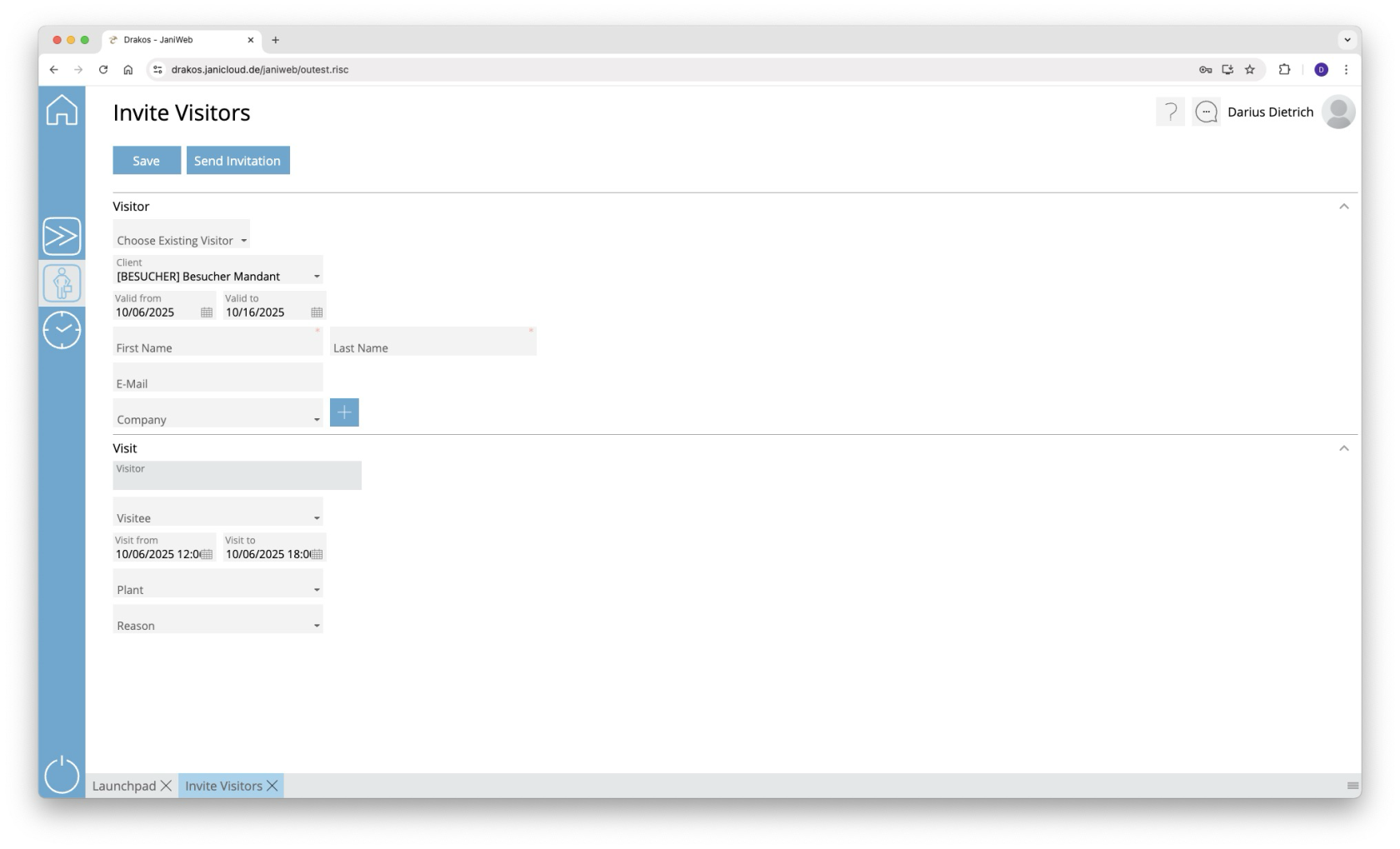](https://manual.drakos.de/uploads/images/gallery/2025-10/lqHimage.png) ## Area *Visitor* Here you can create visitors or change information for an existing visitor. ### New Visitor If you would like to create a new visitor, enter the required information for the visitor in the *Visitor* area and click on *Save*. ### Existing Visitor If you would like to use an existing visitor, select it in the *Choose existing Visitor* dropdown. You now have the option to edit the information for the visitor. ### Register Visitor Groups The *Add Visitor Group* button allows you to register a visitor group for a visit. After clicking the button, a window opens for creating the visitor group. [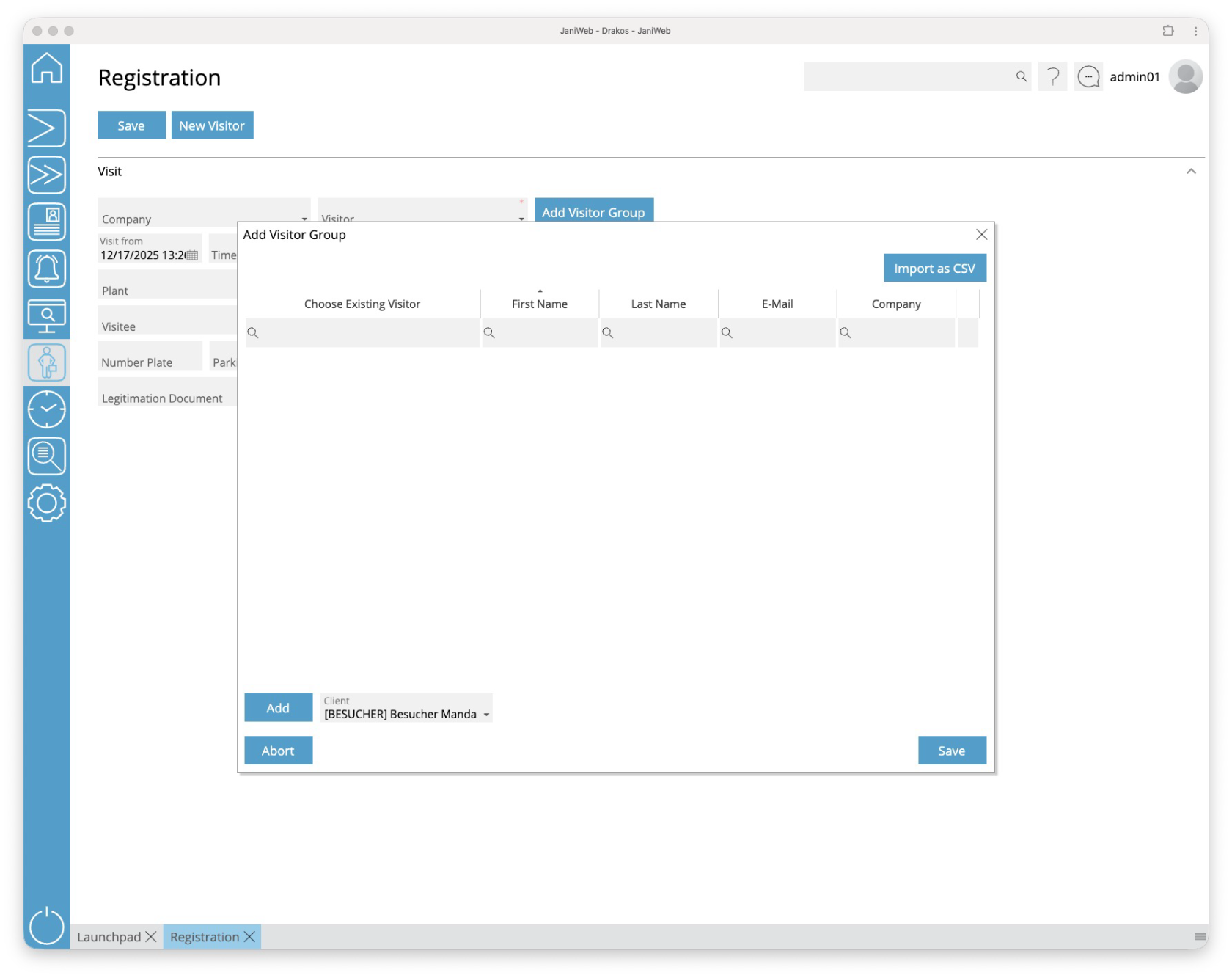](https://manual.drakos.de/uploads/images/gallery/2025-12/w8Iimage.png) Use the *Add* button to add new entries to the visitor group. You can add existing visitors to the visitor group using the drop-down menu in the *Choose Existing Visitor* column. Alternatively, you can enter information for a new visitor in the *First Name, Last Name, E-Mail* and *Company* columns. Use the *Import as CSV* button to import a visitor group from a CSV file. The structure of this CSV file can be found here. [visitor\_group.csv](https://manual.drakos.de/attachments/28) You can remove existing entries from the visitor group using the *Bin-Button*. Finish editing the visitor group by clicking the *Save* button. ## Area *Visit* Enter the information for the visit here. Confirm your entries with *Save*. ## Button *Save* You can change the details of the selected visitor and create the information for the visit. Press *Save* to save the changes. ## Button *Send Invitation* You have the option of sending the visitor an invitation by E-Mail. This invitation gives the visitor the opportunity to register themselves. The process for visitor self-registration of the respective site is used for this. # Time and Attendance # Overview Bookings **The menu item *Overview Bookings* allows you to view time bookings (clock-in/out events). You can also edit bookings, add new bookings and display the working times resulting from the bookings.** [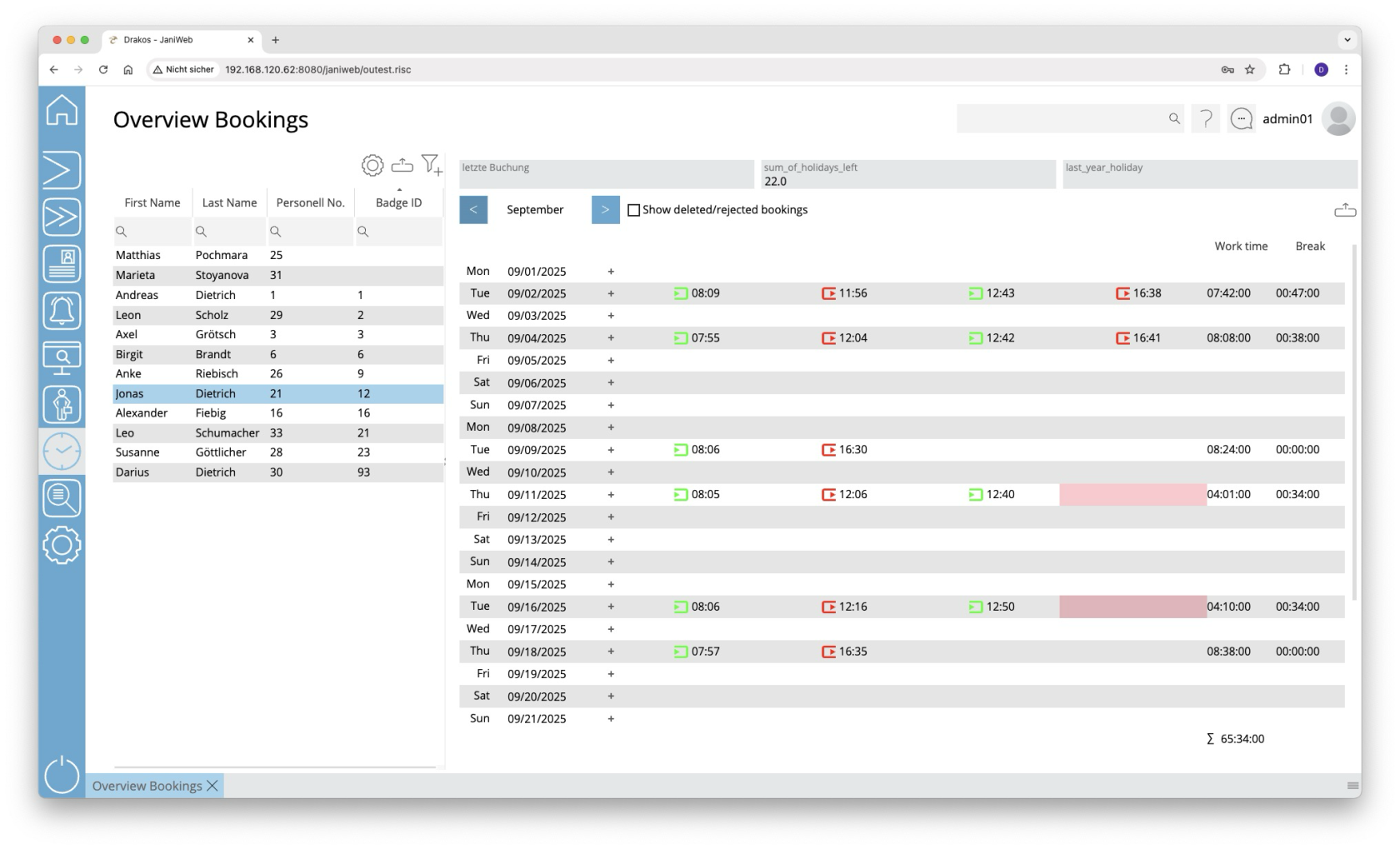](https://manual.drakos.de/uploads/images/gallery/2025-10/f1Qimage.png) ## List of persons The list contains all persons for whom time bookings are available. Select a person to view details. The list offers the following options: - **Select columns to display:** Press the gear icon. Select which columns you want to display and in which order. Arrange the columns using the mouse or the arrow icons. Press *Apply* to adopt the changes. - **Filter by client and status:** Press the filter icon. Select the clients and the status (*Active*, *Active in future*, *Inactive*) for which persons should be displayed. Changes are visible immediately. - **Search in columns:** Enter text or numbers in the search field (magnifying glass icon) of a column to search for names, personnel numbers, or other criteria. The entries take effect immediately: the list only displays hits. Tip: Search for substrings. You can find “Spencer-Churchill” with “spe”, “chur” or “hill”. The search is not case sensitive. - **Export the entire list:** Press the download icon. Select the format in which you want to export the list. The export files are downloaded or displayed depending on the browser/operating system settings.For details on the available export formats, see the [General > Export Formats](https://manual.drakos.de/books/janiweb-j92/page/export-formats) chapter of this manual. ## Detail area This is where the time bookings for the selected month appear. You have the following options: - **Change period:** Use the arrow icons at the top to jump to the previous/next month. - **Include deleted bookings:** Select *Show deleted/rejected bookings* to also display such bookings. - **Add time bookings:** To create a new time event, double-click in an empty field or press the plus icon and select *New booking*. Then select the desired booking type, enter the time and press *Save* to confirm. - **Add absences:** To create a new absence, double-click in an empty field or click the plus icon and select *New absence*. Enter a period and press *Save* to confirm. You can recognize absence bookings by the calendar icon next to the date. Double-click the icon to display details of the absence. If a workflow is set up for creating a booking, the status of the request is indicated by a colored background: - **Yellow:** The request has not yet been approved. - **Green:** The request has been approved. Empty fields with a red background indicate an error in the sequence of bookings. This can occur, for example, if there is an incorrect sequence of attendance and absence bookings. ### Column *Working Time* The working time resulting from the time bookings for the day in question appears here. The total monthly working time is shown at the end of the list. ### Column *Break deduction* The break time appears here, which is either calculated from the break bookings or from defined working time rules. If the booked times fall short of the required break time, the break time of the working time rule(s) automatically appears here together with a clock icon. Working time rules are specified in [Settings > Working Time Report](https://manual.drakos.de/link/236#bkmrk-arbeitszeitauswertun). ### Exporting the booking overview You can export the booking overview. To do so, follow these steps: 1. Press the *Download icon* above the booking overview. 2. Select a period: - Enter the start and end date in the *From* and *To* fields, or - select a calendar week in the *Week* field, or - select a calendar month in the *Month* field. 3. Press *Show Results* to load the overview. 4. Press the *Download icon* again and select the desired export format (Excel or PDF). # Overview Bookings Companies **This menu item gives you an overview of the recorded working times of all persons assigned to a specific company.** [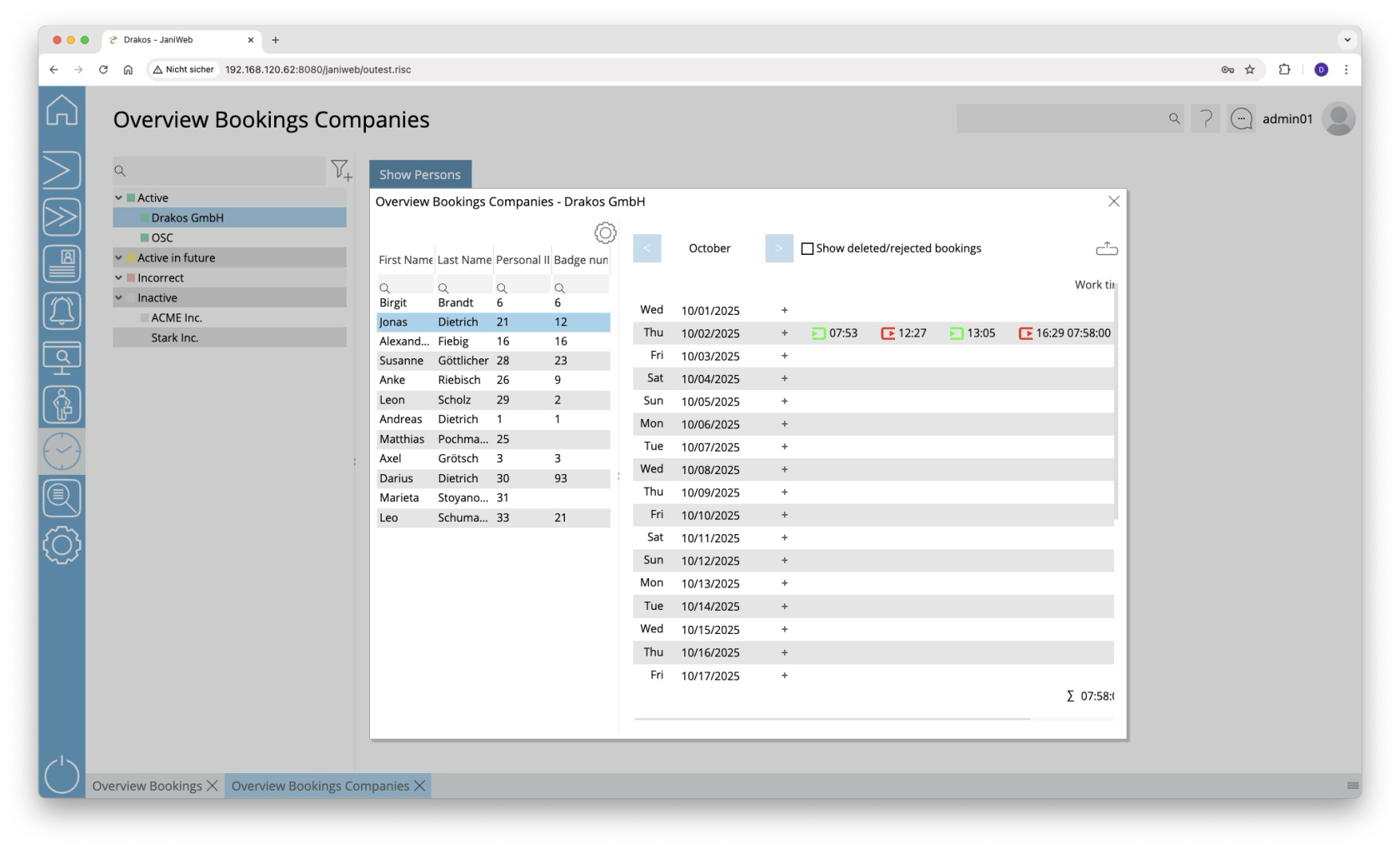](https://manual.drakos.de/uploads/images/gallery/2025-10/a0dimage.png) ## List of companies The list contains the companies already created, sorted by their current status (*Active*, *Active in future*, *Incorrect*, *Inactive*). It offers the following options: - **Search:** Enter text or numbers in the search field (magnifying glass icon) at the top to search for companies. The entries take effect immediately: the list only displays hits. The search is not case sensitive. - **Filter:** Press the filter icon. Select the criteria for which you want to display companies. Changes are visible immediately. Select a company to view the recorded working times for the current month. ## Detail area #### List of booked working times The list on the left contains all working times that were recorded for this company in the selected period. Use the arrow buttons above the list to select a different month. #### List of persons The list on the right contains all persons for whom working times were recorded in the selected period, along with the total hours worked. #### Button *Show Persons* Press this button to view the individual bookings for a person. A pop-up window appears. Select a person from the left-hand list. The time bookings for the person in the selected period will appear on the right. ### Exporting the booking overview You can export the booking overview. To do so, follow these steps: 1. Press the *Download icon* above the booking overview. 2. Select a period: - Enter the start and end date in the *From* and *To* fields, or - select a calendar week in the *Week* field, or - select a calendar month in the *Month* field. 3. Press *Show Results* to load the overview. 4. Press the *Download icon* again and select the desired export format (Excel or PDF). # Persons **You can manage the persons within the Time and Attendance module using the menu item *Persons*. Here you can also define supervisors for employees or specify substitudes for supervisors.** [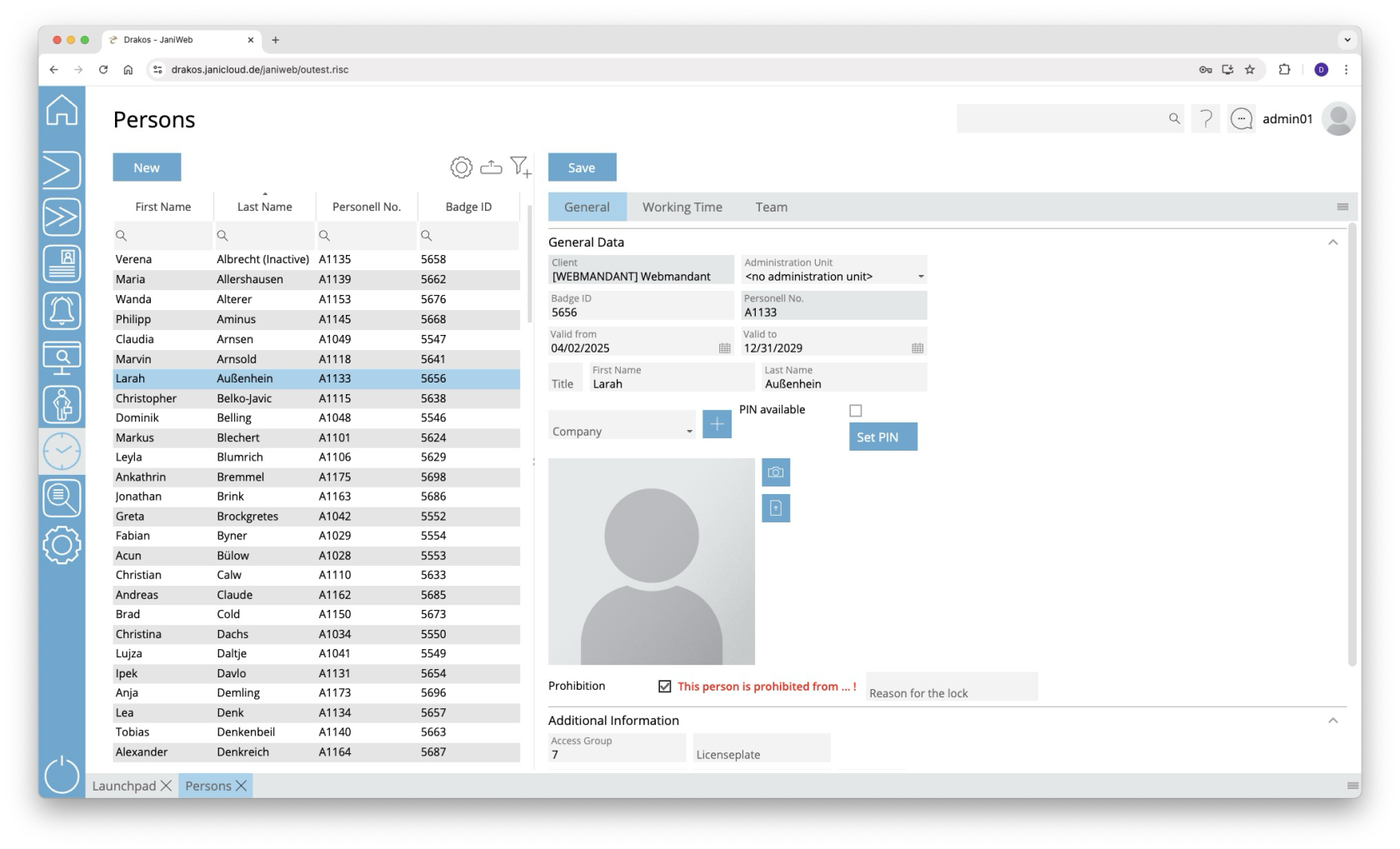](https://manual.drakos.de/uploads/images/gallery/2025-10/Tcjimage.png) ## List of persons The list contains the persons that have already been created. Select a person to view details. The list offers the following options: - **Select columns to display:** Press the gear icon. Select which columns you want to display and in which order. Arrange the columns using the mouse or the arrow icons. Press *Apply* to adopt the changes. - **Filter by client and status:** Press the filter icon. Select the clients and the status (*Active*, *Active in future*, *Inactive*) for which persons should be displayed. Changes are visible immediately. - **Search in columns:** Enter text or numbers in the search field (magnifying glass icon) of a column to search for names, personnel numbers, or other criteria. The entries take effect immediately: the list only displays hits. Tip: Search for substrings. You can find “Spencer-Churchill” with “spe”, “chur” or “hill”. The search is not case sensitive. - **Export the entire list:** Press the download icon. Select the format in which you want to export the list. The export files are downloaded or displayed depending on the browser/operating system settings.For details on the available export formats, see the [General > Export Formats](https://manual.drakos.de/books/janiweb-j92/page/export-formats) chapter of this manual. ## Button *New* Press *New* to create a new person. Enter the required information about the person on the tab *General Data* and press *Save*. ## Tab *General Data* This is where you store and edit personal data. You can individually define which fields and areas are available here via *Settings* > tab *General*.Personal data that is transferred from external systems (e.g. SAP) cannot be changed here. They must be edited in the respective source system.
## Tab *Working Time* - *Leave:* Enter the annual holiday for the person. - *Holiday Calendar:* Select a holiday calendar for the person. This calendar will be considered in the [*Team Calendar*](https://manual.drakos.de/books/janiweb-j92/page/team-calendar) for this person. ## Tab *Team* Select the *Supervisor* for the person. This determines the person to whom workflow requests for bookings and absences are forwarded. The supervisor is authorized to process such requests in the menu item *Workflow*. In addition, supervisors can designate up to three *Substitudes* for themselves. During the substitution period, all workflow requests are also forwarded to the supervisor’s substitude. # Team Calendar **The menu item *Team calendar* provides an overview of absences in your team and the option to edit them.** [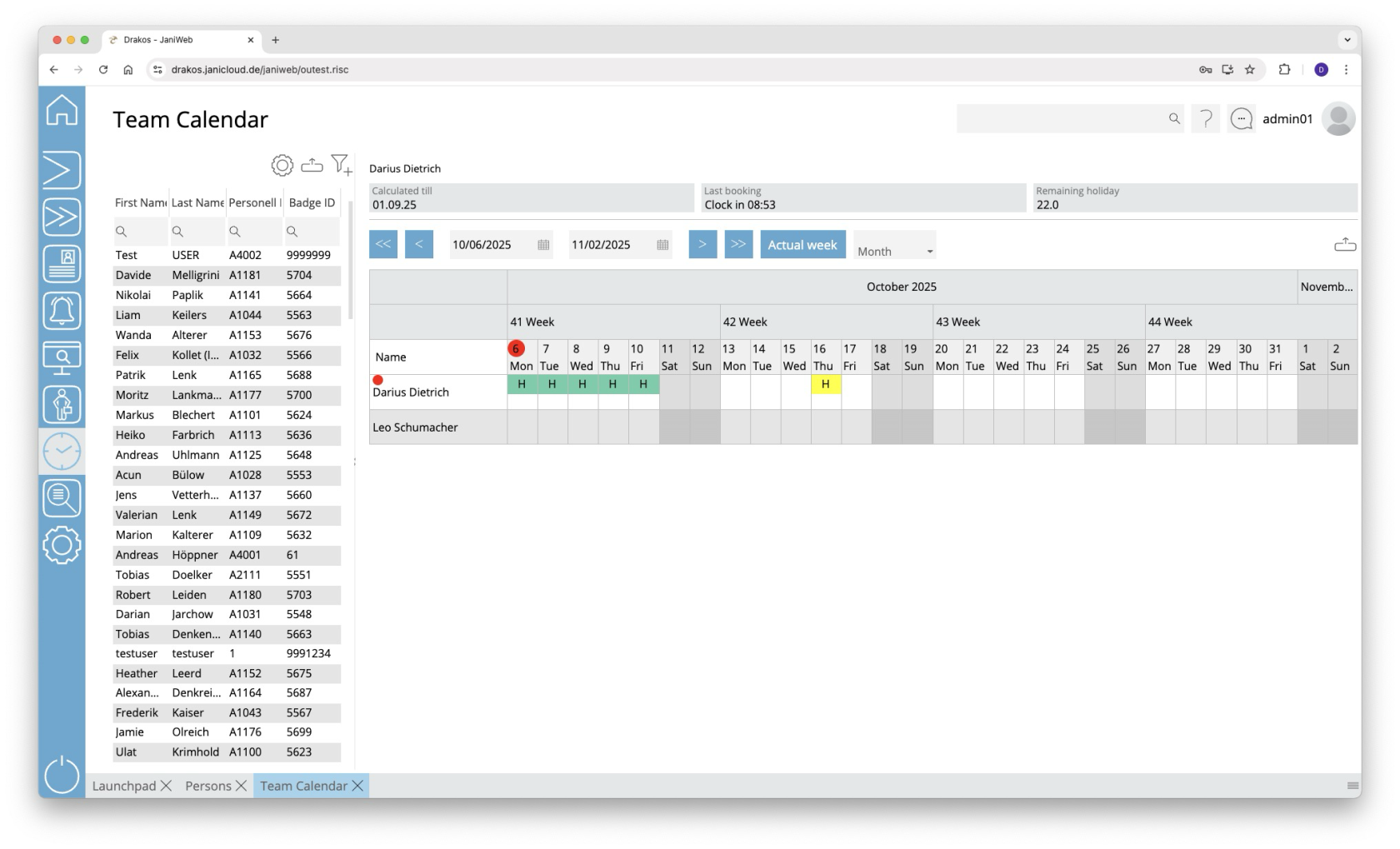](https://manual.drakos.de/uploads/images/gallery/2025-10/a1uimage.png) ## List of persons The list contains the persons that have already been created. Select a person to view details. The list offers the following options: - **Select columns to display:** Press the gear icon. Select which columns you want to display and in which order. Arrange the columns using the mouse or the arrow icons. Press *Apply* to adopt the changes. - **Filter by client and status:** Press the filter icon. Select the clients and the status (*Active*, *Active in future*, *Inactive*) for which persons should be displayed. Changes are visible immediately. - **Search in columns:** Enter text or numbers in the search field (magnifying glass icon) of a column to search for names, personnel numbers, or other criteria. The entries take effect immediately: the list only displays hits. Tip: Search for substrings. You can find “Spencer-Churchill” with “spe”, “chur” or “hill”. The search is not case sensitive. - **Export the entire list:** Press the download icon. Select the format in which you want to export the list. The export files are downloaded or displayed depending on the browser/operating system settings.For details on the available export formats, see the [General > Export Formats](https://manual.drakos.de/books/janiweb-j92/page/export-formats) chapter of this manual.The list of persons is only visible when you log in as an administrator. When you log in as an employee, only your own team calendar is visible.
## Calendar view Use the arrow icons and selection fields to select a period. Within the calendar, you have the following options: ##### Create new absence 1. Right-click in the field of the desired day and select *Create new absence.* 2. Select a type under *Absence*. 3. Enter the desired period using the *From* and *To* fields. 4. Press *Save*. The absence appears in the team calendar together with an abbreviation for the type (e.g. “FLT” for flextime). ##### Remove an absence - Double-click on the absence. The details are displayed. - Press *Delete*. A confirmation dialog appears. Absences are marked by a colored background as follows: - **Green:** absence approved - **Yellow:** approval pending - **Red:** absence rejected - **Blue:** approval to delete pending You can manage requests for absences in the menu item [*Workflow*](https://manual.drakos.de/books/janiweb-j92/page/workflow-TOn). ## How the Team Calendar Overview Is Structured The Team Calendar overview is based on the supervisor relationships maintained in JaniWeb. A team generally consists of all employees who are assigned to the same direct supervisor. The following rules apply: - Employees can see all colleagues who have the same supervisor. - Managers can see all employees for whom they are registered as the direct supervisor. - Managers can also see their own team, meaning colleagues who have the same supervisor as they do. For example, Employee 1, Employee 2 and Employee 3 all have Anna as their supervisor. They therefore form one team and can see each other in the Team Calendar. Anna can see these three employees because she is their supervisor. At the same time, Anna belongs to the Department Manager’s team. She can therefore also see Ben, who reports to the same Department Manager. [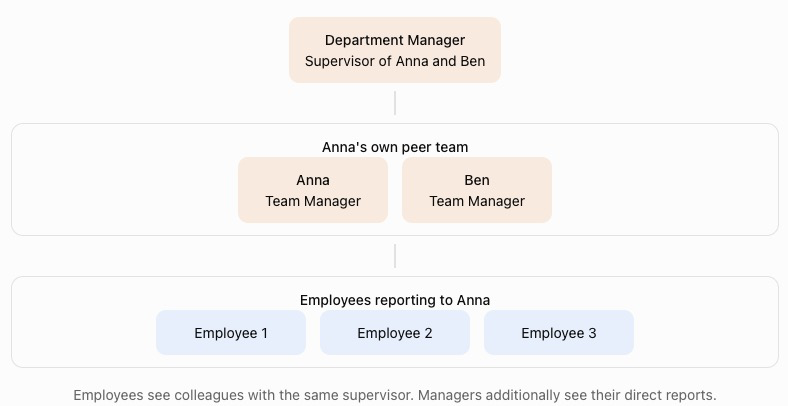](https://manual.drakos.de/uploads/images/gallery/2026-09/vgCimage.png) The correct assignment of supervisors in the employee master data is therefore essential for determining which employees are displayed in each user’s Team Calendar. ## Exporting the team calendar You can export the team calendar. To do so, press the *Download icon* above the team calendar and select the desired export format (Excel or PDF). # Web Terminal **The *Web Terminal* allows you to enter time bookings via a browser.** [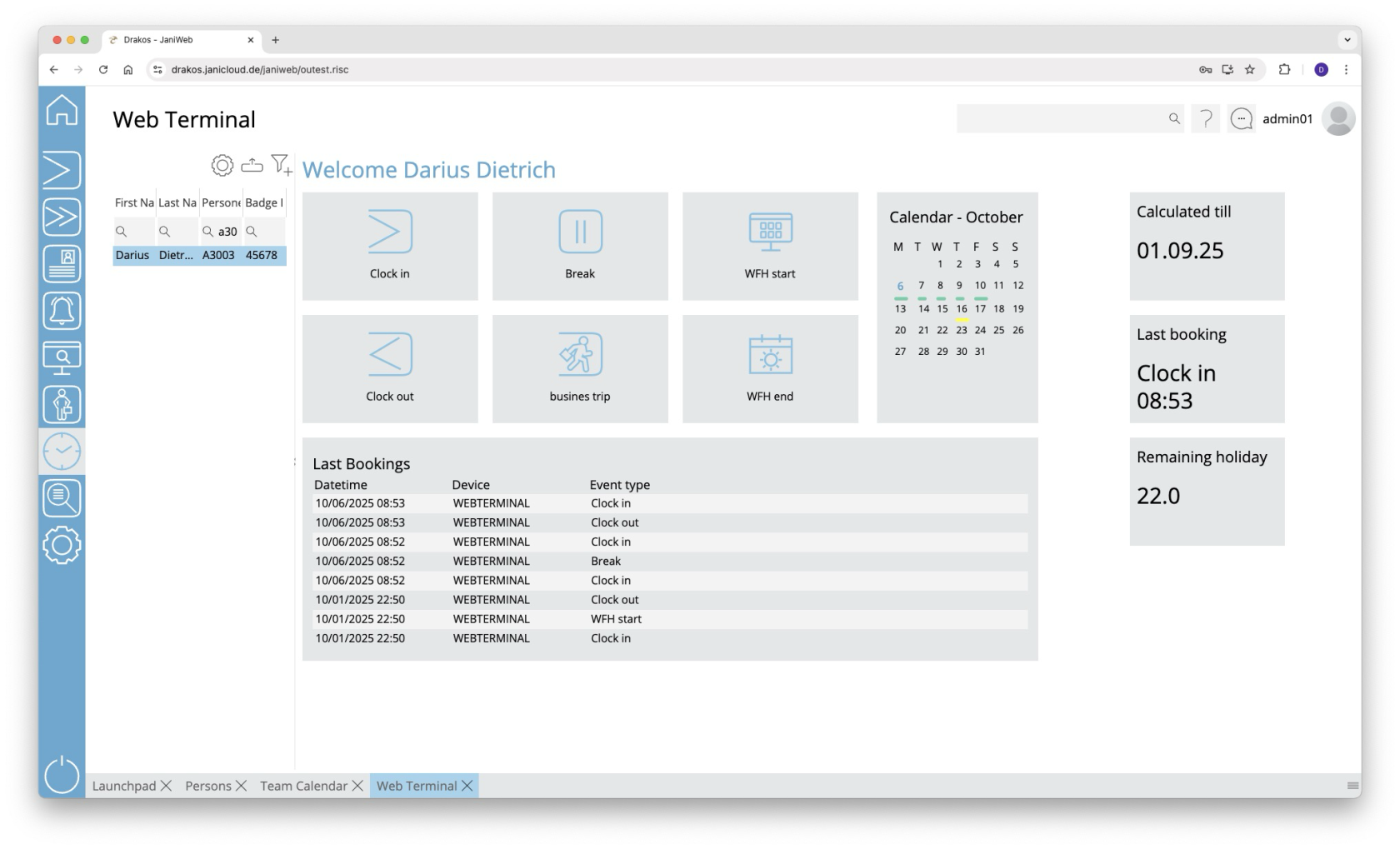](https://manual.drakos.de/uploads/images/gallery/2025-10/L6Gimage.png) ## List of persons Select the person you want to display the web terminal for. The list offers the following options: - **Select columns to display:** Press the gear icon. Select which columns you want to display and in which order. Arrange the columns using the mouse or the arrow icons. Press *Apply* to adopt the changes. - **Filter by client and status:** Press the filter icon. Select the clients and the status (*Active*, *Active in future*, *Inactive*) for which persons should be displayed. Changes are visible immediately. - **Search in columns:** Enter text or numbers in the search field (magnifying glass icon) of a column to search for names, personnel numbers, or other criteria. The entries take effect immediately: the list only displays hits. Tip: Search for substrings. You can find “Spencer-Churchill” with “spe”, “chur” or “hill”. The search is not case sensitive. - **Export the entire list:** Press the download icon. Select the format in which you want to export the list. The export files are downloaded or displayed depending on the browser/operating system settings.For details on the available export formats, see the [General > Export Formats](https://manual.drakos.de/books/janiweb-j92/page/export-formats) chapter of this manual. ### Buttons for bookings Press the corresponding button to create a new booking. A colored message appears in the message area: - **Green:** Booking successful - **Red:** Booking failed Status messages appear in the message area at the bottom of the screen.You can specify which buttons are available here in the menu item Settings, tab *Web Terminal*.
# Workflow **You can use the menu item *Workflow* to view the status of your workflow requests for time tracking and permissions. As a supervisor or a supervisor’s deputy, you can also edit workflow requests directly.** [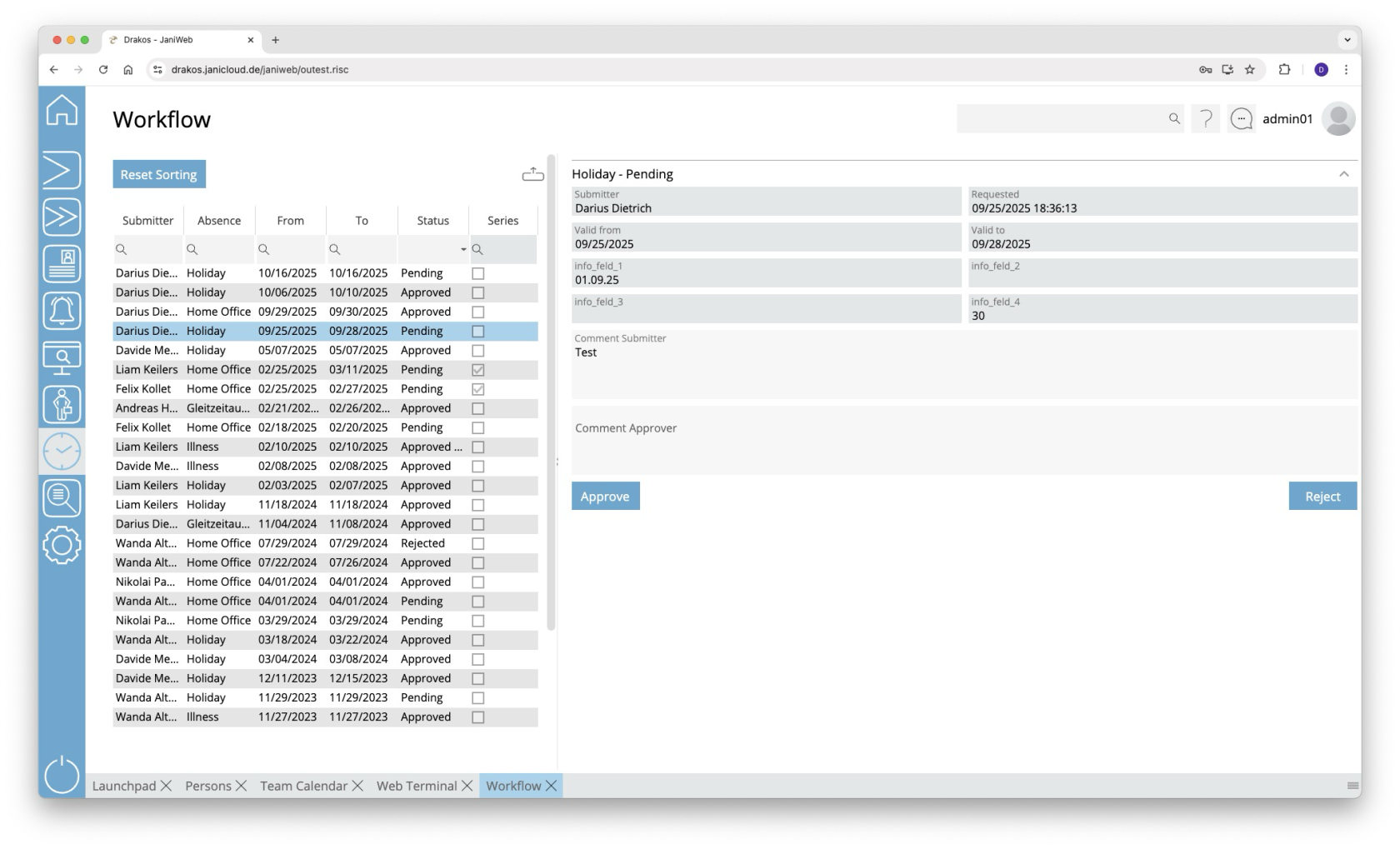](https://manual.drakos.de/uploads/images/gallery/2025-10/JdVimage.png) ## List of workflow requests The list contains your active workflow requests. Select an entry to view details. - In the text field *Comment Approver*, enter a comment that will be displayed to the requester. - Press *Approve* to approve the request. - Press *Decline* to decline the request. The list offers you further options: - **Sorting by column:** Click on a column header to sort the entries in ascending or descending order by this column. - **Search:** Enter text or numbers in the search field (magnifying glass icon) at the top to search for entries. The entries take effect immediately: the list only displays hits. The search is not case sensitive. - **Filter by status:** Open the list field in the *Status* column. Select the criteria for which you want to display entries. A set filter is saved and remains in place even after you log out. Press *Reset Sorting* to reset the filter and sorting. - **Export the entire list:** Press the download icon. Select the format in which you want to export the list. For details on the available export formats, see the [General > Export Formats](https://manual.drakos.de/books/janiweb-j92/page/export-formats) chapter of this manual. # Time Sheet **This menu item allows you to view and print time sheets from third-party systems such as SAP. As a supervisor, you also have access to the time sheets of the employees assigned to you.** [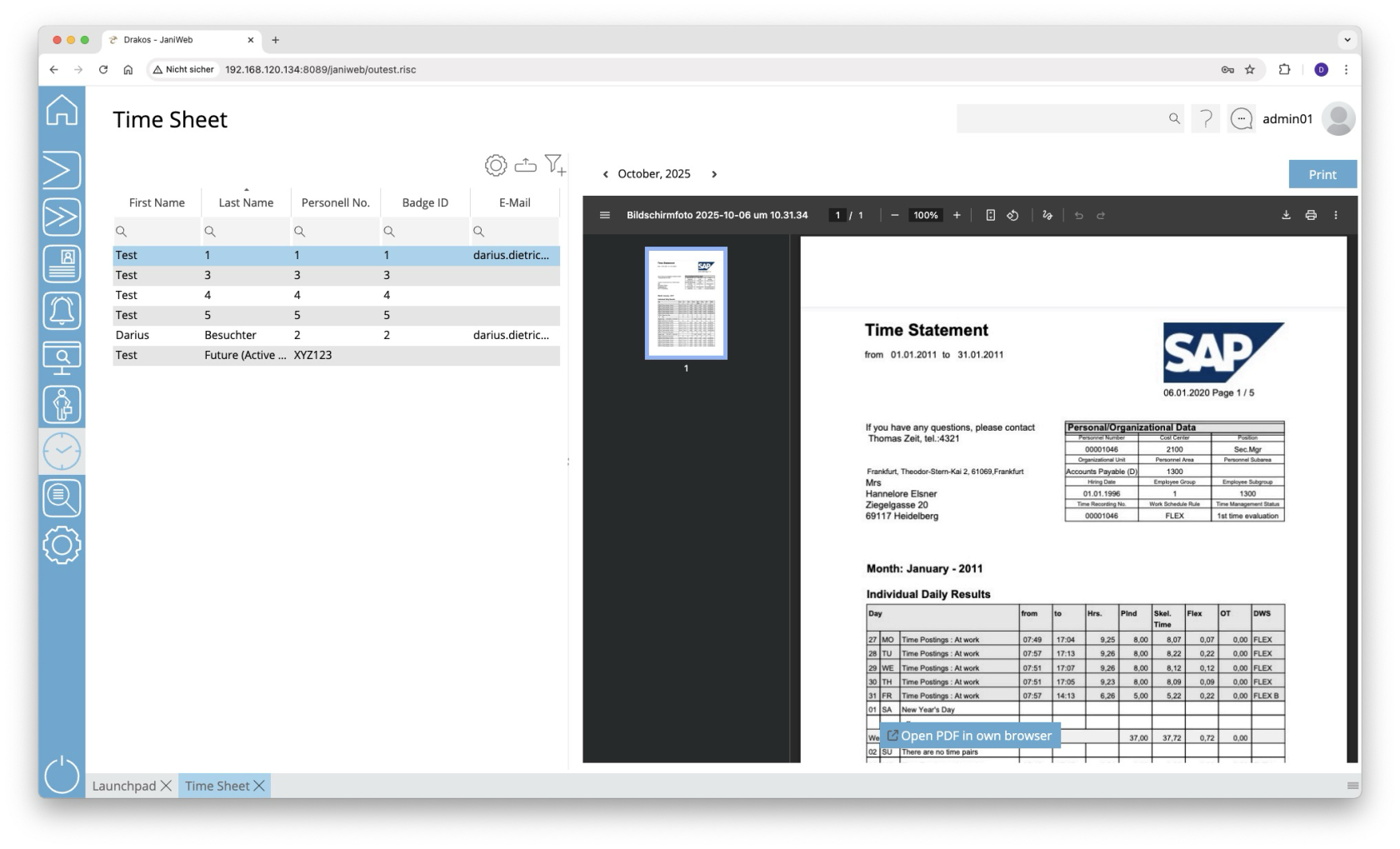](https://manual.drakos.de/uploads/images/gallery/2025-10/wuPimage.png) Select the person for whom a time sheet is available. Click *Print* to print the file.The list of persons is only visible when you log in as an administrator. When you log in as an employee, only your own time sheet is visible.
# Settings **Use the menu item *Settings* to make all the settings relevant for time tracking.** [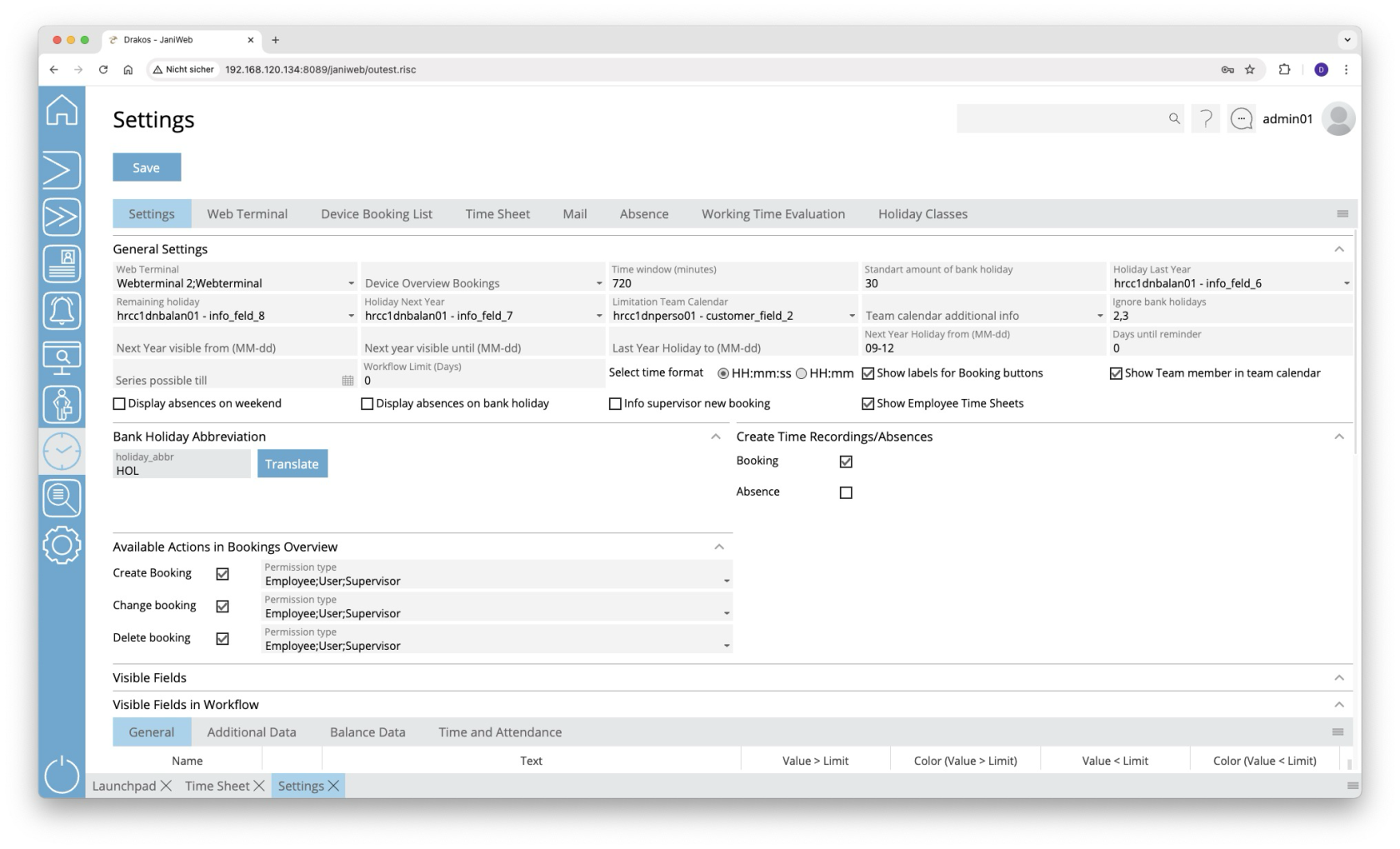](https://manual.drakos.de/uploads/images/gallery/2025-10/SKRimage.png) ## Tab *Settings* ### Area *General Settings* - *Web Terminal:* Select devices that should serve as a web terminal. - *Device Overview Bookings:* Select the device with which bookings are created that users create manually via the menu item *Overview Bookings* (for example, to add a booking). - *Time window (minutes):* Specify the time span within which pairs of clock-in/clock-out bookings are used to calculate working hours. - *Holiday Last Year:* Select the database field that contains the holiday entitlement that was transferred from the previous year to the current year. - *Remaining holiday:* Select the database field that contains the total holiday entitlement. The holiday for the current year is calculated as follows: `Holiday current year = remaining holiday – holiday last year – holiday next year`. - *Holiday Next Year:* Select the database field containing the holiday entitlement for the coming year. - *Ignore bank holidays:* Specify the holiday classes (separated by commas) that should not be displayed in the [*Team Calendar*](https://manual.drakos.de/books/janiweb/page/teamkalender) and should therefore not be used for the holiday calculation. - *Next year visible from (MM-dd):* Specify the day from which the team calendar should be visible for the next year. - *Next year visible until (MM-dd):* Specify the day until the team calendar should be visible for the next year. - *Holiday last year until (MM-dd):* Define the day until employees can take holiday from the previous year. - *Holiday next year from (MM-dd):* Define the day from which employees can plan holiday for the next year. - *Days until reminder:* Enter the number of days after which a reminder E-Mail is automatically sent to the supervisor if they have not responded to an absence request. - *Show Team Member in Team Calendar*: Activate this option if you want team members to be displayed in the *Team Calendar*. - *Information on rejected applicationts by leading system:* If this option is selected, employees and supervisors are informed about requests that have been rejected by the leading system. - *Display absences on weekend*: Activate this option if you want absences to be displayed at the weekend as well and included in the holiday calculation. - *Info supervisor new booking:* Activate this option to inform the manager when an employee makes a late booking via the menu item *Overview Bookings*. - *Show Employee Time Sheets:* Activate this option if you want to allow supervisors to view their employees’ time sheets (including time sheets from SAP). - *Team calendar additional info:* Here you can select a database field that will be displayed in addition to the person’s name in the menu item *Team Calendar*. - *Limitation Team Calendar*: Select a database field here to further limit a team (a team consists of all persons who have the same supervisor). - *Series possible until:* Enter a date here if you want to restrict the period in which employees can create series of absences. - *Select time format:* Here you can specify whether the times are displayed in hours:minutes:seconds or just in hours:minutes in the *Overview Bookings*. - *Show labels for Booking buttons*: Activate this option to display the labels for the booking buttons in the *Web Terminal* menu in addition to the buttons themselves. - *Enable New Absence button:* If this option is selected, a *New Absence* button will be displayed in the *Team Calendar*, which can be used to create absences without having to right-click or press and hold (on touch devices). - *Maximum Age for Booking Modification (Days)*: This setting determines the maximum number of days that entries in the booking overview may be old before they can no longer be edited. Enter a positive integer. The default value is set to 90 days. Entries can be added, amended or deleted within the defined period. ### Area *Abbreviations for Bank Holidays* Specify the abbreviations that are displayed for holidays in the menu item *Team Calendar*. ### Area *Create Time Recordings/Absences* Activate the corresponding option if you want to allow users to perform *Booking Actions* and/or *Absences* via the menu item *Overview Bookings*. ### Area *Available Actions in Overview Bookings* Use this area to define which persons can create, change or delete bookings via the menu item *Overview Bookings*. Persons are distinguished by: - **Employee:** Employee via the employee login. - **User:** Administrator via the admin login. - **Supervisors:** Employee who are a supervisor via the employee login. ### Area *Visible Fields* Specify here which additional information (e.g. balances) should be displayed in the various menu items. The fields *Value > Limit, Color (Value > Limit)* and *Value < Limit, Color (Value < Limit)* allow you to highlight values above or below a limit in color. ## Tab *Web Terminal* Specify the booking buttons for the [*Web Terminal*](https://manual.drakos.de/books/janiweb-j92/page/web-terminal) here. First, select the web terminal for which you want to edit the settings from the Web Terminal drop-down menu. - Button *Add:* Press *Add* to add a booking button. It will appear at the end of the list. - Column *Event type:* Select the type of booking for which the button is to be used. - Column *Icon:* If you want to display an icon other than the default one, press *Upload* and select a graphic file. - Column *Visible:* Select whether the button should be visible. - *Booking Type:* Shows whether the booking marks the person as present or absent (this is particularly important for calculating working hours in the *Overview Bookings* menu item). - *Row*: Here you can specify the row in which the booking button should appear in the web terminal. - *Column*: Here you can specify the column in which the booking button should appear in the web terminal. ### Area *Visible Fields* Specify here which additional information (e.g. balances) should be displayed in the various menu items. The fields *Value > Limit, Color (Value > Limit)* and *Value < Limit, Color (Value < Limit)* allow you to highlight values above or below a limit in color. ## Tab *Device Booking List* Dormakaba devices allow persons to view a list of their most recent bookings using a booking. Specify the appearance of this list here. - *Days past:* Here you can specify the number of days for which bookings should be displayed. - *Timeout:* Specify after how many seconds the list should automatically disappear (privacy protection). - *Dark mode*: Activate this option if you want the booking list to be displayed in a dark mode. ### Area *Visible Columns* Specify which information should be included. Activate the corresponding options. ### Area *Visible Event Types* Specify which bookings should be displayed. Activate the corresponding options. ## Tab *Time Sheet* JaniWeb can display time statements from an SAP system in the menu item *Time Sheet*. On this tab page, you specify whether these time statements should be accessed via the file interface or the SOAP interface. *Enable SOAP:* Activate this option to enable the SOAP interface. The fields *SOAP URL*, *SOAP User* and *SOAP Password* also appear. Enter the required data. *Client, Path*, *File extension:* Specify the information for the file interface. One path can be configured for each client. ## Tab *Mail* Enter an additional text to be included in E-Mails that are sent automatically when creating/approving/rejecting holiday requests. ## Tab *Absence* Use this tab to manage the various types of absences. ### List of absence types The list contains all the absence types that have already been created. Select an entry to view details. ### Button *New* Press *New* to create a new absence type. Enter the *Description*, *Client*, *Validity* and any other required data. To set the label, press *Translate*. Enter the names for the respective languages and press *Save.* - *Days future* / *Days past*: Specify how many days in the future or in the past the absence can be created. - *Absence reason SAP:* Select the relevant absence type from SAP here. This link is important for transferring the absences to SAP. - *Workflow Past* / *Workflow Future:* Select a workflow for the absence type here. You can define workflows under the menu item *Workflow*. - *Abbreviation:* Define an abbreviation that will be displayed in the *Team Calendar* for this absence type. - To define the name for an abbreviation, click *Translate*. Enter the names for the respective languages and press *Save.* - *Contingent:* Choose whether to check a contingent when an absence is created. - *No check:* The created absence is not checked. - *Holiday:* The created absence is checked against the holiday contingent. - *Other:* Choose this option in order to select a database field in the *Contingent* field, against which the absence is checked when it is created. Enter the *Unit* (days, hours or minutes) for the value of the database field. You can also set a *Limit* that is checked when the absence is created. This prevents the absence from being created if the value of the contingent is above or below the set limit. - *Comment mandatory:* Users must enter a comment when creating an absence. - *Upload Documents:* Users are allowed to upload documents when creating an absence. - *Supervisor must approve:* Activates the workflow for approval by the supervisor. - *Notify supervisor:* When an absence is created, the supervisor is automatically notified. - *Supervisor approves delete:* Activates the workflow for approval by the supervisor when deleting an absence. - *Notify supervisor on delete:* When deleting an absence, the superior is automatically notified. - *With time:* Users can specify a time in addition to the date when creating an absence. - *Show in team calendar:* The absence appears in the team calendar. - *Allow series:* Users may create an absence as a recurring series. - *Not selectable:* Absences cannot be selected in the team calendar. - *Supervisor can create/delete:* The supervisor can create absences for their employees. - *Employee can create/delete:* Employees can create absences themselves. - *Incognito:* The abbreviation of the absence type is not visible to team members. - *Automatic Approval*: If this setting is enabled, you can specify in the *Days* field how many days without a response from the responsible person will result in the absence being automatically approved. - *Flexitime:* Once this setting is configured for an absence, only persons with a specific value in the '*zterf*' (database table: hrcc1dnperso01\_data\_relation) field can create this absence from the team calendar. ## Tab *Working Time Report* Here you define which booking types are used for calculating the working hours in the [Overview Bookings](https://manual.drakos.de/books/janiweb-j92/page/overview-bookings) (top list). You can also create working time rules for the automatic deduction of break times (bottom list). ##### List of booking types - Button *Add:* Press *Add* to add a booking type. The entry appears at the end of the list. - Column *Event type:* Select the booking type to be included in the report. - Column *Device:* Select the devices for which bookings are to be reported. - Column *Icon:* If you want to display a different icon than the default icon in the report, press *Upload* and select a graphic file. - *Booking Type:* Shows whether the booking is considered as *Present* or *Absent* (this is particularly important for calculating working hours). ##### List of working time rules - Button *Add:* Press *Add* to add a new working time rule. It will appear at the end of the list. - Column *Description:* Enter a meaningful name. - Column *Working time limit (minutes):* Enter the time in minutes from which the break time is automatically deducted if there are no break bookings of sufficient duration (i.e. the person has not had a long enough break). - Column *Automatic deduction (minutes):* Enter the break time in minutes that is automatically deducted. ## Tab *Holiday Classes* Here you specify the time valuation for various holiday classes to ensure that holiday is calculated correctly. - For full-day holidays, enter the number 1 in the *Value* field. - For holidays that are considered half days (such as Christmas and New Year’s Eve in Germany, for example), enter 0.5. # Employees Overview **In the *Employees Overview* menu, you can view the balances for employees for whom you are the supervisor.**This menu item is only available if you have logged in as an employee. This menu item is not available if you are logged in as an admin.
[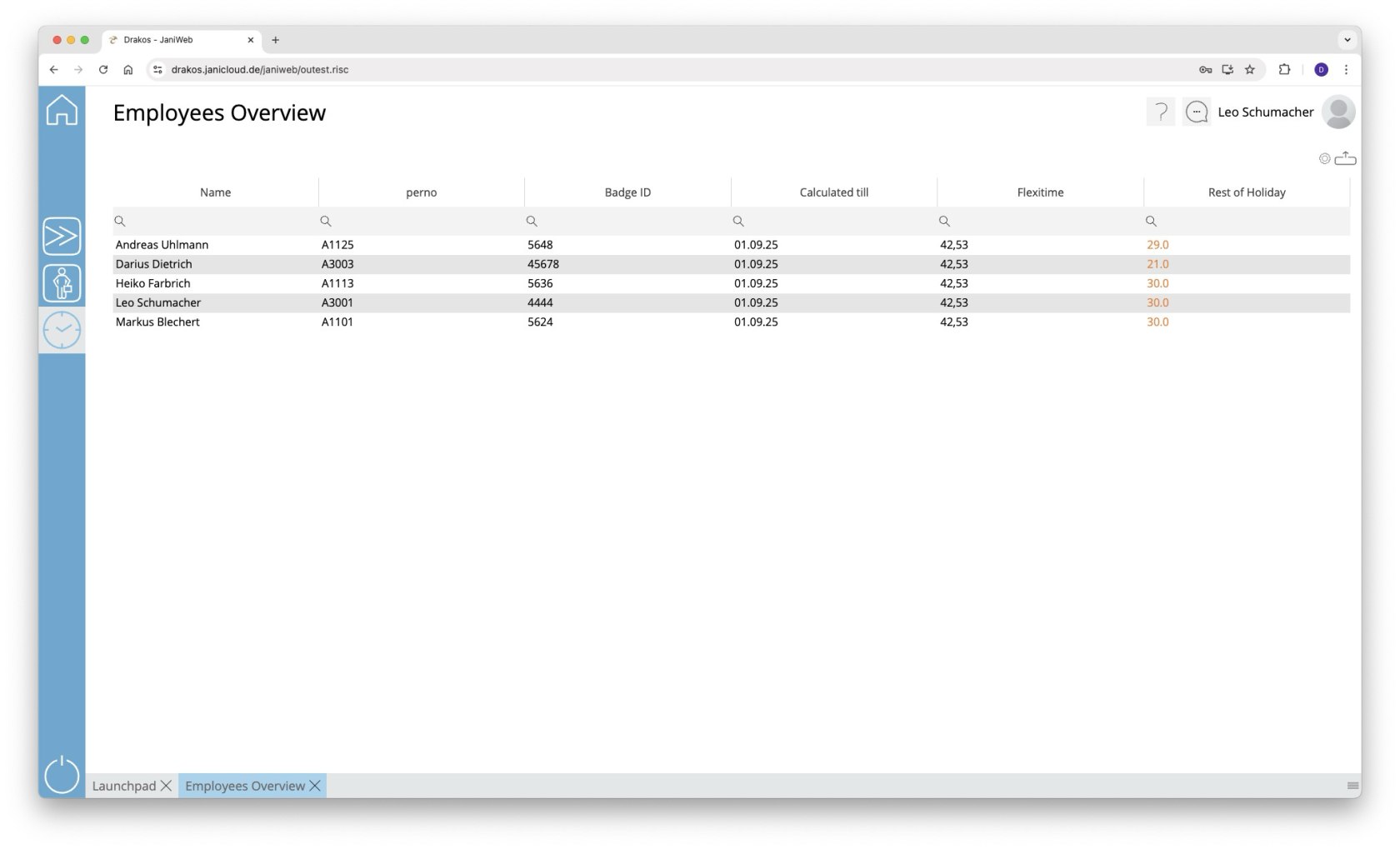](https://manual.drakos.de/uploads/images/gallery/2025-10/P1Ximage.png) # Analyses # Permissions **Use the *Permissions* menu to determine which persons are authorized to access which devices and at what times.** [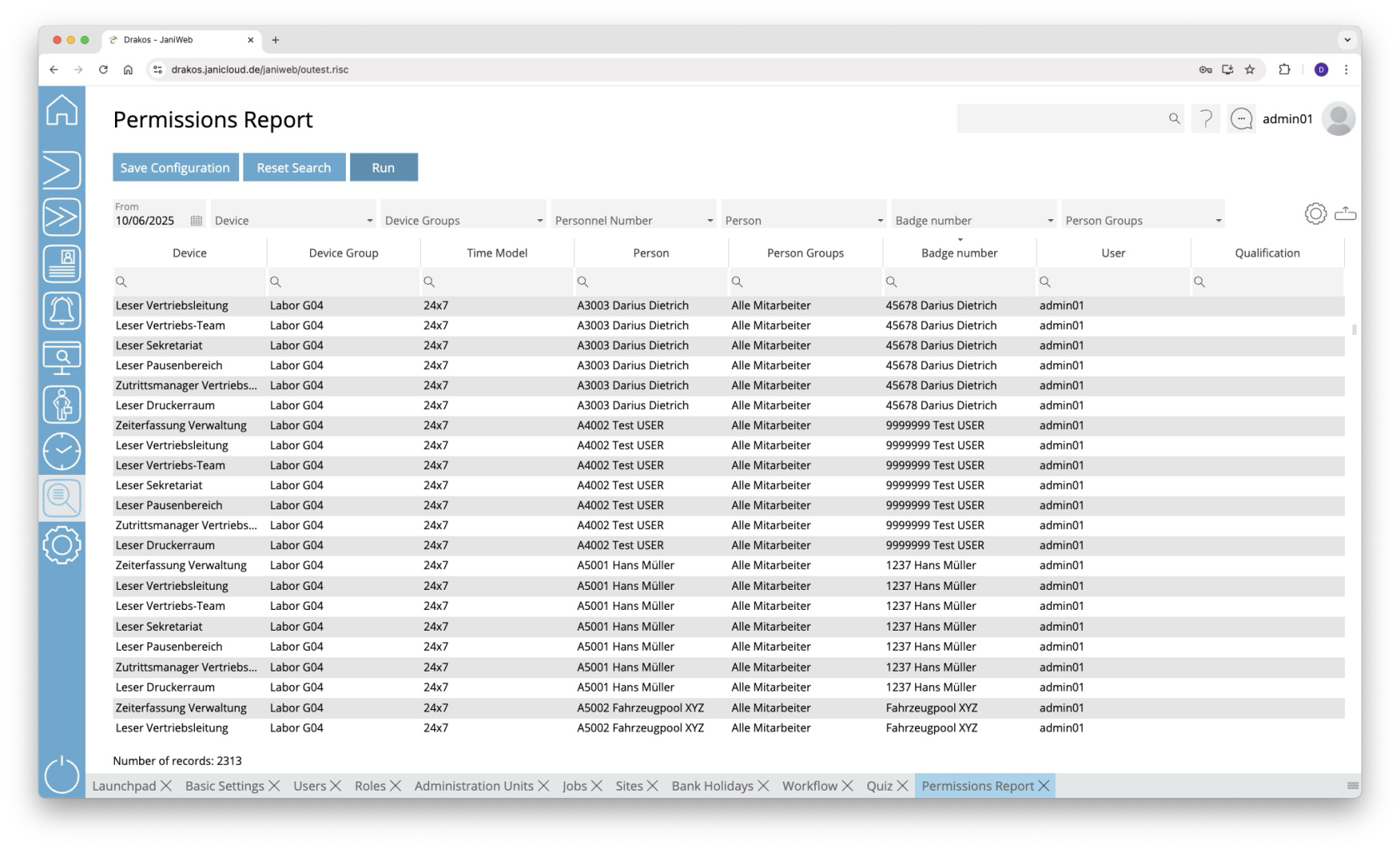](https://manual.drakos.de/uploads/images/gallery/2025-10/FfJimage.png) ## Creating the report - Select the date for which you want to generate the report. - (Optional) Use the additional fields to narrow the report. For example, you can find out which persons are authorized on a particular device or on which devices a particular person is authorized. You can also display permissions for a badge number or person group. - Press *Run* to start the report. ### Further options with the report - **Select columns to display:** Press the gear icon. Select which columns you want to display and in which order. Arrange the columns using the mouse or the arrow icons. Press *Apply* to adopt the changes. - **Search in columns:** Enter text or numbers in the search field (magnifying glass icon) of a column to search for names, personnel numbers, or other criteria. The entries take effect immediately: the list only displays hits. - **Export the entire list:** Press the download icon. Select the format in which you want to export the list. The export files are downloaded or displayed depending on the browser/operating system settings. For details on the available export formats, see the [General > Export Formats](https://manual.drakos.de/books/janiweb-j92/page/export-formats) chapter of this manual. - **Save report:** For details on saving reports, see the chapter [General > Custom Reports](https://manual.drakos.de/books/janiweb-j92/page/custom-reports). ### Color highlighting In the report, individual permissions can be highlighted in the following colors: - **Blue:** The permission has been assigned by a third-party system (e.g. SAP (Janitor)). ## Button *Reset Selection* Press *Reset Selection* to reset all fields to their initial value. --- ##### TIPS - The column *User* shows which user has assigned the permission. - Double-click the column *Time Model* of a row to display a weekly plan for the corresponding time model. - Double-click the column *Device Group* of a row to display the devices contained in the group. # Bookings **Use the menu item *Bookings* to output a booking list. This makes it possible to evaluate which person has booked on a device at a specific point in time.** [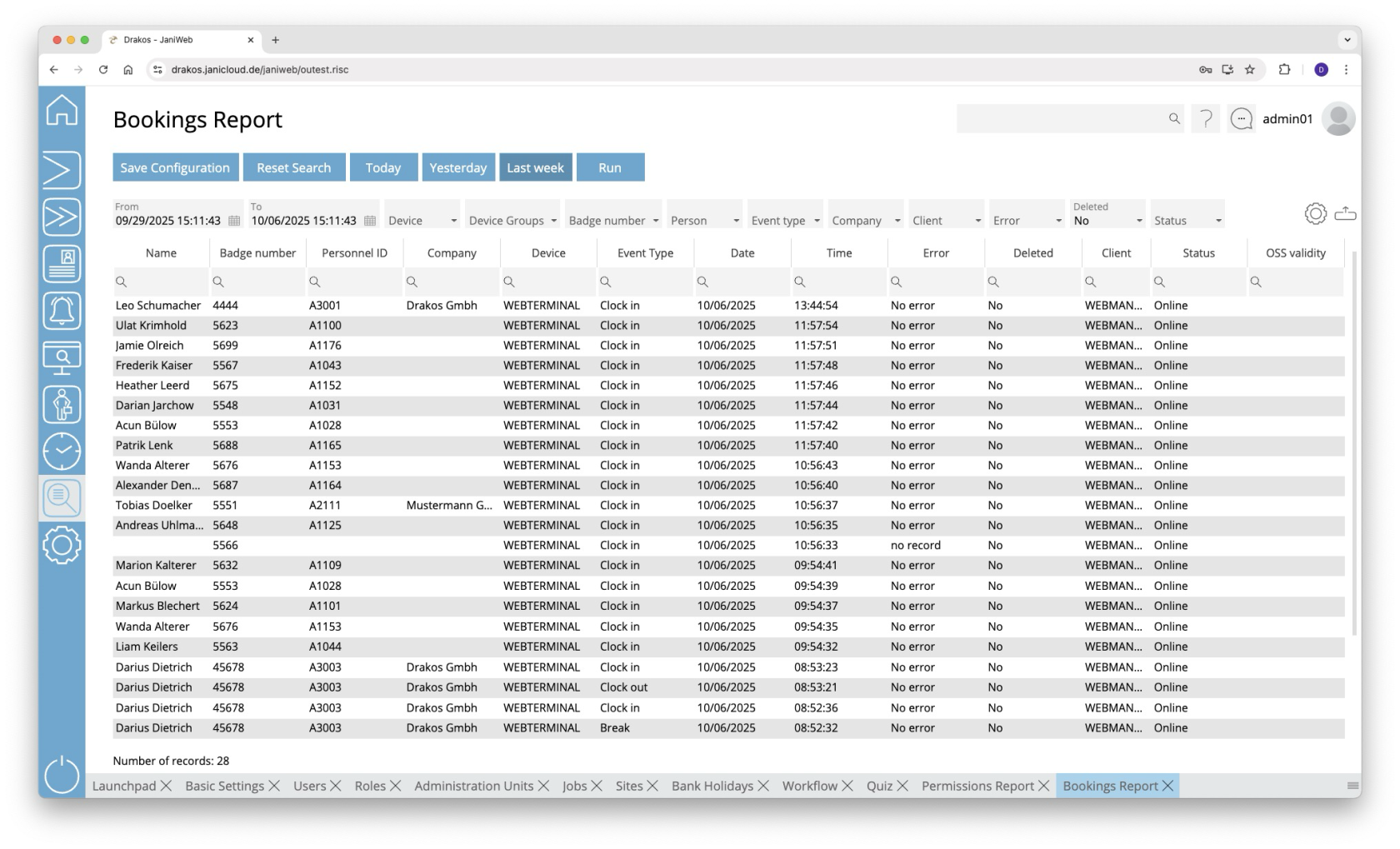](https://manual.drakos.de/uploads/images/gallery/2025-10/uTXimage.png) ## Creating the report - Specify the time period for which you want to generate the report (*From* – *To*). Or press *Today*, *Yesterday* or *Last week* to quickly generate a report for the corresponding period. - (Optional) Use the additional fields to narrow the report. - Press *Run* to start the report. ### Further options with the report - **Select columns to display:** Press the gear icon. Select which columns you want to display and in which order. Arrange the columns using the mouse or the arrow icons. Press *Apply* to adopt the changes. - **Search in columns:** Enter text or numbers in the search field (magnifying glass icon) of a column to search for names, personnel numbers, or other criteria. The entries take effect immediately: the list only displays hits. - **Export the entire list:** Press the download icon. Select the format in which you want to export the list. The export files are downloaded or displayed depending on the browser/operating system settings. For details on the available export formats, see the [General > Export Formats](https://manual.drakos.de/books/janiweb-j92/page/export-formats) chapter of this manual. - **Save report:** For details on saving reports, see the chapter [General > Custom Reports](https://manual.drakos.de/books/janiweb-j92/page/custom-reports). ## Button *Reset Selection* Press *Reset Selection* to reset all fields to their initial value. --- ##### TIPS Double-click the column *Device* of a line to show details about the corresponding device. # Booking Sequence CheckWould you like to automatically receive regular updates about which individuals are present in a specific zone? Then you can use the *Periodic Sending* feature. You can find instructions on how to set it up here: [General > Custom Reports.](https://manual.drakos.de/books/janiweb-j92/page/custom-reports)
## Button *Reset Selection* Press *Reset Selection* to reset all fields to their initial value. # Quiz Report **You can use the Quiz Report menu item to evaluate which individuals passed or failed which quizzes.** [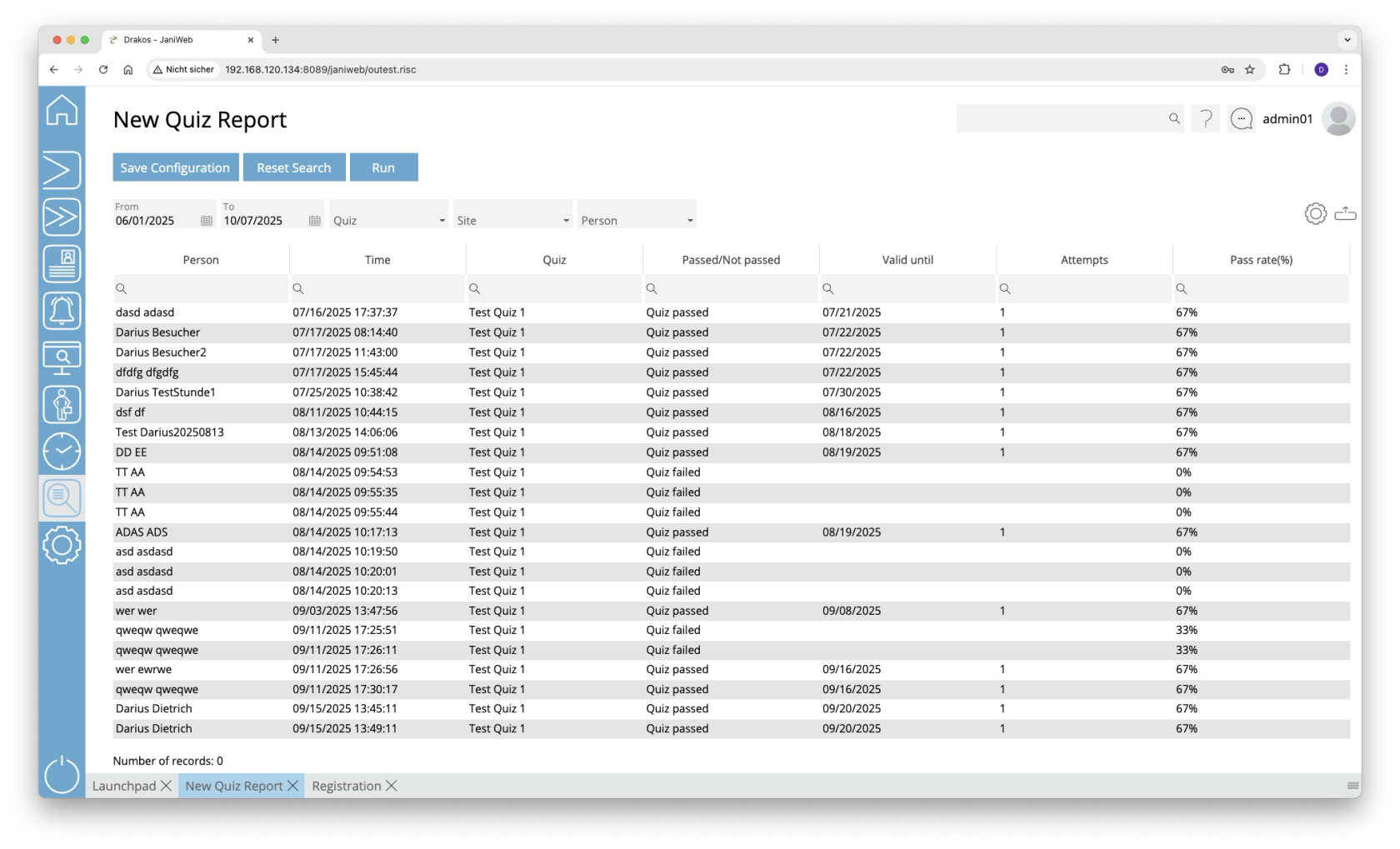](https://manual.drakos.de/uploads/images/gallery/2025-10/oSLimage.png) ## Creating the report - Specify the time period for which you want to generate the report (*From* – *To*). - (Optional) Use the additional fields to narrow the report. - Press *Run* to start the report. ### Further options with the report - **Select columns to display:** Press the gear icon. Select which columns you want to display and in which order. Arrange the columns using the mouse or the arrow icons. Press *Apply* to adopt the changes. - **Search in columns:** Enter text or numbers in the search field (magnifying glass icon) of a column to search for names, personnel numbers, or other criteria. The entries take effect immediately: the list only displays hits. - **Export the entire list:** Press the download icon. Select the format in which you want to export the list. The export files are downloaded or displayed depending on the browser/operating system settings. For details on the available export formats, see the [General > Export Formats](https://manual.drakos.de/books/janiweb-j92/page/export-formats) chapter of this manual. - **Save report:** For details on saving reports, see the chapter [General > Custom Reports](https://manual.drakos.de/books/janiweb-j92/page/custom-reports). ## Button *Reset Selection* Press *Reset Selection* to reset all fields to their initial value. # Device Events **You can view a list of device events via the *Device Events* menu option. This allows you to determine which device sent a message at a specific time.** [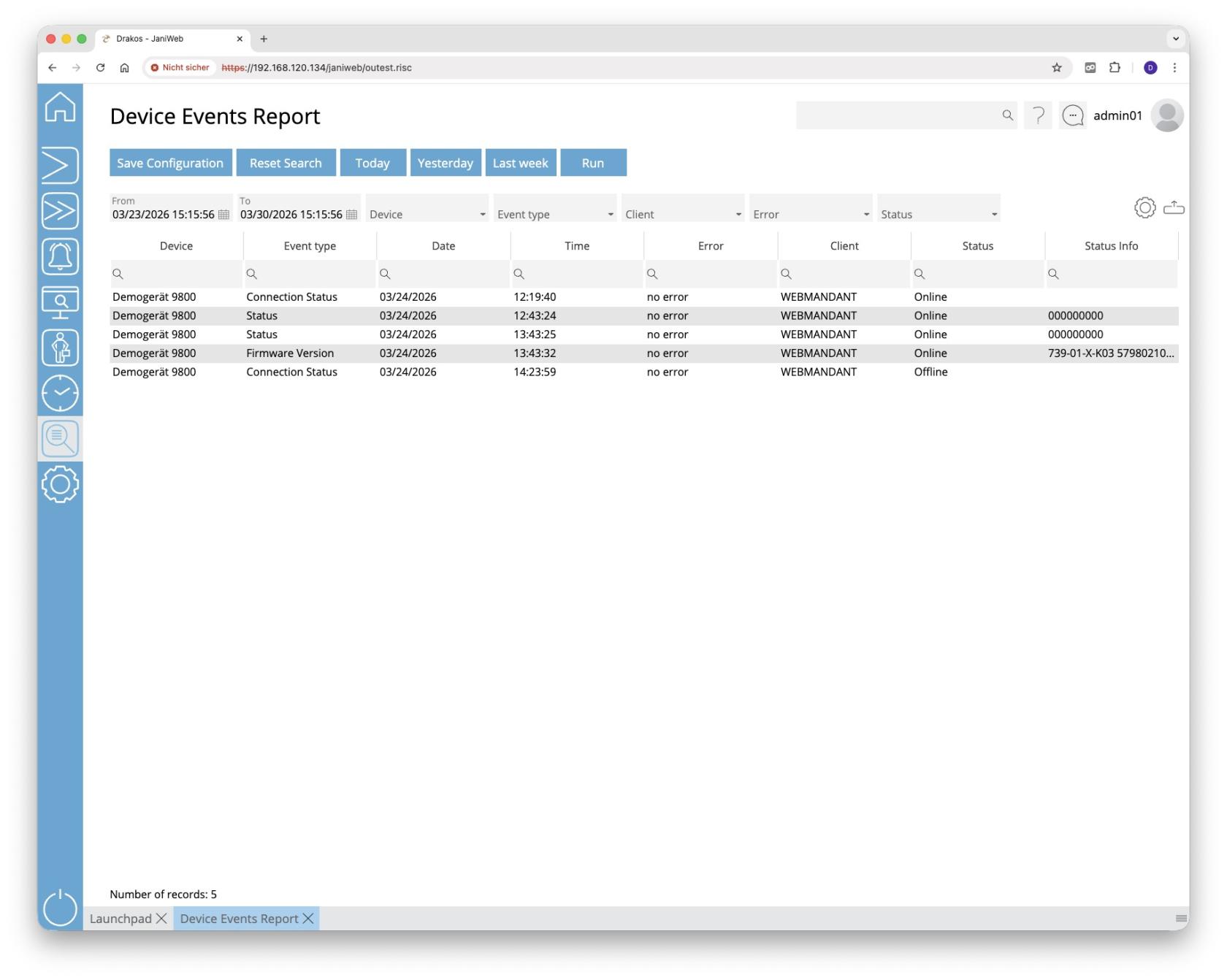](https://manual.drakos.de/uploads/images/gallery/2026-03/bildschirmfoto-2026-03-30-um-15-16-00.jpg) ## Creating the report - Specify the time period for which you want to generate the report (*From* – *To*). Or press *Today*, *Yesterday* or *Last week* to quickly generate a report for the corresponding period. - (Optional) Use the additional fields to narrow the report. - Press *Run* to start the report. ### Further options with the report - **Select columns to display:** Press the gear icon. Select which columns you want to display and in which order. Arrange the columns using the mouse or the arrow icons. Press *Apply* to adopt the changes. - **Search in columns:** Enter text or numbers in the search field (magnifying glass icon) of a column to search for names, personnel numbers, or other criteria. The entries take effect immediately: the list only displays hits. - **Export the entire list:** Press the download icon. Select the format in which you want to export the list. The export files are downloaded or displayed depending on the browser/operating system settings. For details on the available export formats, see the [General > Export Formats](https://manual.drakos.de/books/janiweb-j92/page/export-formats) chapter of this manual. - **Save report:** For details on saving reports, see the chapter [General > Custom Reports](https://manual.drakos.de/books/janiweb-j92/page/custom-reports). ## Button *Reset Selection* Press *Reset Selection* to reset all fields to their initial value. # Action Protocol **Via the *Action Protocol* menu item, you can generate a list of actions carried out by users in JaniWeb. This allows you to analyse which user performed which action (e.g. an analysis, a change to an object).** [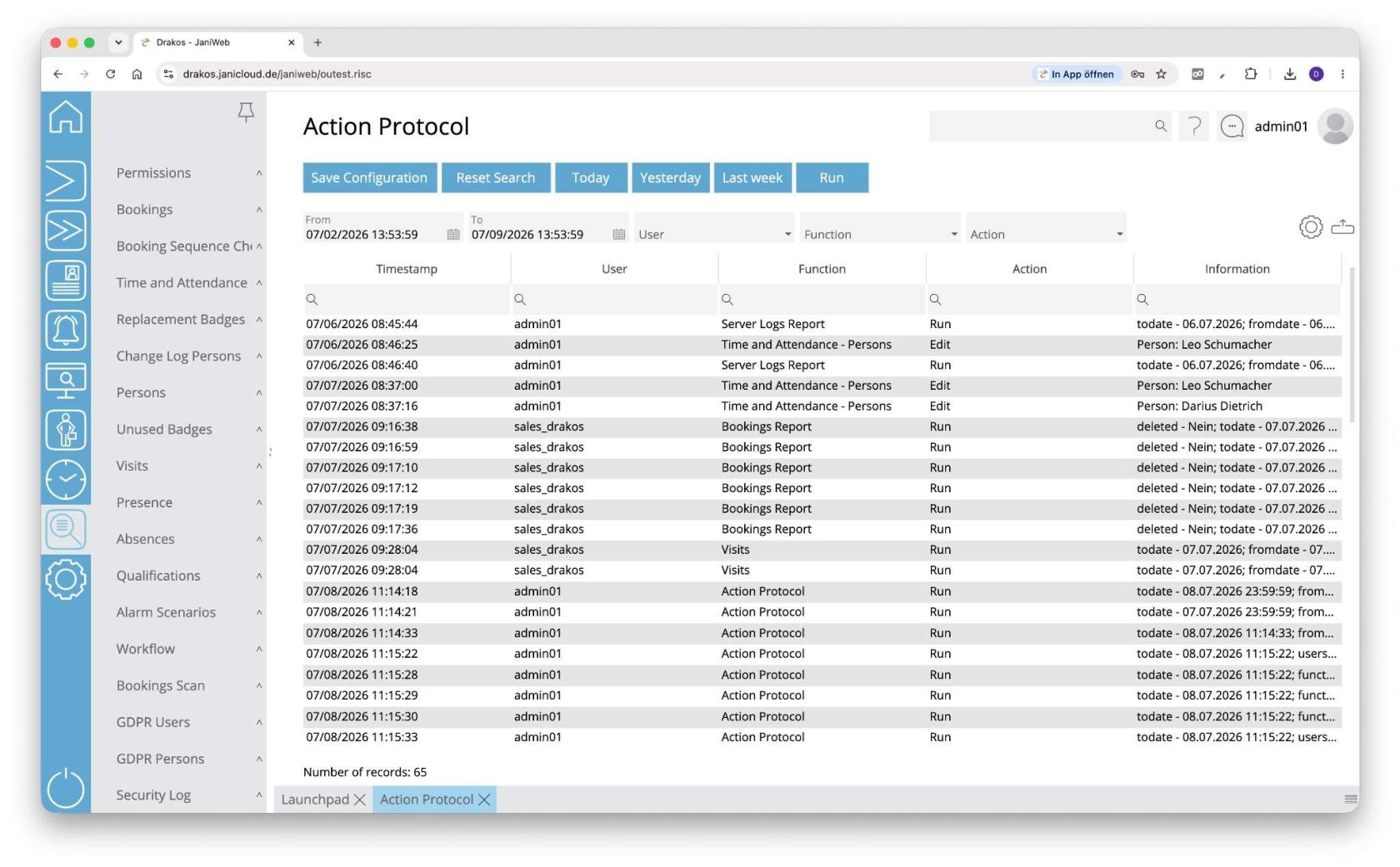](https://manual.drakos.de/uploads/images/gallery/2026-07/bildschirmfoto-komprimiert-2.jpg) ## Creating the report - Specify the time period for which you want to generate the report (*From* – *To*). Or press *Today*, *Yesterday* or *Last week* to quickly generate a report for the corresponding period. - (Optional) Use the additional fields to narrow the report. - Press *Run* to start the report. ### Further options with the report - **Select columns to display:** Press the gear icon. Select which columns you want to display and in which order. Arrange the columns using the mouse or the arrow icons. Press *Apply* to adopt the changes. - **Search in columns:** Enter text or numbers in the search field (magnifying glass icon) of a column to search for names, personnel numbers, or other criteria. The entries take effect immediately: the list only displays hits. - **Export the entire list:** Press the download icon. Select the format in which you want to export the list. The export files are downloaded or displayed depending on the browser/operating system settings. For details on the available export formats, see the [General > Export Formats](https://manual.drakos.de/books/janiweb-j92/page/export-formats) chapter of this manual. - **Save report:** For details on saving reports, see the chapter [General > Custom Reports](https://manual.drakos.de/books/janiweb-j92/page/custom-reports). ## Button *Reset Selection* Press *Reset Selection* to reset all fields to their initial value. # Settings # Basic Settings **Use the menu item *Basic Settings* to access all of JaniWeb’s general settings.****Changes made here may affect the application itself or its interfaces. Please only make changes here that you have discussed with your contact person.**
[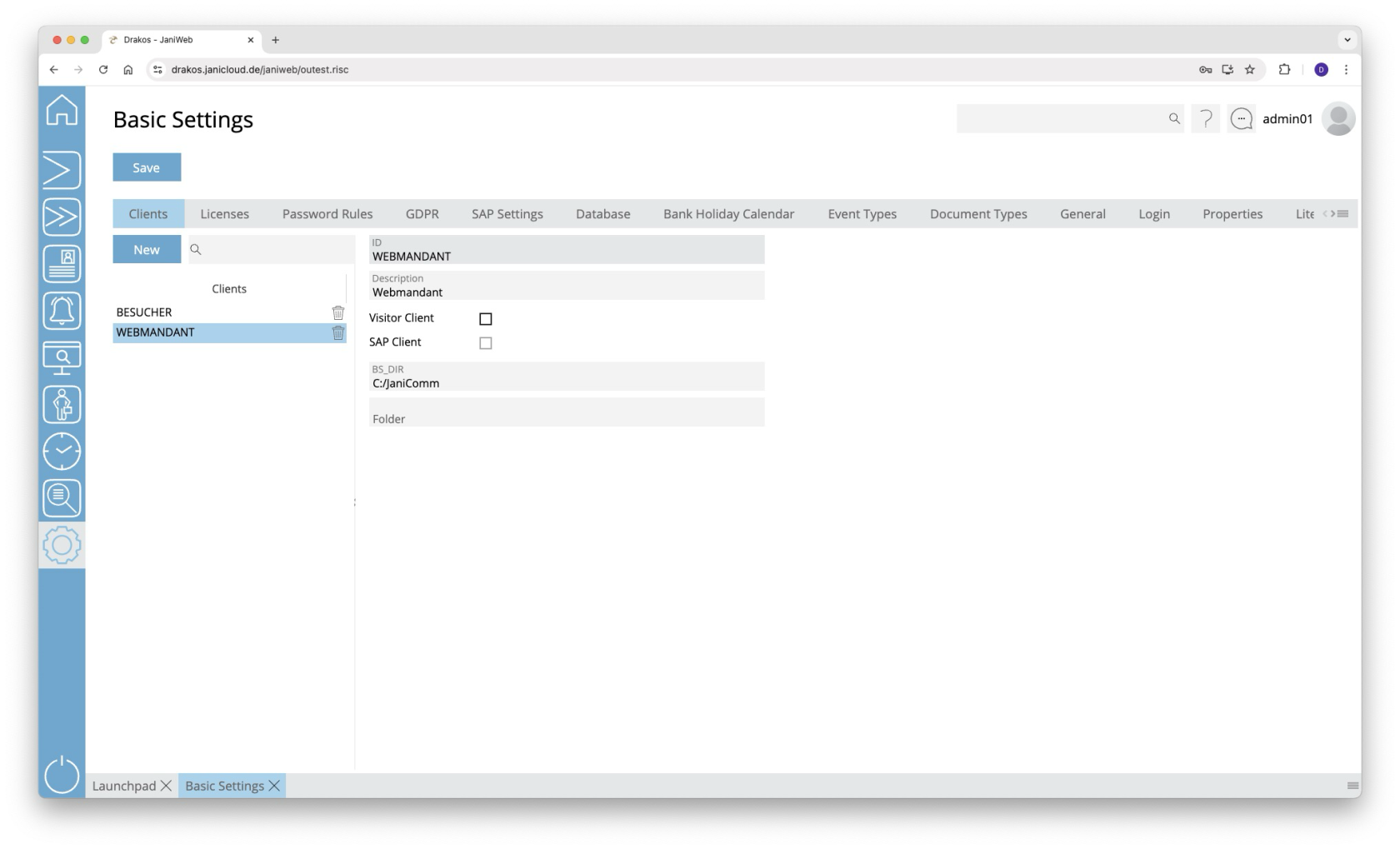](https://manual.drakos.de/uploads/images/gallery/2025-10/JCUimage.png) ## Tab *Clients* This is where you manage different clients in the system. Clients describe the origin of the data and are linked to the objects (e.g. persons, devices, device groups, etc.). The list contains the clients that have already been created. Select an entry to view details. Press *New* to create a new client. Enter the required data and press *Save.* ### Detail area - *ID:* Enter the 10-digit client ID. - *Description:* Enter a meaningful name. - *Visitor Client*: Select this option if the client is to be used for visitor management. - *SAP Client:* This field is automatically filled when importing data from SAP. - *BS\_DIR:* Specify the base directory of the application here. - *Folder:* Specify the name of the SAP exchange directory here. - *Control Management File Path:* In the field *Control Management File Path*, enter the directory in which parameter files for devices from the manufacturer Dormakaba are to be stored when they are created using control management. - this setting is applied only to devices for the connected client. - *terminal.localfile:* Enter the directory for the trigger file that triggers the creation of the *terminal.ini* file.- this setting is applied only to devices for the connected client. - *terminal.parameter:* Enter the directory in which parameter files for devices from the manufacturer Dormakaba are to be stored. - this setting is applied only to devices for the connected client. ## Tab *License* Here you can see which license you are using. ### Tab *Configuration* You can import a new license via the *License Key* field. Enter the new license key and press the *Update License* button. The list displays the features that are currently licensed. ### Tab *Monitoring* Any features whose use is restricted are displayed here together with their level of use. If required, activate the option *Alert for license violation for all users* and enter a note. ### Tab *Pay Per Use* Use the *Due Date* field to specify the day of the month on which the E-Mail for pay-per-use consumption should be generated. Consumption is always calculated for the previous month. Enter the recipient's email address in the *E-Mail* field. You can delete this using the *trash can* button or add additional E-Mail addresses using the *+* button. You can manually trigger the sending of the E-Mail using the *Send E-Mail* button. Then select the billing period for which you want to generate the email and confirm with the *Send E-Mail* button. You can check the status of the last email sendings using the *Show Log* button. ## Tab *Password Rules* Specify the strength of the passwords used. Enter the minimum *Password length* and select the desired options for the composition of passwords. - *Failed attempts:* Specify here after how many failed login attempts the user is blocked. - *Password expiration:* Specify here after how many days users are prompted to enter a new password. Enter the number 0 if passwords should be valid indefinitely. ## Tab *GDPR* Specify the number of days after which expired records are automatically deleted. This is also possible for the server log files. ## Tab *SAP Settings* Specify the number of days for which the backups of the SAP import files should be kept. You can also specify the file name for exported bookings. - *PTEX …:* Use these fields to define the file name and the client for deleted bookings. - *Enable API Gateway Data Import:* Activate this option to enable importing master data via the API gateway. If this option is selected, data is imported via both the file interface and the API gateway. - *Enable API Gateway Data Export:* Activate this option to enable exporting master data via the API gateway. - *Threshold person import (%)*: Use this field to set the threshold value for the import of persons. If the current import of persons falls below the threshold value (comparison with the number of persons from the last import), the import is rejected. You can use the *Import anyway* button to import a rejected import anyway. If the number of persons for import remains unchanged for 5 consecutive days, the persons will be imported on the 5th day. ### Tabs *General / Balance Data* Use these tabs to map the fields of an imported SAP record to the fields in JaniWeb. ## Tab *Database* Connection and other status information for the databases used is displayed here. - Press *Show function status* to display a list of the functions used for all databases in a pop-up window. - Press *Show procedure status* to display a list of the procedures used for all databases in a pop-up window. Information about the version of a function or procedure can be found in the column *Comment*. ## Tab *Holiday Calendar* Manage different holiday calendars here. These are used to group holidays regionally and assign them to persons. Press *New* to create a new holiday calendar. Enter an *ID* and a *Description*. Use the respective trash icon to delete a holiday calendar. ## Tab *Event Types* This is where you can specify the event types that should be available at the terminals. The event types are also used for the web terminal. For each booking type, specify whether the booking is triggered by the device itself or by a person (e.g. clock-in, clock-out). To set the *Text* for a event type, press *Translate*. Enter the names for the respective languages and press *Save.* With the *Booking Type* column you can select whether the booking marks the person as present or absent (this is particularly important for calculating working hours in the *Overview Bookings* menu item). Use the respective trash icon to delete a event type. ## Tab *Document Types* This is where you can manage the document types that are available for selection on the tab *Documents* in the personal master data. ## Tab *General* This is where you can define which areas and tiles should be preset in the launchpad. - *Background image:* Here you can upload a background image that will be displayed in the login screen. - *Logo:* Here you can upload a logo that will be displayed in the login screen. - *All Tiles:* Select this option to display all menu items as tiles on the launchpad by default. - *Info text* / *Info mail address:* Enter the text and email address that will be displayed in the info area (accessible via the user icon in the top right > Info). - *Image Aspect Ratio:* Define the aspect ratio (width:heigth) for images added in the menu items Persons/Visitors (e.g. *4:3*, *16:9*). ### Area *Launchpad Areas* Create areas here that will appear by default on the launchpad. - Press *Add* to create a new area. - To set the *Text* for an area, press *Translate*. Enter the names for the respective languages and press *Save.* - Enter a number in the *Sequence* column to determine the sequence in which the areas are displayed. ### Area *Visible Tiles* Create tiles here that are linked to a PDF or link. When the tile is pressed, the PDF or linked page opens. To set the *Text* and the *Description* for a tile, press *Translate*. Enter the names for the respective languages and press *Save.* ## Tab *Login* Specify here how users login. ### Area *Username and Password* If your system does not use LDAP login, you can assign fields from the HR master record as the *Username* and *Password*. - *Username:* Select the desired field from the personnel master record (for example, *Personnel No.*). - Password: Select the desired field from the personnel master record (e.g. *Personal PIN*). Select *Own Password* if the user should be able to set their own password. The user receives an *Initial Password* for the first login. Select a field from the personnel master record in the field of the same name. Forgotten passwords can be reset. To do this, remove the corresponding entry from the list. The user must then login again with their initial password. ### Area *Login Restrictions* Here you can specify which persons are allowed to login to JaniWeb. - *Criterion:* Select the database field that is used to check the login authorization. - *Filter:* Enter values separated by semicolons for users who are not allowed to login. - *Whitelist:* Press this button to enter IP addresses and DNS names of all clients from which the kiosk application, for example, may be accessed. ## Tab *Properties* This is where you make settings for the SMTP server, LDAP connection, database backup, and SAP exchange directory. Any changes made here require a restart of the Tomcat server. ### Area *Device Master Record Calculation* - *Enable FTP/SFTP for Master Record Dispatch:* Use this option to specify that master data is to be transferred to devices from the manufacturer Dormakaba using FTP/SFTP. - *BPA9 Fallback:* Specify an alternative method here for when transmission to a device via FTP/SFTP is not possible (e.g. for older devices). - Select *Server File System* if the master data file is to be created in a directory on the server. - Select *Network Directory* if the master data file is to be stored in a network directory via SFTP. - Press *Base supply* to recalculate all master data and send it to the devices. - *Trigger File Master Record Calculation :* Enter the path for the trigger file that is to be created after the master data calculation. If no file is to be created, the field can be left empty. ### Area *Device Models* Specify the various device types that can be selected in the menu *Devices*. ### Area *Login* Specify here the required settings for logging in via LDAP or SSO. - If *Type* SSO is selected - *sso\_oidc\_authority:* authentication endpoint (https://login.microsoftonline.com/{tenant-id}) - *sso\_client\_id:* client ID of the registered application - *sso\_client\_secret:* application’s secret key - *sso\_redirect\_uri:* redirect URL after authentication (https://hostname-janiweb-server/janiweb/oidc-callback) - *sso\_redirect\_scope:* requested permissions - *sso\_field:* Enter the SSO field that is to be compared with the system field *sso\_person\_table* (hrcc1dnperso01, hrcc1dnbalan01, hrcc1dnperso01\_data\_relation) and *sso\_person\_field* in order to assign the correct person. - If *Type* LDAP is selected - *ldap\_host*: IP address of the LDAP server - *ldap\_port*: Port of the LDAP server - *ldap\_user:* Enter the full Distinguished Name (DN) for the LDAP user to search the Active Directory (AD) with. - *ldap\_pwd:* Password of the LDAP user - *ldap\_base\_dn:* Enter the AD directories to be searched (separate multiple directories with commas). - *ldap\_field:* Enter the LDAP field that is to be compared with the system field *ldap\_person\_table* (hrcc1dnperso01, hrcc1dnbalan01, hrcc1dnperso01\_data\_relation) and *ldap\_person\_field* in order to assign the correct person. - *ldap\_object\_catergory:* Enter the AD field to be searched for the permissions assigned in the roles under *LDAP Group*. - *using\_ssl:* Activate this option if SSL is to be used for the connection (LDAPS). - *ignore\_leading\_0:* Activate this option if leading zeros are to be ignored when matching the *ldap\_field*. ### Area *Email* Here you define the access data for the SMTP server used. - If *Authentication Type Basic Authentication* is selected - *smtp\_username:* Enter the user name. - *smtp\_password:* Enter the password. - *smtp\_server:* Enter the server address of the SMTP server. - *smtp\_port:* Enter the port of the SMTP server. - If *Authentication Type OAuth2* is selected - *smtp\_oauth2\_tenant\_id:* Microsoft tenant ID - *smtp\_oauth2\_client\_id:* client ID of the registered application - *smtp\_oauth2\_client\_secret:* application’s secret key - *smtp\_oauth2\_token\_endpoint:* URL to obtain OAuth 2.0 tokens (https://login.microsoftonline.com/{tenant-id}/oauth2/v2.0/token) - *smtp\_oauth2\_scope:* requested permissions (https://graph.microsoft.com/.default) - *smtp\_oauth2\_redirect\_uri:* redirect URL after authentication (optional) - If *Authentication Type* *OAuth2 Delegated* gesetzt ist - *oauth2\_delegated\_tenant\_id:* Microsoft tenant ID - *oauth2\_delegated\_client\_id:* client ID of the registered application - *oauth2\_delegated\_client\_secret:* application’s secret key - *oauth2\_delegated\_auth\_endpoint:* URL to obtain OAuth 2.0 authorization (https://login.microsoftonline.com/{tenant-id}/oauth2/v2.0/token) - *oauth2\_delegated\_token\_endpoint:* URL to obtain OAuth 2.0 tokens (https://login.microsoftonline.com/{tenant-id}/oauth2/v2.0/authorize) - *oauth2\_delegated\_scope:* requested permissions (https://graph.microsoft.com/.default) - *oauth2\_delegated\_redirect\_uri:* redirect URL after authentication (https://hostname-janiweb-server/janiweb/oauth2-callback) - *admin\_mail:* Enter the email address that the system uses to send messages.If the email address in the *admin\_mail* field differs from the one in the *smtp\_username* field, then the user in the *smtp\_username* field needs authorisation to send emails as the user in the *admin\_mail* field.
### Area *Master Record Lock* Activate the automatic master record lock here. You can specify after how many error attempts (*number of failed attempts*) within a certain period (*time period in seconds*) a master record should be locked. In addition, you can use the field *event types* to specify which booking errors should be taken into account. ### Area *SAP Settings* Make settings for updating SAP data here. - *sap\_refresh\_data\_dir:* Enter the directory from which the SAP import is to be read. Click the plus icon to select multiple directories. - *sap\_refresh\_archiving:* Activate this option if you want to archive the imported data. - *booking\_job\_archiving*: Activate this option if you want to archive the exported booking data. ### Area *Database Backup* Here you can configure an automatic database backup. The backup is performed once a day at night. - *db\_backup\_days:* Enter the number of days for which the backup is to be stored. - *db\_backup\_dir:* Enter the path where the backup should be saved. - *db\_backup\_filename:* Enter the file name of the backup. - *db\_backup\_tables:* Select the database tables to be backed up. ### Area *Devices* - *terminal.localfile:* Enter the directory for the trigger file that triggers the creation of the *terminal.ini* file. - *terminal.parameter:* Enter the directory in which parameter files for devices from the manufacturer Dormakaba are to be stored. - *term.ip.gid:* Specify the limit for the GID that can be assigned to a device. - term.ip.did: Specify the limit for the DID that can be assigned to a device. - *INTUS COM Directory:* Enter the directory where INTUSCOM is located. ### Area *Control Management* In the field *control.management.filelocation*, enter the directory in which parameter files for devices from the manufacturer Dormakaba are to be stored when they are created using control management. ### Area *Logging* In this area, you can use the field *logs\_directory* to specify the directory to be sent to the recipients (specified in the field *logs\_recipients*). Press *Send logs* to start sending. - *log\_directory*: The directory in which JaniWeb stores log files. - *log\_limit*: The maximum size of log files. - *log\_count*: The maximum number of log files. - *log\_level*: The logging level. ### Area *License Violation* Specify the threshold from which you would like to be informed about the current license usage. - *license\_usage\_email\_recipient:* Enter the email address to which information about license usage should be sent. Press the plus icon to add additional email recipients. - *license\_violation\_email\_recipient:* Enter the email address to which license violation information should be sent. Press the plus icon to add additional email recipients. ### Area *Other* Here you can define various other basic settings. - *inactivity\_time:* This value defines after how many minutes of inactivity a user will be automatically logged out. This is a global value that applies to all users. It can be overridden for individual users using the *Session Timeout (minutes)* setting in the [Users](https://manual.drakos.de/books/janiweb-j92/page/users) menu. - *booking\_report\_limit*: Use this option to define the maximum number of results displayed in the booking report. - *Delete archived booking records after (days):* Use this option to specify the number of days after which archived bookings are deleted. This does not affect archived bookings themselves. - *badges\_limit:* Specify here how many people can be loaded at once (e.g. via the menu item *Persons*). - *disable\_cookie\_login:* Activate this option if you do not want a cookie to be stored when logging in via the mobile application. - *Force Desktop Version:* Once this option is activated, the application will be shown always in the desktop version, even if it will be called from a mobile device. - *Extended names search:* This option must be activated if the first name and surname are split between the database fields hrcc1dnperso01.edit\_name and hrcc1dnperso01.sort\_name. - *Old Design*: Starting with version 2.0, JaniWeb has a new look. If you want to use the old look, you must enable this option. ## Tab *Literals* This is where you can edit the terms used in the JaniWeb user interface (tab *Literals*) and *Help texts* for various languages.**IMPORTANT:** If you change the terms used in the user interface, the operating instructions will no longer match the product. Drakos assumes no liability for the consequences of such changes.
## Tab *Import* You have the option to initially import personnel master records from a CSV file. The following fields describe a personnel master record. Entries with an *X* in the column *Mandatory* must be filled.| **Name** | **Data type** | **Table** | **Mandatory** |
| admin\_unit\_id | char (4) | hrcc1dnperso01 | |
| source\_sys | varchar (10) | hrcc1dnperso01 | X |
| timeid\_no | char (24) | hrcc1dnperso01 | |
| from\_date | date | hrcc1dnperso01 | X |
| to\_date | date | hrcc1dnperso01 | X |
| timeid\_version | char (1) | hrcc1dnperso01 | |
| perno | varchar (11) | hrcc1dnperso01 | X |
| first\_name | varchar (40) | hrcc1dnperso01 | X |
| last\_name | varchar (40) | hrcc1dnperso01 | X |
| langu | char (1) | hrcc1dnperso01 | |
| langu\_iso | char (2) | hrcc1dnperso01 | |
| subsystem\_grouping | char (3) | hrcc1dnperso01 | |
| access\_control\_group | char (2) | hrcc1dnperso01 | |
| personal\_code | char (4) | hrcc1dnperso01 | |
| comp\_code | char (4) | hrcc1dnperso01 | |
| costcenter | varchar (10) | hrcc1dnperso01 | |
| customer\_field\_1 | varchar (20) | hrcc1dnperso01 | |
| customer\_field\_2 | varchar (40) | hrcc1dnperso01 | |
| company\_id | varchar (4) | hrcc1dnperso01\_data\_relation | |
| prohibition | char (1) | hrcc1dnperso01\_data\_relation | |
| prohibition\_reason | varchar (150) | hrcc1dnperso01\_data\_relation | |
| ident | varchar (2) | hrcc1dnperso01\_data\_relation | |
| varchar (100) | hrcc1dnperso01\_data\_relation |
| **Field** | **Values** | **Description** | |
|---|---|---|---|
| gruppe | Terminal group from term\_down => htyp. If no match is found, DEFAULT is used. | These 4 columns declare from where to start loading the options for a booking. | |
| sprache | ISO language code from hrcc1dnperso01 => langu\_iso. If the language is not available, DE is used. | ||
| hersteller\_id | D, K, PCS | Manufacturer from term\_down => hersteller\_id | |
| satza | Terminal record type of the booking. If not available, the record type falls back to an empty string. | ||
| sapsatza | SAP record type (e.g. P10, P20) to be transferred to SAP. If this field is filled, hrcc1upteven01 is served. | Fields for hrcc1upteven01 | |
| sapinfo | Additional SAP information, which is transmitted in customer\_field\_1. Mainly for P60 (e.g. }{AM0001). | ||
| security answer | **Comma separated** **Semicolon separated** Static response text to the terminal. | Field antwort 1 / field info 1 The texts of the two fields are concatenated. Field antwort 1 / fields info x antwort is output first, followed by all info fields with the length specified in ilen. Fields antwort x / fields info x A field from antwort and one from info are displayed alternately. Fields are separated by commas. The fields separated by a semicolon are applied in the anhang\_flag field with the saldo flag set. zmail = hrcc1dnperso01.mail\_indicator imail = hrcc1dnbalan01.time\_eval\_mail\_indicator Literals for zmail, imail will be configured in following table: imail = (**SELECT** **`text`** **FROM** **`mail\_texte`** **WHERE** **`kennzeichen`** = 'I' **AND** **`wert`** = iflag); zmail = (**SELECT** **`text`** **FROM** **`mail\_texte`** **WHERE** **`kennzeichen`** = 'Z' **AND** **`wert`** = zflag); | |
| info | name, statv, info1, info2, info3, info4, info5, info6, info7, info8, info9, infoa, imail, zmail, lbook | **Comma separated** **Semicolon separated** Dynamic response text to the terminal. Is mainly read from hrcc1dnbalan01. | |
| iform | R, L | Specifies on which side the spaces are output for stretching to the length specified in the field of the dynamic texts. R stands for right-aligned text and thus for the left side. With L, it is exactly the other way around. | |
| ilen | Determines the length with which the fields for info are read, left-aligned. If the field is 0 or empty, the function section is skipped. | ||
| db | **Separated by commas** Number of seconds searched backwards for a dynamic booking error. | If a dynamic booking error is triggered, this refers to a new line in the funktion\_texte. The original 4 fields (gruppe, sprache, hersteller\_id and satza) are queried again, regardless of whether one or more of the criteria could not be found. This means that even if the sentence type, for example, was not available in the language langu\_iso, the new check still starts with this. Dynamic booking errors can take the form of double bookings, plausibility checks, booking sequences and replacement bookings. **Attention:** This function can be used to configure an endless loop that is not intercepted by the dmgr function! | |
| ppc | **Regex field** **Separated by commas** One or more record types that trigger the dynamic posting error. A leading exclamation mark negates the field. | ||
| pps | **Regex field** **Separated by commas** Describes all postings that should be held against the check. The triggering posting must also be represented. | ||
| ppe | **Separated by commas** Reference to the record type in the field satza, with which the program should continue when the trigger occurs. | ||
| statv | **Separated by commas** Has two fields that provide the text for a clock-in and clock-out response when tracking status. Can only be used in connection with a sapsatza P01 or S*NN*. With P10, the status is checked for a flat rate of 10 hours in the past, but a P01 booking is also transferred to SAP for this. With S*NN*, *NN* indicates the number of hours until the reset. In this case, a P10 or P20 booking is also transferred to SAP. | ||
| anhang | Defines a fixed booking attachment, which is set if the booking does not have its own booking attachment. | ||
| anhang\_flag | anab, costc, extwa, saldo | Defines how the booking attachment is to be interpreted. **anab** Causes the attachment to be written to the att\_abs\_reason field in hrcc1upteven01. **costc** Causes the attachment to be written to the costc field in hrcc1upteven01. **extwa** This is only defined, but does not yet fulfill any function. **saldo** If this flag is set, an integer is expected as a booking attachment. This number then selects the respective field from the columns antwort and info, separated by semicolons. If the number is larger than answers and infos are defined, the last field is used. | |
| 24x7 | **OBSOLET** Overrides the time profile check. | ||
antwort | info | iform | ilen | |
|---|---|---|---|---|
| R1 | 0 | Returns a simple “R1” to the terminal. By setting ilen to 0, the function skips reading hrcc1dnbalan01 and formatting the values, thus saving processing time. | ||
| R1Hello | name | L | 20 | Outputs a booking confirmation, a greeting, and the name from hrcc1dnperso01 left-aligned, limited to 20 characters. It is important to ensure that the correct number of spaces is inserted after the greeting to obtain a line break. The length specified in ilen does not influence the response! |
| R40 | info1,info2,info3 | R | 8 | First outputs an “R40” and then outputs the fields info\_1, info\_2 and info\_3 from hrcc1dnbalan01, fixed to 8 characters, right-aligned. |
| R1Hello,Balance: | name,info\_1 | L | 20 | First “R1Hello” is displayed, then the name (20 characters long, left-aligned), the text “Balance: ” and finally the info\_1 field from hrcc1dnbalan01. Again, make sure that the number of spaces in the column antwort is correct so that the texts are properly indented on the terminal. |
| R40 | info1,info2,info3;info4,info5,info6 | R | 8 | If the anhang\_flag is set to saldo, an integer is expected in the booking attachment. This determines which of the fields separated by semicolons is selected. If the integer is greater than the number of fields, the last field is selected. In this example, if the value is 2, the only available field in antwort and the second (i.e. info4-6) would be used. |
satza | db | ppc | pps | ppe | |
|---|---|---|---|---|---|
| BT | 60 | BT | BT | @ | Checks in the last 60 seconds against itself in a BT and thus triggers a simple double booking block. |
| B1 | 36000 | B1 | B\[12\] | @ | In the last 10 hours, checks B1 bookings against all B1 and B2 bookings. This is a plausibility check. If the last booking is B1, a double booking block is triggered. |
| A1 | 36000 | !B1 | B\[123\] | B1 | Checks whether the last booking from B1, B2 and B3 is not B1 and then refers to B1. This is a replacement booking that could be checked at a turnstile entrance. |
| A1 | 36000 | B\[23\] | B\[123\] | B1 | Same check as in the example above, only without negation. |
| A1 | 36000,36000 | BS,!B1 | B\[ES123\],B\[123\] | BE,B1 | First, BS (break start) is checked against BS, BE (break end), B1, B2 and B3. If a break start was last posted, the system now checks for a break end. It then checks again to see if another absence exists, as in the previous example. If this is the case, the system checks for B1. If none of these apply, it remains an A1 booking. **Important:** The db field must contain two values, otherwise the other fields in ppc, pps and ppe are not checked. |
| A1 | 84000 | !\[AB\]\[023\] | X | An A1 booking may only be made if an A0, A2, A3, B0, B2, or B3 booking has been made in advance. If this is not the case, error X will be displayed. |
satza | sapsatza | antwort | info | ilen | statv |
|---|---|---|---|---|---|
| BT | P01 | R1 | statv, name | 20 | Guten Tag , Auf Wiedersehen |
An Active Directory can also be used for employee logins. For employee logins, it is not necessary to create each user manually. This is only required for administrator logins.
### Lists of rolls Roles are used to assign JaniWeb permissions to the user. Drag one or more roles from the right-hand list *All Roles* to the left-hand list *Assigned Roles*. Use the menu item [Settings > Roles](https://manual.drakos.de/books/janiweb-j92/page/roles) to define roles. --- ##### TIPS By assigning a site, you can determine which configuration should be used to display the fields in the menu items *Persons* or *Visitors*. # Roles **Use the menu item *Roles* to define the permissions that can be assigned to users via roles. A distinction is made between permissions for the individual menus and permissions for data.** [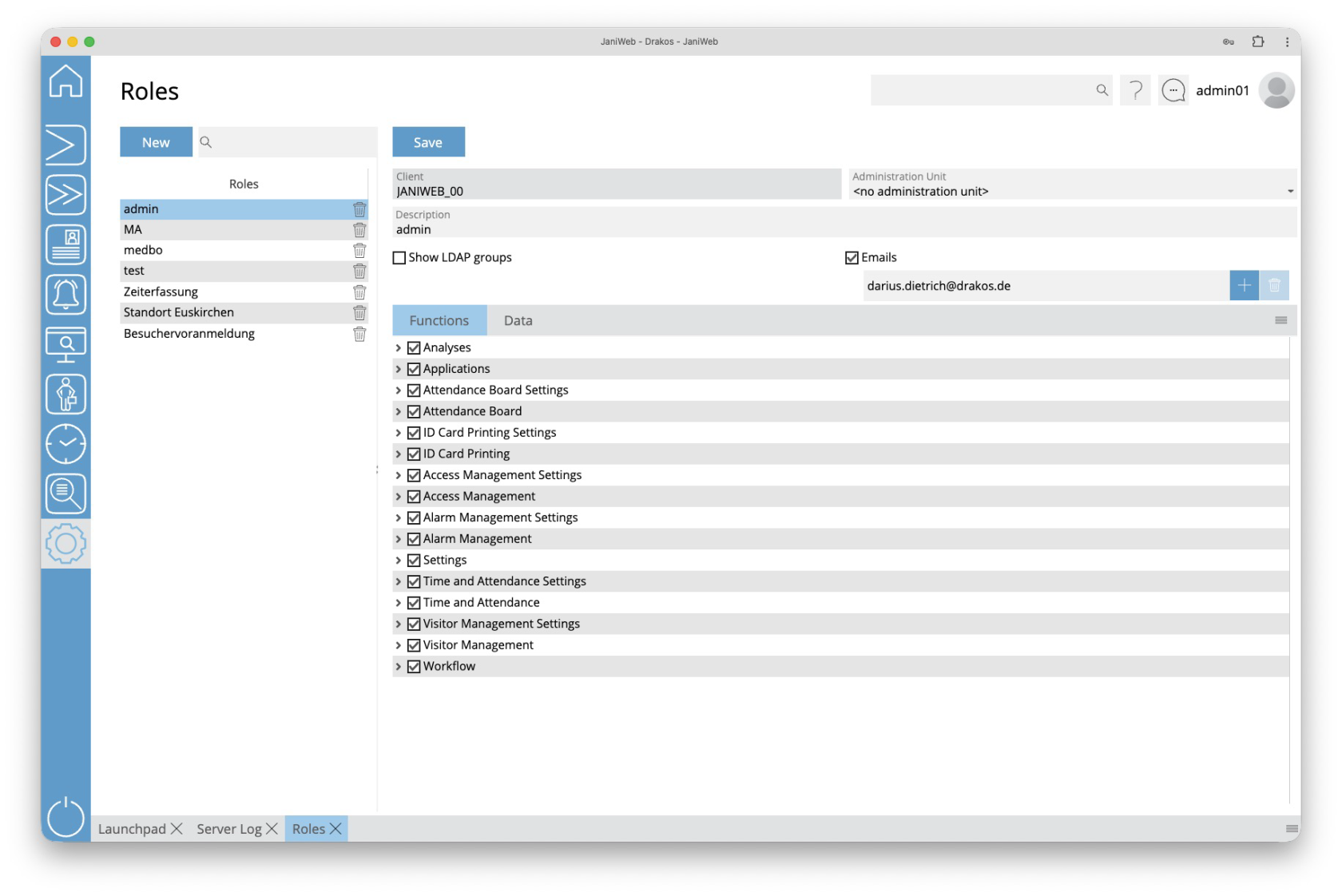](https://manual.drakos.de/uploads/images/gallery/2026-02/XfCimage.png) ## List of rolls The list contains the rolls already created. - Select an entry to view details. - Use the corresponding trash icon to remove a roll.**Attention:** Roles assigned to users can also be removed. These users will then no longer have the permissions from the corresponding role.
### Button *New* 1. Press *New* to create a new role. 2. Enter a meaningful *Description*. 3. If the role is to affect employee logon permissions, activate the option *Employee Role*. 4. Press *Save*. ### Detail area Specify additional details and the permissions for the role. - *Show LDAP groups:* Select this option if the role should map permissions for LDAP users. Then add the corresponding LDAP group(s) using the plus icon. Enter the complete Distinguished Name (DN). - *Emails*: Add Emails for Users which should also use the Admin-Login via SSO. - *Employee Role:* An employee role has fewer permissions than other roles. For example, people with this role cannot create or change devices and do not have access to settings. An employee role is automatically assigned to the people who are assigned on the tab *Data* under *Employee Groups* and activated in the column *Permissions*. It is possible to create different employee roles for parts of the employees to unlock different functions. #### Tab *Functions* This is where you define the access rights for the menu. - Select the menu items in the menu structure for which you want to grant access rights. - If menu items allow you to *Change* data, a checkbox with the same name appears. Select this option if you want the role to be able to change this data. #### Tab *Data* This is where you define the permissions for accessing data, subdivided according to the data’s affiliation. The parent permission is always provided by the client associated with the data. If the client does not have this permission, the data is read-only, even if the child data has permission. - Select an element in the column *Permission type*. - Select the checkbox in the column *Permission* for each item you want to grant permission for. - Select the checkbox in the column *Change* if you want the role to allow modification of this data. - Use *Employee Groups* to restrict the permission to display personnel master records. Only the personnel master records of the person groups that are activated in the column *Permissions* are displayed. --- ##### TIPS If a role should have permission for all newly created data of a type, activate the element *All new \[data type\]*. # Administration Units **You can use this menu option to create *Administration Units*. Administration units allow you to group objects according to their affiliation, so that you can assign permissions for several objects at once.** [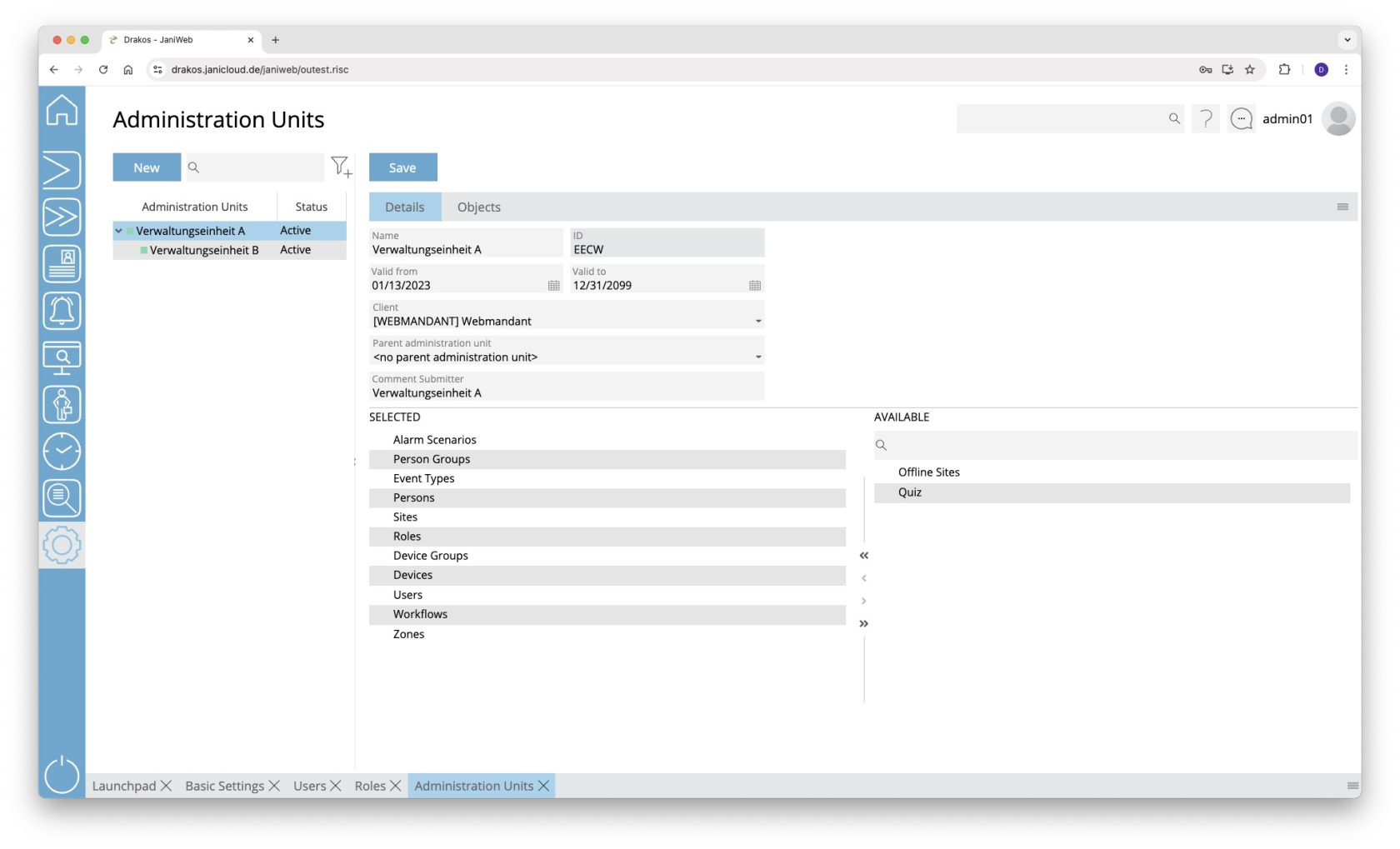](https://manual.drakos.de/uploads/images/gallery/2025-10/07ximage.png) ## List of administration units The list contains the already created administration units. ### Button *New* Press *New* to create a new administration Unit. Enter a *Description* and any additional information, and press *Save*. ### Tab *Details* Use the lists in the lower area to define which object types the administration unit can contain. - Drag the required elements from the right-hand list *Available* to the left-hand list *Selected.* - Press *Save* to confirm. ### Tab *Objects* The objects linked to the administration unit appear here. --- ##### TIPS Administration units can be structured hierarchically. This means that you can assign one administration unit to another. To do this, select the parent administration unit in the details. For example, you can first create a top-level administrative unit for the entire site. Then you can create subordinate administrative units for parts of the site. As soon as you assign a permission for a top-level administrative unit, the objects of the lower-level administrative units are included. # Jobs **The menu item *Jobs* allows you to manage the actions (cron jobs) that JaniWeb automatically executes in the background at certain intervals.** [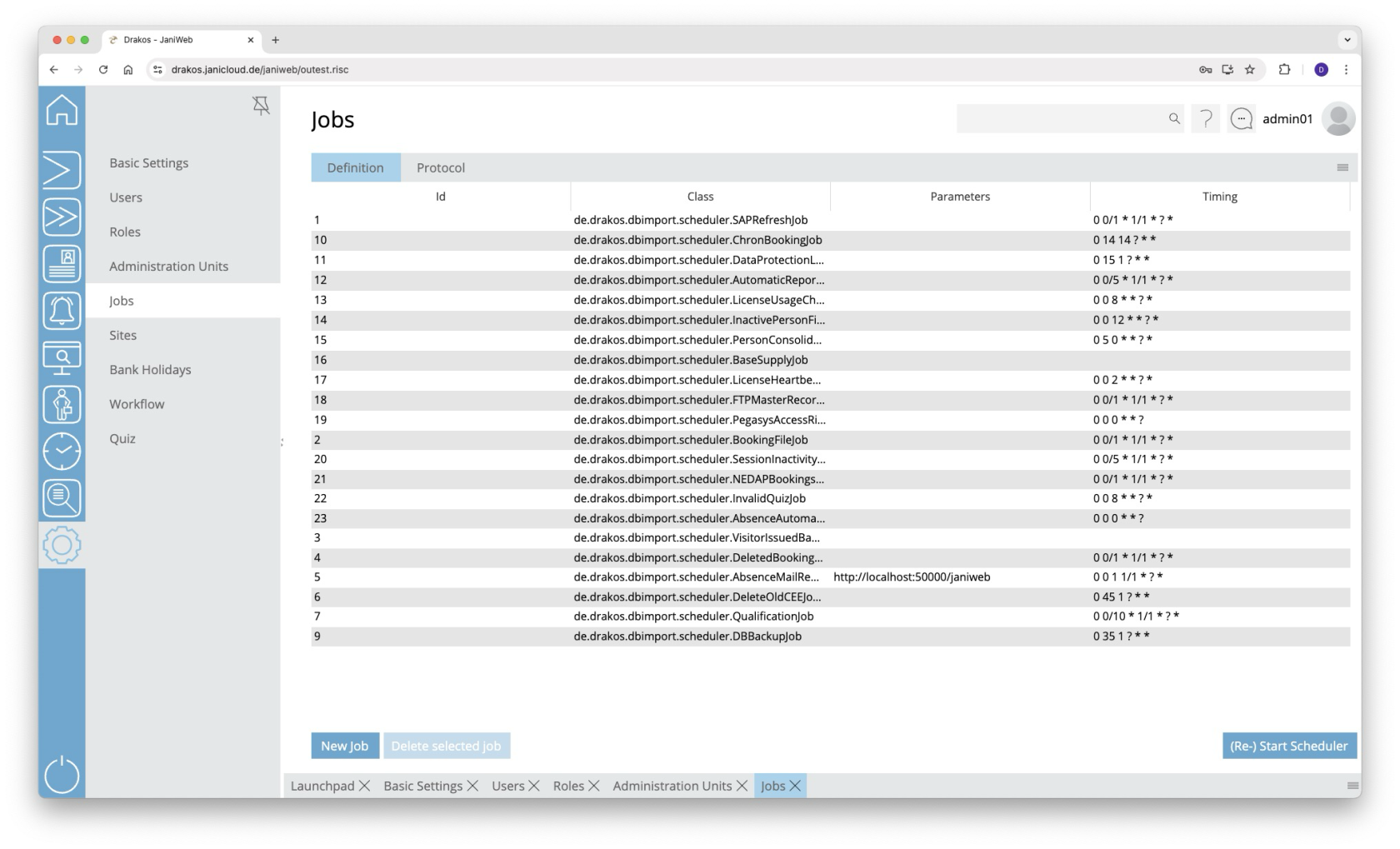](https://manual.drakos.de/uploads/images/gallery/2025-10/N7eimage.png) ## Tab *Definition* The list contains all the jobs that have already been created. Double-click on an entry to change the definition of the job. ### Button *New Job* Press *New Job* to create a new job. Enter the function to be called in the field *Class*. Enter when the task is to be executed in the field *Timing*. For details, see the section [*Time format*](https://manual.drakos.de/link/259#bkmrk-zeitsteuerung-richti) below. ### Button *Start Scheduler* After you have changed an existing job or created a new one, you must restart the scheduler. To do this, press *Start Scheduler*. ## Tab *Protocol* Here you can display a list of the jobs that have been executed. 1. Enter a start time. 2. (Optional) Enter an end time (*To*). 3. (Optional) Select a status to narrow the list. 4. Press *Show executed jobs*. ## Overview of the jobs| **Job** | **Description** |
| de.drakos.dbimport.scheduler.SAPRefreshJob | Import master data |
| de.drakos.dbimport.scheduler.AutomaticReportJob | Send automated reports |
| de.drakos.dbimport.scheduler.LicenseUsageCheckerJob | Check license usage |
| de.drakos.dbimport.scheduler.InactivePersonFinderJob | Check inactive personnel records |
| de.drakos.dbimport.scheduler.PersonConsolidationJob | Consolidate personnel master data import |
| de.drakos.dbimport.scheduler.BaseSupplyJob | Master data calculation for basic supply |
| de.drakos.dbimport.scheduler.LicenseHeartbeatJob | Heartbeat for pay-per-use license |
| de.drakos.dbimport.scheduler.FTPMasterRecordJob | Dormakaba master data distribution |
| de.drakos.dbimport.scheduler.PegasysAccessRightsCheckerJob | Check Pegasys authorizations |
| de.drakos.dbimport.scheduler.BookingFileJob | Export booking data |
| de.drakos.dbimport.scheduler.SessionInactivityCheckJob | Check session |
| de.drakos.dbimport.scheduler.DeletedBookingsFileJob | Export deleted bookings |
| de.drakos.dbimport.scheduler.AbsenceMailReminderJob | Reminder of absences in workflow |
| de.drakos.dbimport.scheduler.DeleteOldCEEJobRecordsJob | Cleanup CCEEJobExecutionProtocol |
| de.drakos.dbimport.scheduler.QualificationJob | Check permissions based on qualifications |
| de.drakos.dbimport.scheduler.DBBackupJob | Backup database |
| de.drakos.dbimport.scheduler.ChronBookingJob | Archive booking data |
| de.drakos.dbimport.scheduler.NEDAPBookingsJob | NEDAP bookings |
| de.drakos.dbimport.scheduler.DataProtectionLogicJob | Data protection audit |
| de.drakos.dbimport.scheduler.AbsenceRejectedByLeadingSystemJob | Sends E-Mails to inform about absences which were rejected by leading system. |
| de.drakos.dbimport.scheduler.InvalidQuizJob | Sends E-Mails to inform about quiz, which will get inactive soon. |
| de.drakos.dbimport.scheduler.AutomaticVisitStatusJob | Sets status for visits according bookings done by visitors at devices. |
| de.drakos.dbimport.scheduler.AbsenceAutomaticApprovalJob | Automatically approves absences after a certain period. |
Alternatively, you can also define the respective workflow for individual absence types in the module *[Time and Attendance > Settings > Tab Absence](https://manual.drakos.de/link/236#bkmrk-abwesenheit)*.
--- ##### TIPS A [Workflow Report](https://manual.drakos.de/books/janiweb/page/workflow) allows you to track all approvals. # Quiz **Using the *Quiz* menu item, you manage the quizzes in your system. Here you can create new quizzes or modify the details of existing ones.** [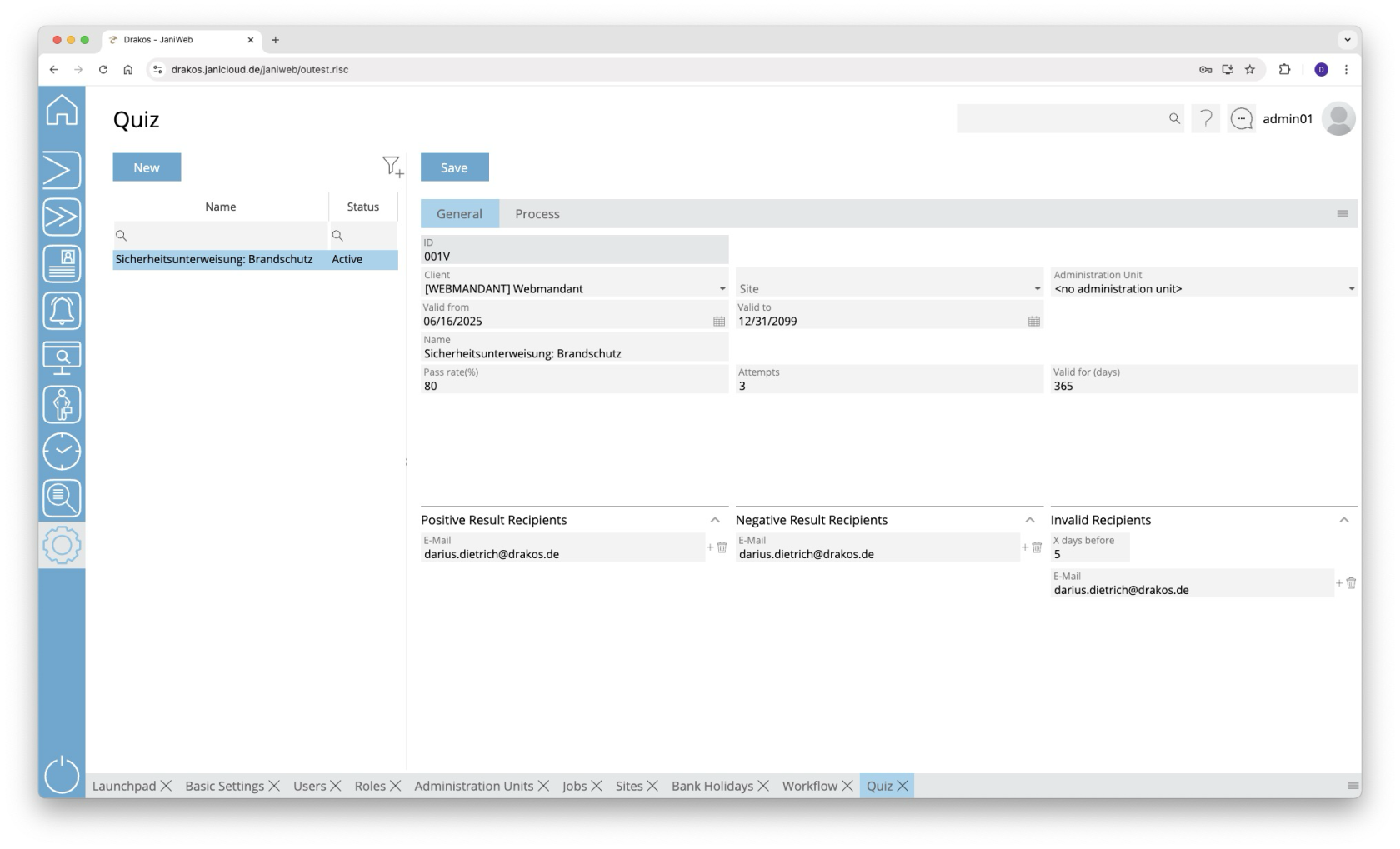](https://manual.drakos.de/uploads/images/gallery/2025-10/H1Timage.png) ## List of Quizzes The list contains the quizzes that have already been created. Select a quiz to display details. The list offers the following options: - **Filter by client, site and status:** Click on the filter icon. Select the client, site or status (Active, Active in the future, Inactive) for which quizzes should be displayed. Changes are visible immediately. - **Search in columns:** Enter text or numbers in the search field (magnifying glass symbol) of a column to search by name or status. The entries have an immediate effect: The list only shows hits. ## Button *New* Press *New* to create a new quiz. Enter the required information about the quiz on the *General* tab and press *Save*. ## Button *Copy* You can copy an existing quiz to use as a basis for a new quiz. Click *Copy* at the top to make the desired changes. Then click *Save*. ## Tab *General* This is where you enter and edit data such as name, client and validity for the quiz. Use the *Pass rate (%)* field to specify the percentage of questions that must be answered correctly for the quiz to be considered passed. The *Attempts* field specifies how often the quiz may be repeated in the event of a failed attempt. The *Validity (days)* field specifies how long the quiz remains valid after it has been passed. In the *Positive result recipients* area, you can enter e-mail addresses that are automatically notified when the quiz is passed. In the *Negative result recipients* area, you can enter e-mail addresses that will be notified if the quiz is not passed. In the *Invalid recipients* area, you can define e-mail addresses that will be notified before the quiz expires. The *X days before* field determines how many days before expiry the e-mail is sent. ## Tab *Process* With a quiz, you have the option of creating training courses, such as a safety briefing. These can be integrated into the pre-registration process for visitors, for example. On this tab, you use slides to define the procedure for such a training course. - **Insert slide:** Drag the required modules in the desired order into the area of the respective location or press the button with the + to select the corresponding slide in the following dialog. - **Reorder slides:** Drag the slides to the desired location. - **Edit slides:** Use the *edit icon* to specify details for the respective slide. - **Remove slides:** Use the recycle *bin icon* to remove a slide from the sequence. #### The slides at a glance ##### Introduction slide - **Define title and text:** Enter a title and text to be displayed on the slide. Use the *Translate* button to enter the title and text in the desired languages. - **Insert image:** - Use the *Upload image* button to add an image that will appear on the slide. Save your entries using the *Save* button. ##### Preparatory slide The preparatory slides are intended to convey the knowledge that will be tested in the subsequent questions and answers slides. - **Define title and text:** Enter a title and text to be displayed on the slide. Use the Translate button to enter the title and text in the desired languages. - **Insert image or video:** - Use the *Upload image* button to add an image that will appear on the slide. - Alternatively, you can embed a YouTube video: Click on *Set link* and enter the YouTube link in the respective language field. Save your entries using the *Save* button. ##### Question and Answer Use this slide to define a question with the corresponding answer options. - **Define title and question:** Enter a title and a question that will be displayed on the slide. Use the *Translate* button to enter the title and question in the desired languages. - **Insert image or video:** - Use the *Upload image* button to add an image that will appear on the slide. - Alternatively, you can embed a YouTube video: Click on *Set link* and enter the YouTube link in the respective language field. - **Define answers:** - Define the answer options from which users should choose. - Mark which answer(s) are correct in the *Correct* column. Multiple selection is possible. - Use *Add* to add further answer options. - Use the *recycle bin* icon to delete individual answers. - Each answer can be designed as text, image or a combination of both. → Add images with *Add image*, texts with *Translate*. - **Display options:** - **Random order answers:** The answer options are sorted randomly each time the quiz is called up. - **Horizontal order:** Determines whether the answers are displayed horizontally or vertically. Save your entries using the *Save* button. ##### End slide - **Define title and text:** Enter a title and text to be displayed on the slide. Use the *Translate* button to enter the title and text in the desired languages. - **Insert image:** - Use the *Upload image* button to add an image that will appear on the slide. Save your entries using the Save button. # Instructions # Create Visits 1. Log in to the application [](https://manual.drakos.de/uploads/images/gallery/2025-10/Zo5bildschirmfoto-2025-10-07-um-08-31-19.jpg) 2. Navigate to *Registration* in the menu [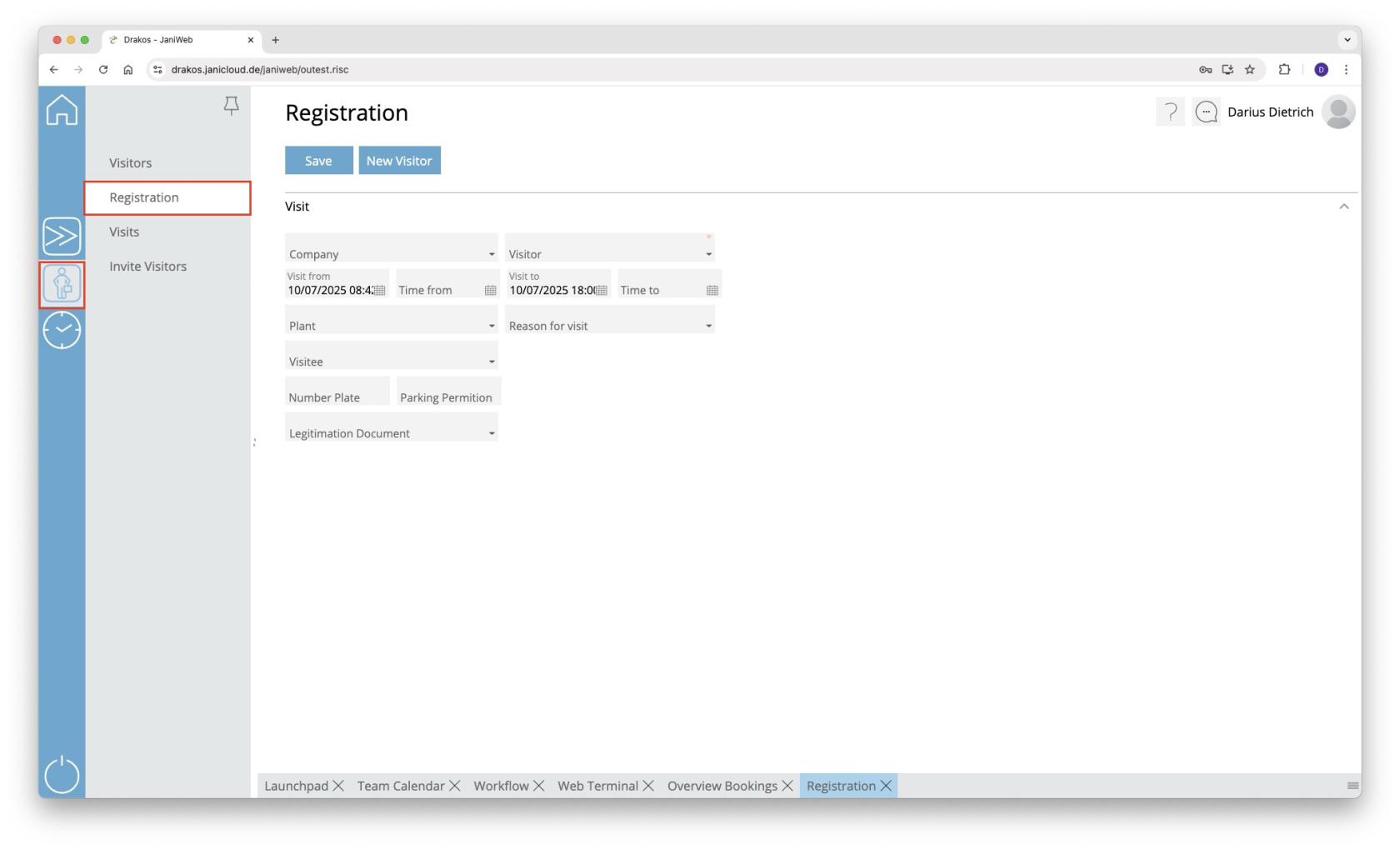](https://manual.drakos.de/uploads/images/gallery/2025-10/bildschirmfoto-2025-10-07-um-08-37-58.jpg) 3. Fill in the fields and confirm with *Save* [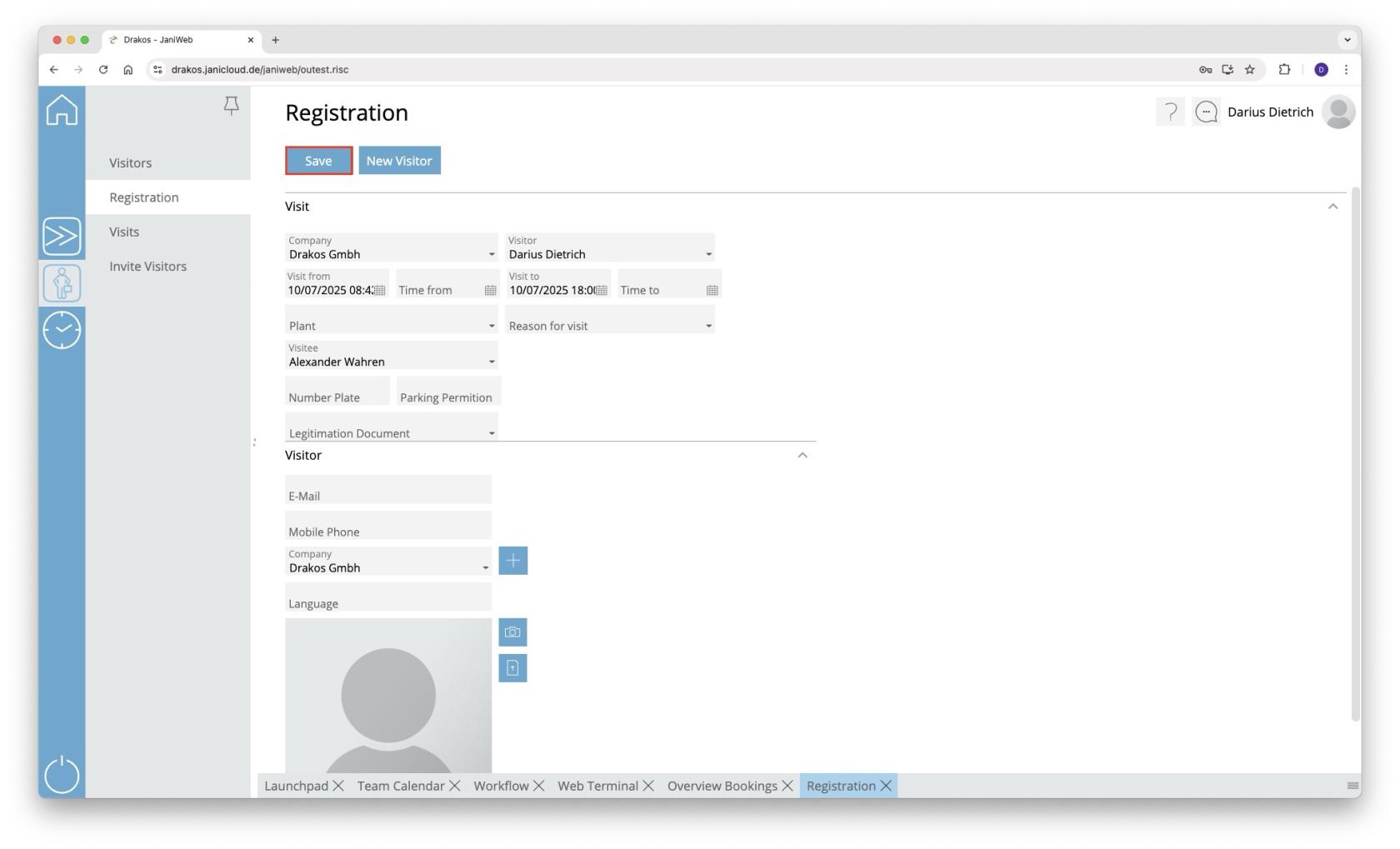](https://manual.drakos.de/uploads/images/gallery/2025-10/bildschirmfoto-2025-10-07-um-08-38-48.jpg) 1. If the visitor does not yet exist in the system, they can be created using the *New Visitor* button [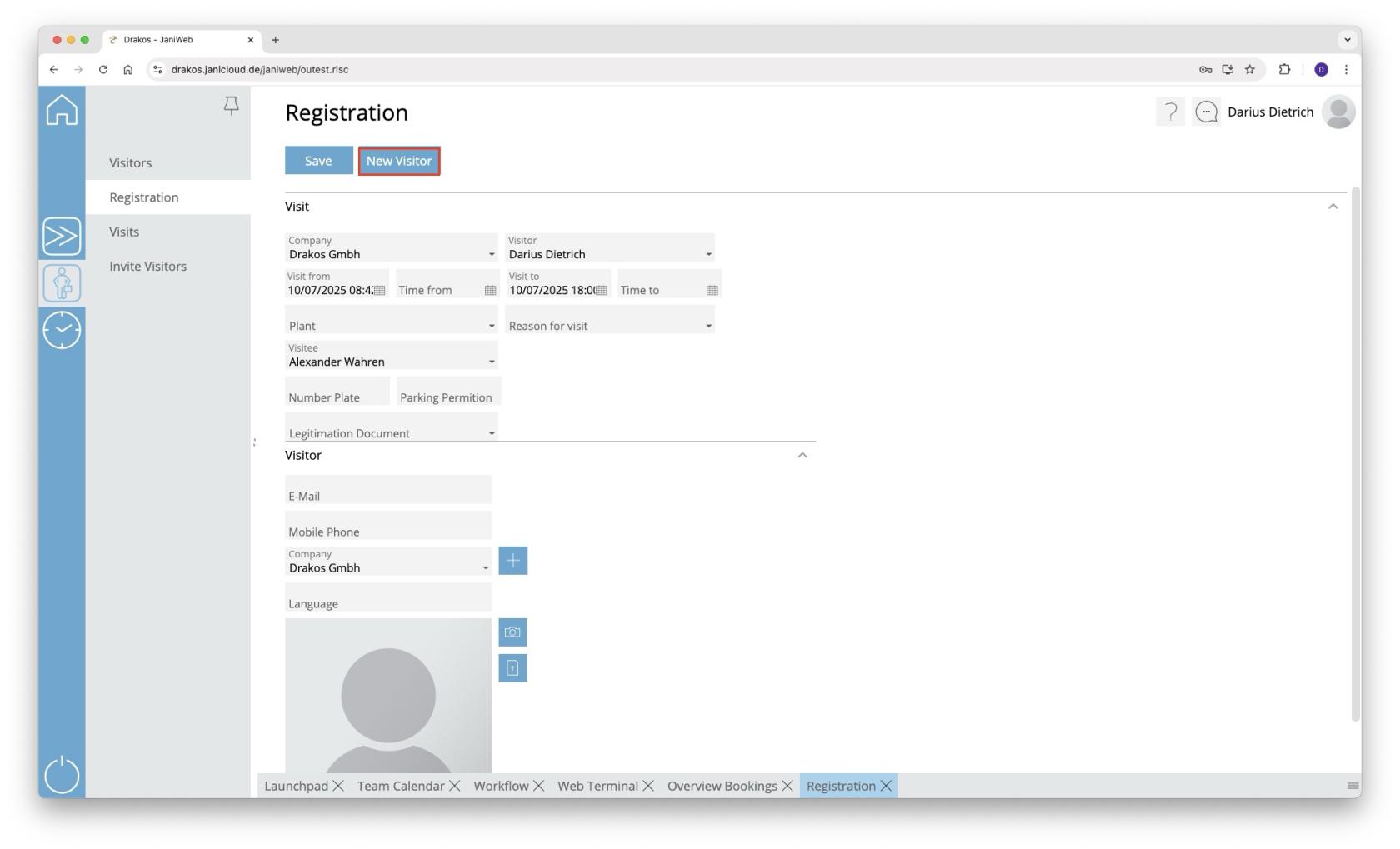](https://manual.drakos.de/uploads/images/gallery/2025-10/bildschirmfoto-2025-10-07-um-08-39-15.jpg) 4. The visit now appears under the menu item *Visits* below the *Upcoming* section [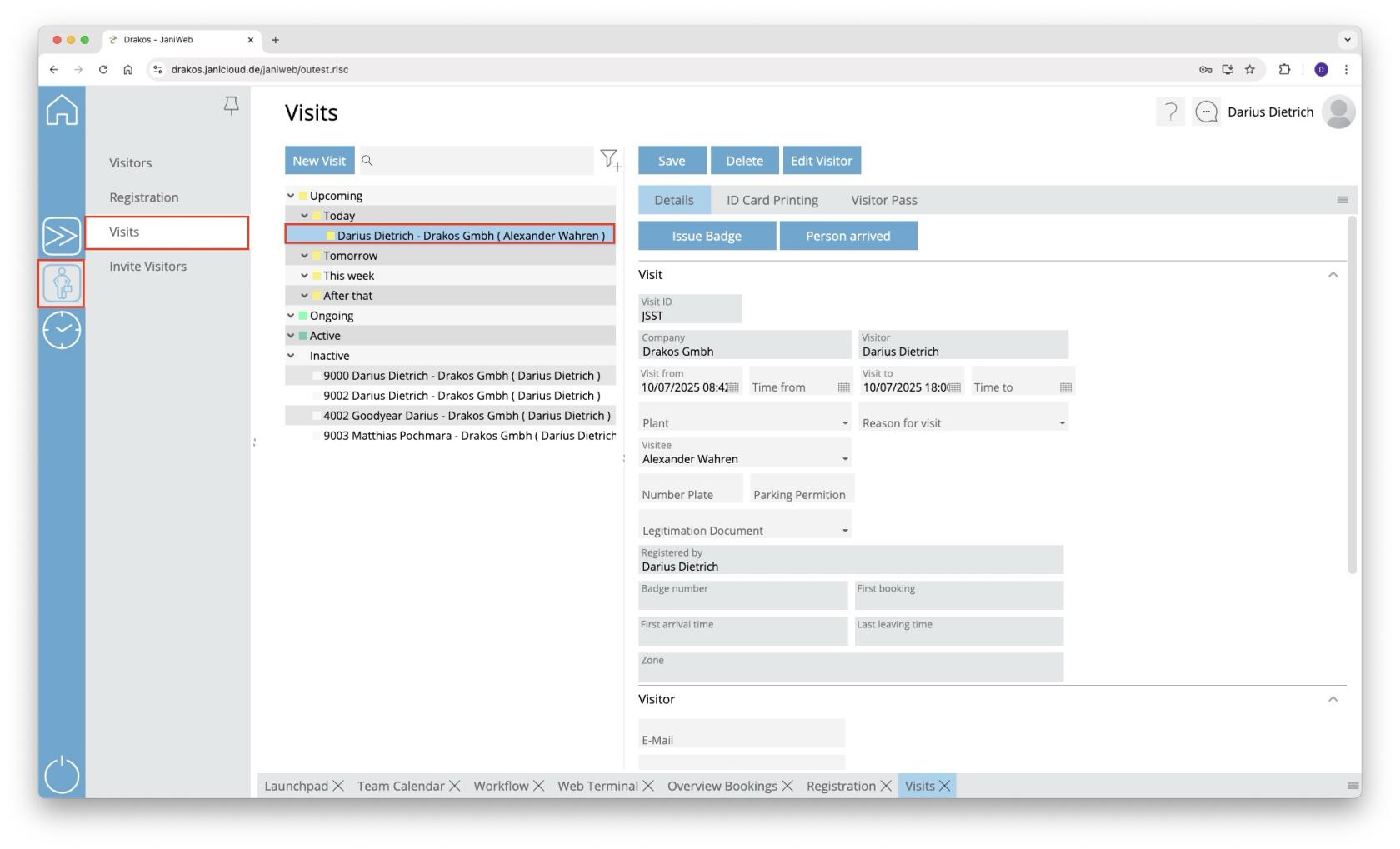](https://manual.drakos.de/uploads/images/gallery/2025-10/bildschirmfoto-2025-10-07-um-08-39-57.jpg) 1. A badge can now be issued here via the *Issue Badge* button 2. or the visit can be marked as present via the *Person arrived* button 5. The visit now appears in the *Ongoing* section [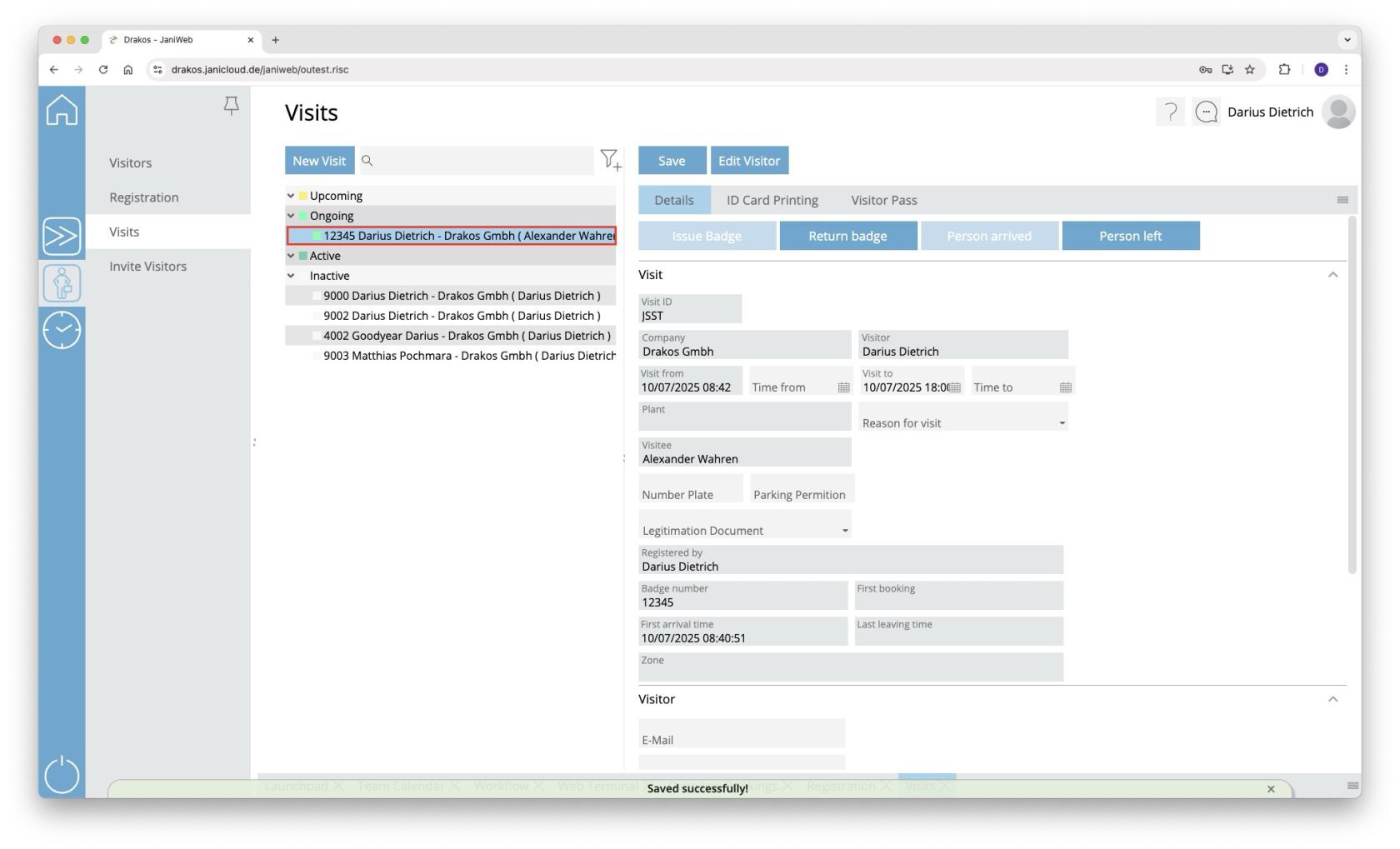](https://manual.drakos.de/uploads/images/gallery/2025-10/bildschirmfoto-2025-10-07-um-08-40-55.jpg) 6. The visitor can be logged out via the *Person left* button [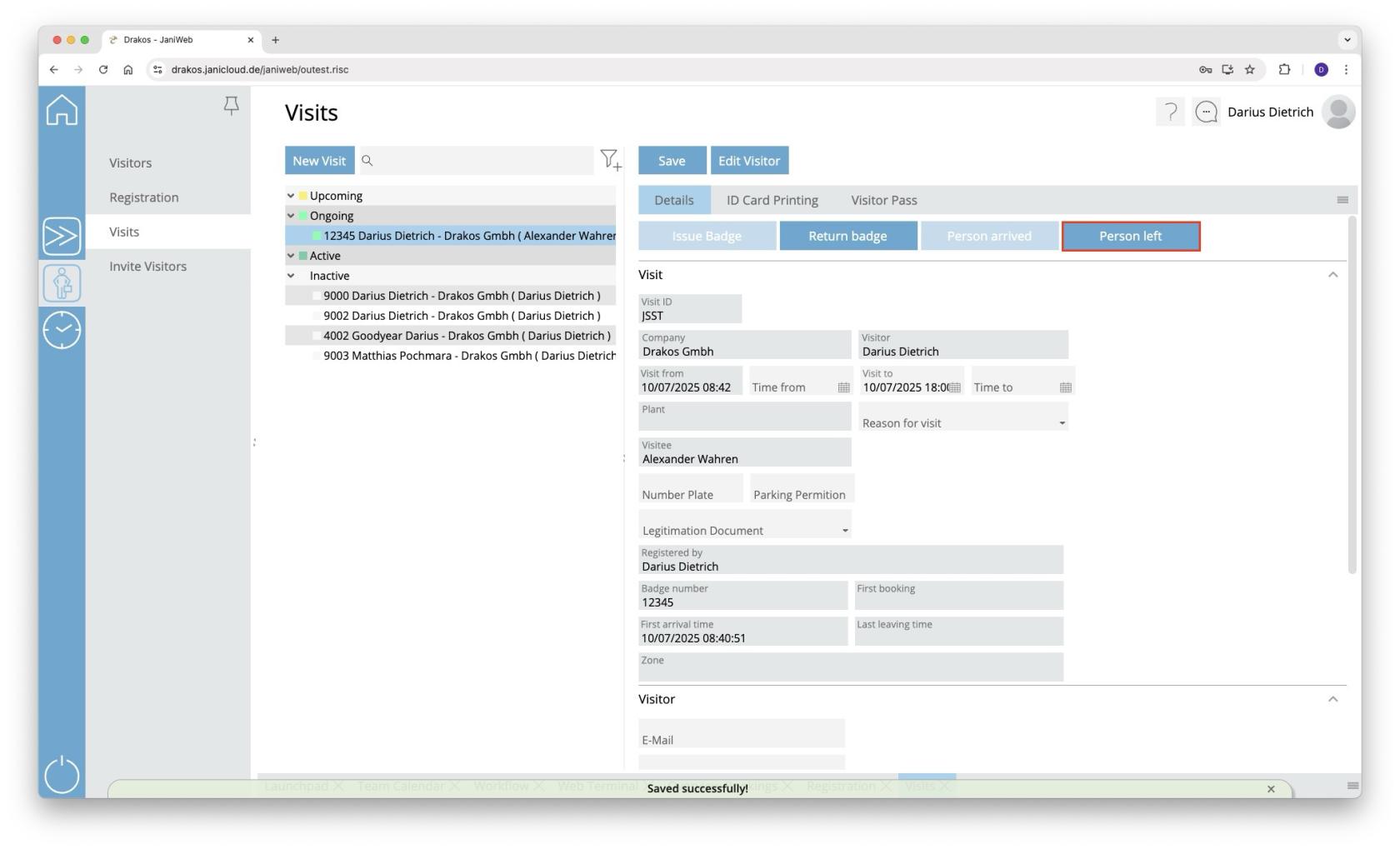](https://manual.drakos.de/uploads/images/gallery/2025-10/bildschirmfoto-2025-10-07-um-08-41-24.jpg) 7. As long as the visit period has not yet expired, the visit appears below the *Active* section [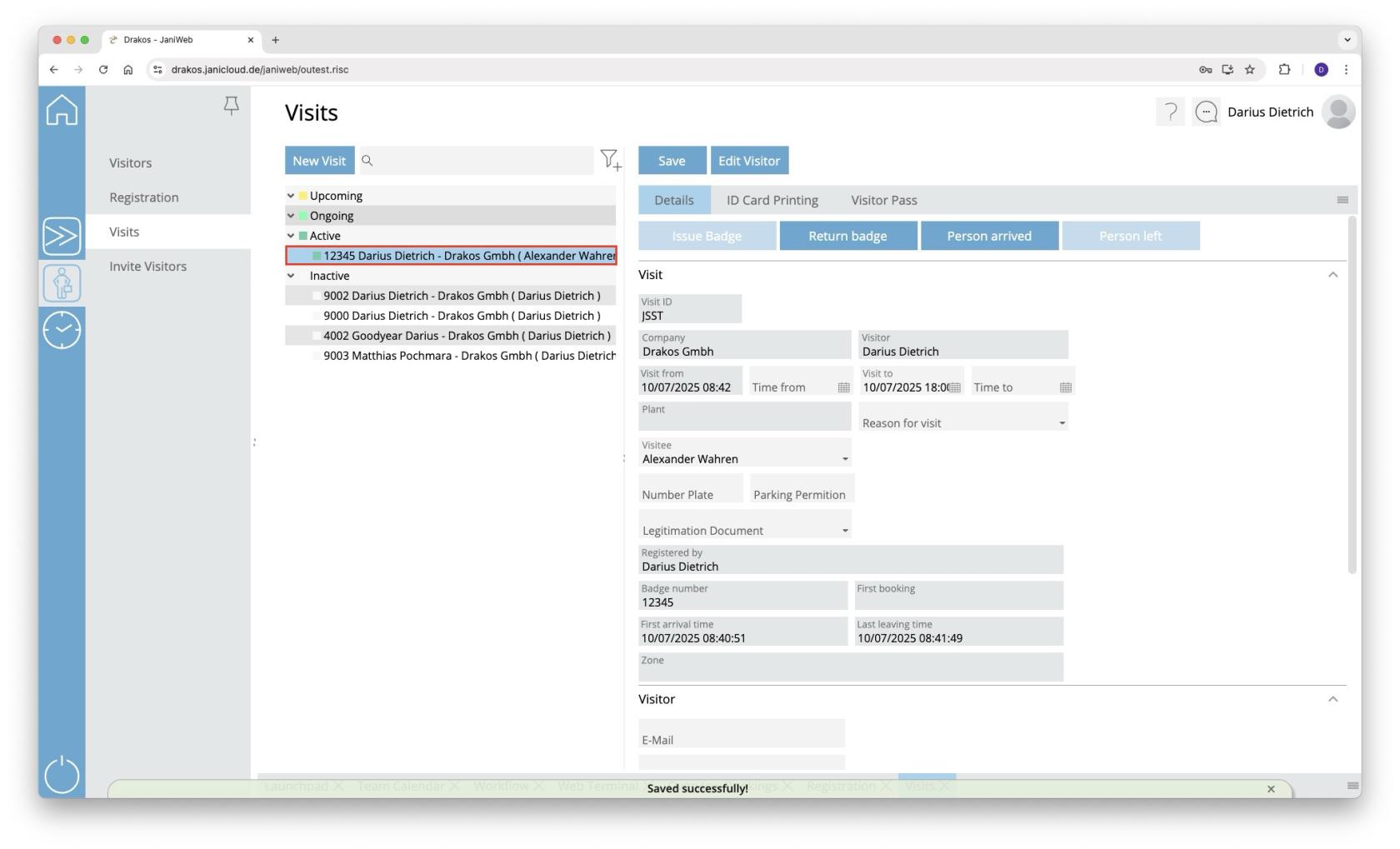](https://manual.drakos.de/uploads/images/gallery/2025-10/bildschirmfoto-2025-10-07-um-08-41-52.jpg) # Create Absences 1. Log in to the application. [](https://manual.drakos.de/uploads/images/gallery/2025-10/bildschirmfoto-2025-10-07-um-08-31-19.jpg) 2. Navigate to the *Team Calendar* item in the menu. [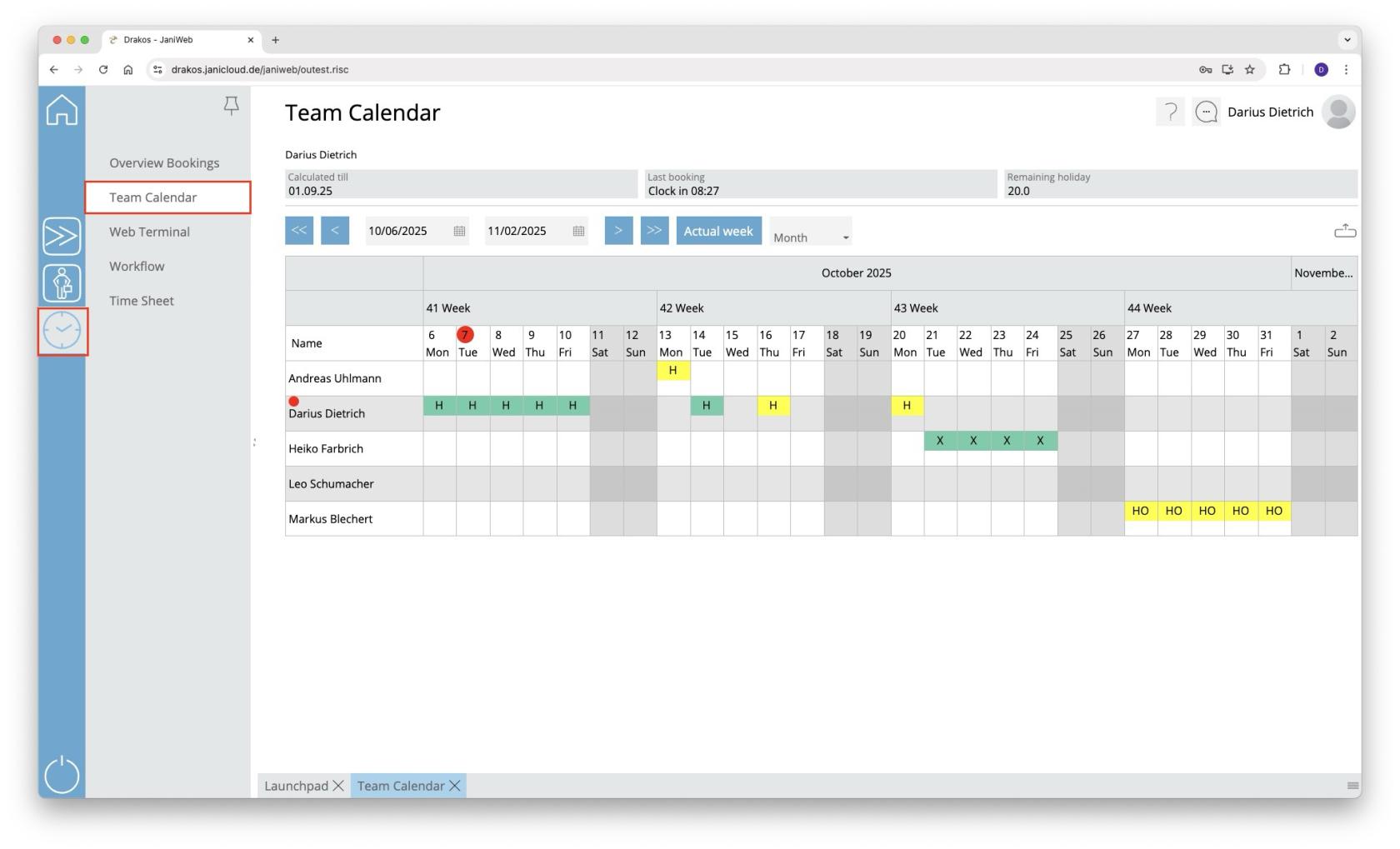](https://manual.drakos.de/uploads/images/gallery/2025-10/bildschirmfoto-2025-10-07-um-08-31-59.jpg) 3. Right-click in the field for the desired date of absence > Select *Create new absence* [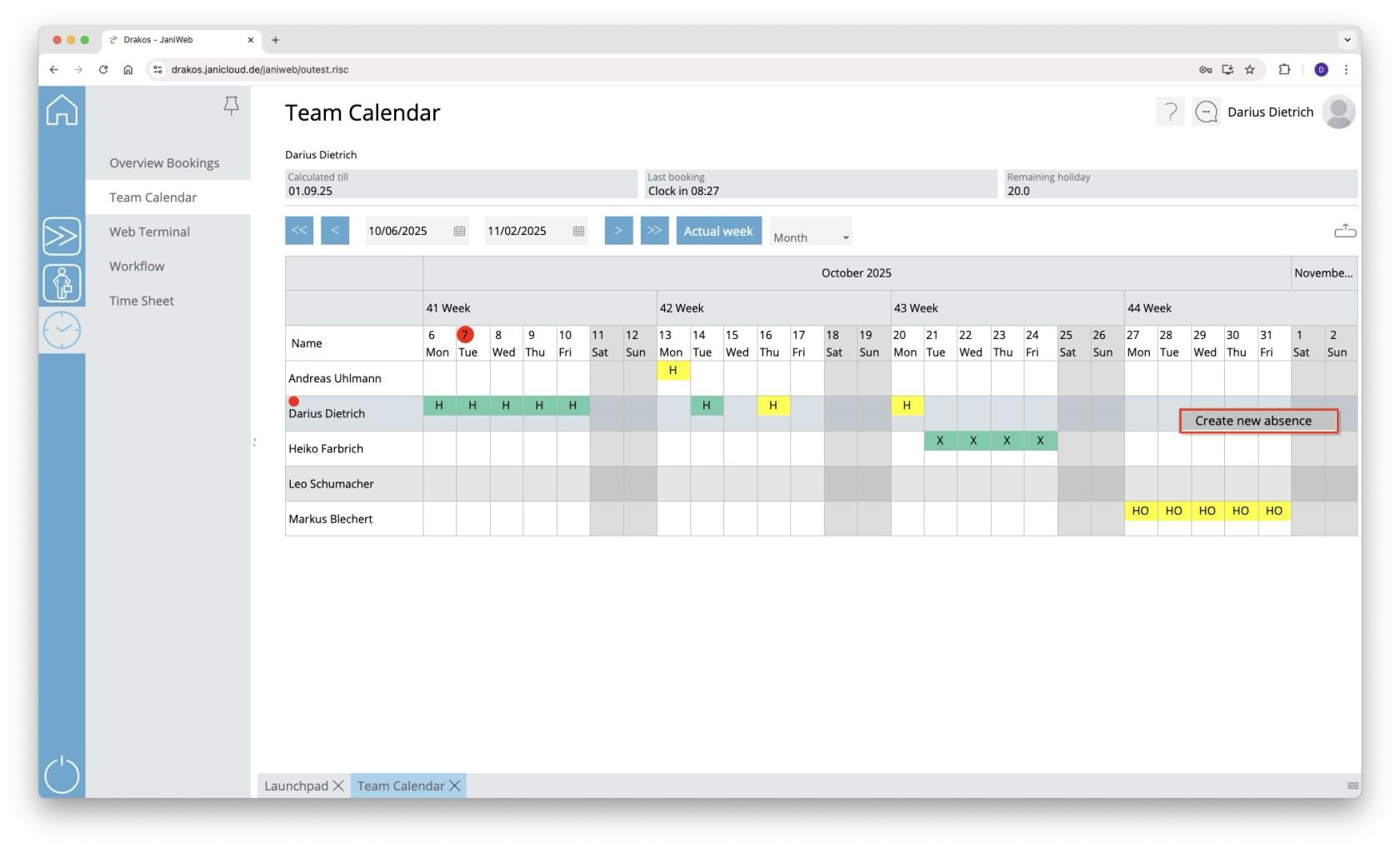](https://manual.drakos.de/uploads/images/gallery/2025-10/bildschirmfoto-2025-10-07-um-08-32-40.jpg) 4. Enter dates for *From* and *To*. Set comment for supervisor if necessary. Confirm with *Save*. [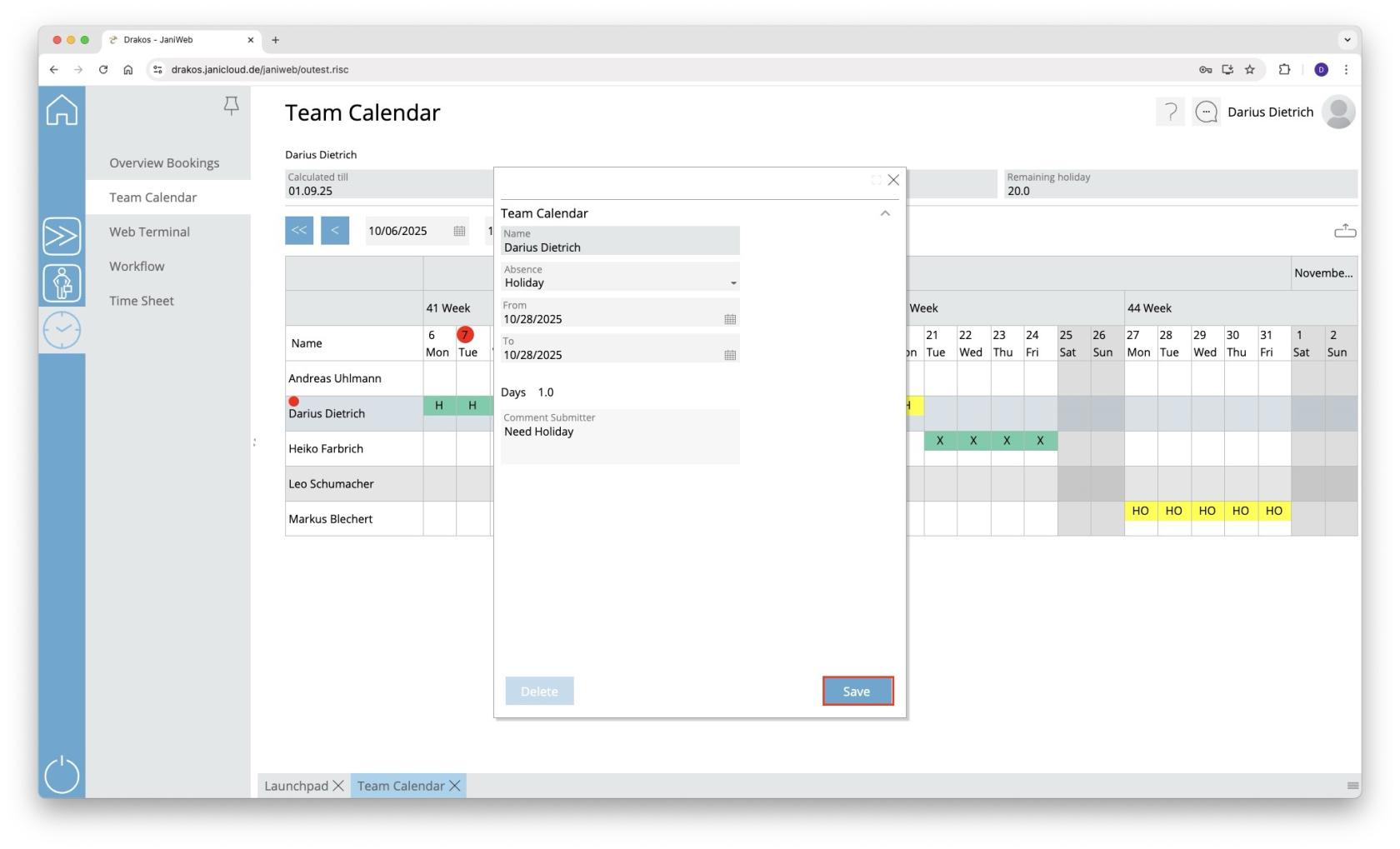](https://manual.drakos.de/uploads/images/gallery/2025-10/bildschirmfoto-2025-10-07-um-08-33-19.jpg) 5. Legend colored representation of absences [](https://manual.drakos.de/uploads/images/gallery/2025-04/sU0image.png) 6. In the *Workflow* menu, you will find past absence requests and their status. [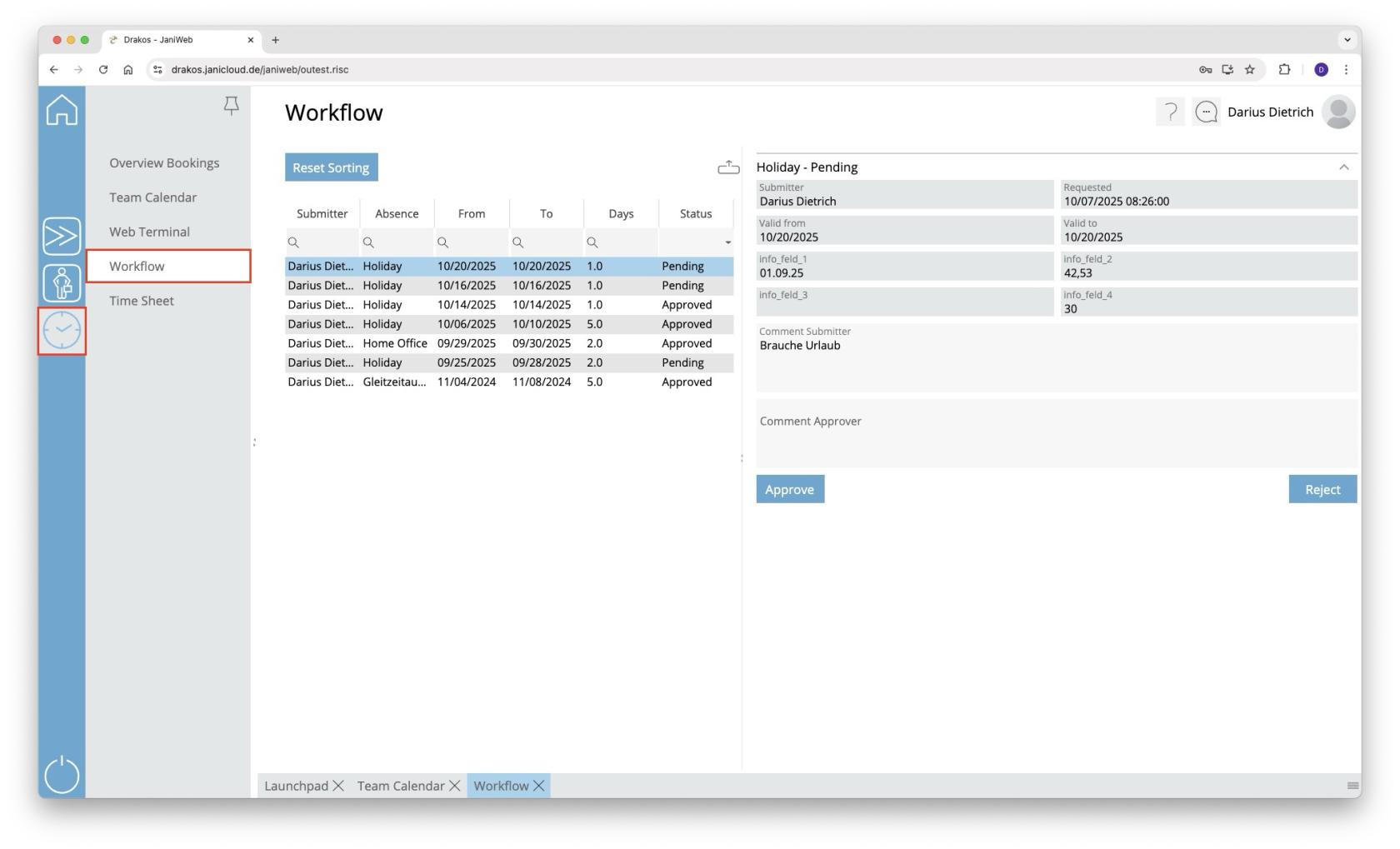](https://manual.drakos.de/uploads/images/gallery/2025-10/bildschirmfoto-2025-10-07-um-08-33-52.jpg) # Create bookings via Web Terminal 1. Log in to the application. [](https://manual.drakos.de/uploads/images/gallery/2025-10/7fLbildschirmfoto-2025-10-07-um-08-31-19.jpg) 2. Navigate to *Web Terminal* in the menu [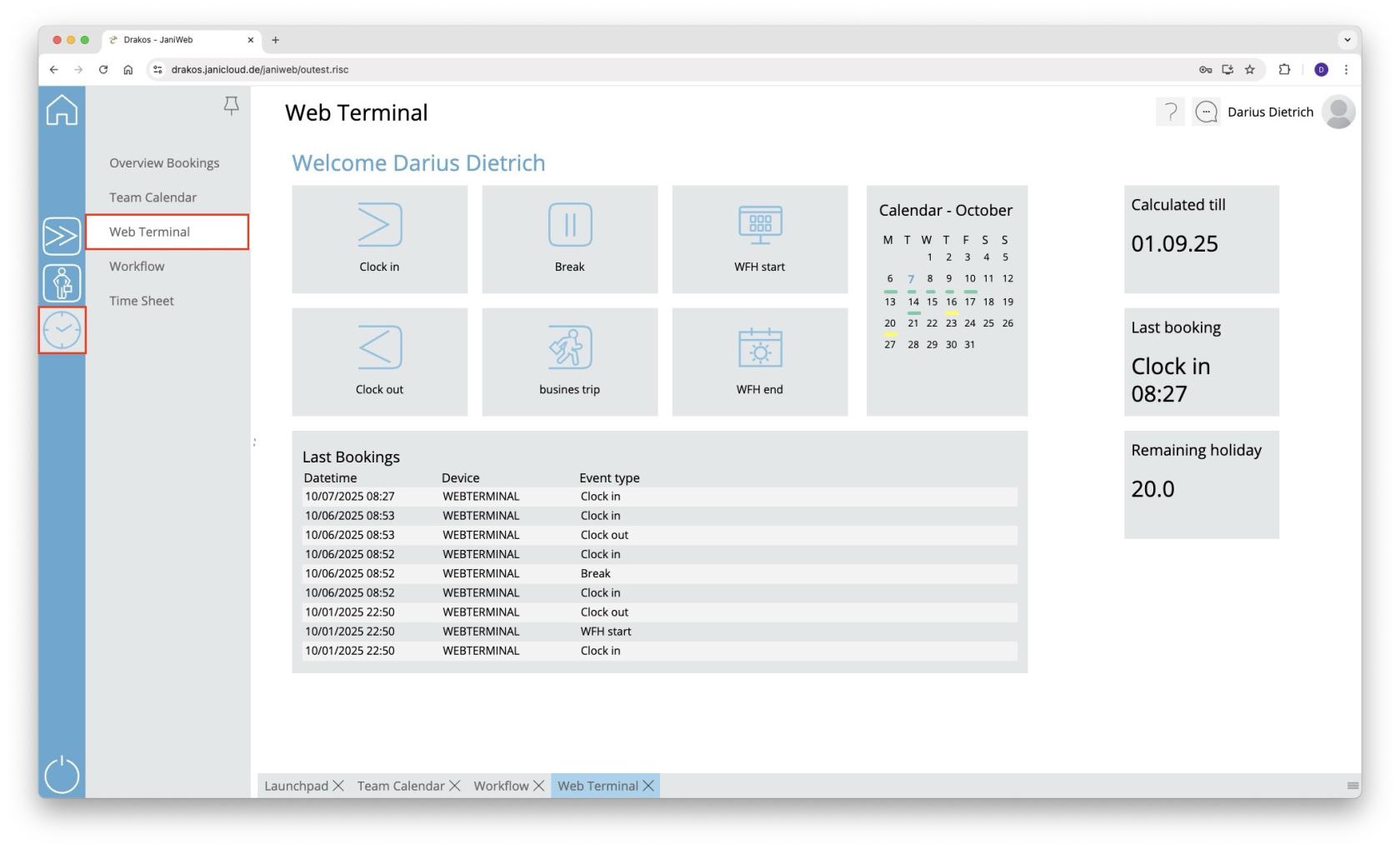](https://manual.drakos.de/uploads/images/gallery/2025-10/bildschirmfoto-2025-10-07-um-08-34-43.jpg) 3. Submit the desired booking by pressing the corresponding button [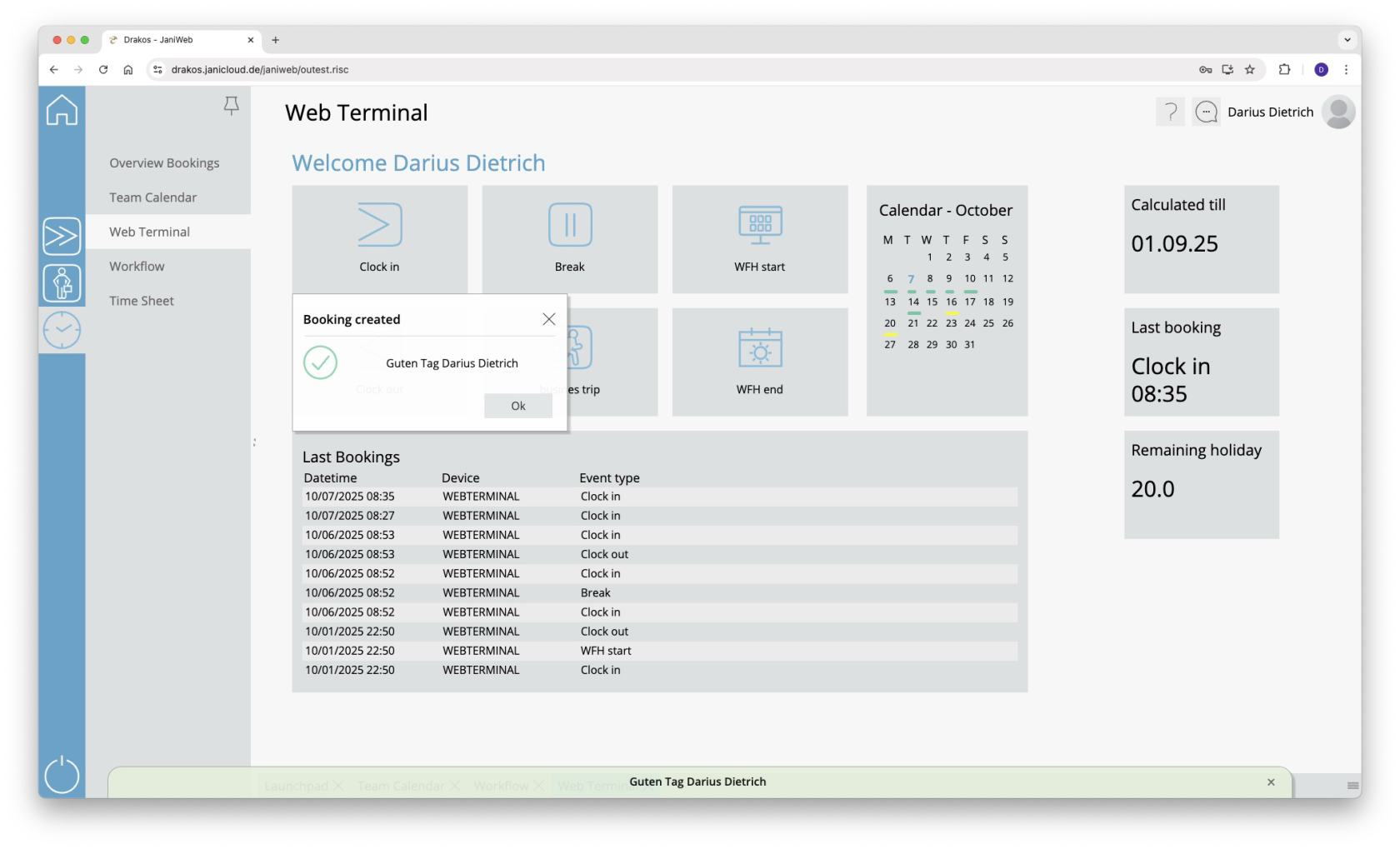](https://manual.drakos.de/uploads/images/gallery/2025-10/IqIimage.png) 4. Bookings can be viewed via the *Overview Bookings* menu [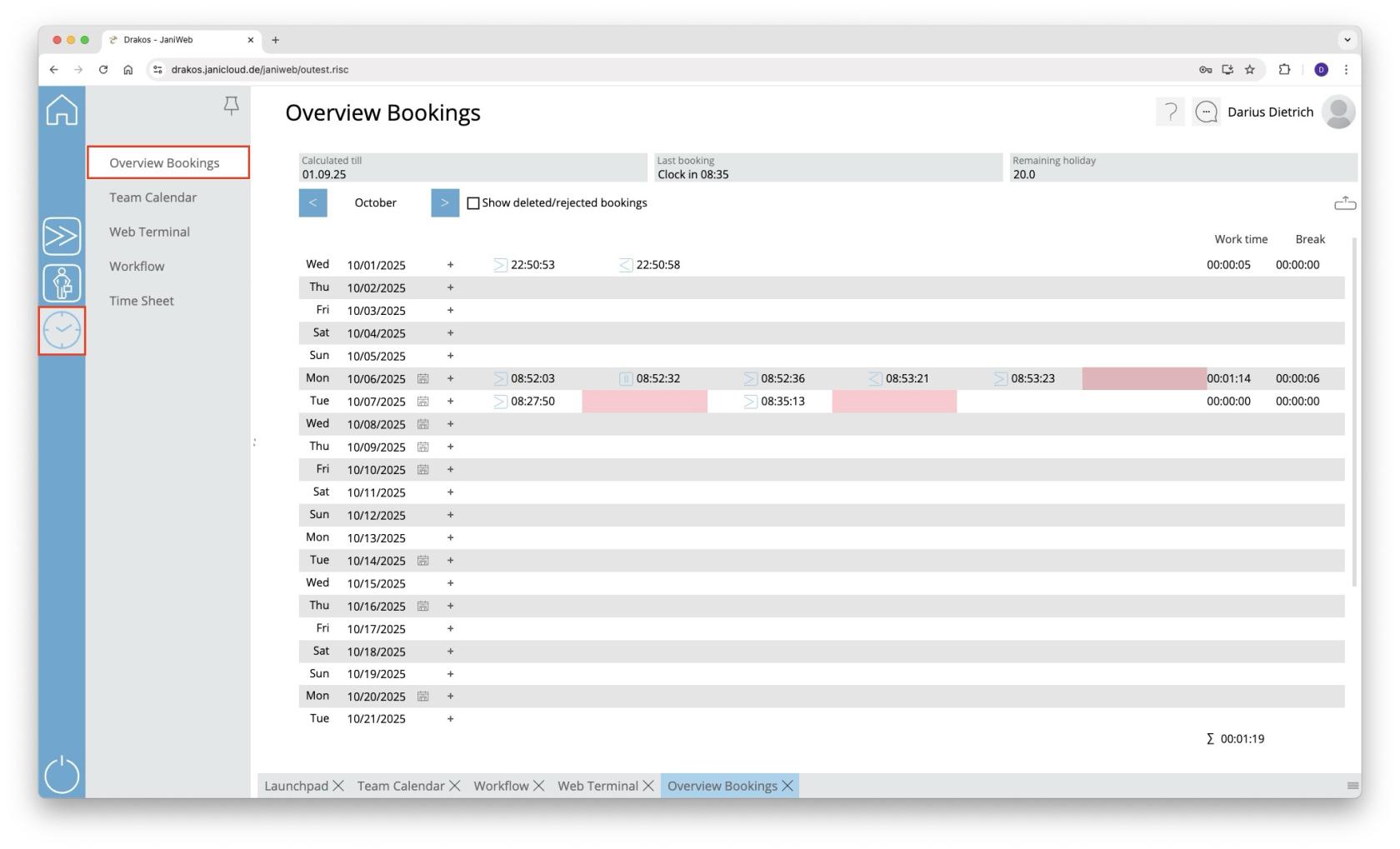](https://manual.drakos.de/uploads/images/gallery/2025-10/bildschirmfoto-2025-10-07-um-08-35-32.jpg) # Add bookings via the Overview Bookings 1. Log in to the application. [](https://manual.drakos.de/uploads/images/gallery/2025-10/gVmbildschirmfoto-2025-10-07-um-08-31-19.jpg) 2. Navigate to Overview *Bookings* in the menu [](https://manual.drakos.de/uploads/images/gallery/2025-10/S4lbildschirmfoto-2025-10-07-um-08-35-32.jpg) 3. Double-click on the line of the day for which the booking is to be added 4. Now select the desired time in the *Time* field and the desired booking type in the *Event Type* field (e.g. Clock in or Clock out) and confirm with the *Save* button [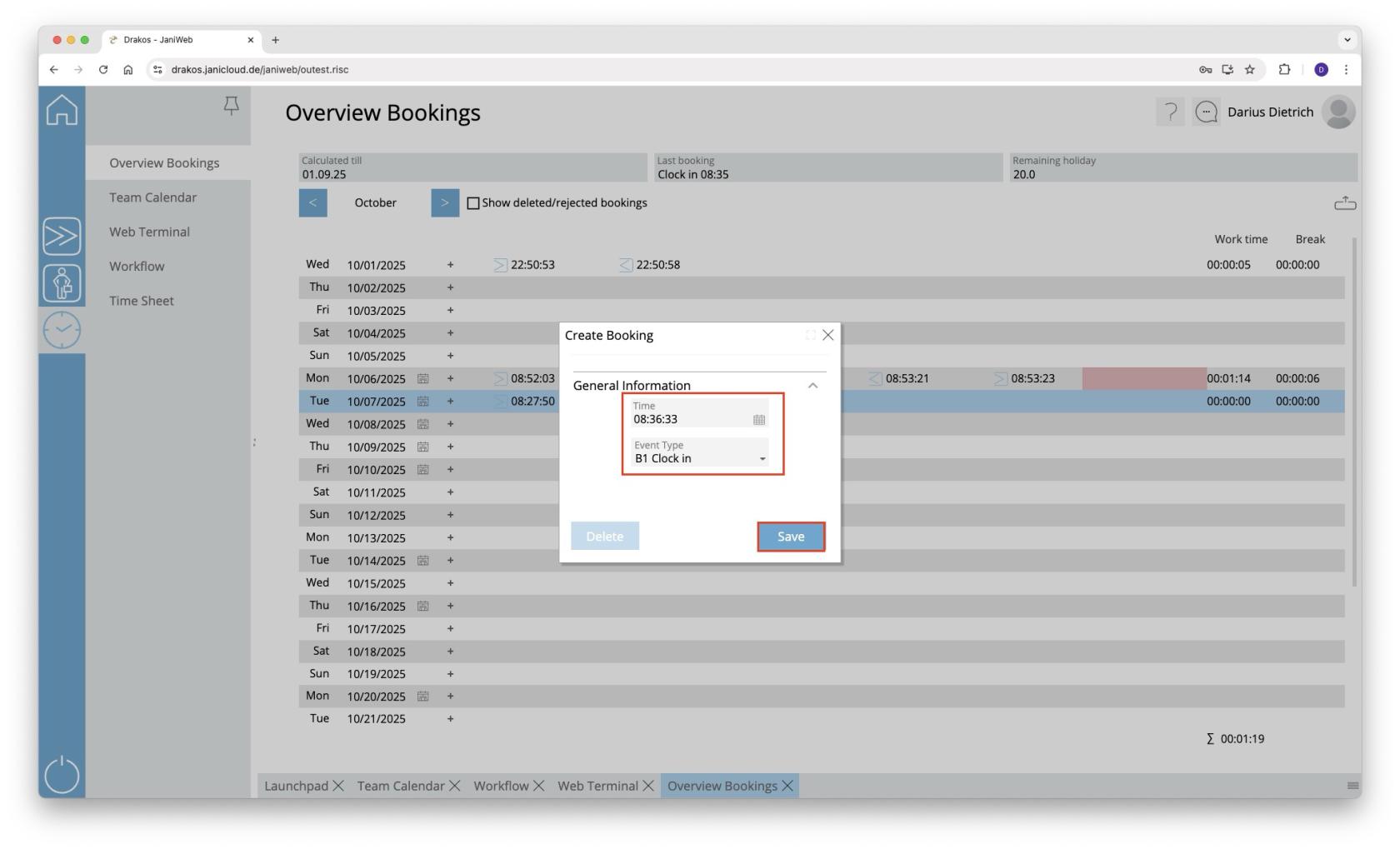](https://manual.drakos.de/uploads/images/gallery/2025-10/bildschirmfoto-2025-10-07-um-08-36-39.jpg) 5. If a workflow has been set up for adding bookings, the supervisor must confirm the request # JaniAccess – Access Control Basics [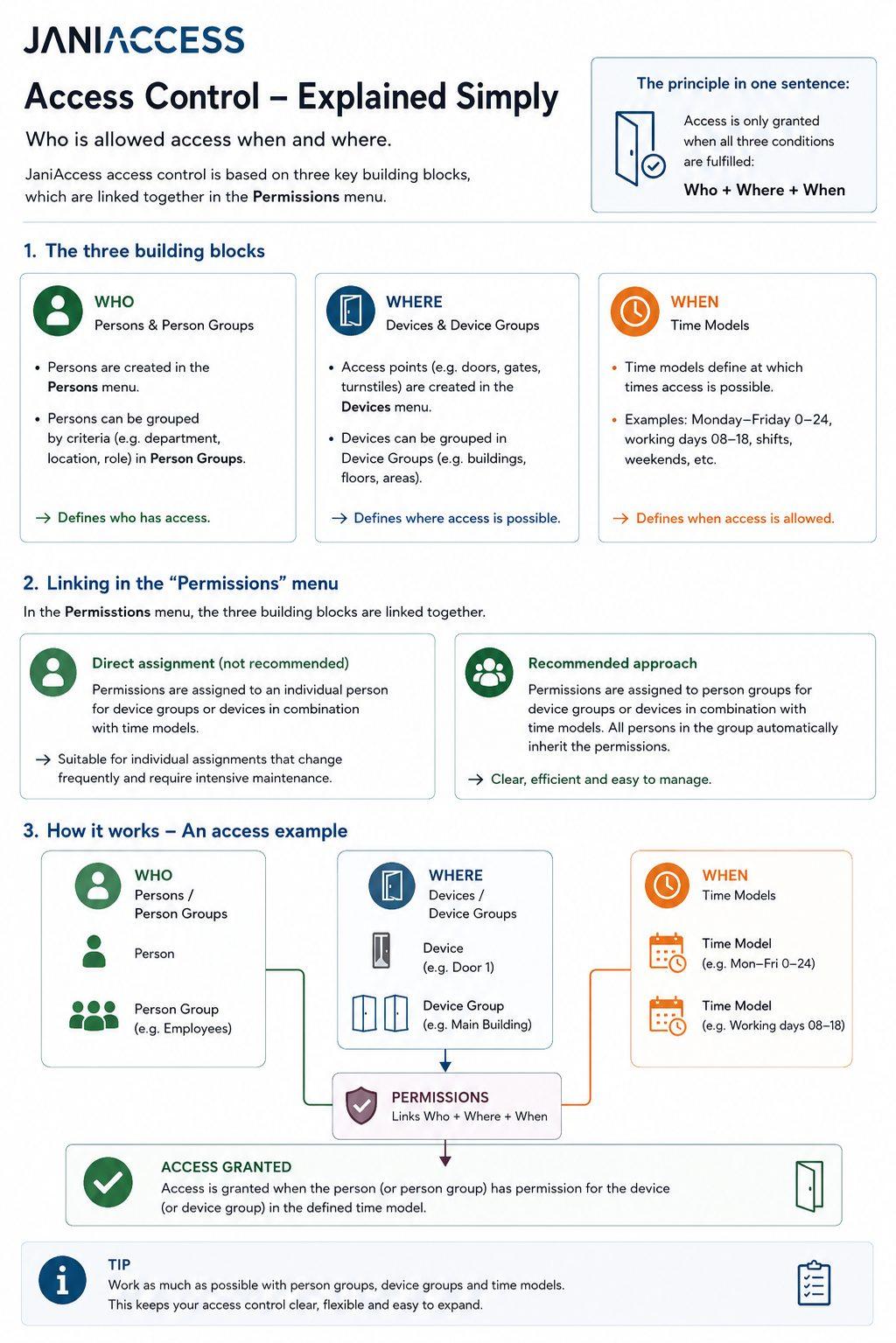](https://manual.drakos.de/uploads/images/gallery/2026-07/janiaccess-access-control-explained-simply-compressed.jpg) JaniAccess access control is based on a simple principle: > **Who is allowed to access which areas and when?** Every access permission consists of these three components, which are linked together to determine whether access is granted. --- # 1. Who? – Persons and Person Groups The **Persons** menu defines **who** is allowed to access the system. Individual users are created and managed in the **Persons** menu. To simplify administration, persons can be organized into **Person Groups** based on common characteristics such as department, location, role, or employment type. **Examples of person groups:** - Production Employees - Office Staff - External Contractors - Cleaning Staff Using person groups significantly reduces the effort required to manage access permissions. --- # 2. Where? – Devices and Device Groups The **Devices** menu defines **where** access is granted. Each controlled access point (e.g. doors, gates or turnstiles) is configured as a device. Multiple devices can be combined into **Device Groups** to simplify permission management. **Examples of device groups:** - Main Building - Production Area - Administration - Warehouse - Outdoor Areas Assigning permissions to device groups allows multiple access points to be managed with a single configuration. --- # 3. When? – Time Models The **Time Models** menu defines **when** access is permitted. A time model specifies the days and times during which access is allowed. **Examples:** - Monday – Friday: 00:00 – 24:00 - Monday – Friday: 08:00 – 17:00 - Weekends - Night Shift - Holiday Schedule Time models can be combined with any person, person group, device, or device group. --- # 4. Assigning Permissions The **Permissions** menu links the three building blocks **Who**, **Where**, and **When**. Permissions can be assigned in two different ways. ## Option 1: Assign Permissions to Individual Persons *(Not Recommended)* Permissions can be assigned directly to a single person by linking a device or device group with a time model. **Example:** John Smith → Main Entrance → Monday–Friday 08:00–17:00 This approach is suitable only for exceptional cases. As the number of individually assigned permissions grows, administration becomes increasingly complex and difficult to maintain. --- ## Option 2: Assign Permissions to Person Groups *(Recommended)* The recommended approach is to assign permissions to **Person Groups**. In this case, a person group is linked to a device or device group together with a time model. Every person who belongs to that group automatically inherits the assigned permissions. **Example:** Person Group **Office Staff** → Device Group **Administration Building** → Time Model **Monday–Friday 08:00–17:00** All members of the *Office Staff* group automatically receive these access rights. This approach keeps the access control system structured, scalable, and easy to maintain. --- # Summary Every access permission is created using the same principle: > **Best Practice:** Whenever possible, assign permissions to **Person Groups** instead of individual persons and use **Device Groups** together with **Time Models**. This approach keeps the access control configuration organized, scalable, and easy to manage, even in large installations.