# Device Groups
**Use this menu item to create device groups. Device groups make it easier to manage devices and assign permissions. We recommend always grouping devices, especially for larger installations.**
[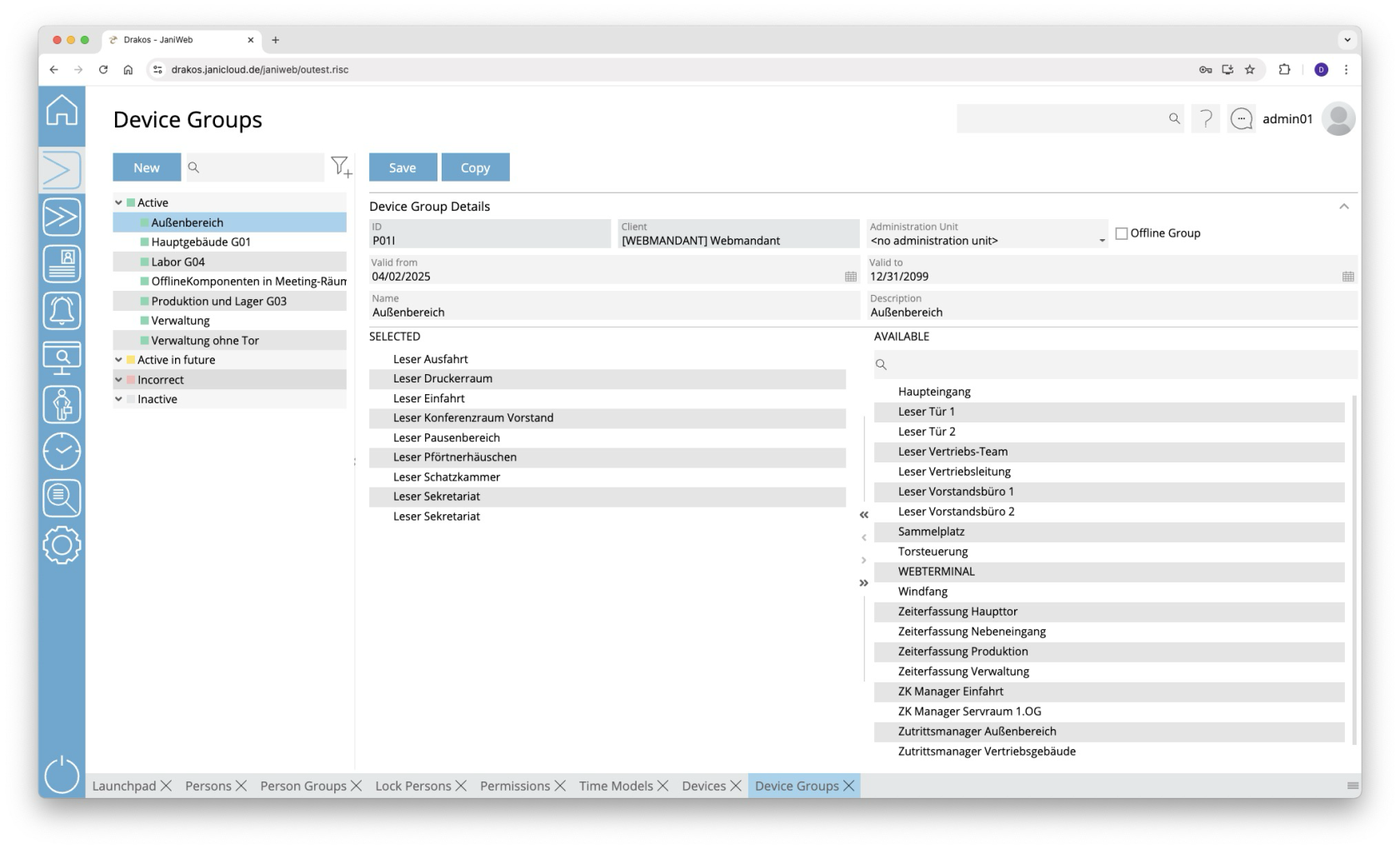](https://manual.drakos.de/uploads/images/gallery/2025-10/s95image.png)
## List of device groups
The list contains the groups that have already been created. Select a group to view details.
The list offers the following options:
- **Search:** Enter text or numbers in the search field (magnifying glass icon) at the top to search for groups. The entries take effect immediately: the list only displays hits. The search is not case sensitive.
- **Filter:** Press the filter icon. Select the criteria for which you want to display groups. Changes are visible immediately.
##### Adding/removing devices
To add or remove devices from a group, select the group from the list.
- **Add:** Drag the devices from the right-hand list (*Available*) to the left-hand list (*Selected*).
- **Remove:** Drag the devices from the left-hand list (*Selected*) to the right-hand list (*Available).*
You can also select several devices and move them at the same time. As an alternative to using the mouse, use the arrows between the windows.
Devices can belong to multiple groups at the same time.
**Attention:** If you change the assignment of an offline component to an offline device group, the affected component must be rewritten with the programmer.
## Button *New*
1. Press *New* to create a new device group.
2. Enter a *Description*, select a *Client* and define a validity period (*Valid from – Valid to*).
3. Select whether it is an *Offline Group* (a group of offline components). As soon as this option is selected, only offline devices appear in the *Available* list.
4. Add devices to the group as described above.
---
##### TIPS
Press *Copy* at the top to create a copy of the selected group and use it as a template for a new group.