# Qualifications
**The *Qualifications* menu item allows you to create profiles to which certain permissions are linked. By assigning such a qualification to persons, the persons automatically inherit the permissions of the qualification.**
[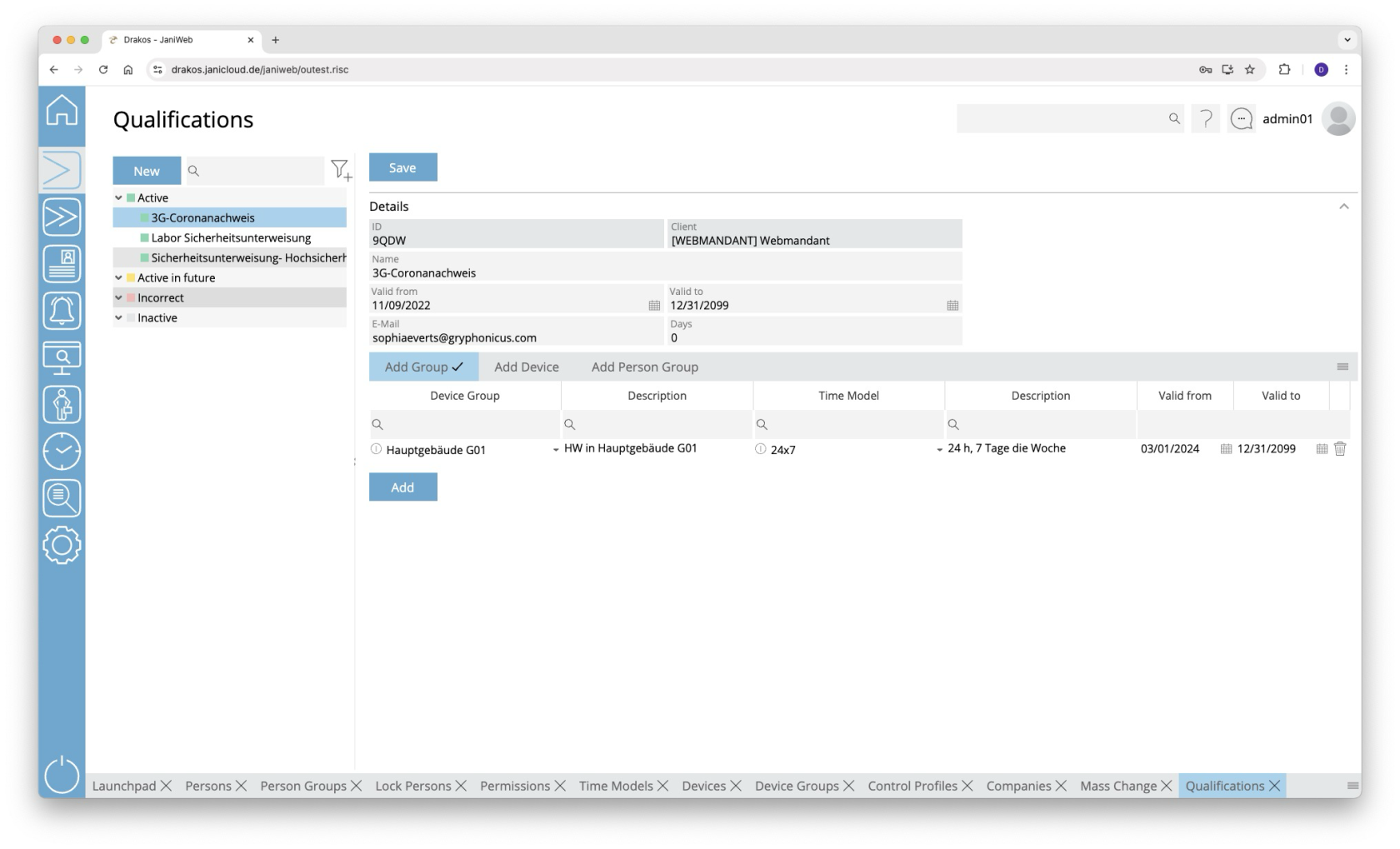](https://manual.drakos.de/uploads/images/gallery/2025-10/3vEimage.png)
## List of qualifications
The list contains the qualifications that have already been created. Select an entry to view details.
The list offers the following options:
- **Search:** Enter text or numbers in the search field (magnifying glass icon) at the top to search for qualifications. The entries take effect immediately: the list only displays hits. The search is not case sensitive.
- **Filter:** Press the filter icon. Select the criteria for which you want to display qualifications. Changes are visible immediately.
## Button *New*
Press *New* to create a new qualification. Enter a description and additional information, and press *Save*.
## Area *Details*
Define the general properties of the qualification here.
- *Description:* Enter a descriptive label for the qualification.
- *E-Mail:* Enter the E-Mail address to which a notification is to be sent when a qualification is about to expire.
- *Days:* Specify how many days before the qualification expires the E-Mail notification is to be sent.
Press *Save* to apply your changes.
## Tabs *Add Device Group / Add Device*
Here you can link permissions for the use of certain device groups or devices to the selected qualification. To add another device group or device to the list:
1. Press *Add*.
2. Select a *Device Group* or a *Device*.
3. Select the desired *Time Model*.
4. Set a validity period.
5. Press *Save*.
To remove a device group or device from the list, press the corresponding trash icon.
A tick after the title of a tab indicates that there is data within the tab.
## Add person group tabs
Here you have the option of assigning a qualification to all persons in the added person groups at once.
- Click on *Add*.
- Select a person group.
- Specify a validity period.
- If the validity is not valid, persons in this group of people are denied access to the devices/device groups assigned to the qualification.
- Press *Save*.
To remove a person group from the list, press the corresponding trash can icon.
A tick after the title of a tab indicates that there is data within the tab.
---
##### TIPS
To assign a qualification to a person, select the person via the *Persons* menu item. Then select the desired skill on the *Qualifications* tab.
till Version 1.32.X - Permissions for devices / device groups that are assigned to a qualification can only be changed via the qualification. It is then no longer possible to create permissions for these devices or device groups in the usual way.