
Change Log Persons
Use the menu item Change Log Persons to find out who changed the master data of a person and when.
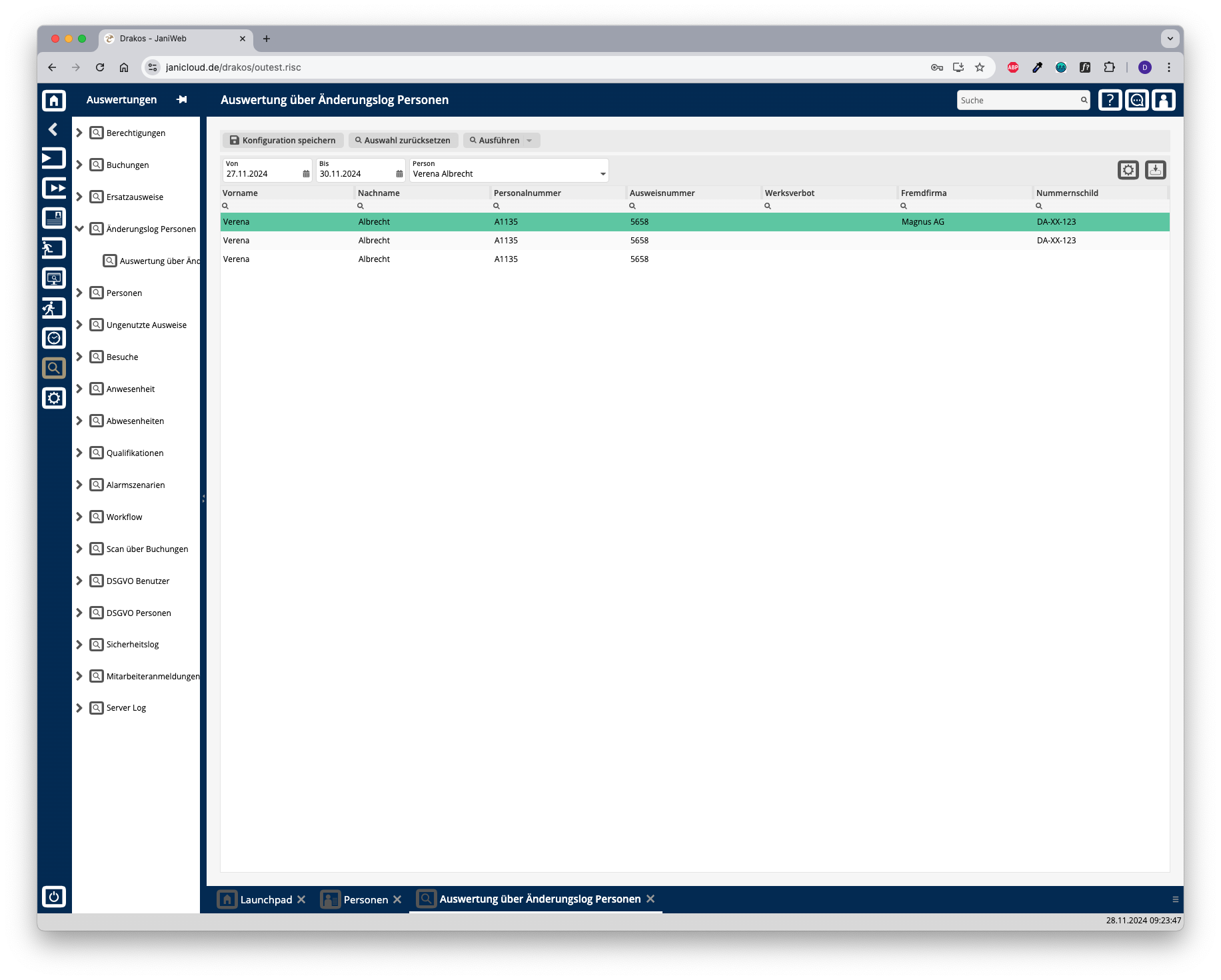
Creating the report
Select the Person for whom you want to see the change log.
Press Run to start the report.
The first line, highlighted in green, shows information about the current record of the person. The following lines show the historical changes. The column Updated shows the date and time of the change. The user who made the change appears in the column User.
Further options with the report
Export the entire list: Press the download icon. Select the format in which you want to export the list. The export files are downloaded or displayed depending on the browser/operating system settings. For details on the available export formats, see the General > Export Formats chapter of this manual. Save report: For details on saving reports, see the chapter General > Custom Reports.
Button Reset Selection
Press Reset Selection to reset all fields to their initial value.