
User Menu
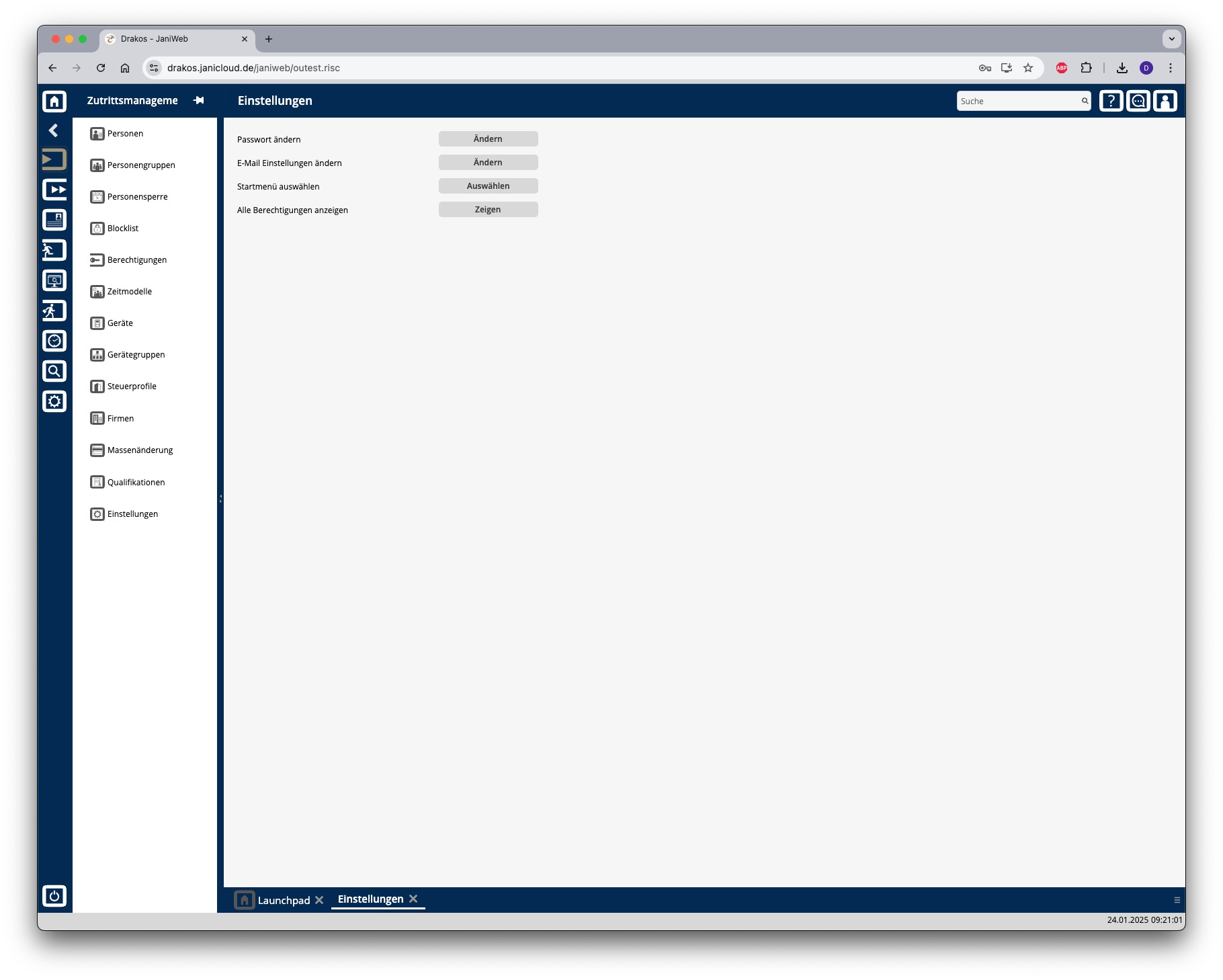
Change password
Change email address
Specify start menu
You can select a menu that opens automatically after logging in:
If nothing is selected here, the Launchpad opens by default after logging in.
Show permissions
To view your permissions within the application, press Show next to Show all assigned permissions.
Set deputy
As a supervisor, choose up to three deputies for yourself. During the substitution period, all workflow requests are also forwarded to the supervisor’s deputy.
This option is only available if you have logged in as an employee and are a supervisor.
Disable team calendar limitation
The team display can be limited by further criteria in the settings. Enable this option to remove such restrictions.
This option is only available if you have logged in as an employee.
Show only direct employees
If this option is activated, you as a supervisor will only see the persons from the team for which you are the supervisor. Furthermore, you cannot see members of the team you are a member of yourself.
This option is only available if you have logged in as an employee and are a supervisor.
Incognito mode
If this option is activated, you will not be visible to other members of your team in the team calendar, and you will not see members of your team in the team calendar.
This option is only available if you have logged in as an employee.