
Booking Overview
The menu item Booking Overview allows you to view time bookings (clock-in/out events). You can also edit bookings, add new bookings and display the working times resulting from the bookings.
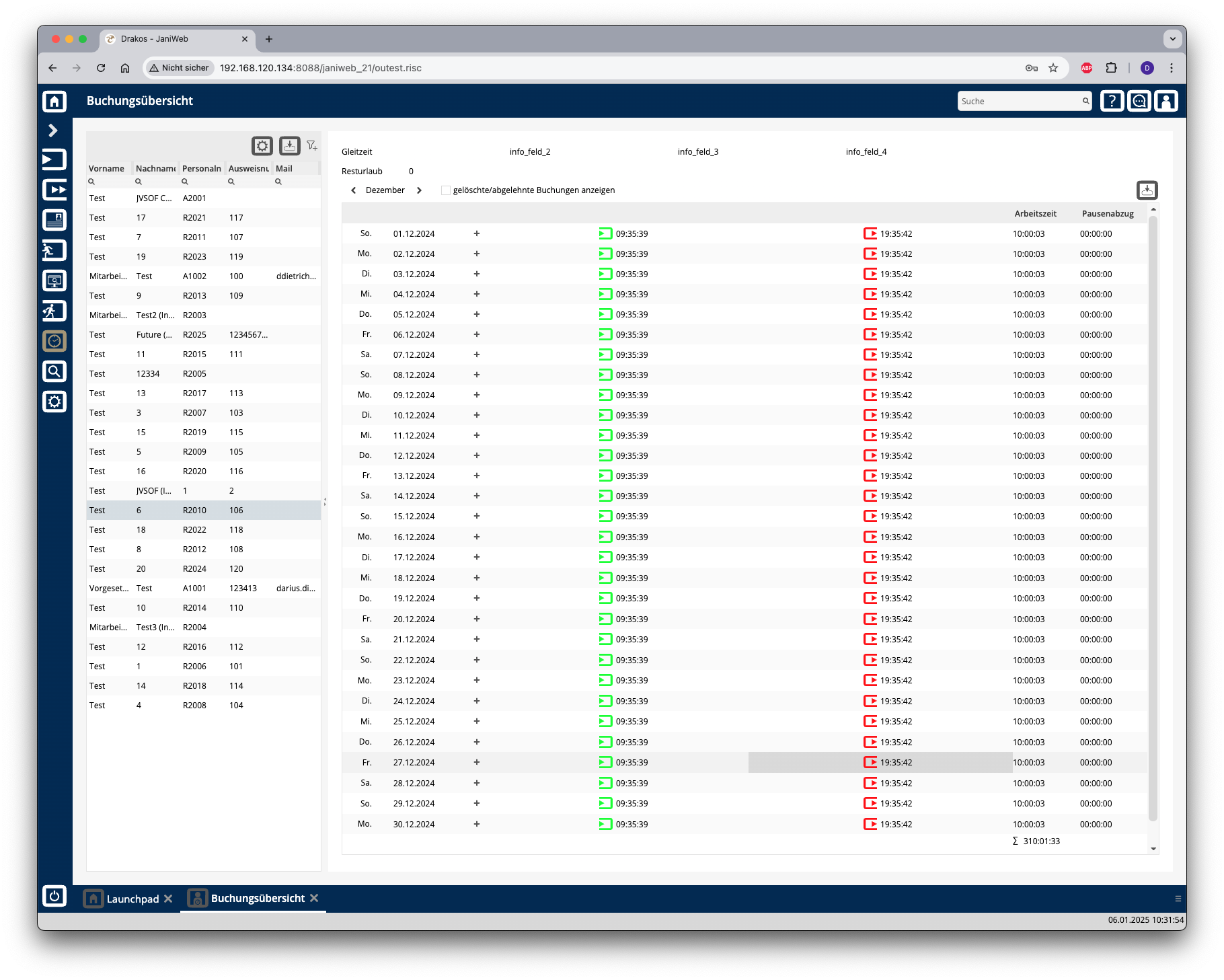
List of persons
The list contains all persons for whom time bookings are available. Select a person to view details.
The list offers the following options:
Tip: Search for substrings. You can find “Spencer-Churchill” with “spe”, “chur” or “hill”. The search is not case sensitive. Export the entire list: Press the download icon. Select the format in which you want to export the list. The export files are downloaded or displayed depending on the browser/operating system settings.For details on the available export formats, see the General > Export Formats chapter of this manual.
Detail area
This is where the time bookings for the selected month appear. You have the following options:
If a workflow is set up for creating a booking, the status of the request is indicated by a colored background:
Empty fields with a red background indicate an error in the sequence of bookings. This can occur, for example, if there is an incorrect sequence of attendance and absence bookings.
Column Working Time
The working time resulting from the time bookings for the day in question appears here. The total monthly working time is shown at the end of the list.
Column Break deduction
The break time appears here, which is either calculated from the break bookings or from defined working time rules. If the booked times fall short of the required break time, the break time of the working time rule(s) automatically appears here together with a clock icon.
Working time rules are specified in Settings > Working Time Report.
Exporting the booking overview
You can export the booking overview. To do so, follow these steps: