
Devices

This menu item allows you to manage the devices for access control and time tracking and to query their status.
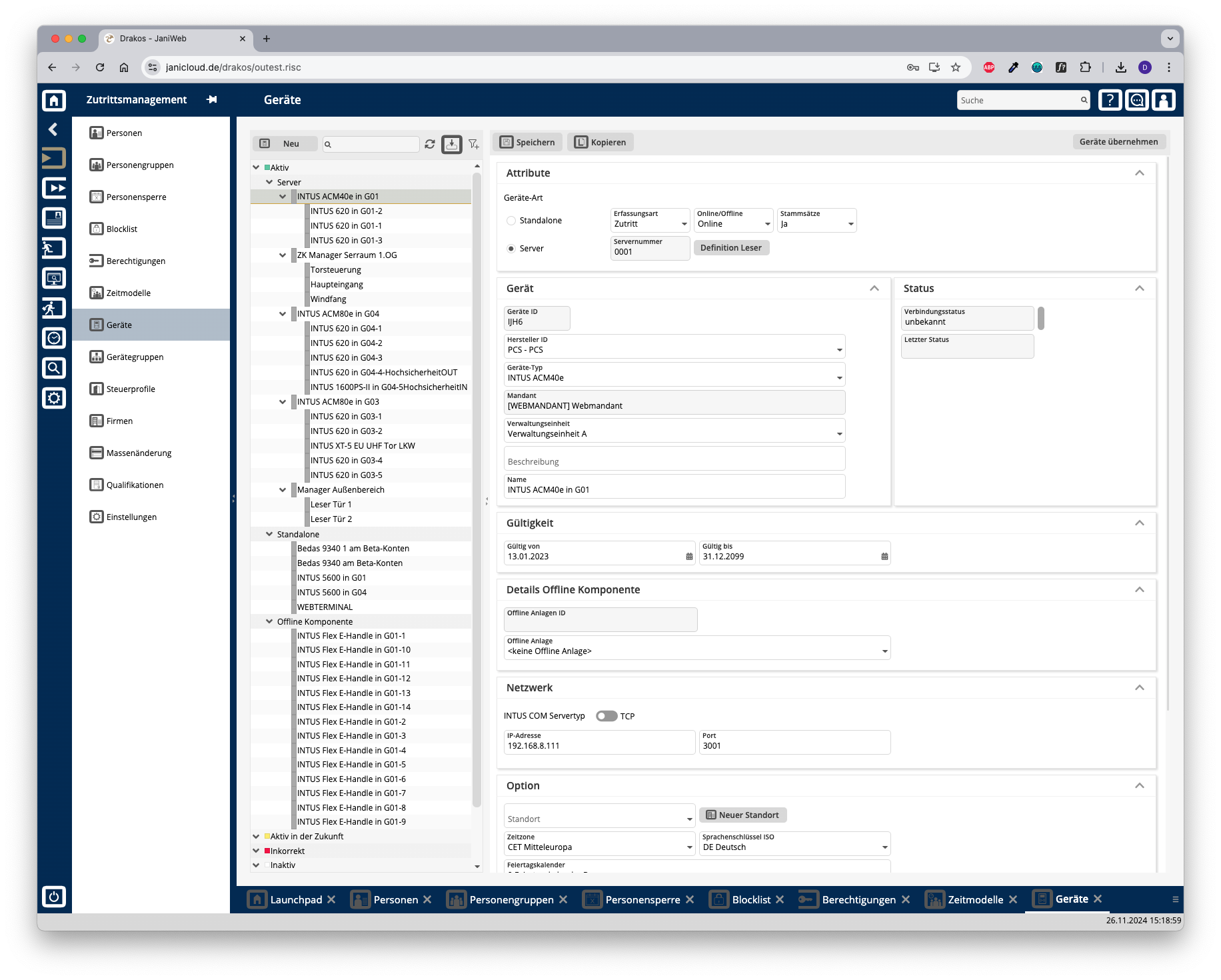
Screenshot 26.11.2024 at 15:18:58 PM.png

List of devices

The list contains the devices that have already been created, sorted by device type. Select a device to view details.

The list offers the following options:

    Search: Enter text or numbers in the search field (magnifying glass icon) at the top to search for devices. The entries take effect immediately: the list only displays hits. The search is not case sensitive. Filter: Press the filter icon. Select the criteria for which you want to display devices. Changes are visible immediately. Refresh: Press Refresh to update the list of devices and their status information. This can be useful for troubleshooting, for example. Export the entire list: Press the download icon. Select the format in which you want to export the list. For details on the available export formats, see the General > Export Formats chapter of this manual.

    Button New

    Press New to create a new device. Enter the required information and press Save.

    Area General

      Select whether the device is a Standalone device, a Server or an Offline component. Specify whether the device is used for Time recording, Access or plant data collection (PDC).

      Button Clients Definition

        Press this button to assign and configure a sub-reader for an access server. Make sure to select the correct Client Position for sub-readers.

        Area Device

        Enter the basic information about the device.

          Select a Manufacturer ID and a Client. Enter a Description and additional information for the device.

          Area Validity

          Define the period during which the device should be active.

          Area Network

          Specify the network settings required for the device.

          Area Options

            Location: Enter a location for the device. Time zone: If you are managing devices in different time zones, make sure that the correct time zone is selected. Holiday Calendar: Select the appropriate public holiday calendar for the device.

            Area Offline Component Details

            Select the Offline Site to which the component belongs. (You can create offline sites under Settings > Tab Offline Components.)

            Parameters for offline components (manufacturer Dormakaba)

                Switch Meaning Values /B/ Summer
              0 - off 1 - on (default) /L/ Light ring
                0 - off 1 - on (default) /E/ Save events
                  0 - off 1 - on (default) /Y/ Sync time
                    0 - off 1 - on (default) /M/ EM_MSG   /V/ Period
                      0 - always 1 - 24 hours 2 - until 12:00 3 - 1 hour 4 - 12 hours 5 - 2 days 6 - 4 days 7 - 8 days /D/ Type

                      0=198, Kaba Elolegic digital cylinder U-Line
                      1=199, Kaba Elolegic C-Lever U-Line
                      2=181, Kaba Elolegic reader U-Line
                      3=239, Kaba Elolegic C-Lever T-Line
                      4=30, Kaba Elolegic digital cylinder L-Line
                      5=218, Kaba Elolegic digital cylinder N-Line
                      6=238, Kaba Elolegic digital cylinder T-Line
                      7=201, Kaba Elolegic reader N-Line
                      8=221, Kaba Elolegic reader T-Line
                      9=183, Kaba Elolegic locker lock U-Line
                      10=222, Kaba Elolegic lock T-Line
                      11=182, Kaba Elolegic lock U-Line
                      12=31, Kaba Elolegic cylinder compact L-Line
                      13=210, Kaba Elolegic cylinder compact N-Line
                      14=230, Kaba Elolegic cylinder compact T-Line
                      15=190, Kaba Elolegic cylinder compact U-Line
                      16=214, Kaba Elolegic cylinder Stulp N-Line
                      17=234, Kaba Elolegic cylinder Stulp T-Line
                      18=194, Kaba Elolegic cylinder Stulp U-Line
                      19=181, Kaba IT lock
                      20=1064, Digital Cylinder Mifare evolo V4
                      21=1048, C-Lever Mifare evolo V4
                      22=1816, C-Lever TouchGo Mifare evolo V4
                      23=1128, C-Lever Mifare compact evolo V4
                      24=1144, Reader Mifare compact evolo V4
                      25=1080,Reader Mifare remote evolo V4
                      26=1320, Digital Cylinder Legic Advant evolo V4
                      27=1304, C-Lever Legic Advant evolo V4
                      28=1384, C-Lever compact Legic Advant evolo V4
                      29=2072, C-Lever TouchGo Legic Advant evolo V4
                      30=1400, Reader Legic Advant compact evolo V4
                      31=1336, Reader Legic Advant remote evolo V4

                      /O/ Mode
                        0 - off (default) 1 - Office mode 2 - Day/Night Mode /Z/ OMZPS   /W/ Offline site
                          0 - (default) /P/ Program master number
                            0 - (default)


                            TIPS
                              Press Copy at the top to create a copy of the selected device, including its properties. The current network connection status and other device status messages appear in the Status area.