
Settings
Use the menu item Settings to make all the settings relevant for time tracking.
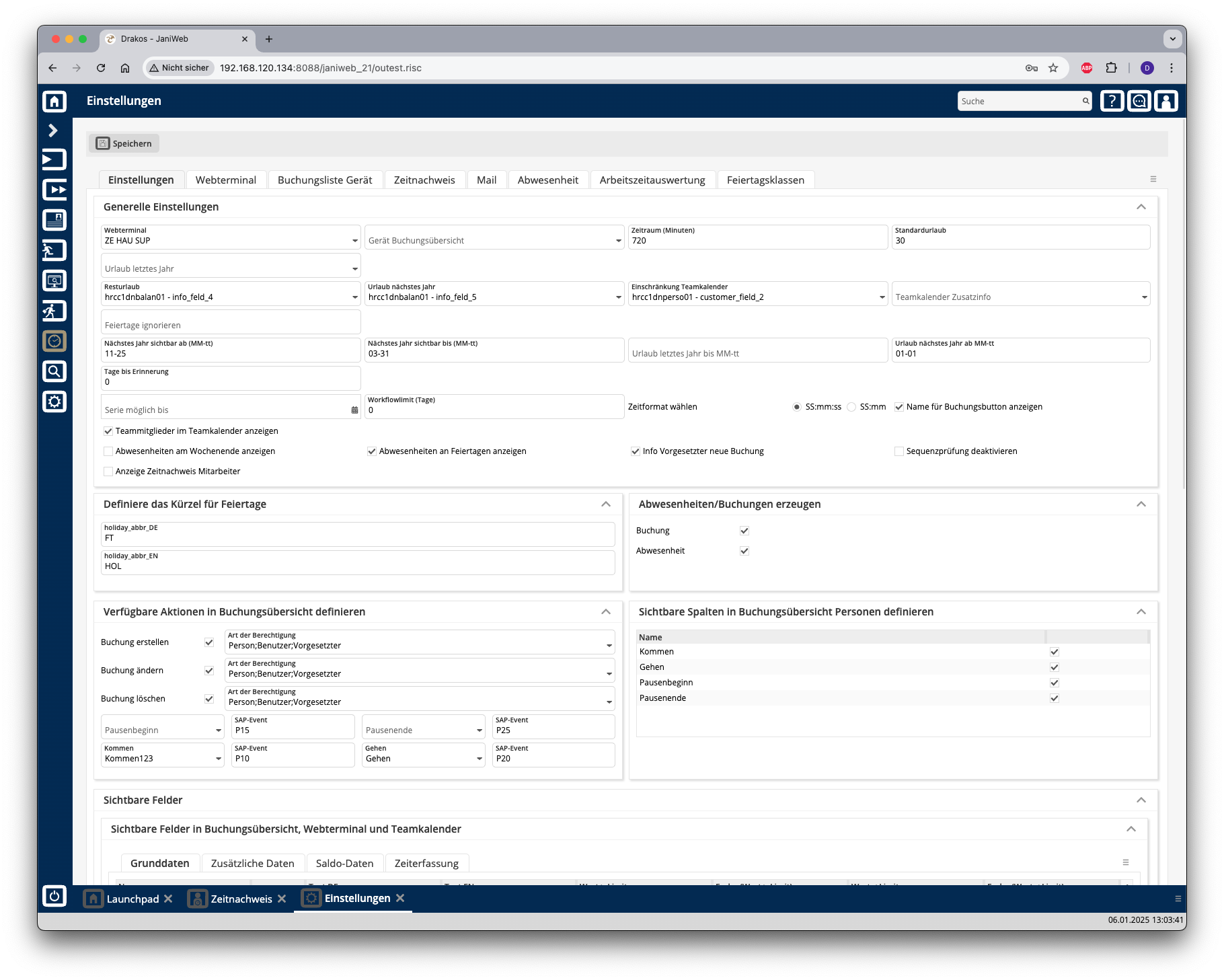
Tab Settings
Area General Settings
Leave current year = remaining leave – leave last year – leave next year.
Leave Next Year: Select the database field containing the leave entitlement for the coming year.
Ignore public holidays: Specify the holiday classes (separated by commas) that should not be displayed in the Team Calendar and should therefore not be used for the leave calculation.
Next year visible from (MM-dd): Specify the day from which the team calendar should be visible for the next year.
Next year visible until (MM-dd): Specify the day until the team calendar should be visible for the next year.
Leave last year until (MM-dd): Define the day until employees can take leave from the previous year.
Leave next year from (MM-dd): Define the day from which employees can plan leave for the next year.
Days until reminder: Enter the number of days after which a reminder email is automatically sent to the supervisor if they have not responded to an absence request.
Show Team Member in Team Calendar: Activate this option if you want team members to be displayed in the Team Calendar.
Display absences on weekend: Activate this option if you want absences to be displayed at the weekend as well and included in the leave calculation.
Info supervisor new booking: Activate this option to inform the manager when an employee makes a late booking via the menu item Booking Overview.
Show Employee Time Sheets: Activate this option if you want to allow supervisors to view their employees’ time sheets (including time sheets from SAP).
Team calendar additional info: Here you can select a database field that will be displayed in addition to the person’s name in the menu item Team Calendar.
Team Calendar Restriction: Select a database field here to further restrict a team (a team consists of all persons who have the same supervisor).
Series possible until: Enter a date here if you want to restrict the period in which employees can create series of absences.
Select time format: Here you can specify whether the times are displayed in hours:minutes:seconds or just in hours:minutes in the Booking Overview.
Show labels for Booking buttons: Activate this option to display the labels for the booking buttons in the Web Terminal menu in addition to the buttons themselves.
Area Abbreviations for Public Holidays
Specify the abbreviations that are displayed for holidays in the menu item Team Calendar.
Area Create Time Recordings/Absences
Activate the corresponding option if you want to allow users to perform Booking Actions and/or Absences via the menu item Booking Overview.
Area Available Actions in Bookings Overview
Use this area to define which persons can create, change or delete bookings via the menu item Booking Overview. Persons are distinguished by:
Area Visible Fields
Specify here which additional information (e.g. balances) should be displayed in the various menu items. The fields Value > Limit, Color (Value > Limit) and Value < Limit, Color (Value < Limit) allow you to highlight values above or below a limit in color.
Tab Web Terminal
Specify the booking buttons for the Web Terminal here.
Tab Device Booking List
Dormakaba devices allow persons to view a list of their most recent bookings using a booking. Specify the appearance of this list here.
Area Visible Columns
Specify which information should be included. Activate the corresponding options.
Area Visible Event Types
Specify which bookings should be displayed. Activate the corresponding options.
Tab Time Sheet
JaniWeb can display time statements from an SAP system in the menu item Time Sheet. On this tab page, you specify whether these time statements should be accessed via the file interface or the SOAP interface.
Enable SOAP: Activate this option to enable the SOAP interface. The fields SOAP URL, SOAP User and SOAP Password also appear. Enter the required data.
Client, Path, File extension: Specify the information for the file interface. One path can be configured for each client.
Tab Mail
Enter an additional text to be included in emails that are sent automatically when creating/approving/rejecting leave requests.
Tab Absence
Use this tab to manage the various types of absences.
List of absence types
The list contains all the absence types that have already been created. Select an entry to view details.
Button New
Press New to create a new absence type. Enter the Description, Client, Validity and any other required data. To set the label, press Translate. Enter the names for the respective languages and press Save.
Tab Working Time Report
Here you define which booking types are used for calculating the working hours in the Booking Overview (top list). You can also create working time rules for the automatic deduction of break times (bottom list).
List of booking types
List of working time rules
Tab Holiday Classes
Here you specify the time valuation for various holiday classes to ensure that leave is calculated correctly.