
Team Calendar
The menu item Team calendar provides an overview of absences in your team and the option to edit them.
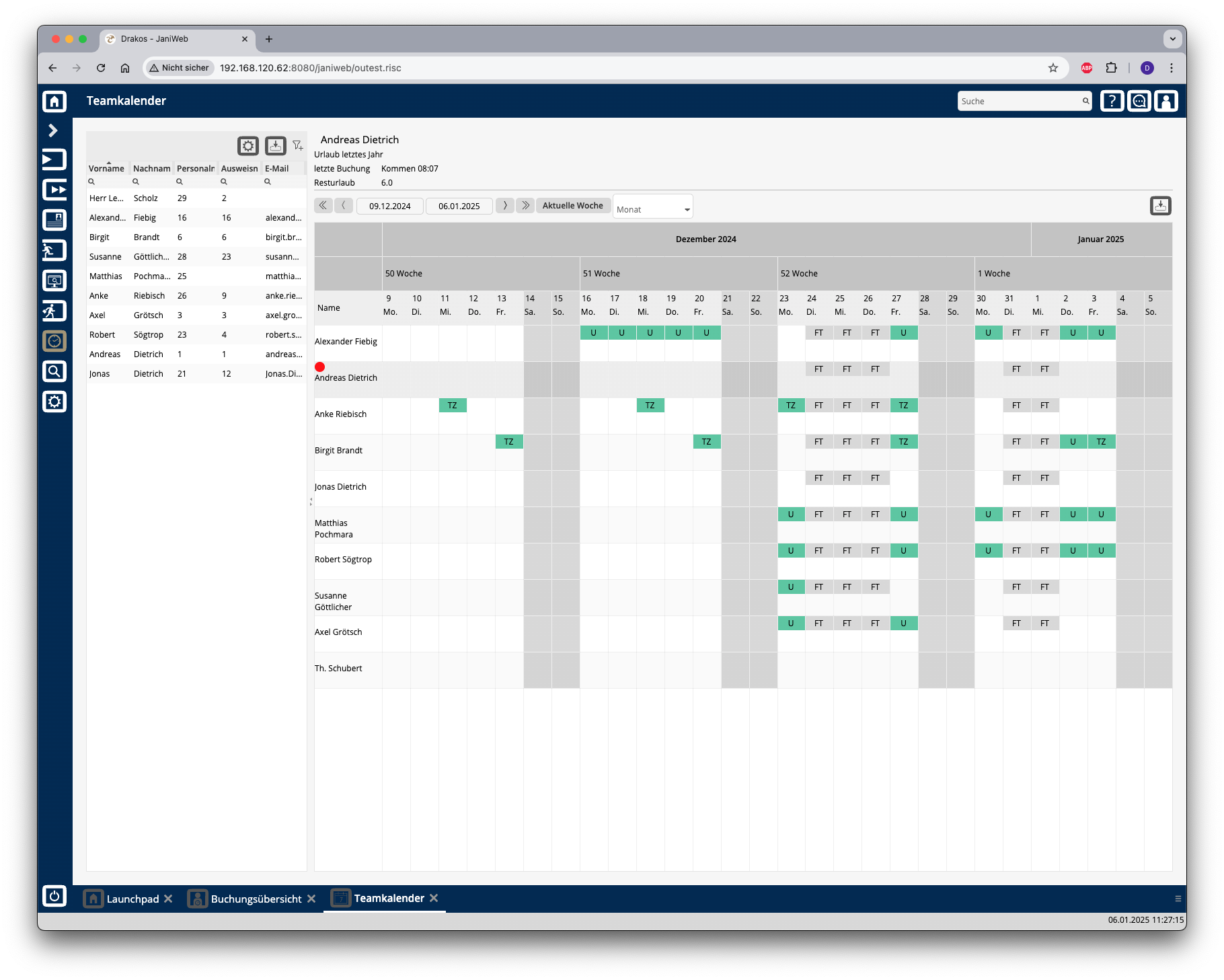
List of persons
The list contains the persons that have already been created. Select a person to view details.
The list offers the following options:
Tip: Search for substrings. You can find “Spencer-Churchill” with “spe”, “chur” or “hill”. The search is not case sensitive. Export the entire list: Press the download icon. Select the format in which you want to export the list. The export files are downloaded or displayed depending on the browser/operating system settings.For details on the available export formats, see the General > Export Formats chapter of this manual.
The list of persons is only visible when you log in as an administrator. When you log in as an employee, only your own team calendar is visible.
Calendar view
Use the arrow icons and selection fields to select a period. Within the calendar, you have the following options:
Create new absence
The absence appears in the team calendar together with an abbreviation for the type (e.g. “FLT” for flextime).
Remove an absence
Absences are marked by a colored background as follows:
You can manage requests for absences in the menu item Workflow.
Exporting the team calendar
You can export the team calendar. To do so, press the Download icon above the team calendar and select the desired export format (Excel or PDF).