
Invite Visitors
You can create a new visitor via the menu item Invite visitor and register directly for a visit.
This menu item is only available if you have logged in as an employee. This menu item is not available if you are logged in as an admin.
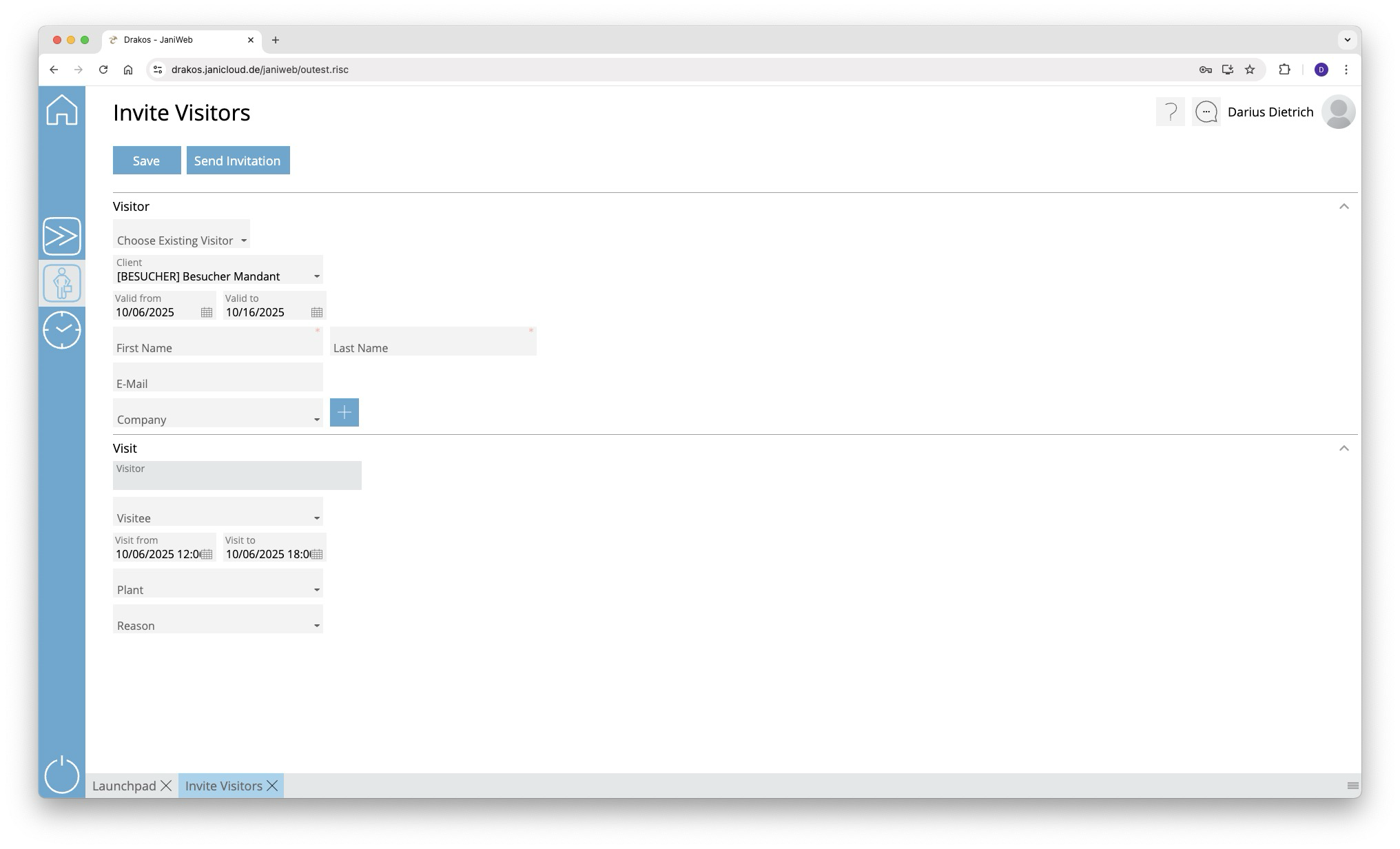
Area Visitor
Here you can create visitors or change information for an existing visitor.
New Visitor
If you would like to create a new visitor, enter the required information for the visitor in the Visitor area and click on Save.
Existing Visitor
If you would like to use an existing visitor, select it in the Choose existing Visitor dropdown. You now have the option to edit the information for the visitor.
Register Visitor Groups
The Add Visitor Group button allows you to register a visitor group for a visit. After clicking the button, a window opens for creating the visitor group.
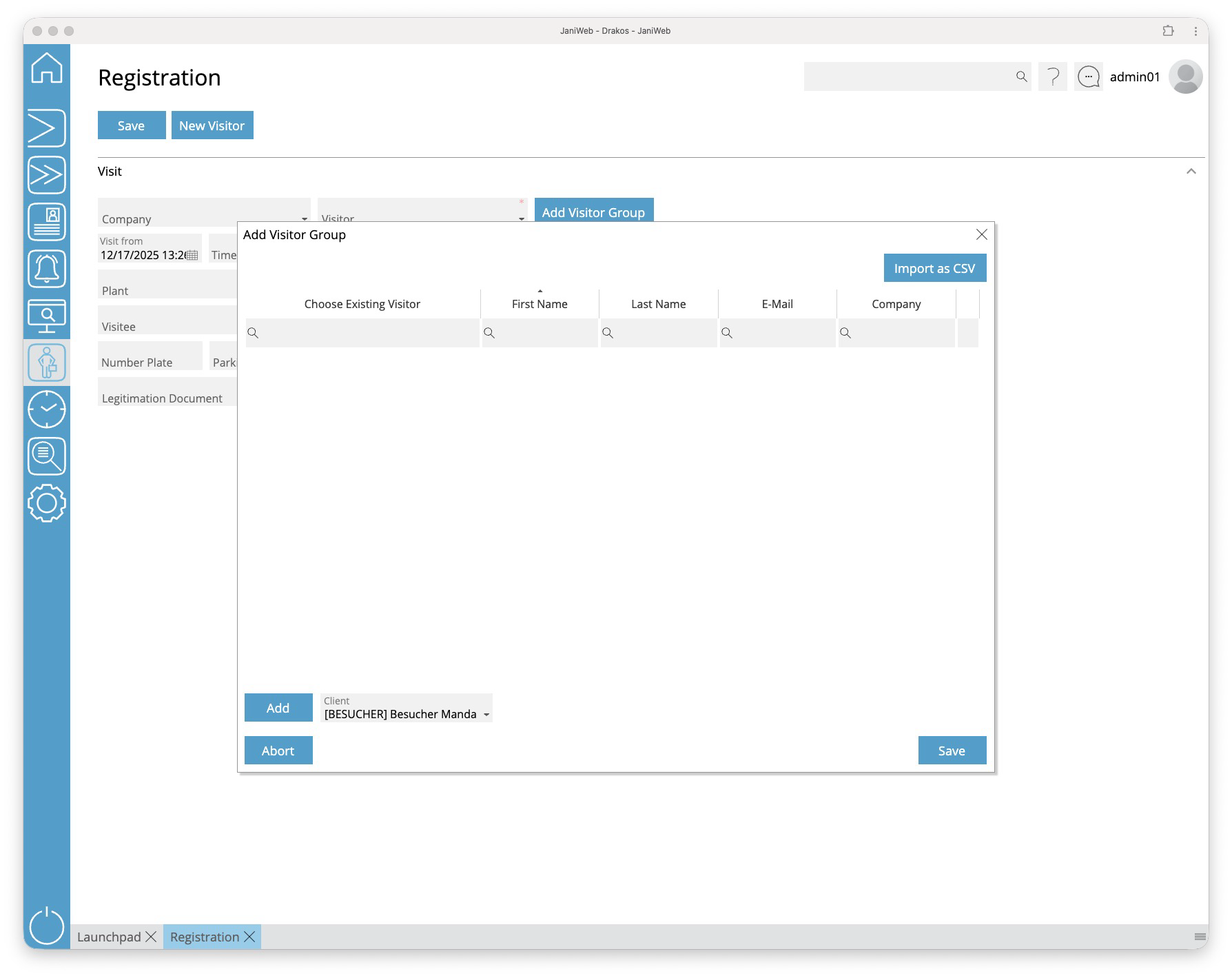
You can add existing visitors to the visitor group using the drop-down menu in the Choose Existing Visitor column. Alternatively, you can enter information for a new visitor in the First Name, Last Name, E-Mail and Company columns.
Use the Import as CSV button to import a visitor group from a CSV file. The structure of this CSV file can be found here.
You can remove existing entries from the visitor group using the Bin-Button.
Finish editing the visitor group by clicking the Save button.
Area Visit
Enter the information for the visit here. Confirm your entries with Save.
Button Save
You can change the details of the selected visitor and create the information for the visit. Press Save to save the changes.
Button Send Invitation
You have the option of sending the visitor an invitation by E-Mail. This invitation gives the visitor the opportunity to register themselves. The process for visitor self-registration of the respective site is used for this.